Timeline feed, filters, and empty states
Timeline feed, filters, and empty states
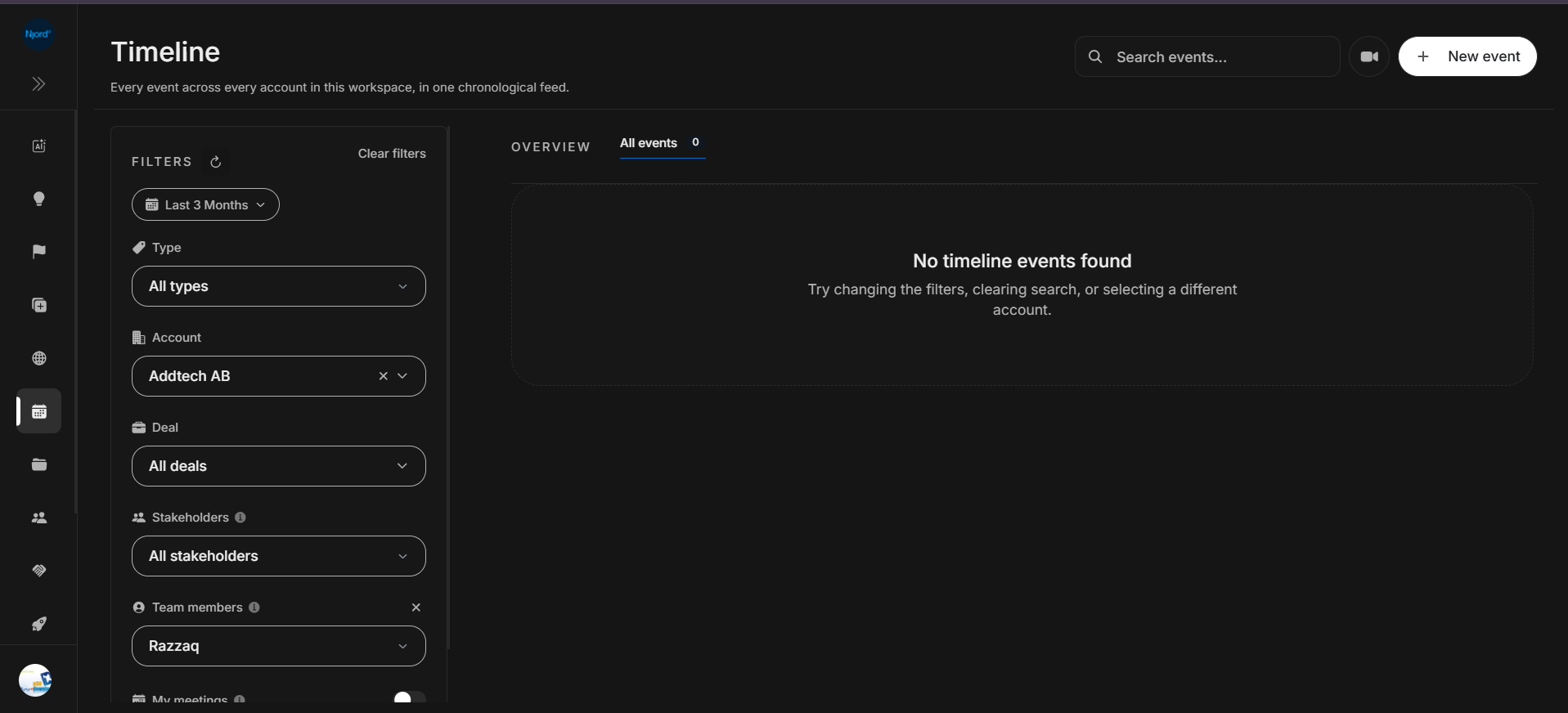
The Timeline filters decide which events appear in the feed. Set the broad scope first, then narrow to account, deal, stakeholders, or team members only when you need that level of focus.
Where it sits in DOE: Timeline > Filters.
Image guide: the filter panel is on the left. The main panel updates to event tabs and cards, or to the empty state when the selected filters have no matching events.
Filter Components
| Component | What it does | Notes |
|---|---|---|
| Refresh icon | Reloads the current filtered timeline view. | Use after changing data elsewhere or after a recent meeting update. |
| Clear filters | Removes your choices and restores the page's default owner scope. | Use first when expected activity disappears. |
| Date range | Controls the event period. | This is usually the first filter to check. |
| Type | Narrows by event category. | Supports multi-select event types. |
| Account | Limits events to one selected account. | Opens a selector with search and advanced account filters. |
| Deal | Limits events to one selected deal. | Often used after account is selected. |
| Stakeholders | Limits events to selected stakeholders. | Shows people with avatar initials and checkboxes. |
| Team members | Limits events to selected workspace members. | Useful for manager review or personal activity checks. |
| My meetings | Shows meetings connected to the signed-in user when enabled. | Can hide workspace events that do not belong to the user. |
| Private Meetings | Includes or focuses private meeting activity, depending on user permissions. | Availability depends on access and event visibility. |
Default Owner And Meeting Scope
Timeline starts with the signed-in user selected when that user is available in the workspace. Clear filters returns to that default; it does not always mean every team member.
My meetings keeps the signed-in user as the owner and shows meeting-note events. Private Meetings focuses on meetings that are visible only to their owner. If a teammate's event is missing, choose that teammate or use the wider workspace scope available to your role.
Date Range
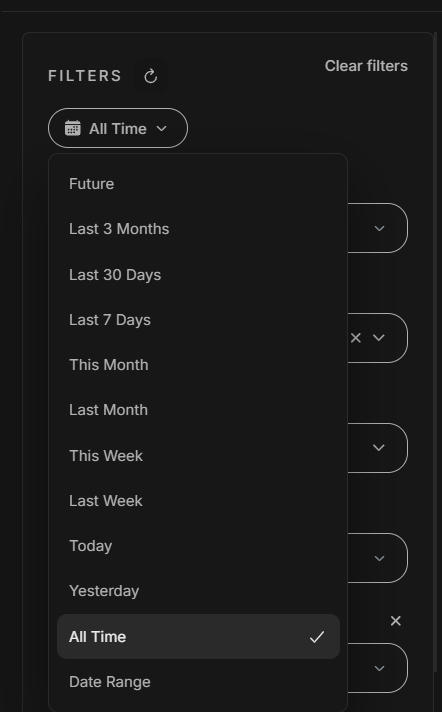
Image guide: the date menu includes future, rolling, calendar-period, same-day, all-time, and custom date-range options. The selected option shows a checkmark.
| Option | Use it when |
|---|---|
| Future | You need upcoming scheduled activity. |
| Last 3 Months | You want a broad recent activity review. |
| Last 30 Days | You need a rolling month-like window. |
| Last 7 Days | You need a focused recent window. |
| This Month | You are reviewing current-month activity. |
| Last Month | You are reviewing the previous completed month. |
| This Week | You need activity from the current week. |
| Last Week | You need activity from the previous completed week. |
| Today | You are checking same-day events. |
| Yesterday | You are checking the previous day's events. |
| All Time | You want every available event in the workspace. |
| Date Range | You need a specific start and end date. |
Type Filter
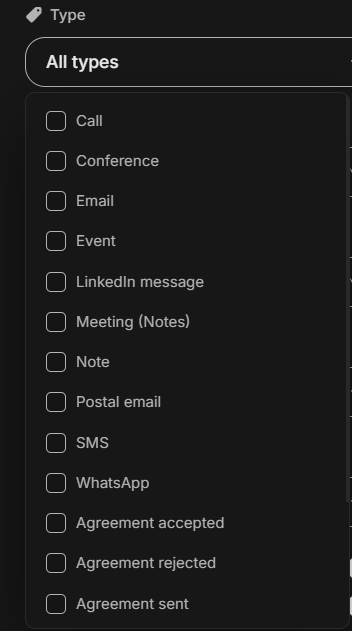
Image guide: the Type menu is a checkbox list. Selecting one or more values limits the feed and updates the event-type tabs.
Visible event types include:
- Call
- Conference
- Event
- LinkedIn message
- Meeting (Notes)
- Note
- Postal email
- SMS
- Agreement accepted
- Agreement rejected
- Agreement sent
Account Selection
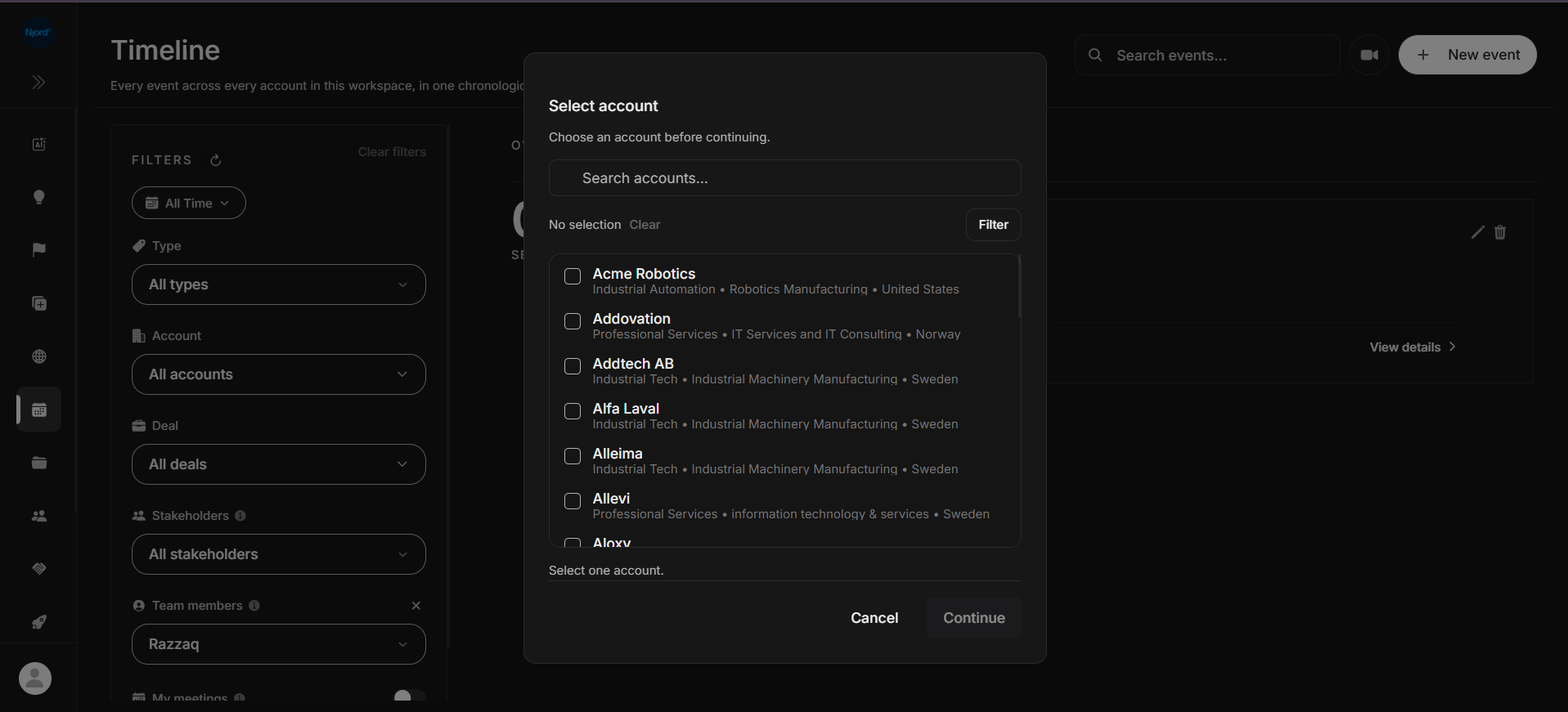
Image guide: when an account is required before continuing, the dialog keeps Continue disabled until exactly one account is selected.
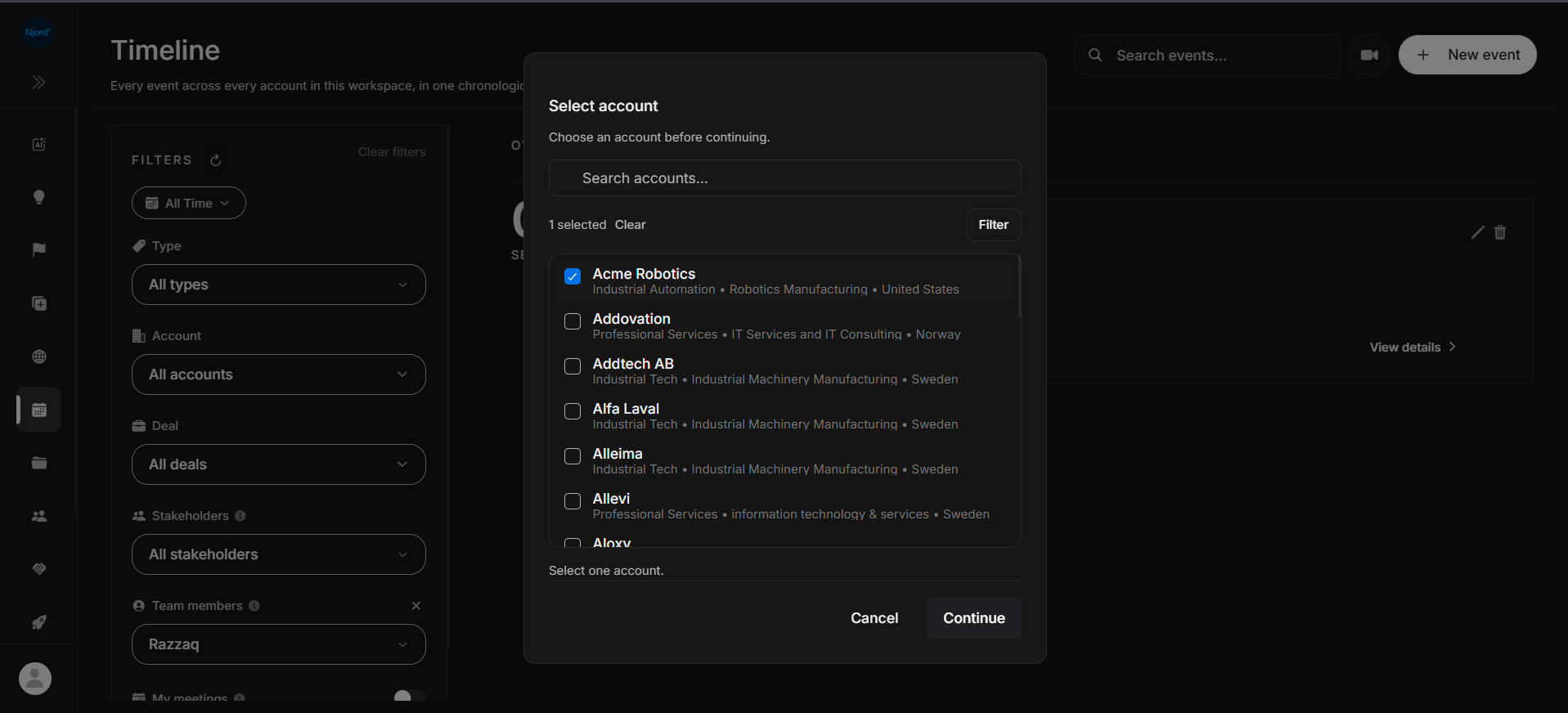
Image guide: after one account is selected, the selected count updates and Continue becomes available.
The account selector shows account name plus context such as market segment, industry, and country. Use the search field for a known account name. Use Clear to remove the current selection.
Advanced Account Filters
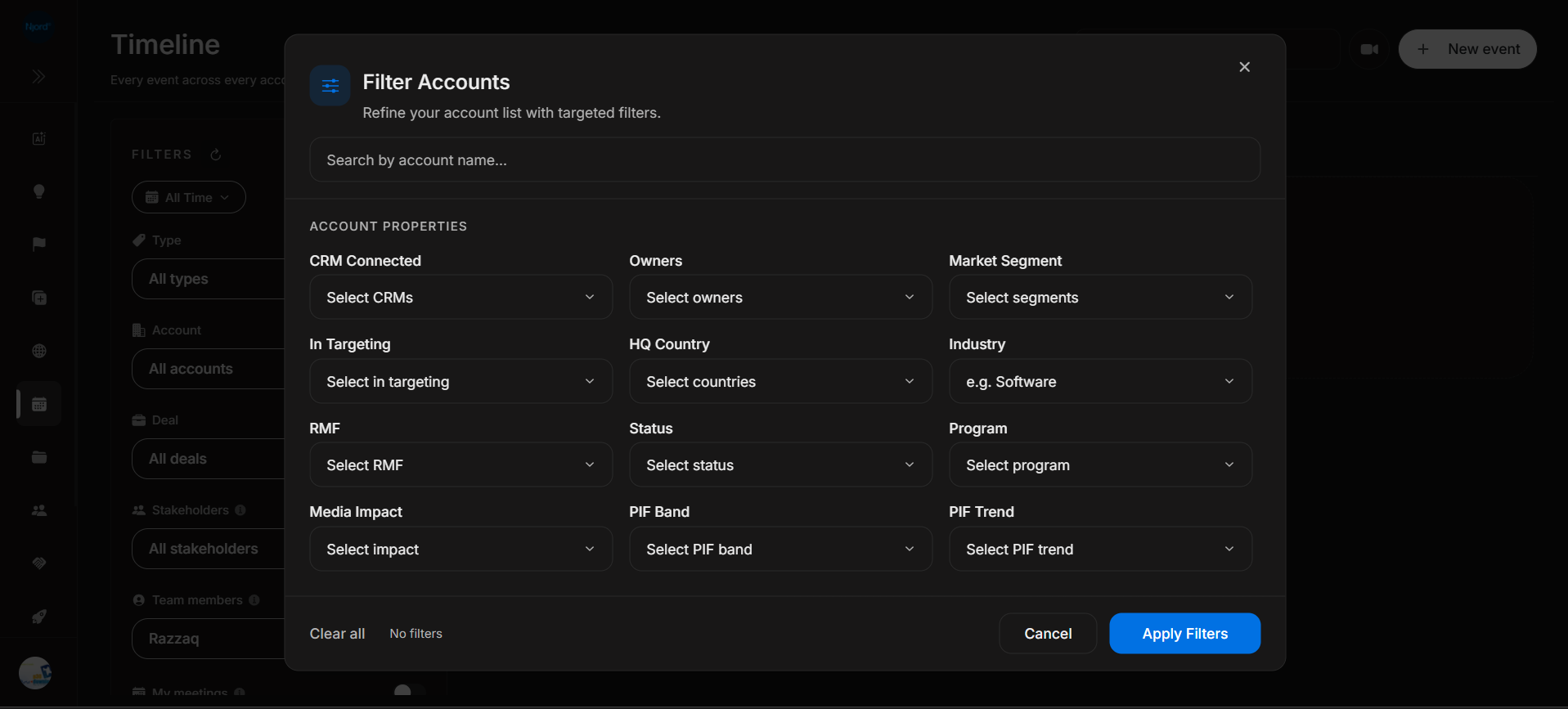
Image guide: Filter Accounts narrows the selector list before you choose an account. Apply Filters changes the account choices, not the event feed directly until you pick an account and continue.
Available account-filter fields shown in the dialog:
- Search by account name
- CRM Connected
- Owners
- Market Segment
- In Targeting
- HQ Country
- Industry
- RMF
- Status
- Program
- Media Impact
- PIF Band
- PIF Trend
Account And Deal Filter Modals
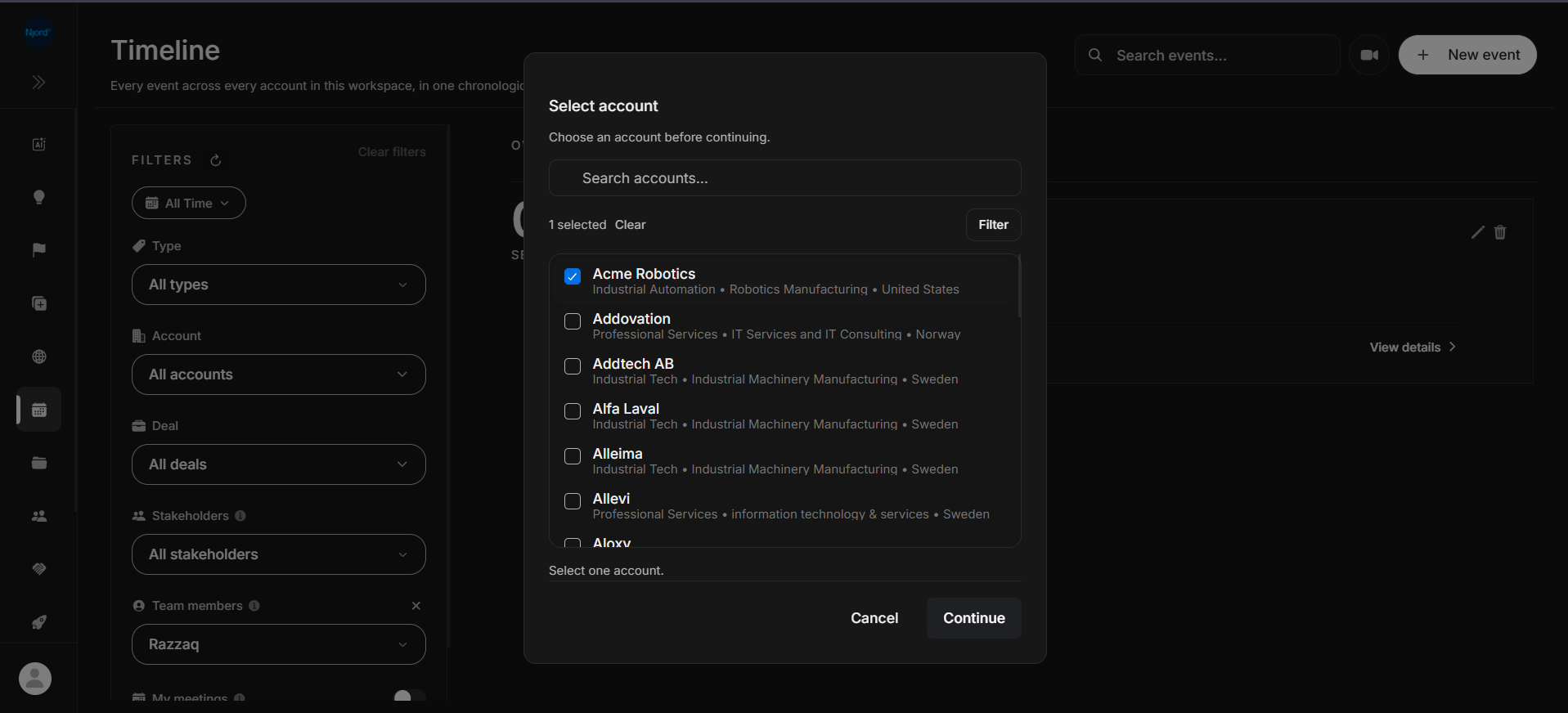
Image guide: the filter version of the account selector uses the same single-selection pattern, with selected count, Clear, Filter, Cancel, and Continue.
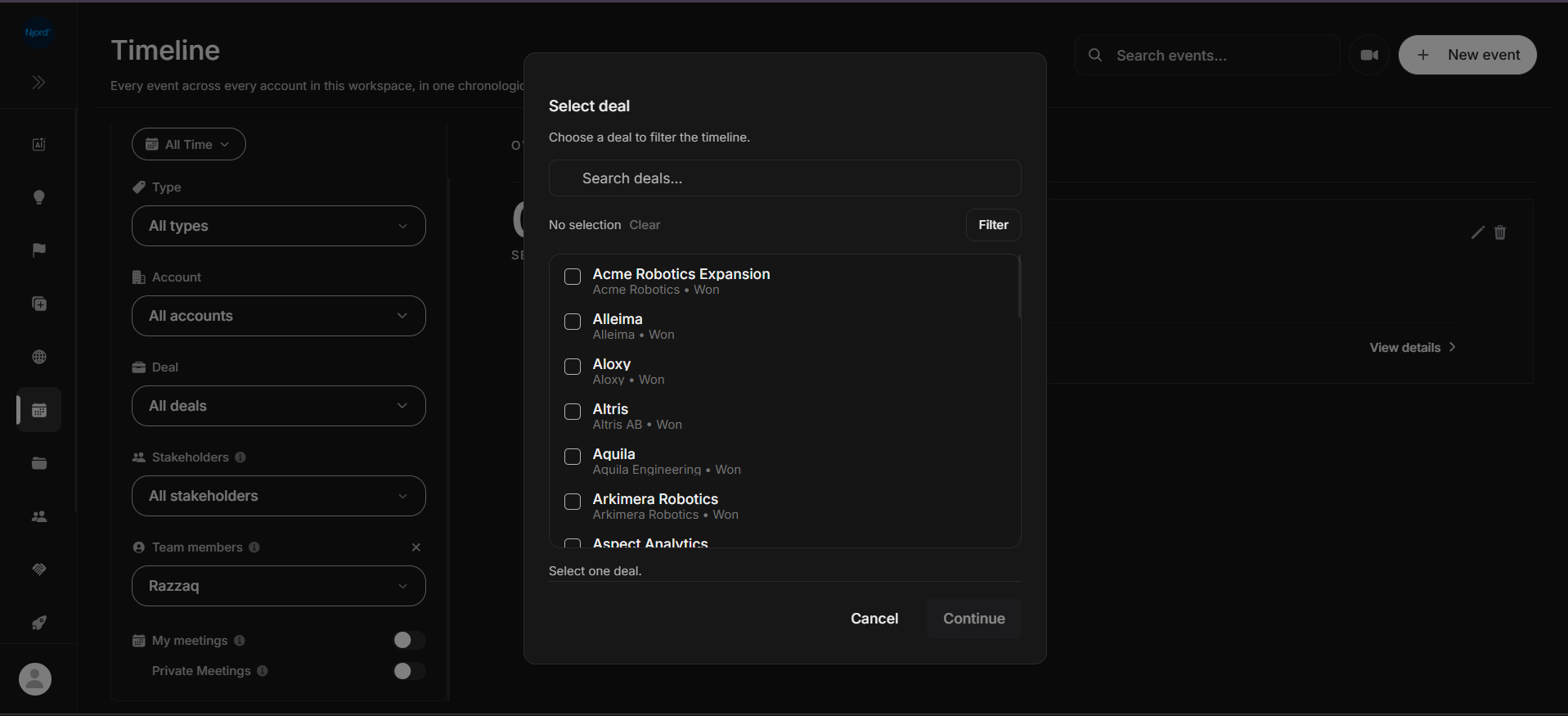
Image guide: the deal selector searches and selects one deal. Deal rows show the deal name plus account/status context, such as "Addovation - Won".
Stakeholders And Team Members
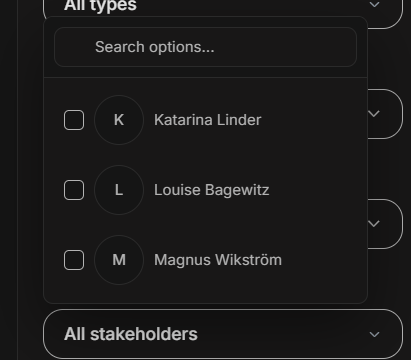
Image guide: Stakeholders uses a searchable checkbox list. Each row shows an avatar initial and the stakeholder name.
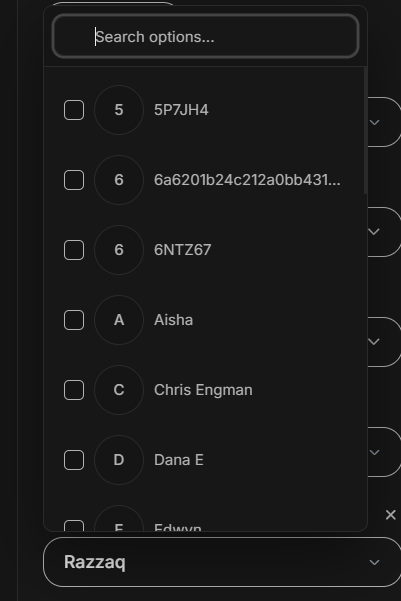
Image guide: Team members uses the same searchable checkbox pattern. The main field shows selected users such as Razzaq.
Meeting Visibility Toggles
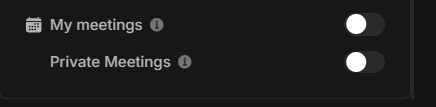
Image guide: My meetings and Private Meetings are switches at the bottom of the filter panel. They can strongly narrow the feed, so check them when events seem missing.
Empty State
The empty state says No timeline events found and suggests changing filters, clearing search, or selecting a different account.
| Symptom | What to do |
|---|---|
| Empty after choosing an account | Try All Time, then clear Deal, Stakeholders, and Team members. |
| Empty after choosing a type | Switch back to All types or check All events count. |
| Empty after searching | Clear search before changing the date range. |
| Empty after enabling My meetings | Turn it off to return to workspace-wide activity. |
| Empty for a known upcoming meeting | Try Future or All Time, then check note-taker/calendar setup. |
| Empty after private meeting toggle | Clear the toggle unless private visibility is the review focus. |