Import stakeholders
Import stakeholders
Use Import on the Stakeholders list when you need to add people from a file or from a connected CRM.
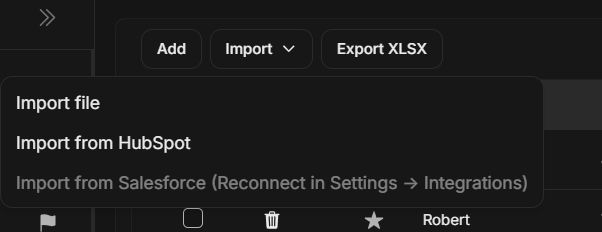
The menu sits beside Add and Export XLSX. Stakeholders has a file-import path and CRM import paths, so choose the source that matches where the people records live.
Import Choices
| Choice | Use it when |
|---|---|
| Import file | You have a stakeholder/contact file to upload into DOE. |
| Import from HubSpot | HubSpot is connected and you want to import stakeholder/contact records from HubSpot. |
| Import from Salesforce (Reconnect in Settings -> Integrations) | Salesforce is configured but needs reconnection before Salesforce import can be used again. |
The Salesforce reconnect message means the integration is not ready from this menu. Open Settings > Integrations, reconnect Salesforce, then return to Stakeholders and open Import again.
Before Importing
- Confirm you are in the right workspace.
- Confirm the import source is the one you intend to use.
- For file import, check that the file uses the expected stakeholder fields.
- For CRM import, confirm the CRM connection is active.
- Confirm imported people should be added to this workspace and linked to the right accounts.
Import A Stakeholder File
- Open a Stakeholders table and choose Import > Import file.
- Select an XLSX, XLS, or CSV file.
- Include these required columns: account, firstname, lastname, position, and location.
- Use the DOE account ID from the account page URL in account. Use a two-letter country code, such as SE, in location.
- Optionally include email, linkedin, and avatar.
- Upload the file and keep the result dialog open while you review created rows, rejected rows, warnings, and file errors.
The whole file is checked before creation starts. If any row fails validation, no stakeholders are created; correct the rejected rows and upload the full file again. Duplicate emails, unknown accounts, country names instead of two-letter codes, invalid links, or a comma placed in the wrong CSV column are common causes.
Imported stakeholders are not automatically added to ad targeting. Review the new people first, then update targeting deliberately.
After Importing
Review imported stakeholders before using them in targeting or deal work. Check name, account, position, source, type, traffic light, location, targeting state, and available contact/profile fields.
Use Quick Search or Filter after import to confirm the expected people appear. If you need a spreadsheet copy after review, use Export XLSX from the same toolbar.
Troubleshooting
| What you see | What to do |
|---|---|
| Import file is unavailable | Confirm your role can import stakeholder files in this workspace. |
| CRM import option is disabled | Reconnect the integration in Settings > Integrations. |
| Expected CRM provider is not listed | Confirm the provider is connected for this workspace and your role can use it. |
| Imported stakeholder is not visible | Clear Quick Search and filters, then search by name or account. |
| Stakeholder is missing account context | Confirm the file or CRM record contains the correct account relationship. |