Filter stakeholders using the summary cards
Filter stakeholders using the summary cards
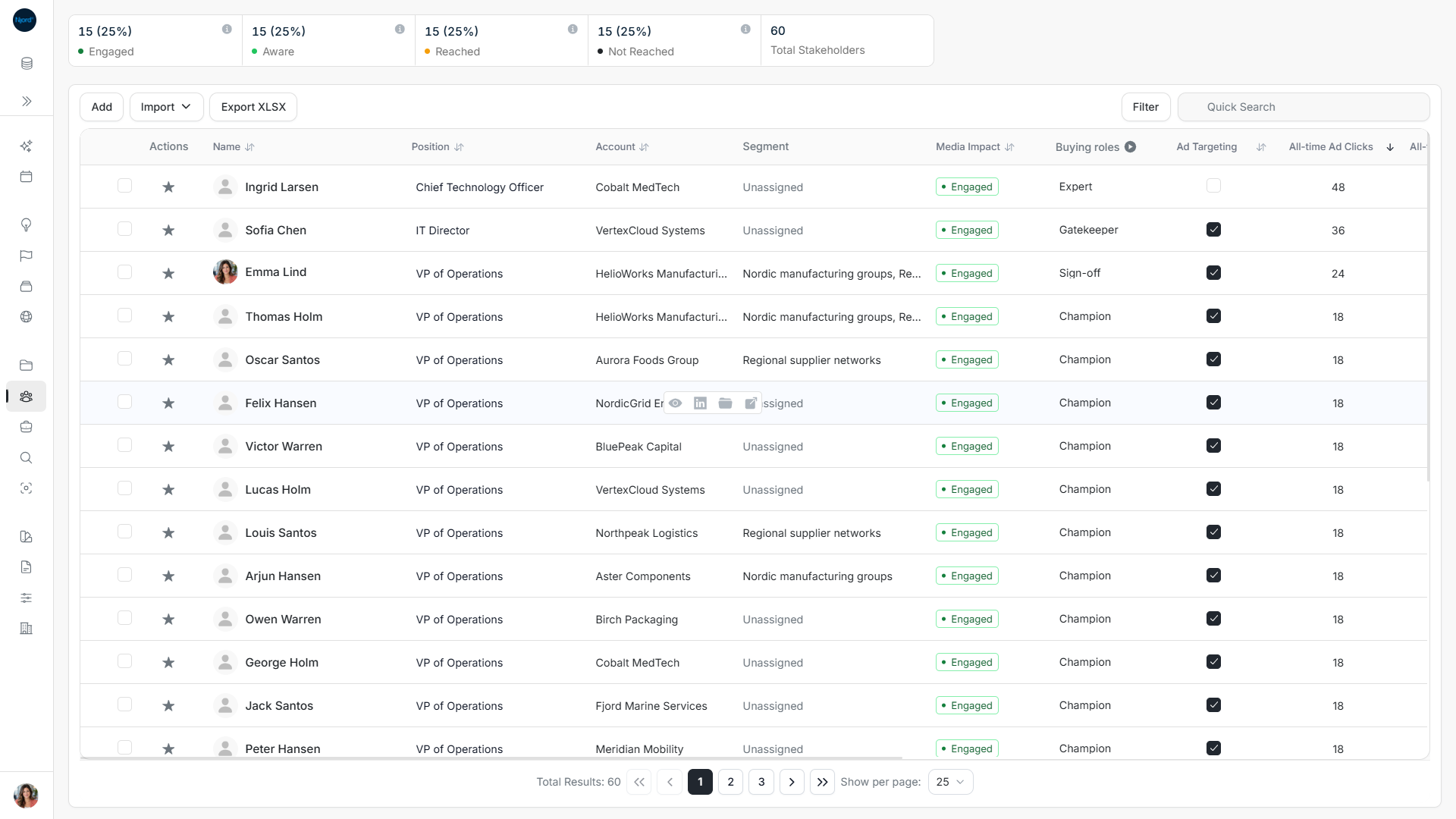
The cards above Stakeholders show how many people are in each reported media impact group. Scroll the strip horizontally if some cards are out of view.
Stakeholder summary cards
| Card | What it shows | What to check next |
|---|---|---|
| Engaged | People with a reported Engaged status. | Open the profile and review the latest reported click, ad CTA and recent activity before outreach. |
| Aware | People with a reported Aware status. | Check the person's ad activity and Buying roles to decide whether they need more follow-up. |
| Reached | People in the reported Reached group. | Check the person's profile and delivery information to see whether you are reaching the intended people. |
| Not Reached | People in the reported Not Reached group. | Review their contact record and Ad Targeting memberships before changing targeting. |
| Total Stakeholders | The number of people in the summary scope. It is the denominator for the impact percentages and does not apply a filter. | Compare the workspace and data scope before comparing totals with another teammate. |
Image guide: Read Name, Position and Account together. The summary cards count people by media impact.
Filter the list
- Select Engaged or another impact card. The underline and the Media Impact filter show your selection.
- Select another card to include people from either group. Select an underlined card again to remove that group.
- Read the matching rows and Total Results. To broaden the list, remove the Media Impact filter and check any other filters or Quick Search.
In this example, selecting Engaged returns 15 of the 60 people in the fictional workspace. Open an individual profile to review their activity and the company they belong to.