Workspace invitations: the complete journey
Workspace invitations: the complete journey
For Client Admins. Members can accept an invitation; sending and managing invitations requires Client Admin access.
Use this guide to follow a teammate from the invitation request to usable workspace access. The administrator sends and monitors the request; the invited teammate completes any first-password setup.
Choose the illustrated workflow
| Task | Guide |
|---|---|
| Open Members and invite a new or existing email | Invite teammates to your workspace |
| Understand statuses, progress, email search and refresh | Track and manage invitations |
| Retry a recoverable request or resend when offered | Retry or resend an invitation |
| Cancel a pending request and verify the result | Cancel a workspace invitation |
| Complete first-password setup or switch invited identity | Accept a workspace invitation |
| Recover an expired link or failed setup | Fix invitation and setup problems |
Administrator: invite the correct email
- Check the active workspace in the workspace menu.
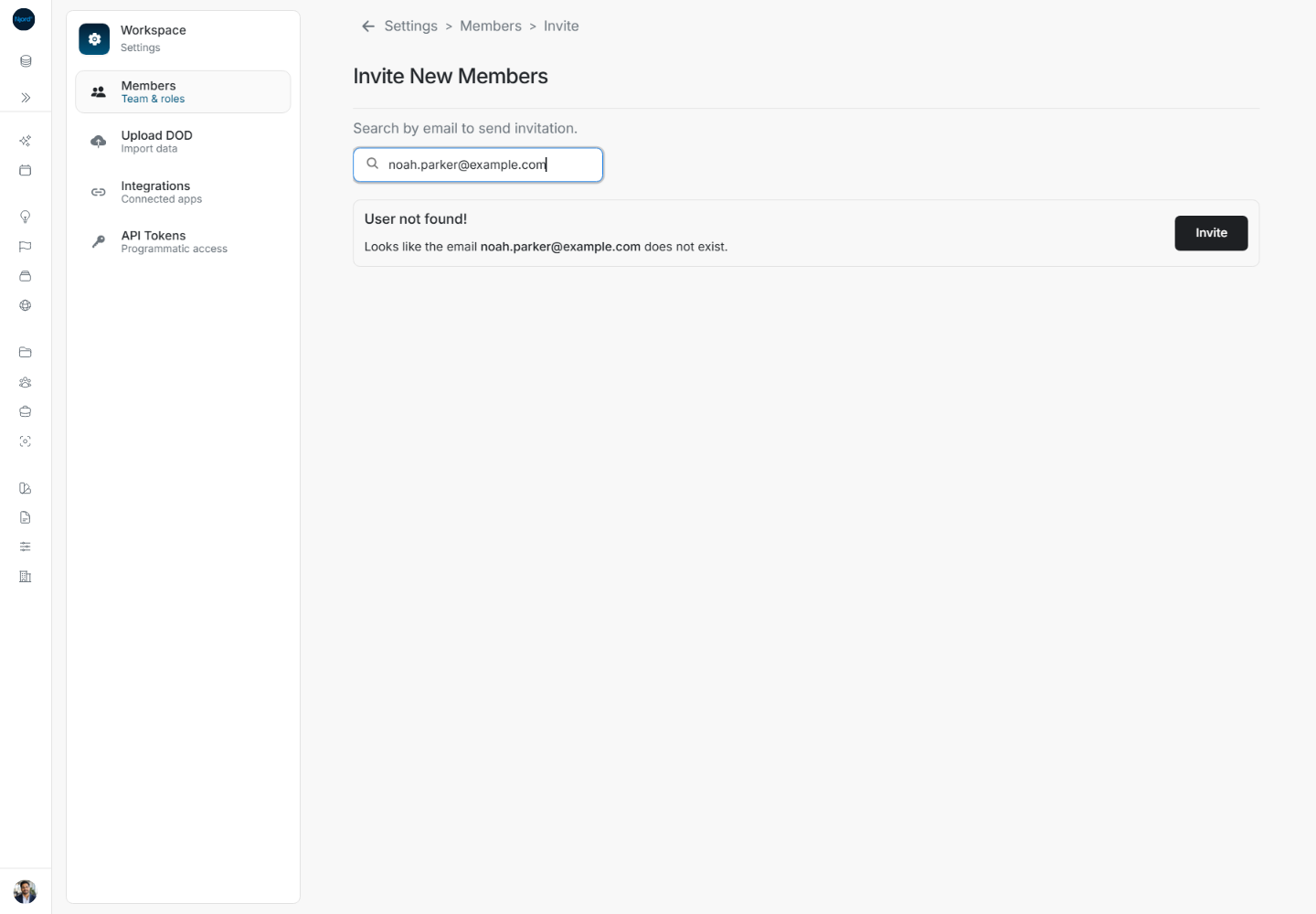
- Choose Settings, open Members, then use Invite Member / Invite member to reach Invite New Members.
- Enter the complete address in Search by email... and wait for lookup.
- Review the matching account or the User not found! new-user result. Choose Invite for the intended address.
Administrator: inspect the pending result
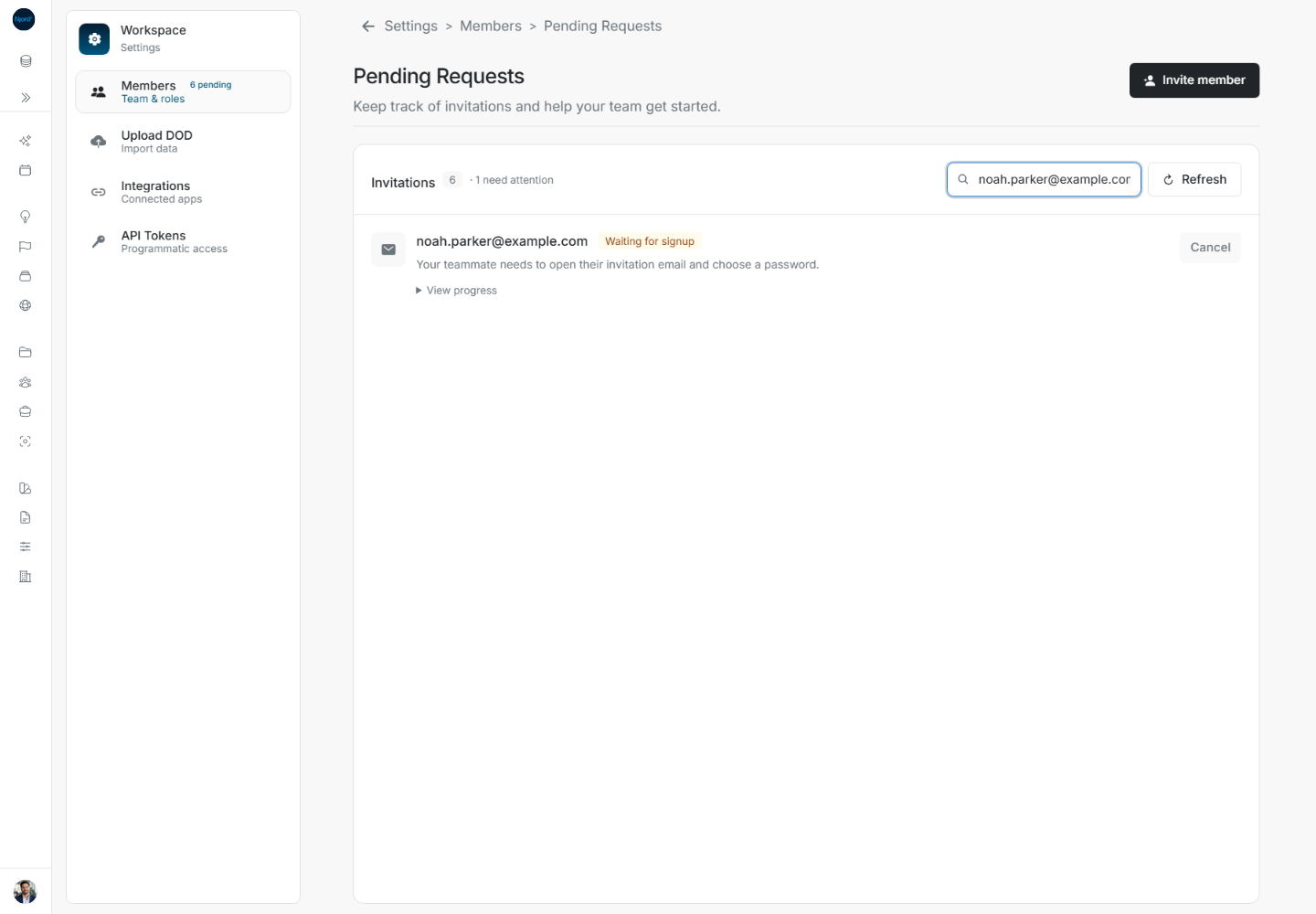
When setup is needed, continue in Pending Requests. Search for the exact address and read its status. Waiting for signup means the recipient must continue; it does not mean membership is fully usable. Expand View progress to distinguish Workspace access, Member setup and Password setup email.
Recipient: complete the invitation
Open the invitation email for that address and follow its valid setup link. On Complete your sign-up, check the named identity, choose a password meeting the displayed requirements and enter the same confirmation. A different signed-in identity can require a switch-account acknowledgement.

Choose Complete sign-up once and follow the resulting page. If it says Your account is ready, sign in to the app with the invited address and the saved password. An existing active account uses its normal sign-in method and may not receive a first-password setup link.

Verify access and handle the next action
The recipient should check that the intended workspace is available after signing in. The administrator should refresh Pending Requests and check the resulting membership in Members. A completed request may disappear from Pending Requests; its disappearance alone should not be used as proof that the intended person can access the workspace.
If the row Needs attention, use its offered retry action. If the link is expired, follow setup-link recovery. If the wrong address was invited, cancel that request and create a separate request for the correct address; there is no email-edit action on the pending row.