Invite teammates to your workspace
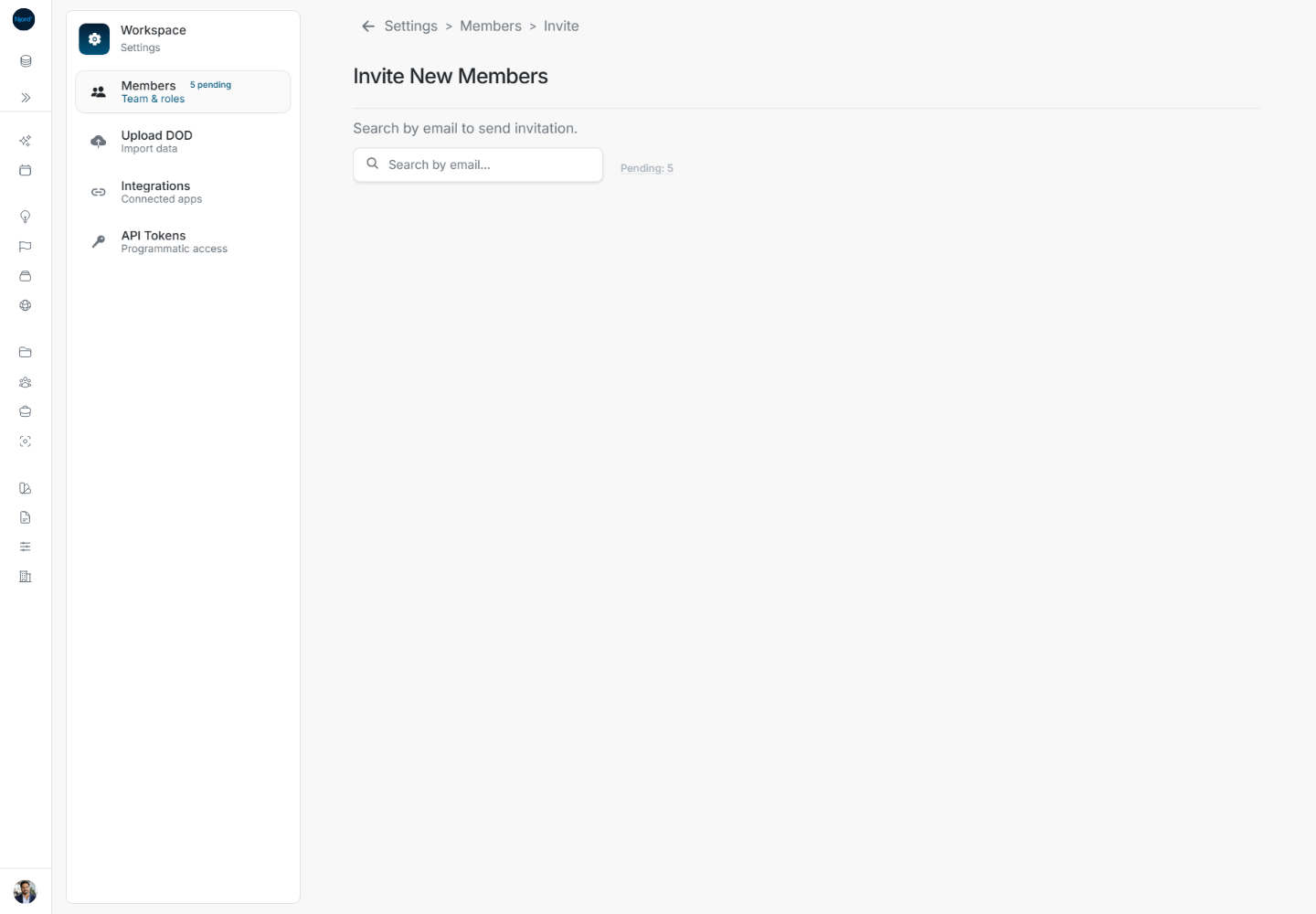
Invite teammates to your workspace
For Client Admins. Members can accept an invitation; sending and managing invitations requires Client Admin access.
Follow the complete invitation journey, or open retry/resend and cancellation for their full illustrated steps.
Invite a teammate when they need access to your workspace. Check the email and workspace before sending an invitation.
Before you begin
Owners, Admins, and Client Admins can manage team invitations for the active workspace. Regular Members cannot use these invitation actions. Your role does not grant access to every other member’s administration settings.
Send an invitation to a new email address
- Open the workspace menu, choose Settings, and open Members.
- Choose Invite Member or Invite member to open Invite New Members.
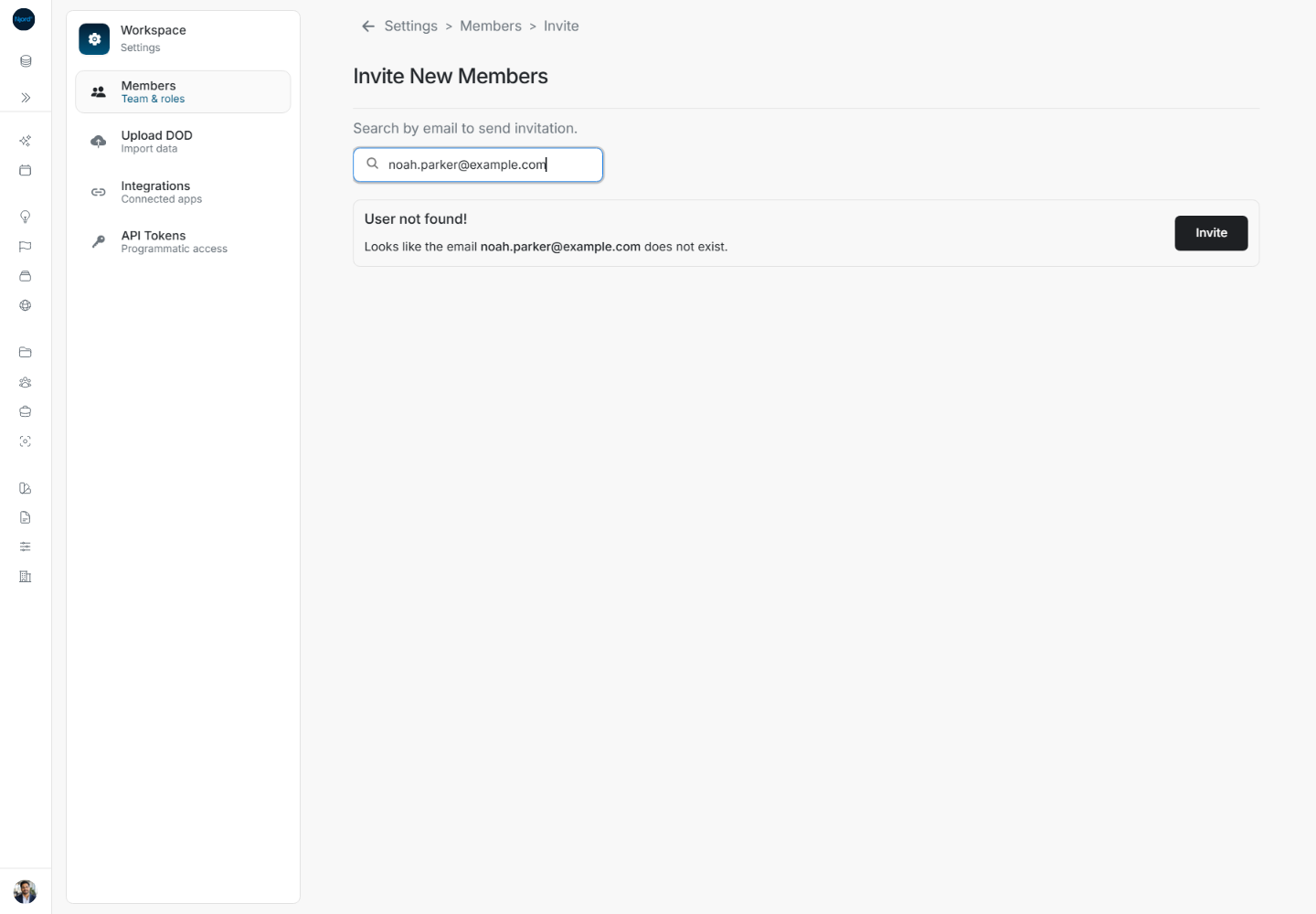
- Enter the teammate's complete email in Search by email.... The lookup runs for a valid email address; incomplete text may show no result or Invite action.
- If User not found! appears, check the spelling. This means the lookup did not find an existing account; it still offers Invite for a new teammate.
- Choose Invite once and wait for the result. The action is disabled while sending.
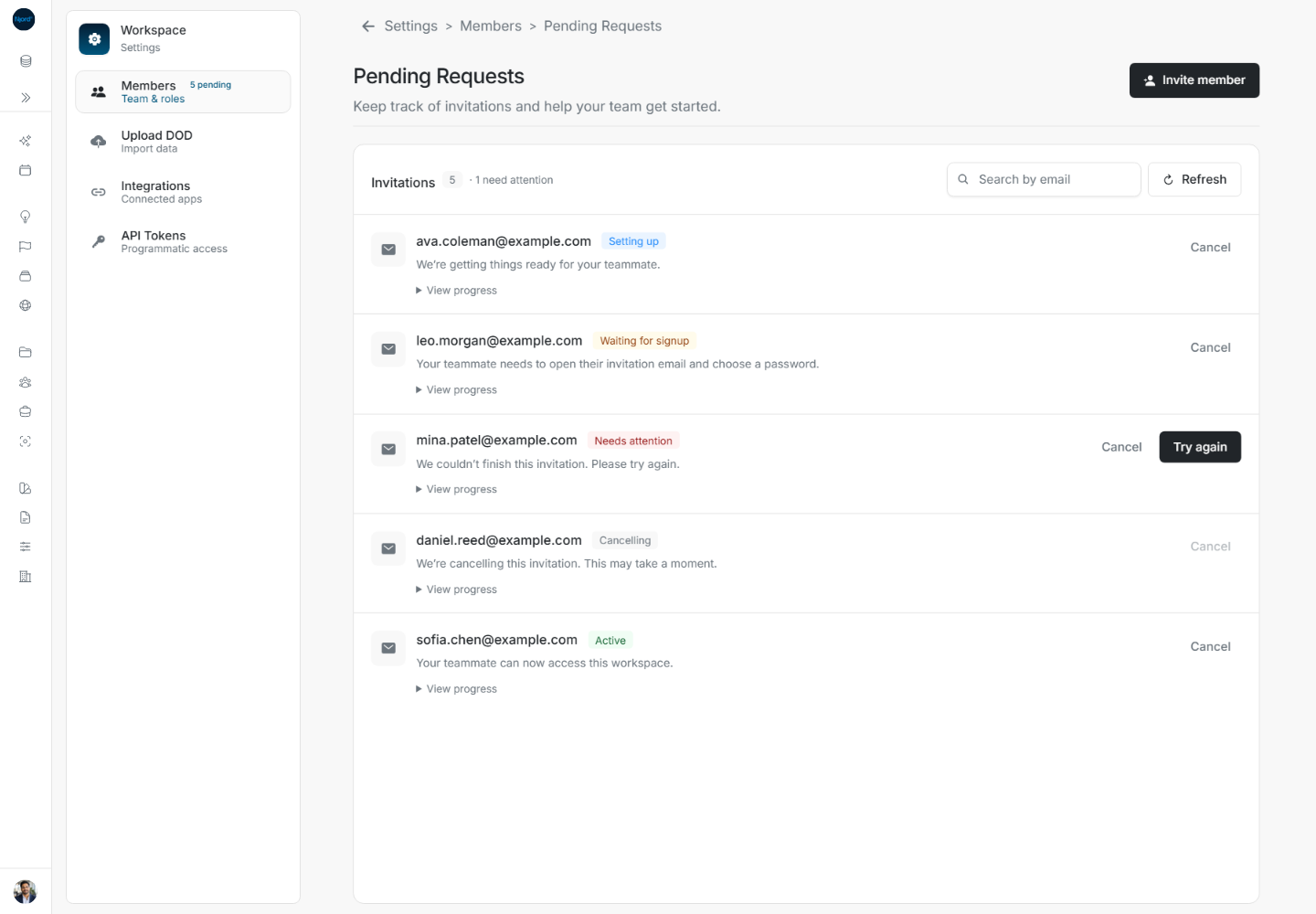
- When the invitation needs setup, continue in Pending Requests and check its status.
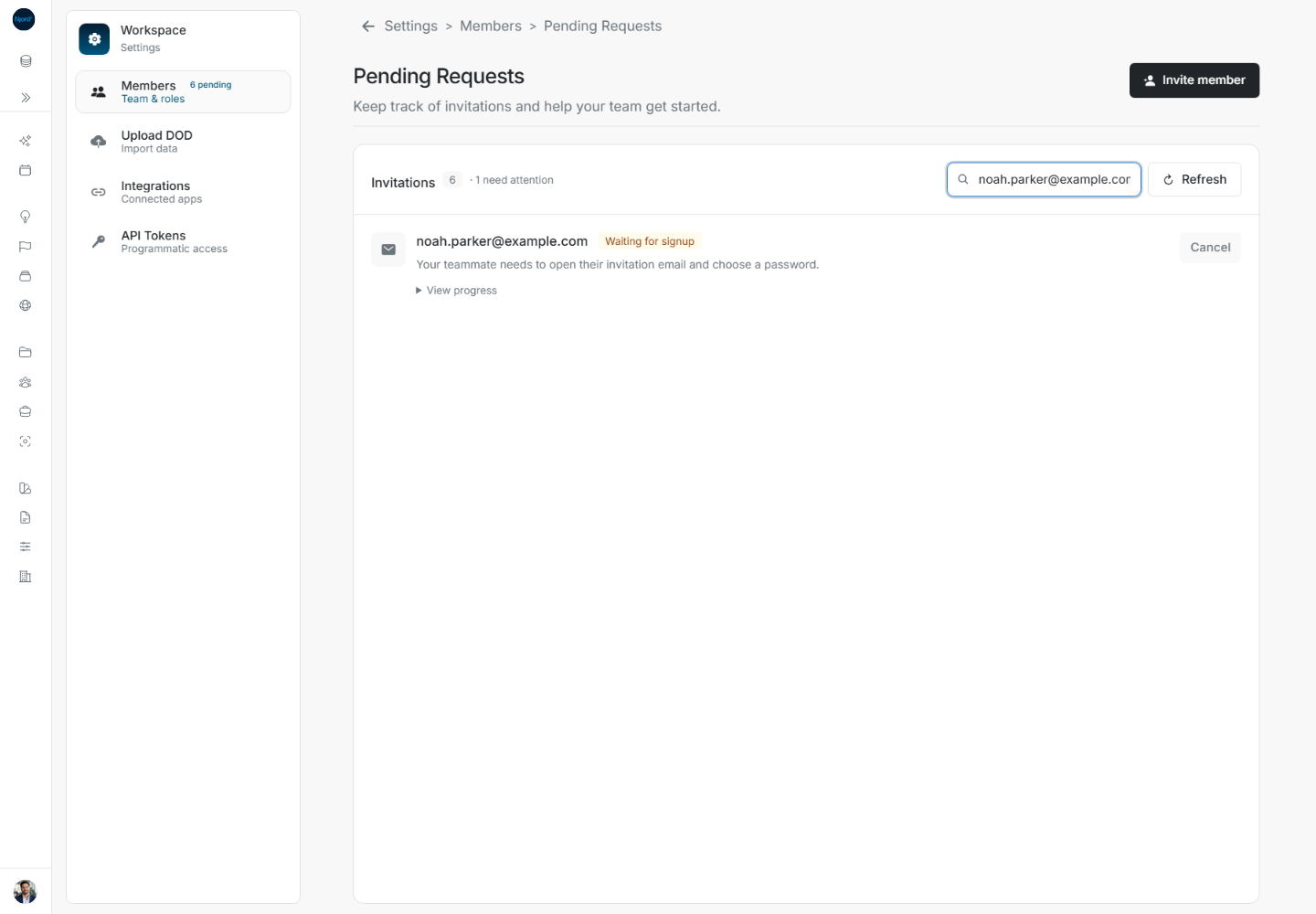
Check the created invitation
Use the email search in Pending Requests to find the exact address. The example shows Waiting for signup, which means the teammate still needs to open the invitation email and finish password setup. Creating the invitation and completing membership are separate steps.
Invite an existing account
When the email matches an existing account, review the Member result and its Invite action. A result marked Joined is already confirmed as a member, and its invitation action is disabled. A verified existing account can be added through the direct membership path; it does not need a new first-password setup link for each workspace.
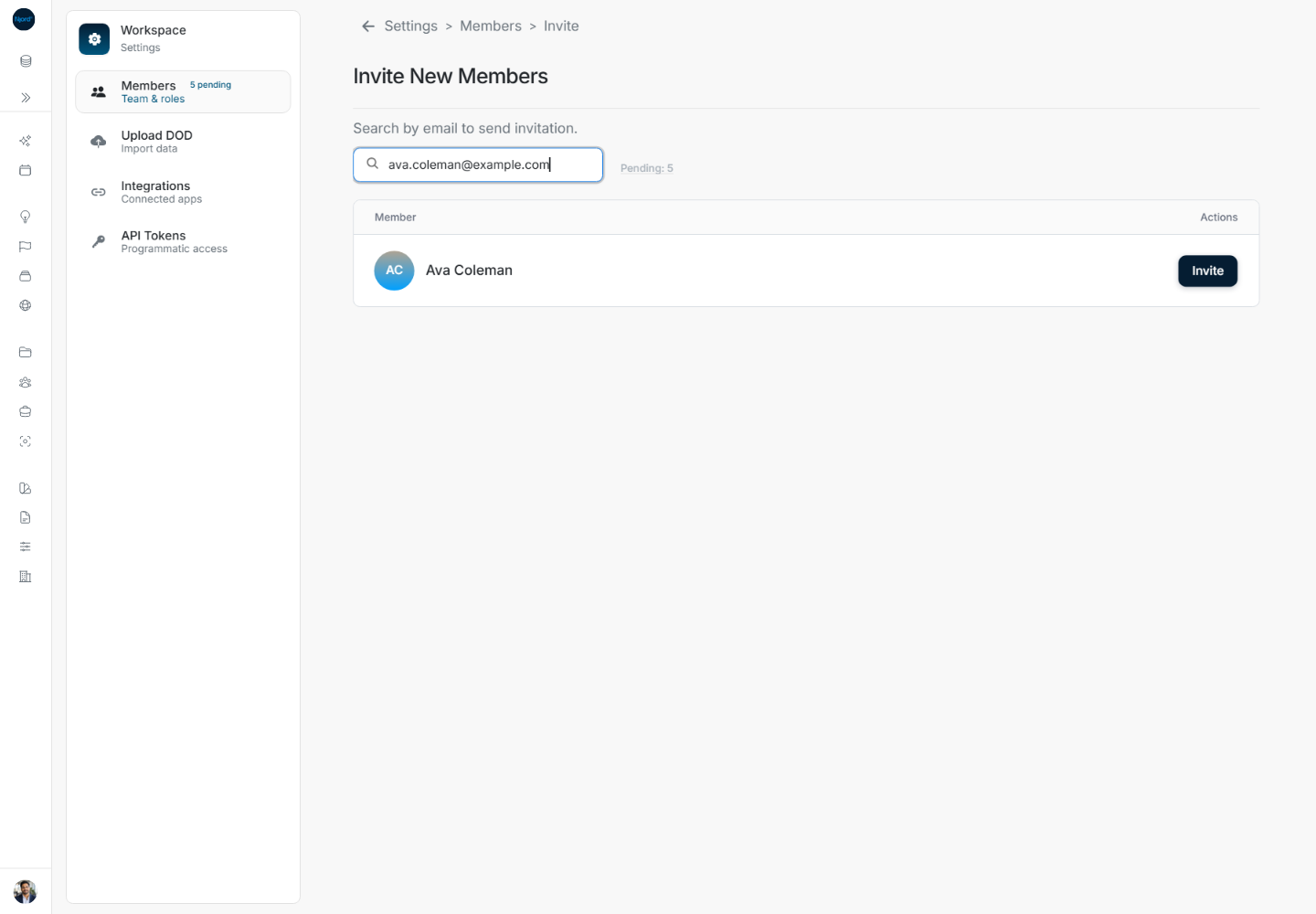
The result determines what happens next: provisioning feedback belongs in Pending Requests, while a direct membership completion can show the added-member result. Do not infer Joined from an email match alone. If sending fails, read the message and check Pending Requests before inviting the same address again.
Check the result
Do not treat a pending invitation as completed signup. If sending fails, keep the email, read the message, and retry only when the action is available. Check Pending Requests before sending another invitation to the same person.
If the Invite action is absent
Enter a complete, valid email address in Search by email.... An incomplete address does not expose the new-user Invite action. Correct the address and wait for the lookup to finish before deciding whether the person already has an account.
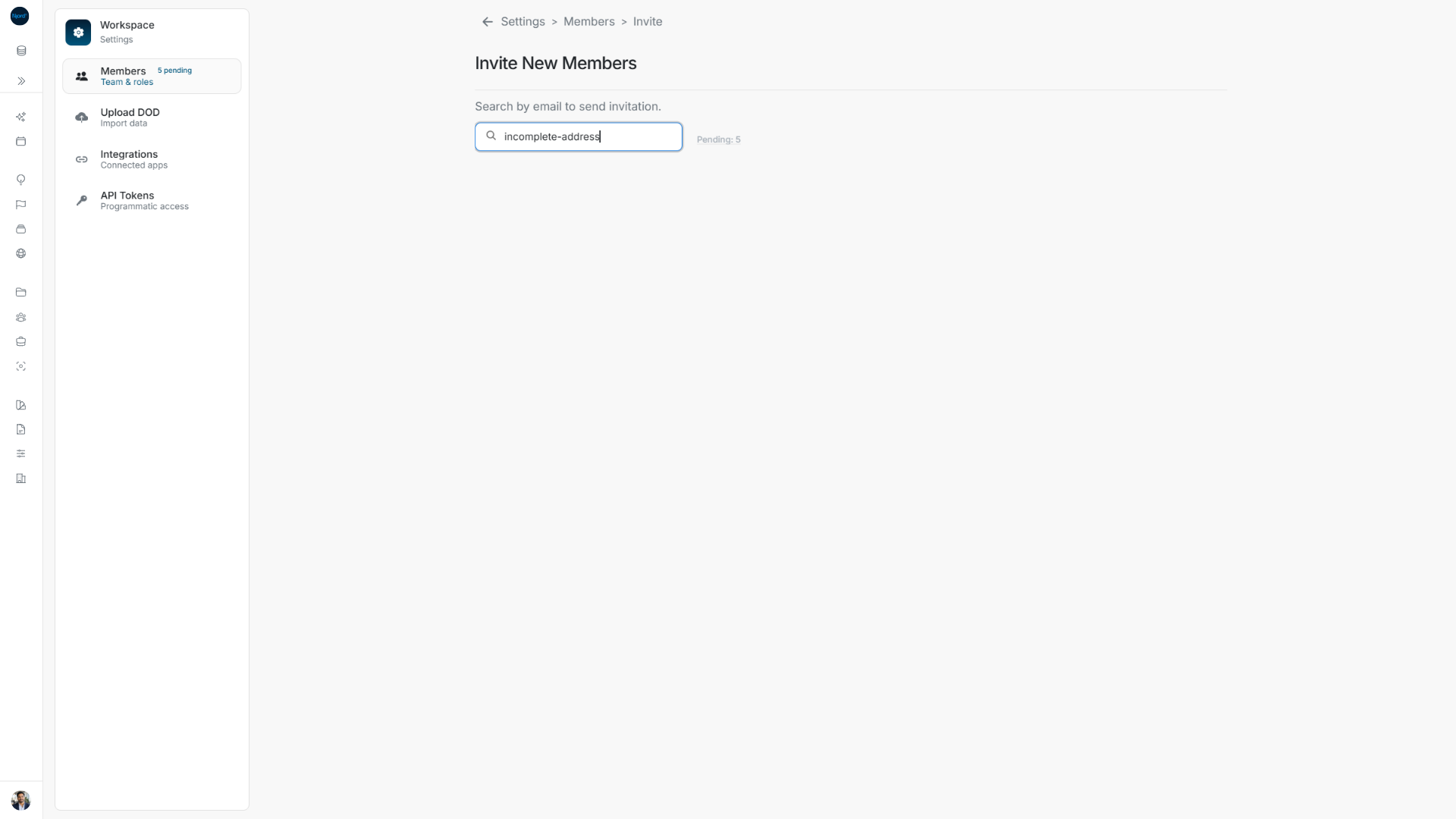
With a valid unknown address, User not found! still provides Invite so a new teammate can complete signup. A matching existing account has its own action; Joined is disabled for a person already recognized as a workspace member. Pending opens the existing requests rather than sending another invitation. Workspace Owner, Admin or Client admin permissions govern whether sending is available.
Where each invitation control leads
Invite Member in Members and Invite member in Pending Requests open the same Invite New Members screen. Its Pending: N shortcut opens existing requests; it does not send a new invitation. Settings/Members breadcrumbs return to workspace membership administration.
An email lookup can find an account without that account already being a member. Joined is disabled only when membership is recognized or a direct addition has completed. While sending, search and invitation actions are locked to prevent another send. On failure the email remains available to correct or retry. Check the intended workspace whenever you move between workspace menus.
Full flow: check Joined after a direct existing-account addition
- Open Invite New Members in the intended workspace and enter the existing account's full email.
- Check the matching Member result. A match alone does not establish workspace membership.
- If the action is Joined, membership is already recognized and that button is disabled. There is no invitation to send from that row.
- If it is Invite, choose it once. A completed direct addition can report New member has been added successfully and clear the email search.
- Enter the same email again to inspect the result. The action now reads Joined and is disabled for that direct addition.
- Use the Members breadcrumb to check workspace membership. If the request instead redirects to Pending Requests with setup feedback, follow that status; do not interpret it as the direct Joined path.
An existing account does not need a new first password simply because it joins another workspace. Confirm the result for the intended email and workspace before sending another request.