Retry or resend an invitation
Retry or resend an invitation
For Client Admins. Members can accept an invitation; sending and managing invitations requires Client Admin access.
Use the recovery action shown on the affected Pending Requests row. Refreshing the list checks status; it does not send another invitation or retry failed work.
Step 1 — find and inspect the request
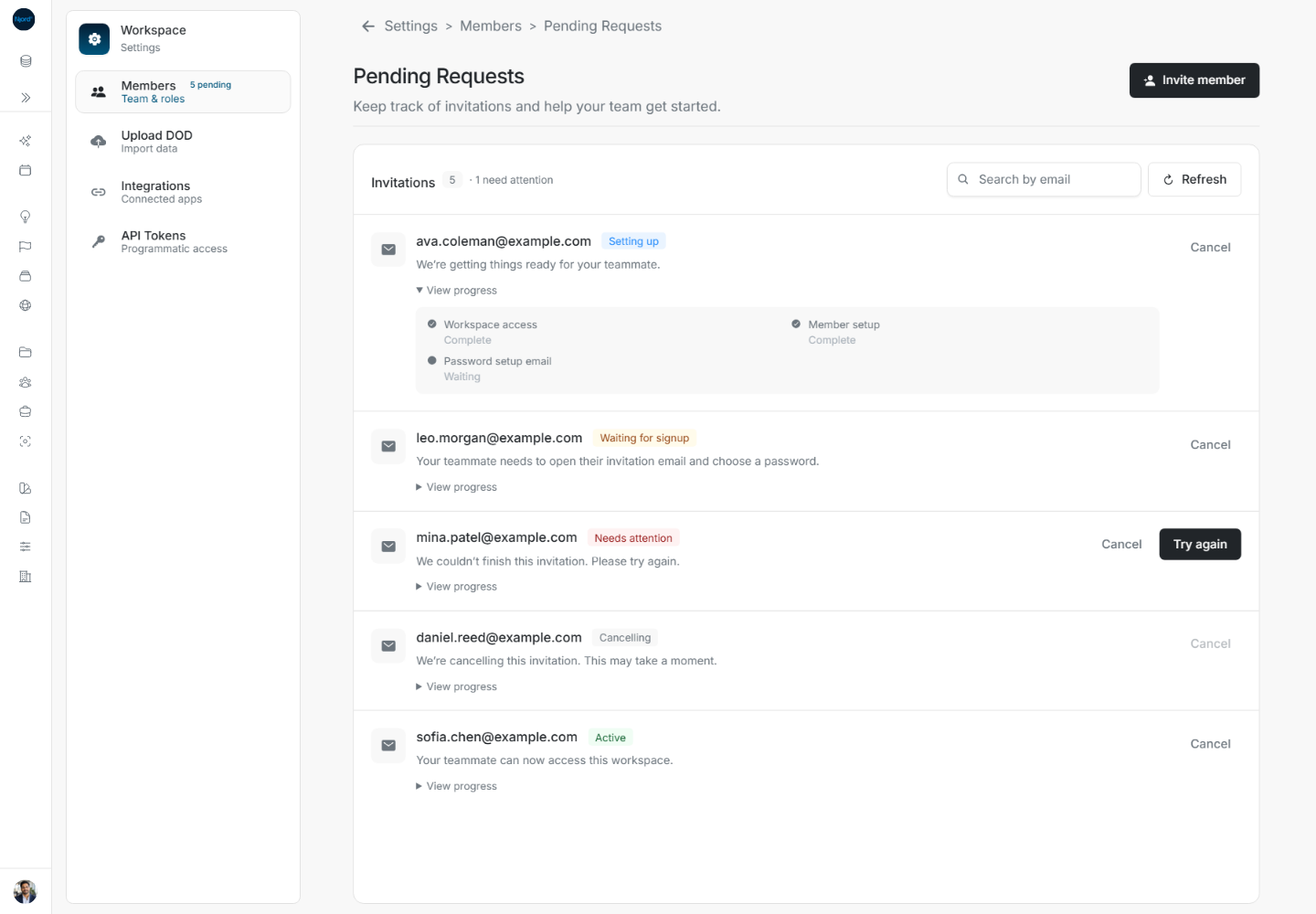
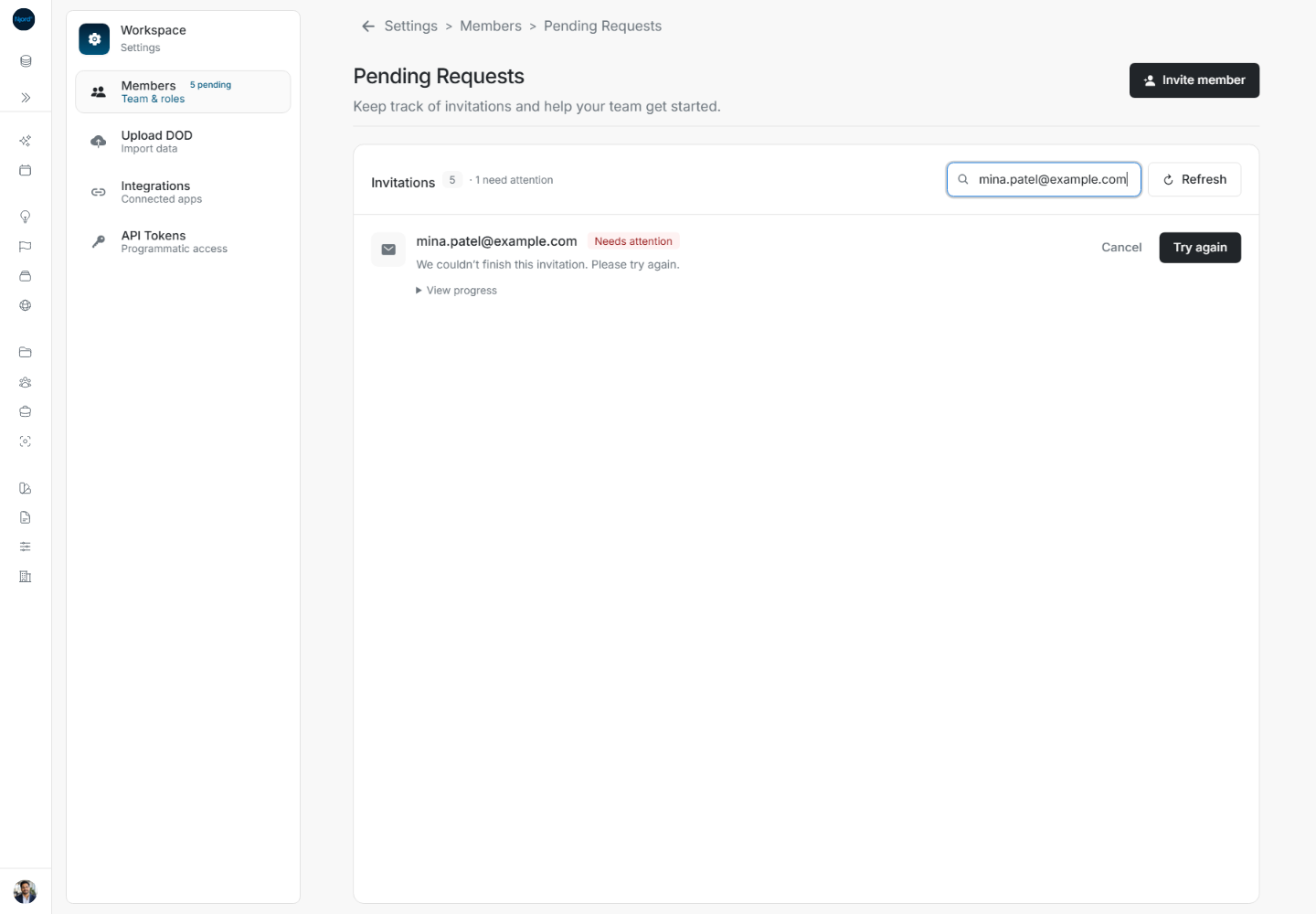
Open Settings → Members → Pending Requests, search for the exact email, and read the status and explanation. Expand View progress to identify which step is complete, waiting or needs attention.
Step 2 — choose the offered action
| Row action or state | What to do |
|---|---|
| Try again | Retry the existing recoverable setup request. |
| Retry cancellation | Retry the unfinished cancellation; it does not resume onboarding. |
| Resend | Offered for an older pending request without detailed setup feedback. |
| Waiting for signup without a retry action | Ask the recipient to use the invitation email and finish signup. |
| Needs attention without an offered retry | Follow the message and contact support or the administrator. |
| Please wait / Setting up / Cancelling | Let the current work progress, then read the updated status. |
The example Needs attention row offers Try again. Check its address before choosing that action once. Other row actions are disabled while a request is being changed.
Step 3 — read the result and hand off correctly
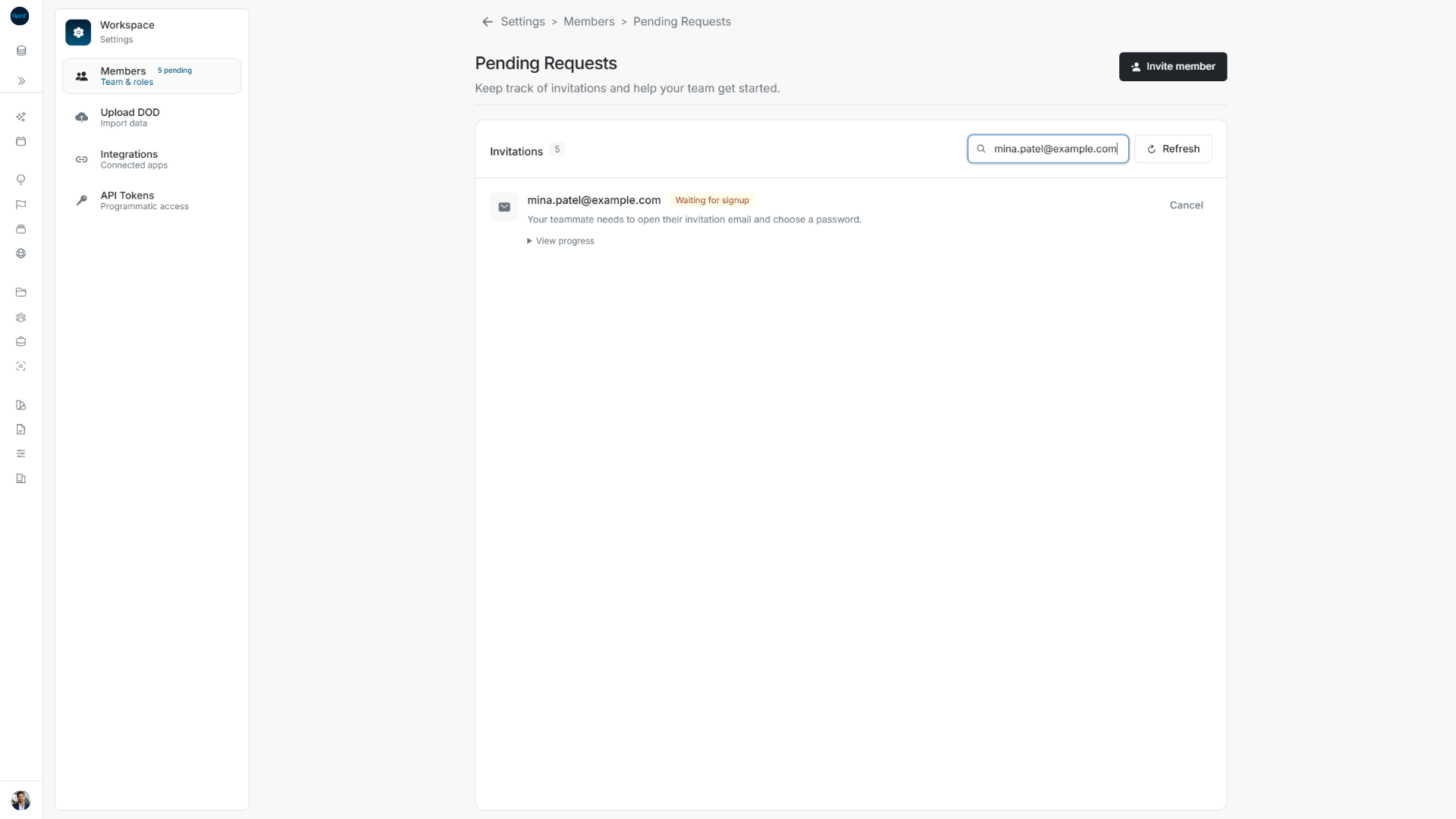
After retry, the example becomes Waiting for signup. Open View progress again if needed. The recipient must now open their invitation email and complete password setup. A retry accepted by the service is not the same as completed signup.
Step 4 — distinguish list failure from action failure
We couldn’t update your invitations is a list-read error; use the alert's Try again or Refresh. A failed retry action keeps the request available and reports that it could not be updated. Re-read the existing request before trying again rather than creating duplicates. A message asking you to wait should be respected before another attempt.
The setup webpage has a separate Try setup again path for the recipient. Use Fix invitation and setup problems for that screen. Use Cancel a workspace invitation when the request should no longer be used.
Full flow: recover a failed cancellation
- Open Pending Requests and locate the exact email. A failed cancellation can show Needs attention and explain that it could not be cancelled yet.
- Expand View progress to inspect the cancellation step when it is present.
- Choose Retry cancellation for that request. This resumes removal; it does not resend signup instructions or invite another person.
- Wait while the action is busy. A row still Cancelling is not yet a completed cancellation.
- After confirmed removal, check that the address no longer has a pending row. Clear an email search to inspect the other requests.
If the retry fails, read the fresh message and use the offered action for the same request. If no retry is offered and the message asks for support, follow that guidance. A read failure is separate: use the list alert's Try again to establish current status before assuming cancellation succeeded.