Track and manage invitations
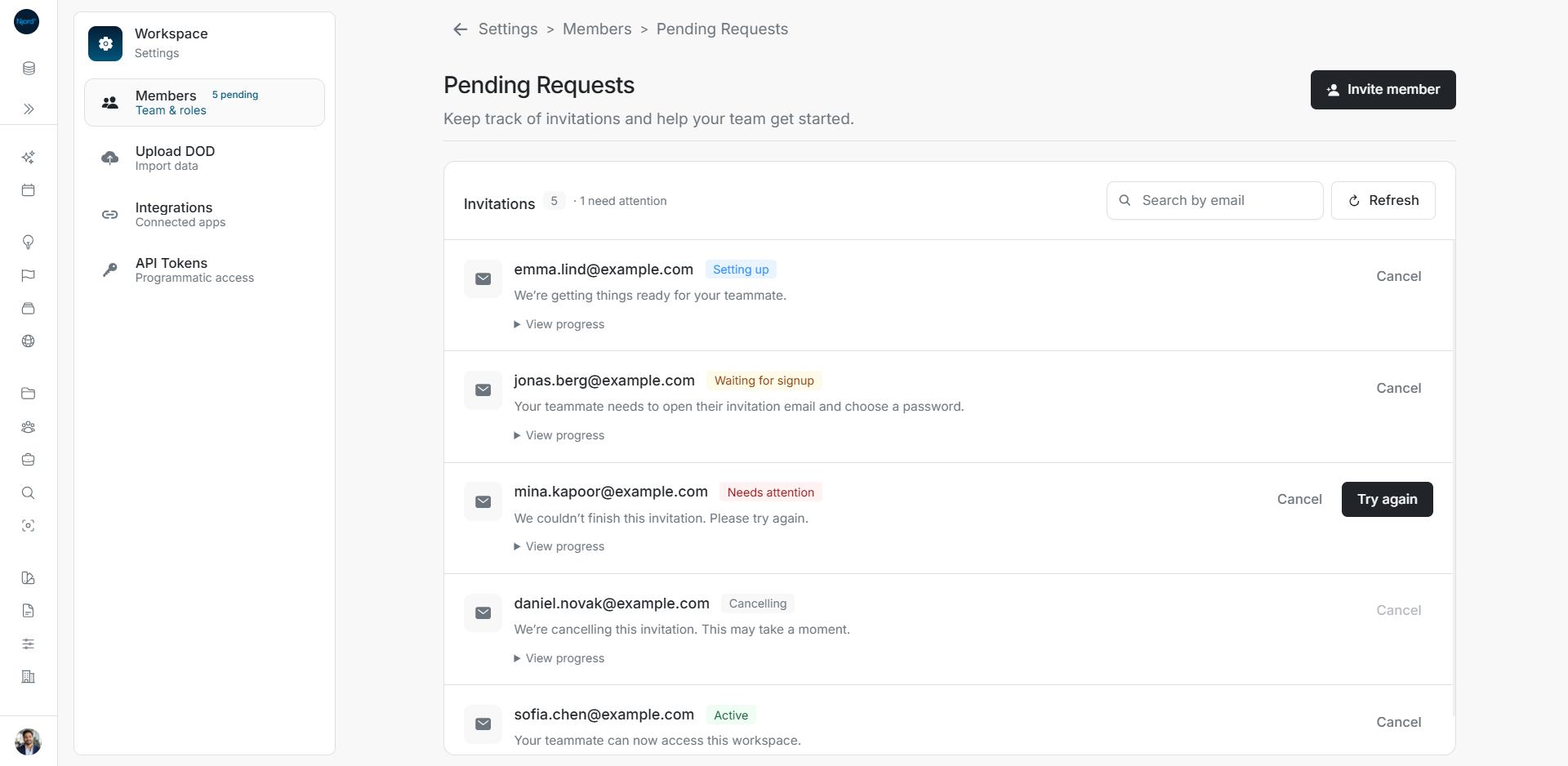
Track and manage invitations
For Client Admins. Members can accept an invitation; sending and managing invitations requires Client Admin access.
Follow the complete invitation journey, or open retry/resend and cancellation for their full illustrated steps.
Use Pending Requests to check whether a teammate’s workspace access is being prepared or they still need to finish signup.
Read the status
| Status | What it means |
|---|---|
| Pending | Waiting for the teammate to accept the invitation. |
| Setting up | Workspace and member setup are still in progress. |
| Waiting for signup | The teammate needs to open the invitation email and choose a password. |
| Active | Account setup is complete and the teammate can access the workspace. |
| Needs attention | Read the explanation and use the available recovery action. |
| Cancelling | Cancellation is still in progress. |
| Cancelled | The invitation has been cancelled. |
| Please wait | Setup could not finish and cleanup is still being checked. |
Image guide: Pending Requests shows five current invitation states. Fictional sample data in the current app, captured in light mode.
View progress
Open Settings, Members, and Pending Requests. Find the teammate and expand View progress to check Workspace access, Member setup, and Password setup email. Completed steps and waiting steps are shown separately.
Retry or cancel
Use Try again, Resend, or Retry cancellation only when that action is offered. Not every status allows the same action. Waiting for signup needs the teammate to act; it does not automatically mean the administrator should resend the invitation.
Choose Cancel when the pending invitation should no longer be used. Wait for the cancellation result. Once an invitation is completed, manage the existing member through workspace membership controls rather than treating invitation cancellation as member removal.
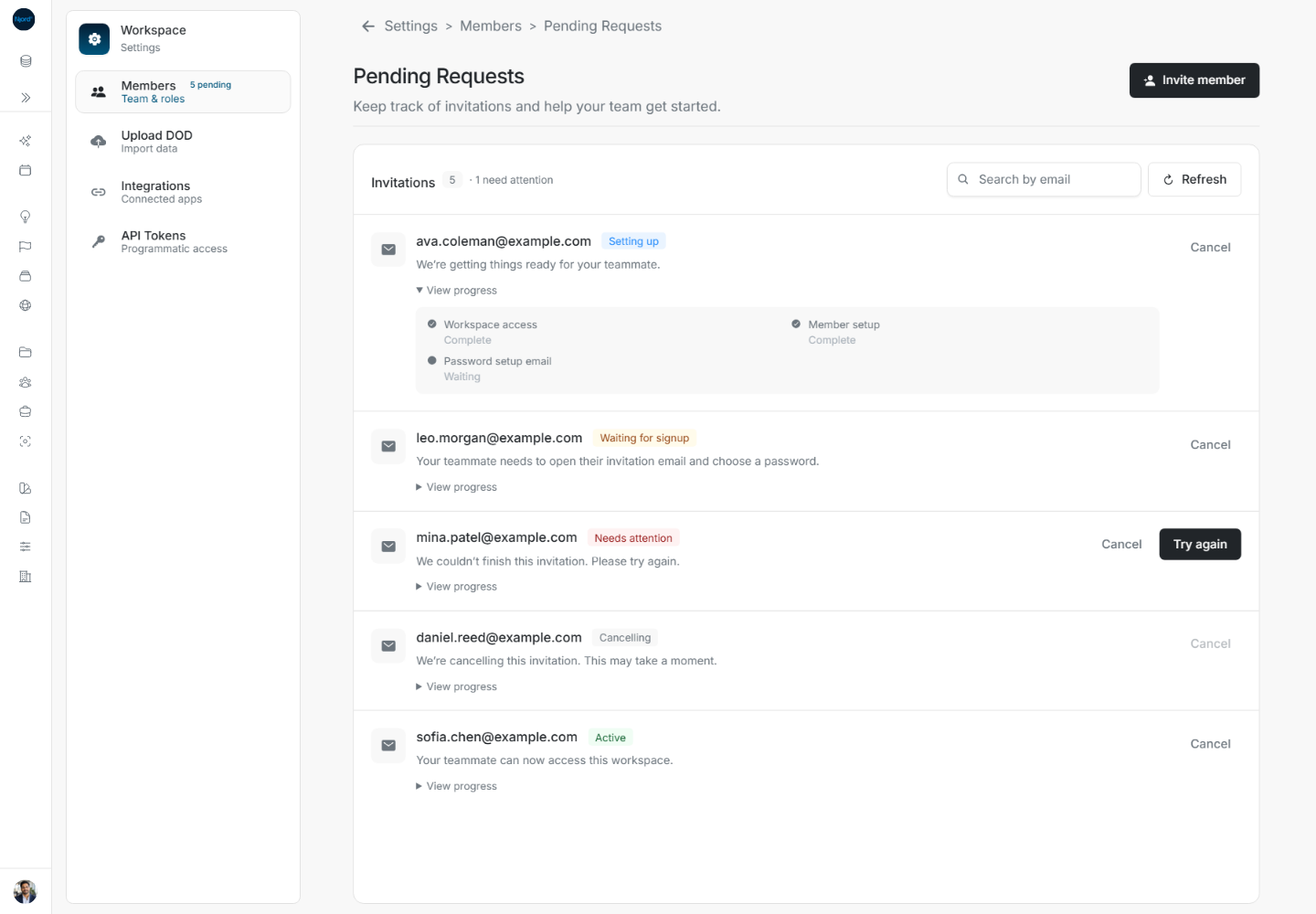
Search, refresh and retry
Search invitations by email narrows the displayed rows without changing invitations. Refresh reads the current statuses. Open or reopen Pending Requests to fetch the current list, or use Refresh. The list does not continuously poll; an invitation action updates its affected row and count from the result.
Find the row that Needs attention, read its explanation, and choose Try again only for that address. Depending on the backend feedback, recovery may instead be labelled Resend or Retry cancellation. After the action, reread the row and View progress: the next state may still require setup or teammate action.
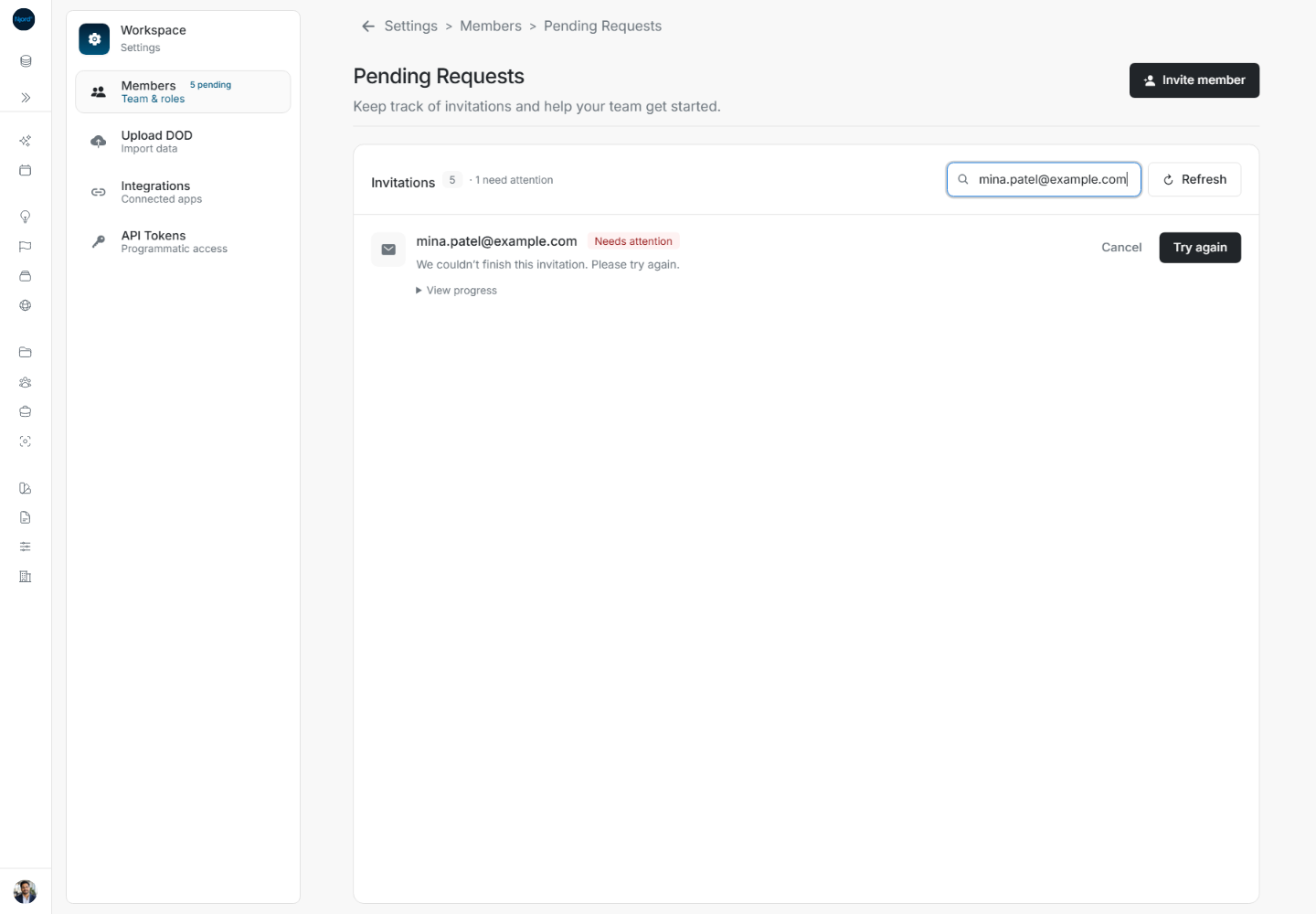
Cancel an invitation and verify removal
Check the address before choosing its Cancel action. Cancellation begins from the row; do not rely on a second confirmation window. Cancelling disables the action while removal is still in progress. A terminal cancellation removes the row from Pending Requests.
The example retains an email search after cancellation, so the page reports No invitations match your search. Use Clear search to see the other invitations. A no-match result is different from a failed request. Removing a completed member is a separate workspace-membership task.
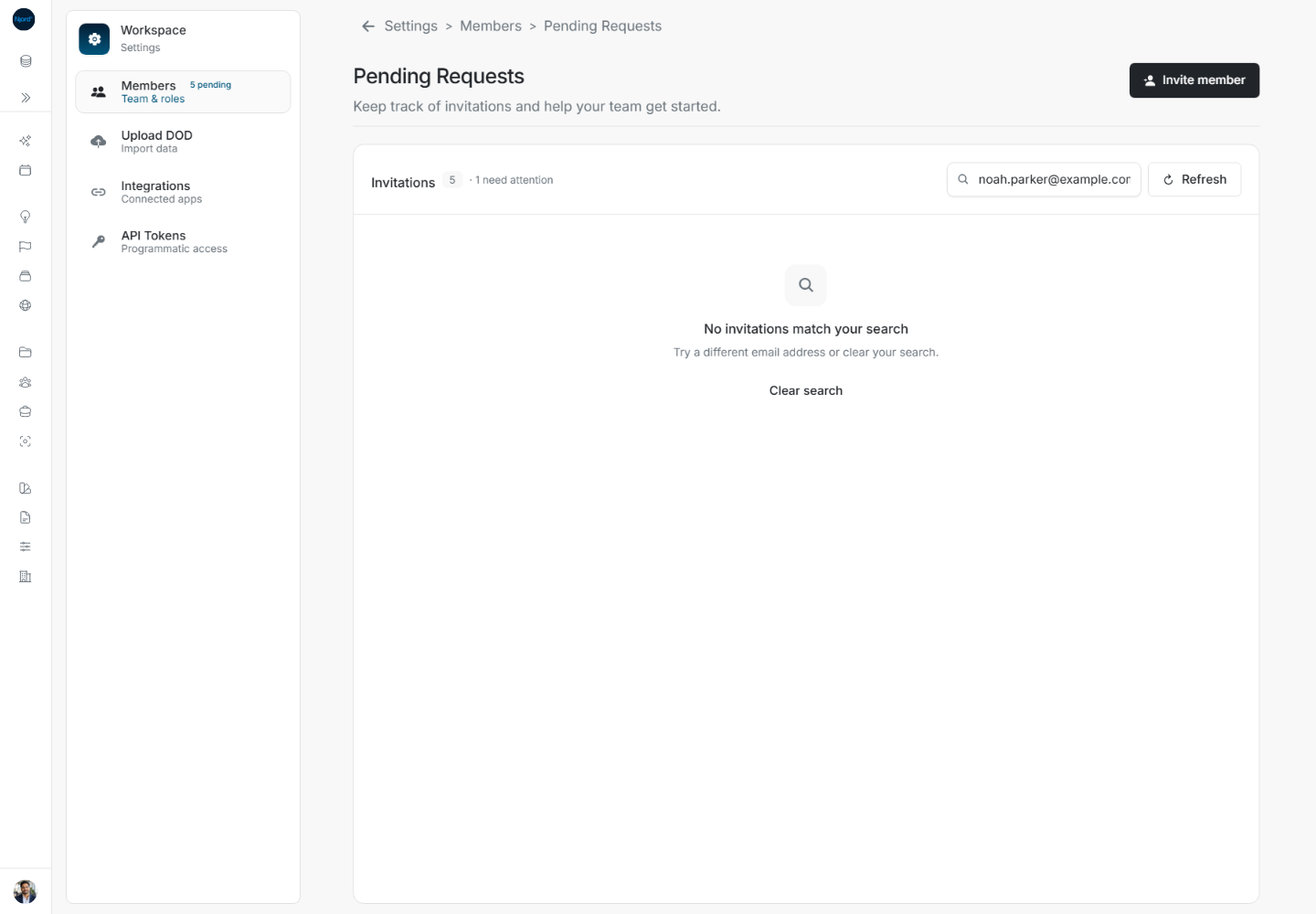
Distinguish empty search from failed loading
No invitations match your search means the email filter has no match. Choose Clear search or enter another address. The total invitation count can remain visible while no filtered rows match.
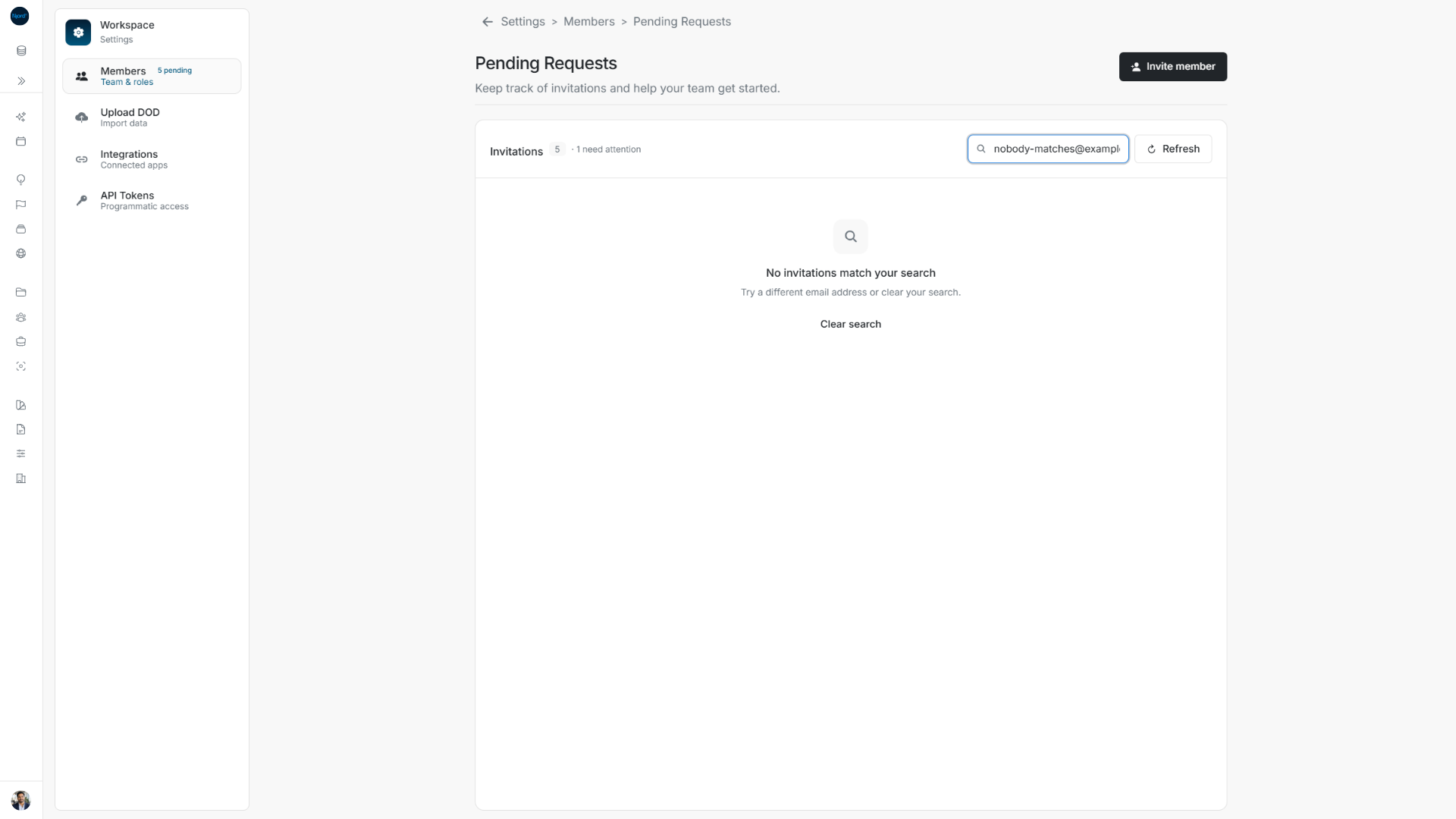
No pending invitations is the unfiltered empty state. We couldn't update your invitations is a failed read; use its Try again action. Refresh checks the current invitation list. Neither searching nor refreshing sends a new invitation.
Check what retry changes
Use the action offered on the affected invitation. Try again retries a recoverable setup problem; Retry cancellation retries a failed cancellation, and Resend can be offered for an older request without detailed provisioning feedback.
After retrying the sample Needs attention invitation, it becomes Waiting for signup. The next step now belongs to the recipient: open the invitation email and complete password setup. This state does not mean the teammate has already finished joining.
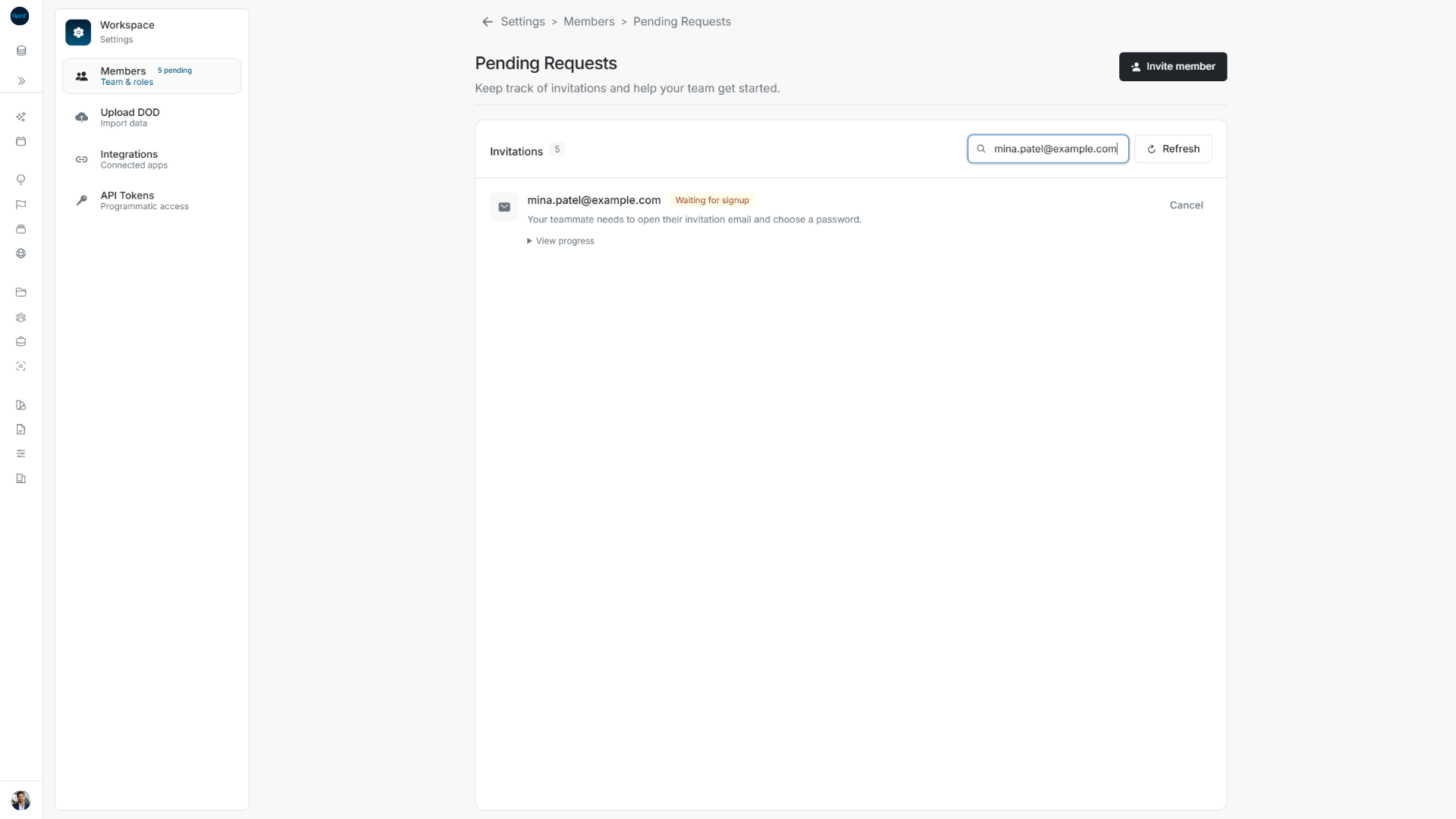
Setting up, Cancelling and Please wait are intermediate states. Wait for the submitted action result, then Refresh or reopen Pending Requests if you need the latest state. Waiting for signup and Needs attention require the indicated recipient or administrator action. Opening View progress shows Workspace access, Member setup and Password setup email; use the displayed complete/waiting/attention state rather than assuming an accepted request is finished.
Which count and action are you looking at?
The Invitations badge counts the loaded pending requests; searching narrows visible rows without changing that total. The need attention count flags requests needing review, not a count of people who joined. There is no bulk select, bulk Cancel or editable-email control in this Pending Requests view: each action belongs to its named row.
Use Retry or resend an invitation for the complete action-to-result sequence, and Cancel a workspace invitation for cancellation and empty-search recovery. A list error can coexist with previously loaded rows; establish a fresh state before assuming those rows are current.
Refresh pending invitations at the right time
Open or reopen the Pending list to load its current state. It does not continuously poll. Mutation results update the relevant row and count. Provisioning, waiting for signup, Active, Failed and Cancelled describe different points in onboarding; a sent request is not proof that provisioning or signup finished. Use the row's Retry or Revoke/Cancel action only for the intended state.