Fix invitation and setup problems
Fix invitation and setup problems
Follow the complete invitation journey, or open retry/resend and cancellation for their full illustrated steps.
Use the invitation message and your account state to choose the next step. Repeatedly sending the same invitation can make it harder to understand which step needs attention.
Choose the right next step
| Problem | What to do |
|---|---|
| Invitation email is missing | Check the invited address and spam folder, then ask the administrator to review Pending Requests. |
| Waiting for signup | Open the invitation email and complete password setup. |
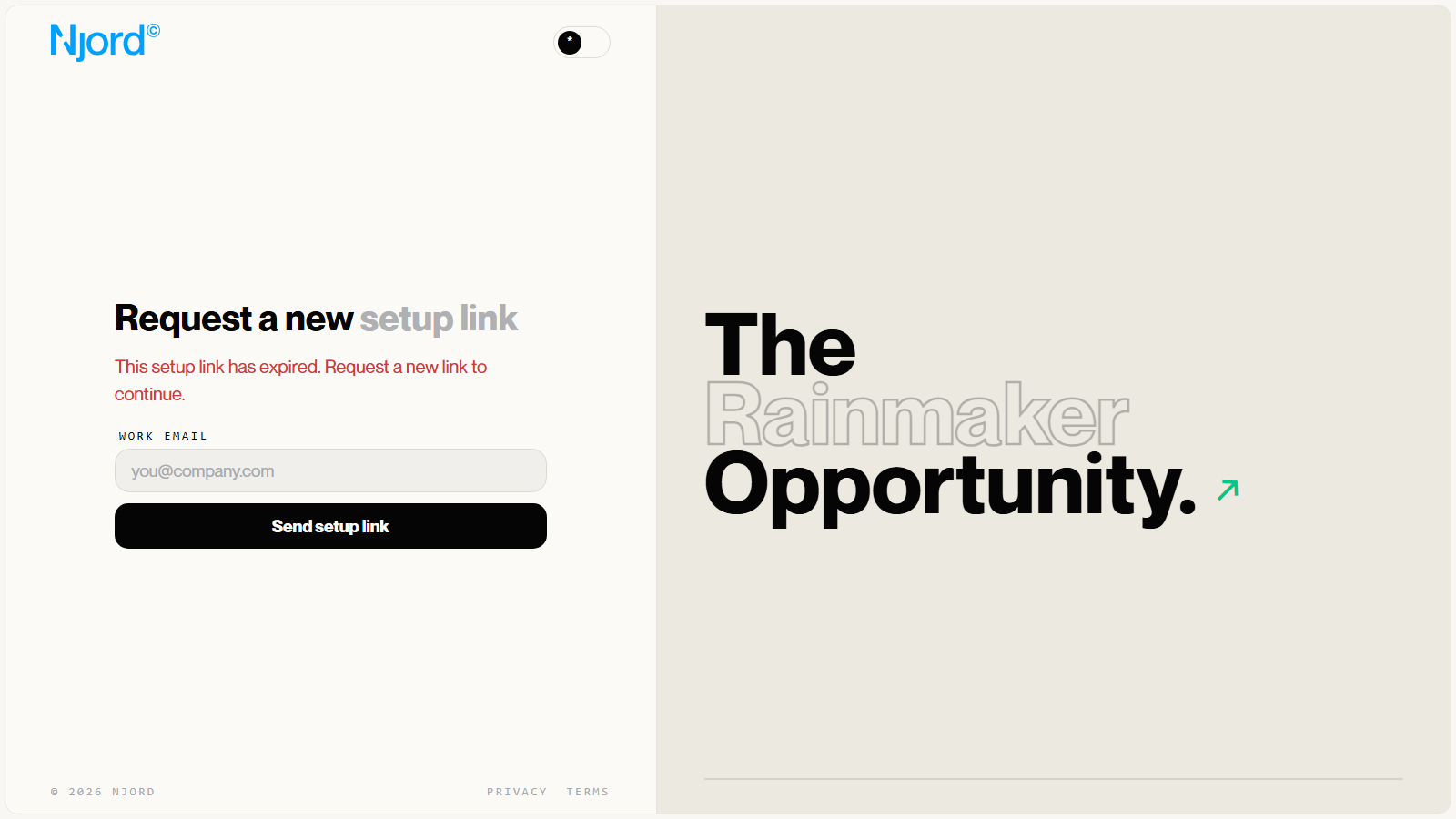
| Setup link is expired or invalid | Use the setup page’s recovery option and follow the new email instructions when offered. |
| Invitation was cancelled | Ask whether a new invitation should be sent. The cancelled link cannot be reused. |
| Another account is signed in | Review the account-switch confirmation before continuing with the invited identity. |
| Needs attention with Try again | The administrator can retry unfinished setup from Pending Requests. |
| Cancellation needs attention | Use Retry cancellation when offered, or follow the support guidance. |
| Invitation required | Ask for an invitation using the option shown on the sign-in or signup screen. |
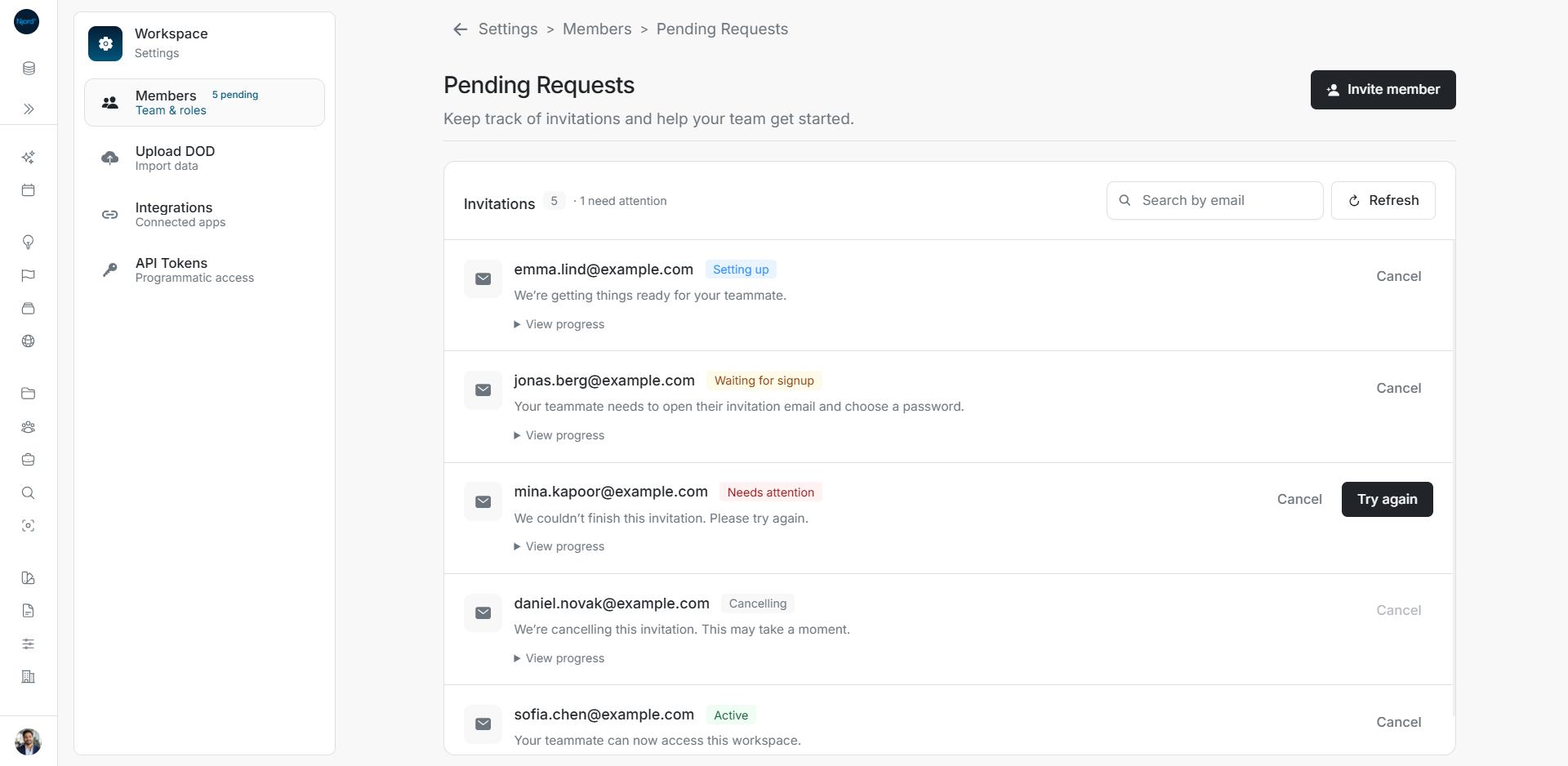
Image guide: Pending Requests shows five current invitation states. Fictional sample data in the current app, captured in light mode.
Password setup and password reset
A pending account needs its first-password setup link. An active account uses the normal password reset flow when it has forgotten its password. Follow the email and page instructions rather than assuming every recovery message contains the same kind of code or link.
When to ask for help
Contact your workspace administrator when you cannot confirm the invited email, the intended workspace, or the available action. If the screen says to contact support and offers no retry, keep the visible message and explain which step failed. Never send your password or setup link in a support message.
Retry setup when the page offers it
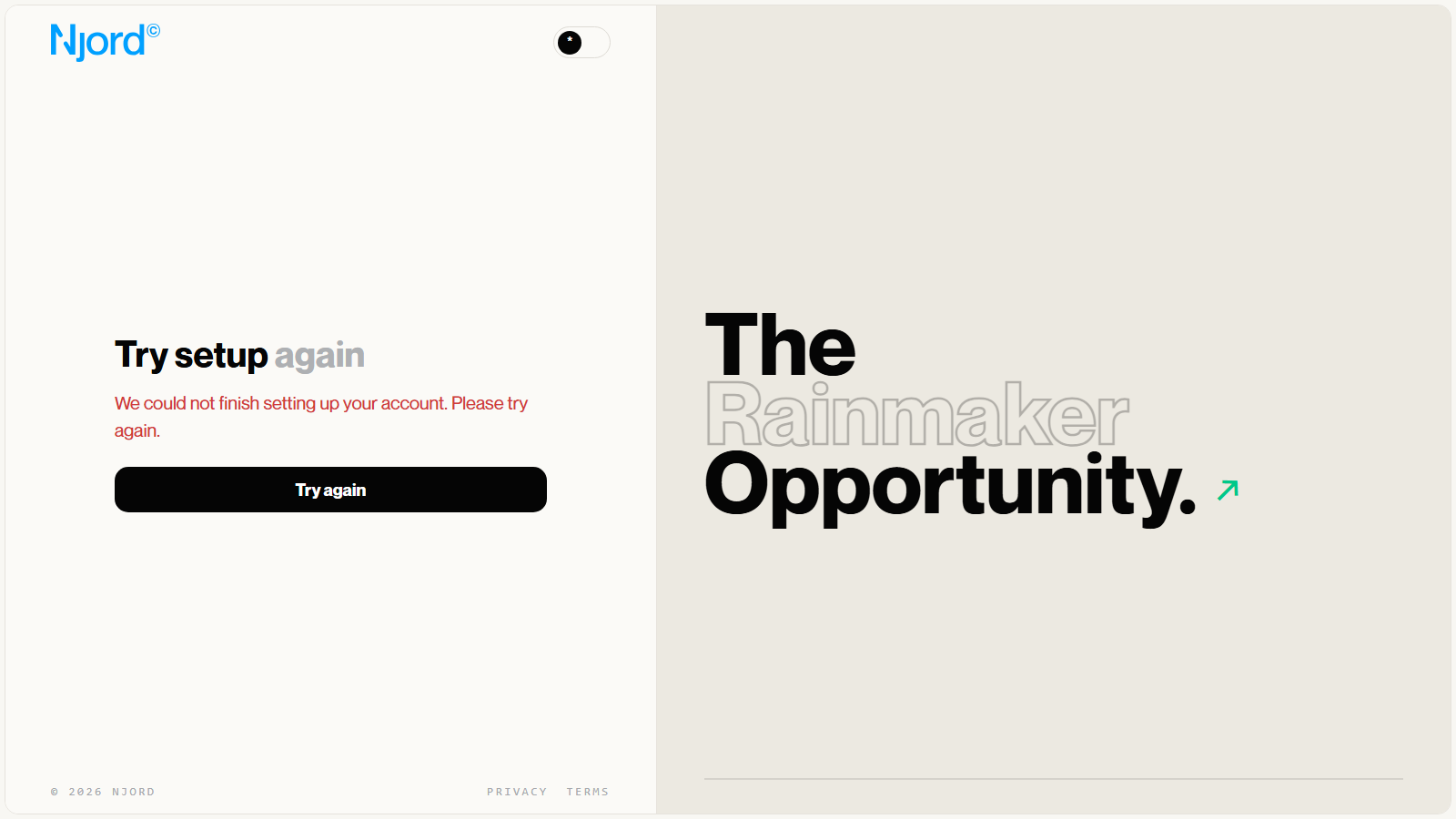
Try setup again is a recoverable account-setup screen with its own Try again action. It is separate from the administrator's invitation row. Read the page's message and use the action offered there; do not assume that a retry requires creating another invitation or choosing another password.
Understand the new-link response
After requesting a setup link, the page can say If this email address has an account waiting for setup, we’ll send a new link. Please check your inbox. This is a conditional acknowledgement, not confirmation that an account exists or that signup is complete. Check the intended inbox and follow the latest valid link. The Send setup link action remains on this recovery page.
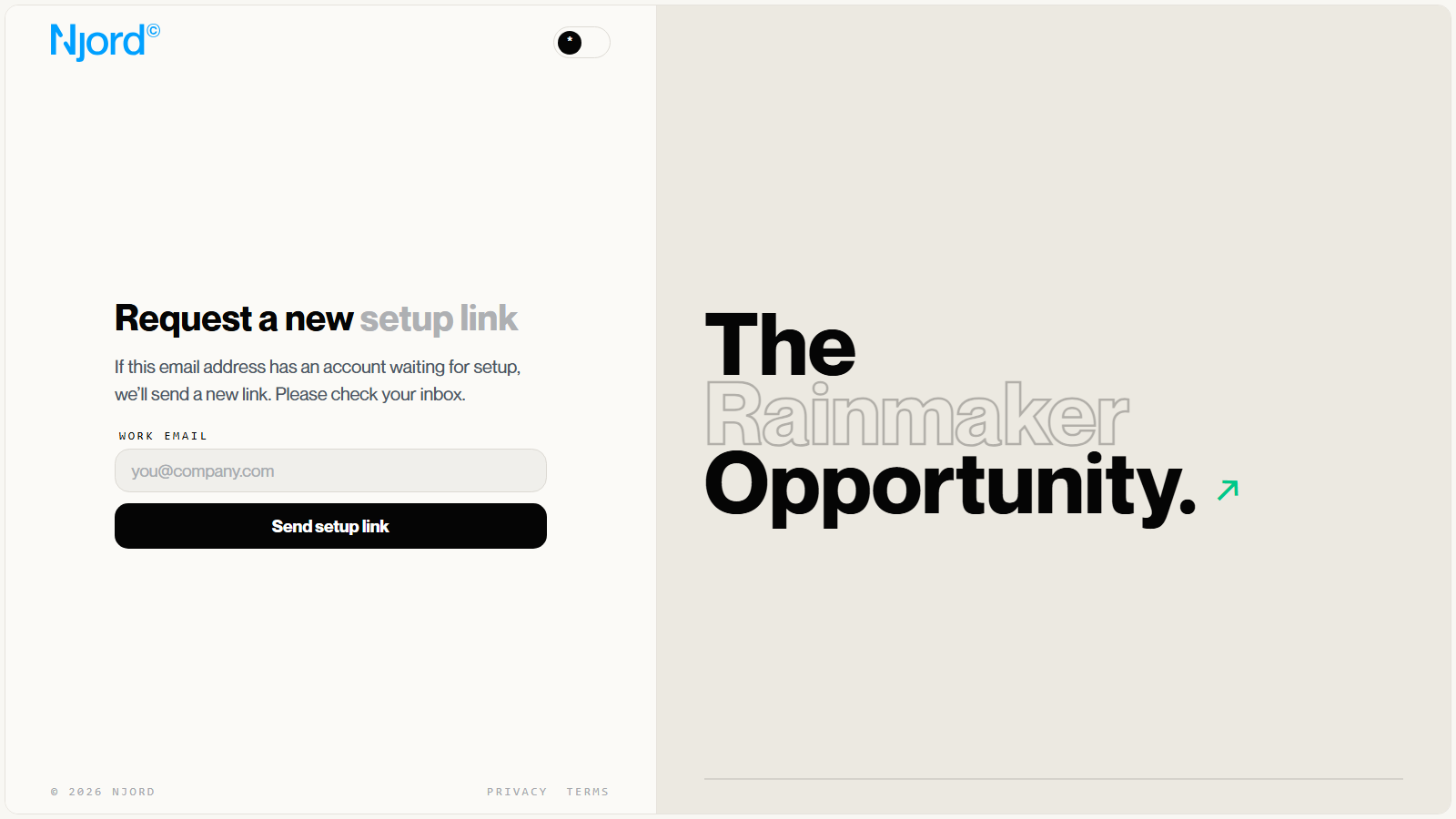
Full expired-link recovery sequence
- Read Request a new setup link and the visible expired/invalid-link explanation.
- Enter the intended invited address in Work email. This is the recipient's setup recovery, separate from the administrator's Pending Requests search.
- Choose Send setup link once; the pending label can read Sending….
- Read the conditional response, check the intended inbox and use the latest valid link. The response does not confirm account existence or completed signup.
- Continue on Complete your sign-up, or ask the workspace administrator to inspect the original request if no usable link arrives.
Try setup again with a Try again action is another recovery state. It resumes the setup identified by that page. Administrator Try again, recipient Try again, and Send setup link are different controls for different steps; use the message and identity on the screen to choose the right one.