Accept a workspace invitation
Accept a workspace invitation
Follow the complete invitation journey, or open retry/resend and cancellation for their full illustrated steps.
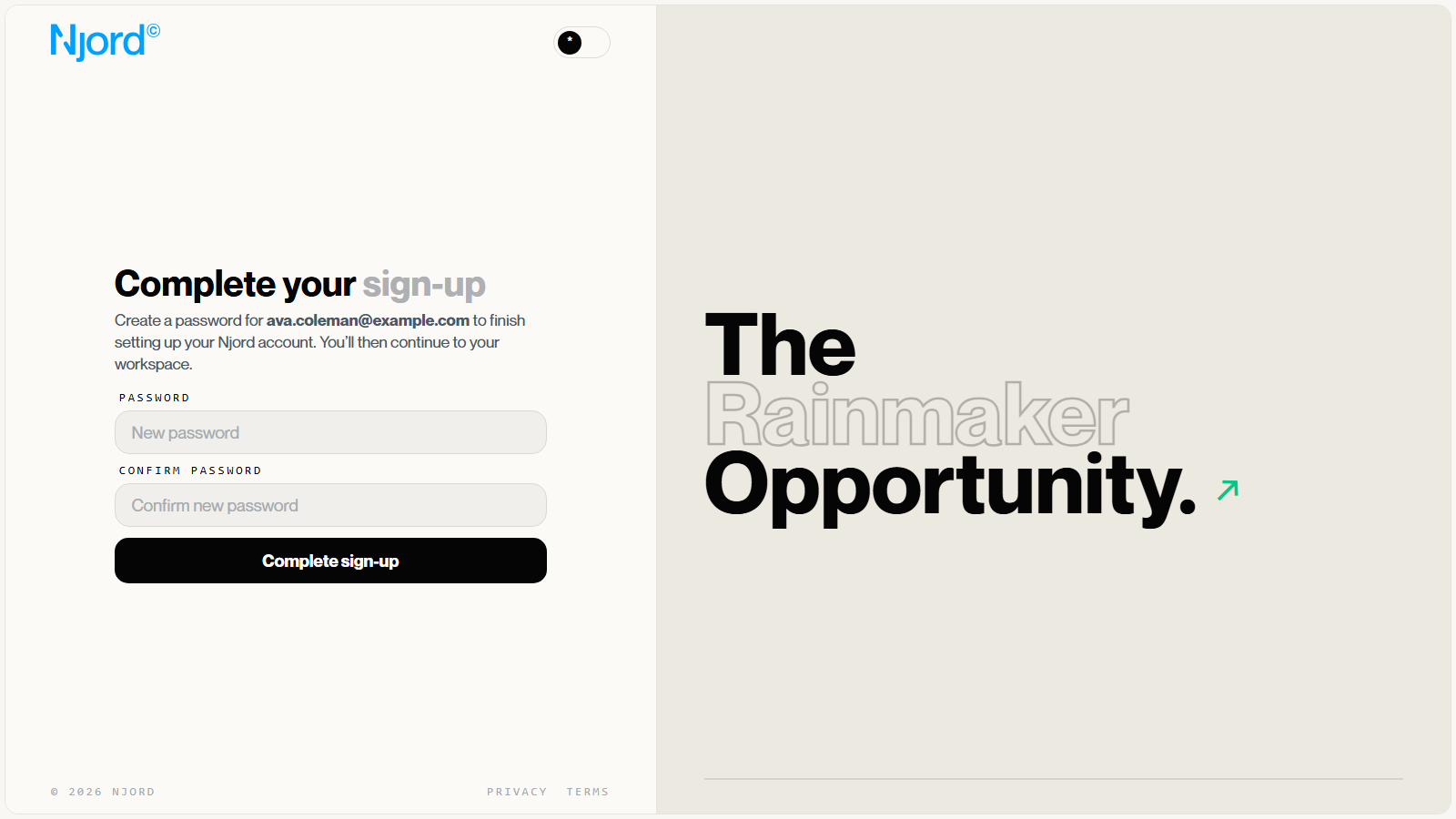
Use your invitation email to finish joining the intended workspace. A new local account needs a first password before setup is complete.
Finish signup
- Open the invitation email for the address your administrator invited.
- Follow the password setup link to Complete your sign-up.
- Enter a password that meets the requirements shown on the page.
- Enter the same password in the confirmation field.
- Choose Complete sign-up and continue to the application.
- Check the workspace after you arrive.
If the browser is signed in as a different account, review the account-switch explanation before continuing. Check the invited identity before completing signup on a shared browser.
Existing accounts
An existing active local account is reused and does not receive a first-password link for each new workspace. Use your normal sign-in method and check the workspace access supplied by the invitation.
If you cannot continue
An expired, invalid, or cancelled link cannot complete signup. Use the recovery option shown on the setup page or ask your workspace administrator to check the invitation. If the password was saved but the sign-in session could not be started, follow the page’s instruction to sign in normally with the password you saved.
Continue from another signed-in account
When the setup page detects a different signed-in account, it adds a checkbox naming the invited email: Continue as … and switch from the account currently signed in. Read that identity and acknowledge it only when you intend to continue as the invited teammate. The checkbox does not replace the password and confirmation fields.
Recognize completion without an automatic session
The recovery completion screen can say Your account is ready and Your password has been saved. In that case, open the app and sign in with the invited email and the password you just saved. Do not request another first-password setup merely because the browser did not continue into a signed-in workspace automatically.

Check every input before Complete sign-up
The current page requires 8 or more characters, including uppercase and lowercase letters, a number, and a symbol. Confirm password must match Password. Use the invited email displayed above the form; it is not an editable account-selection field. If a switch-account acknowledgement appears, check that named identity before acknowledging it.
While submission is pending the action can read Completing sign-up…. Follow the resulting page or visible error before submitting again. An expired/cancelled link cannot be repaired by repeatedly changing the password fields; use setup-link recovery instead. If setup succeeded but automatic sign-in did not, use the saved password on the normal sign-in page.