Sort and move through results
Sort and move through results
Choose the platform, campaign selection, statuses and dates first. Then use this guide to arrange those results and see the remaining pages.
Choose cards or a list
Use Switch to list view or Switch to card view above the results. Cards emphasize the creative and summary. A list aligns performance values in columns. Changing view keeps the applied filters, sorting and page; your workspace remembers the view preference.
On a wide list, the name column stays visible when you move across the other columns. The page controls remain outside that scrolling data area. Return from a preview to continue the same review.
Sort cards
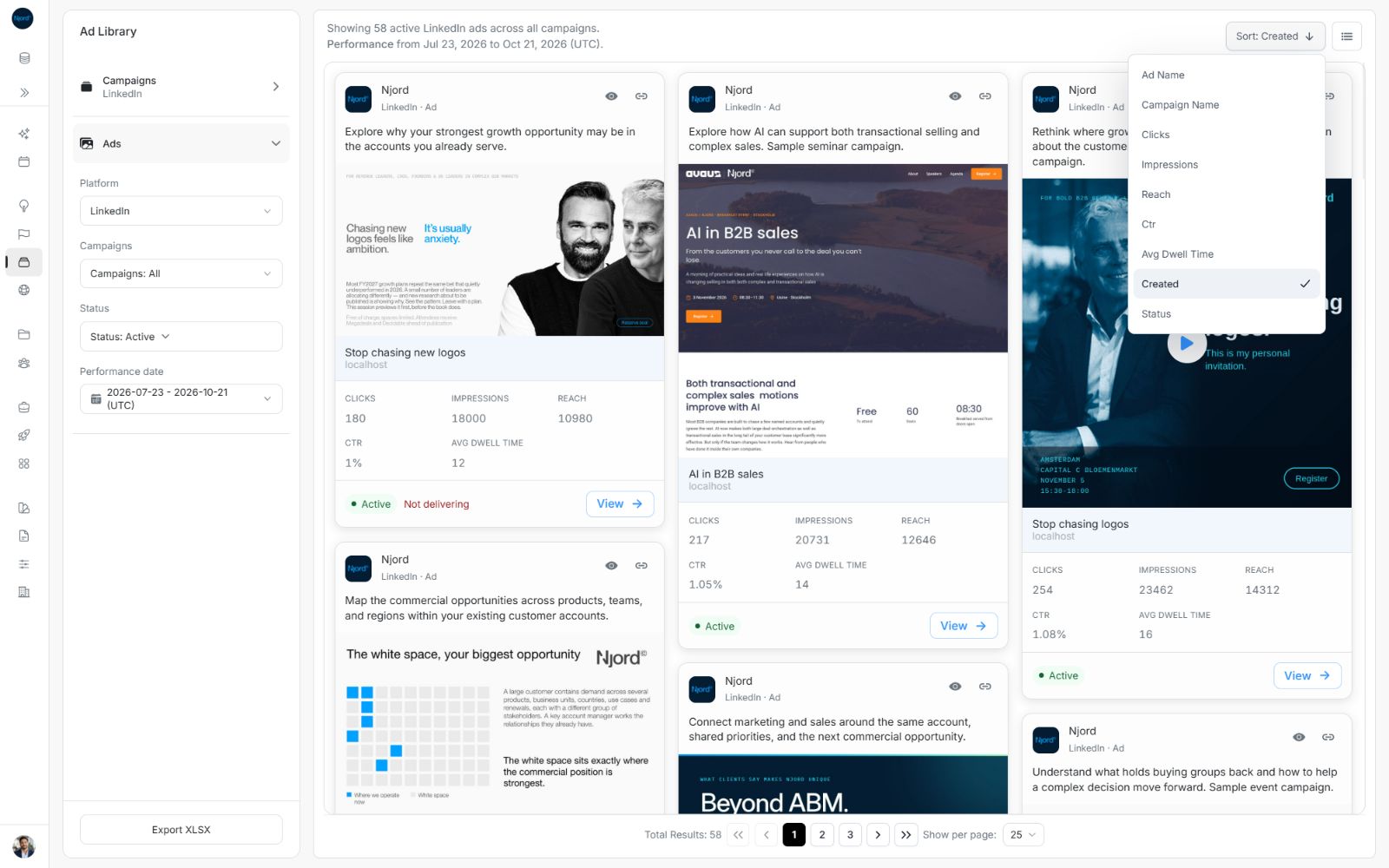
Open Sort above the cards and choose the available field that answers your question. The control displays the chosen field and an arrow for the order. Open Sort and choose that same field again to reverse the order. A previously chosen sort can be restored when you return to the view; otherwise the normal starting order is newest Created first.
Image guide: The available fields depend on the source and whether you are viewing campaigns or ads.
Sort a desktop list
Select a sortable column heading, such as CLICKS. Select it again to reverse the order. Confirm both the arrow and the values at the top before drawing a conclusion. Sorting affects the whole matching result, not only the rows already visible.
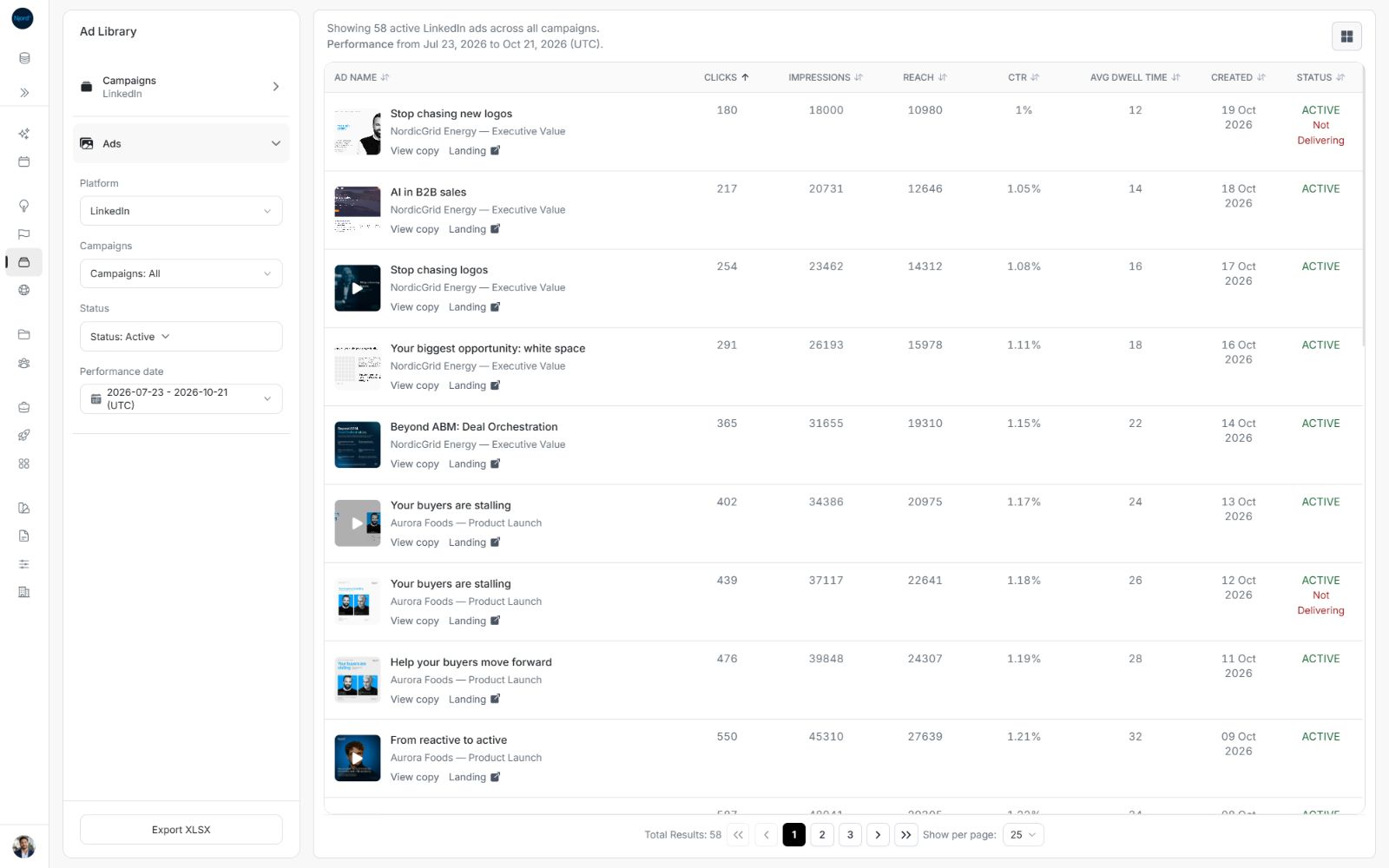
Image guide: The first visible ads have the lower click totals in this example.
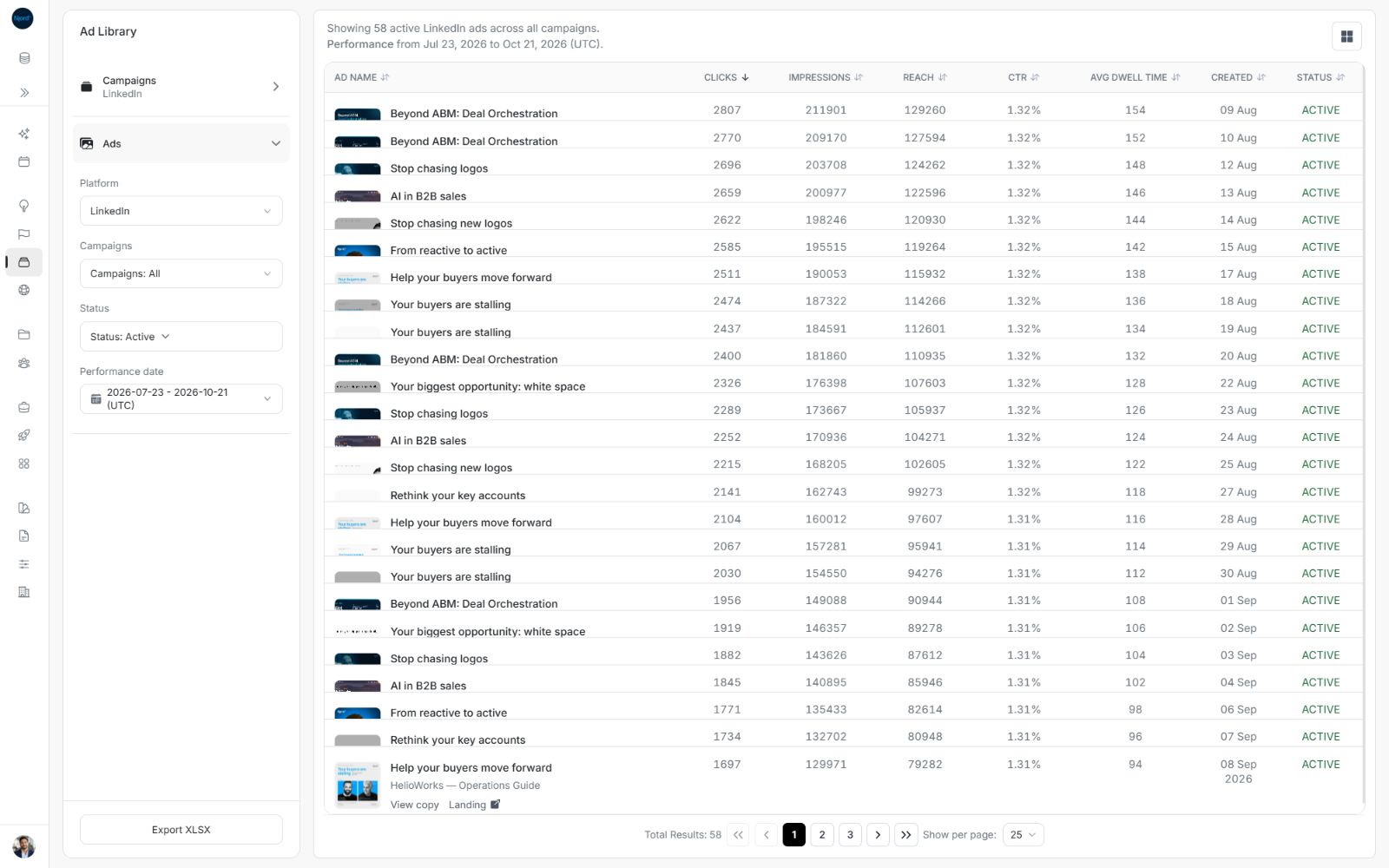
Image guide: The same comparison has been reversed, bringing the larger click totals to the top.
When reviewing a rate such as CTR, also inspect the counts. A higher percentage does not necessarily mean more recorded clicks. Use the same platform, period and scope for a useful comparison.
Choose how many results to show
At the bottom, open Show per page and choose 10, 25 or 50. The control is identified as Rows per page. Changing it returns the comparison to page one. It changes how many records you see at once; it does not change the matching total.
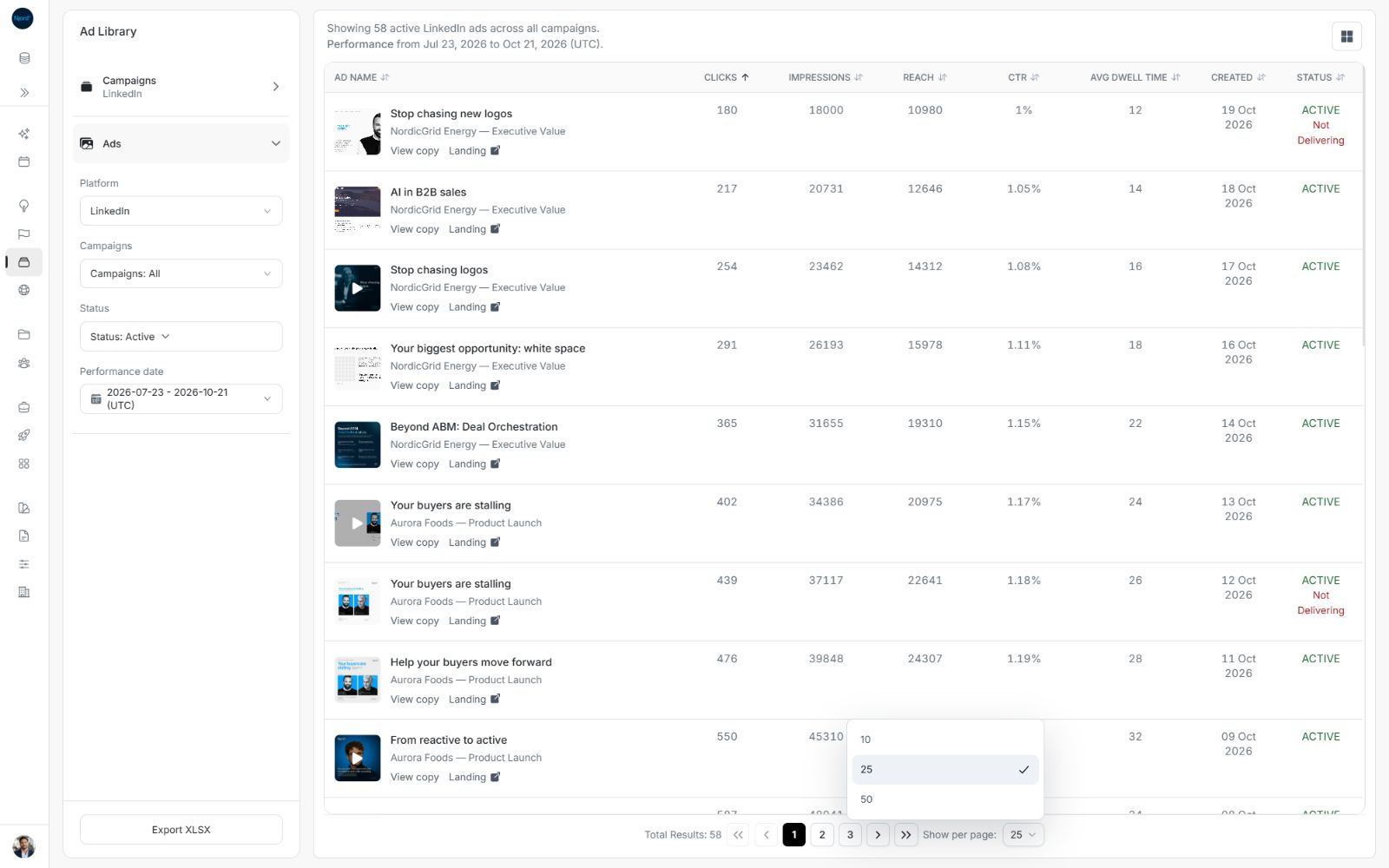
Image guide: Choose a smaller page for a shorter review or more rows to scan a larger group at once.
Move through the remaining pages
Use a numbered page, Next page, Previous page, First page or Last page. An unavailable button means you are already at that boundary or the results are loading. Total Results shows how many records match the applied choices.
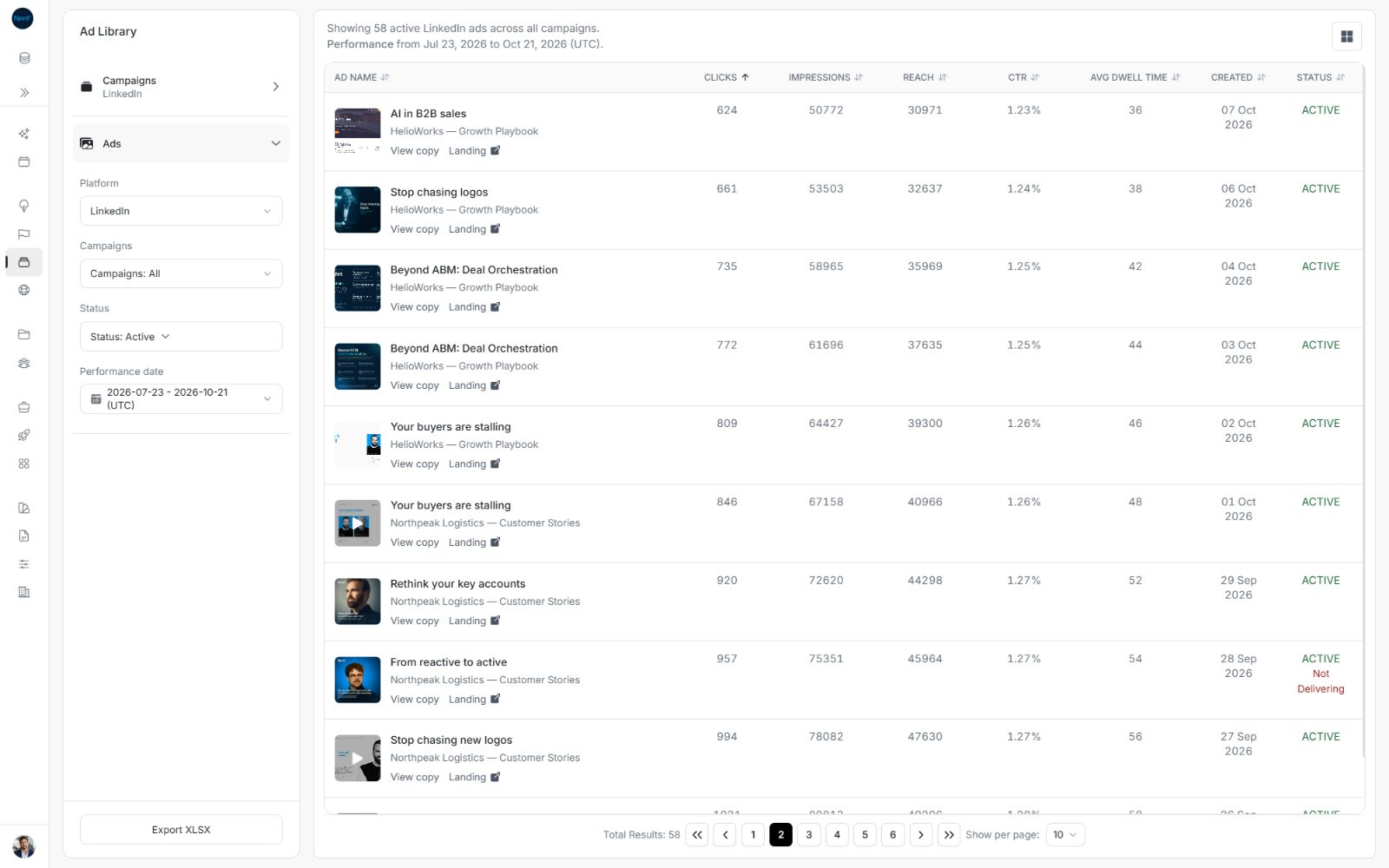
Image guide: The selected page changes while the click ordering and applied filters remain the same.
Changing campaign selection, dates or page size starts at page one. If a filter reduces the result to one page, do not expect the old higher page number to remain useful.
When the comparison is ready to share, continue to Download an XLSX spreadsheet.