Individual targeting campaigns
Individual targeting campaigns
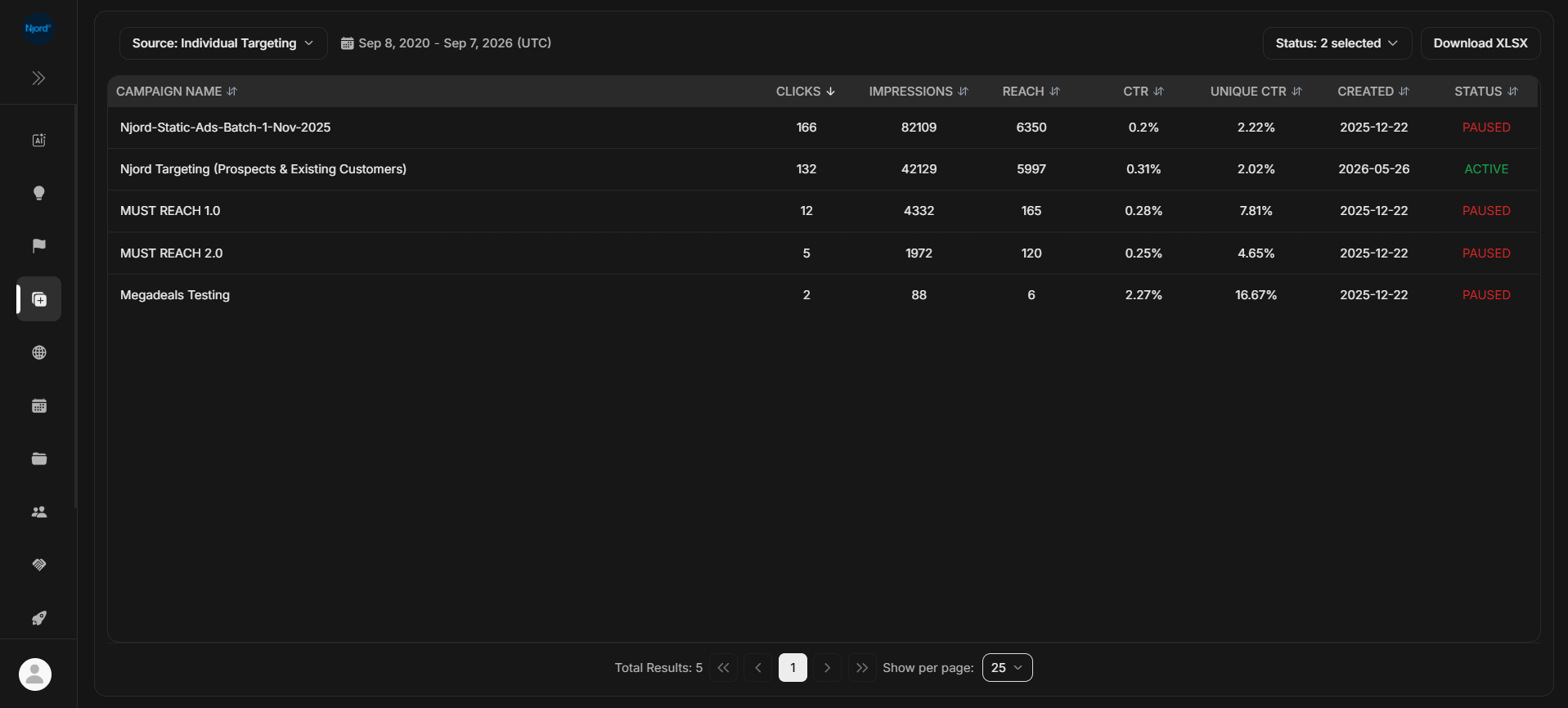
Individual Targeting in Ad Library shows campaign-level evidence for ads that DOE tracks through the Individual Targeting source. Use it when you need to answer: which campaigns exist, which ones are active or paused, and which campaign deserves a closer ad review.
Where it sits in DOE: Ad Library > Source: Individual Targeting.
Use This Page To
| Need | How the page helps |
|---|---|
| Review campaign performance | Shows campaign rows with clicks, impressions, reach, CTR, and unique CTR. |
| Find active or paused campaigns | Use the Status menu in the header. |
| Open the ads inside a campaign | Select the campaign row to move into Ads Listing. |
| Export campaign evidence | Download XLSX after the source, status, sort, and date range look right. |
| Check whether tracking is producing data | Look for campaign rows and non-zero metrics before comparing in Reports. |
Columns
| Column | What the column tells you |
|---|---|
| Campaign Name | The campaign users can open to see its ads. |
| Clicks | Total clicks tracked for the campaign in the shown period. |
| Impressions | Total times campaign ads were shown in the shown period. |
| Reach | Count of reached people or accounts that DOE can attribute to the campaign source. |
| CTR | Click-through rate based on clicks and impressions. |
| Unique CTR | Click-through rate based on unique reach where DOE receives enough data to calculate it. |
| Created | The campaign creation date. |
| Status | Whether the campaign is active or paused. |
How To Review A Campaign
- Confirm the header says Source: Individual Targeting.
- Check the UTC date range shown beside the source selector.
- Clear the Status filter if you are not sure whether a campaign is active or paused.
- Sort by Clicks, Impressions, Reach, CTR, or Unique CTR depending on the question.
- Open the campaign row to review the ads inside it.
- Use Reports when you need to see account, stakeholder, website, or deal impact.
Status
The status filter can show Active, Paused, or all campaigns when cleared.
If your role allows campaign maintenance, the status value can also open a confirmation flow. Activating a campaign starts collecting new ad data and performance metrics again. Pausing a campaign stops data collection and tracking until it is reactivated.
If the status is not clickable, your role or workspace setup does not allow you to change it from this page.
If Rows Look Missing
| Check | Why it matters |
|---|---|
| Source | LinkedIn and Individual Targeting are separate campaign sources. |
| Status filter | Active-only views hide paused campaigns. |
| Workspace | Each workspace has its own campaign data. |
| Date range | The page shows the source's available range in UTC. |
| Recent setup changes | New or changed campaigns may need time before metrics appear. |
| Permission | Some users can view rows but cannot create, edit, or export. |