Manage account Segments and GTM context
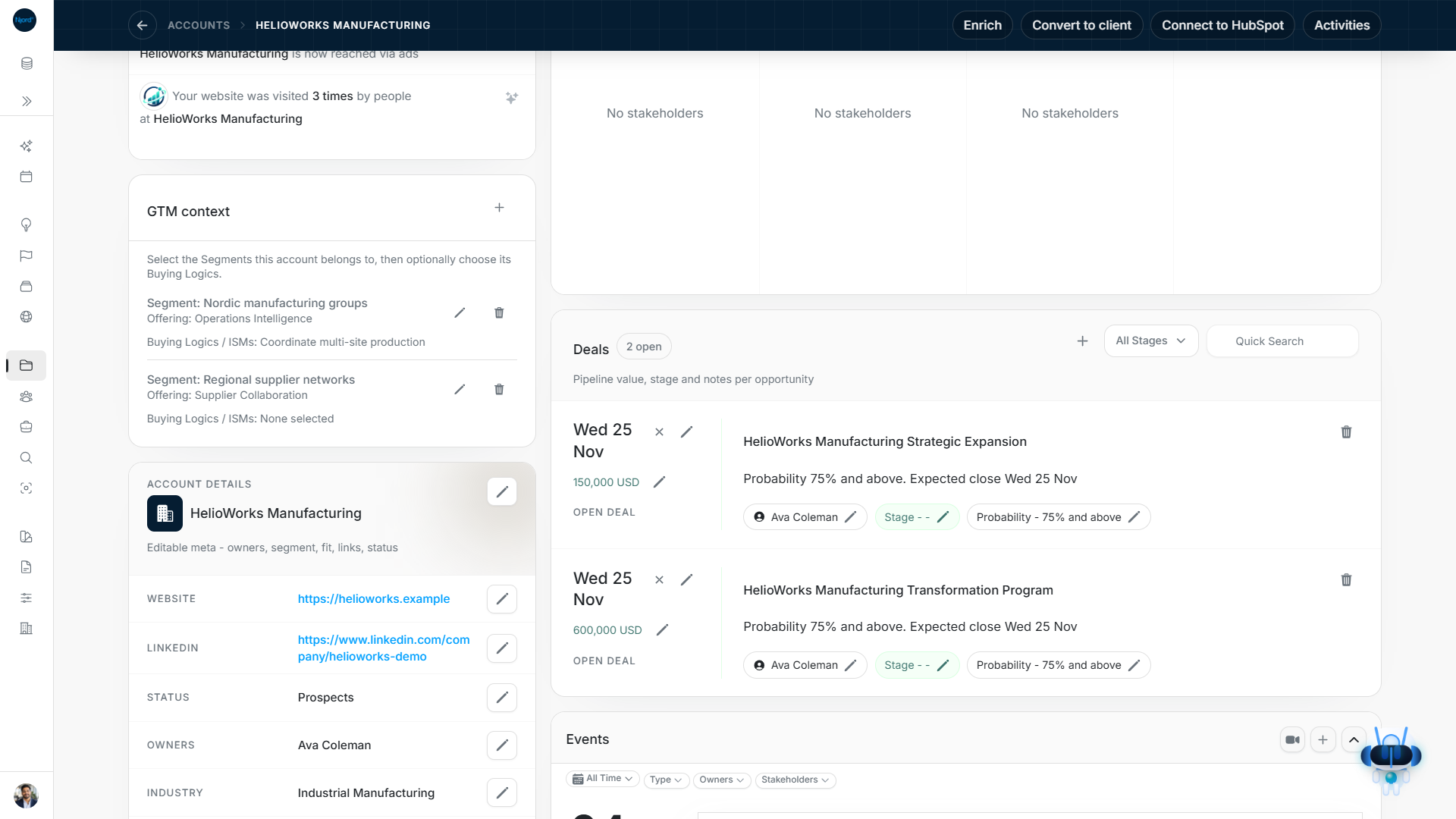
Manage account Segments and GTM context
Use GTM context to choose the saved Offerings and Segments that fit a company. Research account pickers, filters, exports and Foundation coverage use these choices. Entering an Industry or an old market-segment label does not assign a saved Segment.
Image guide: Account GTM context shows two saved Offering and Segment relationships, with an optional Buying Logic on one relationship. Fictional sample data, captured as an original PNG in light mode.
Select Segments on an account
- Open the saved account and find GTM context. The plus control is labelled Edit Segments. A supported Segment table cell opens the same selection editor.
- Read the existing checked selections. If no choices exist, define and save Offerings and Segments in Foundation first.
- Tick each relationship the company belongs to. Use Find a Segment when that search appears. Offering subtitles distinguish identical Segment names; a Segment linked to two Offerings can have separate choices for those relationships.
- Untick a saved choice only when that relationship should be removed. Choose Save. If any removals are included, review Remove unchecked selections? and choose Save changes, or cancel the confirmation.
- Check the refreshed context card and Segment summary. Cancel before saving abandons unsent changes.
A company can belong to several Segments. Leave it unassigned when no saved definition applies. Checking a company Segment does not automatically assign any person's Buying roles or targeting memberships.
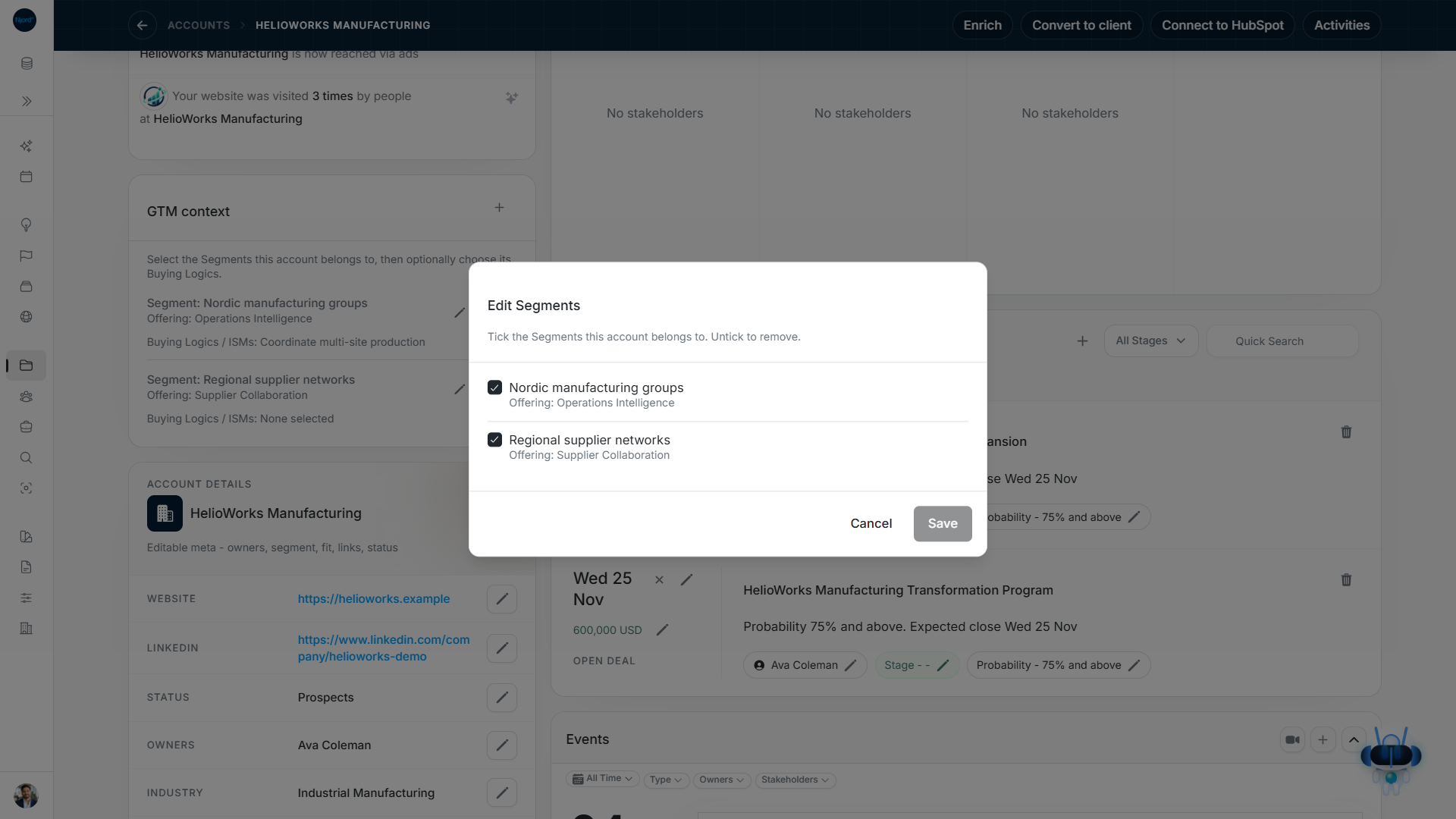
Image guide: Edit Segments shows the saved selections and their Offering names. Save becomes available after a change. Fictional sample data, captured as an original PNG in light mode.
Choose optional Buying Logics
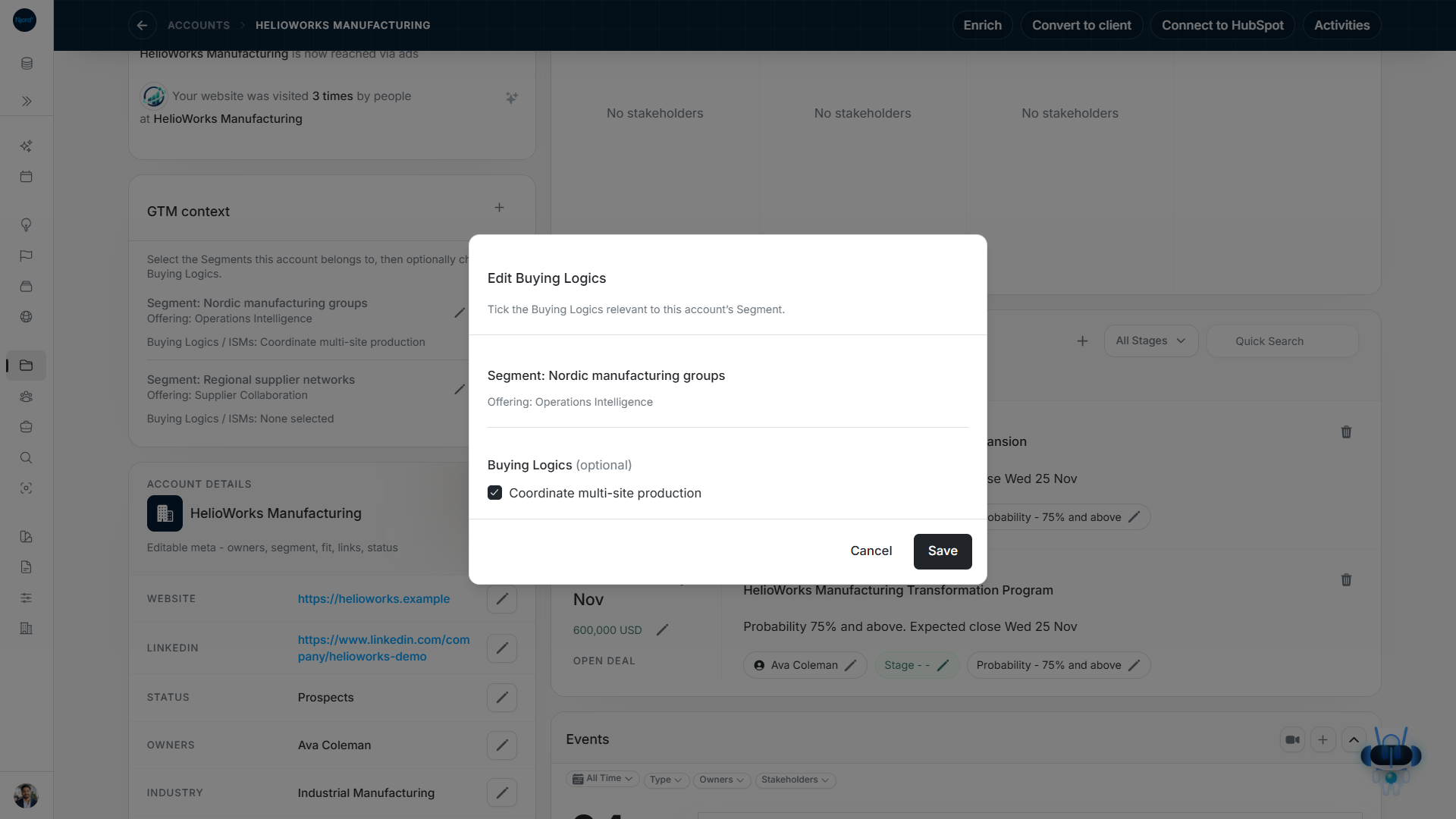
Image guide: Edit Buying Logics identifies the current Segment and Offering and lists only compatible choices. Buying Logics are optional. Fictional sample data, captured directly as a PNG in light mode.
- Find the saved context row for the intended Segment and Offering.
- Choose that row's pencil, Edit Buying Logics. Its parent Offering and Segment identify the relationship you are editing.
- Tick the compatible Buying Logics / ISMs that apply. Untick choices to remove them; all may be cleared while retaining the Offering + Segment context.
- Choose Save and check the row's Buying Logics. None selected is a valid outcome when no Buying Logic is appropriate.
If no compatible logic is defined, create and save it in Foundation first. A previously selected logic that no longer fits shows correction guidance: close, refresh the context and review it again. If available choices cannot load, use Try again. If someone changed the relationship while your editor was open, refresh it and compare the current choices before trying again.
To remove the complete Offering + Segment relationship, use the row's Remove context control and read its confirmation. This removes that account relationship, not the company or the Foundation definition. Removing only a Buying Logic is a different change.
Apply shared changes carefully
From Accounts, select up to 100 intended companies, choose Update, then GTM relationships → Update Segments →. This opens the shared Edit Segments checklist. It is separate from Manage targeting, which changes Audience memberships.
The checklist shows how many selected accounts have each relationship. A dash means it is selected on some accounts. Leave a mixed checkbox untouched to preserve those differences. Checking it adds the missing relationships across the selected companies; unchecking it removes the selected relationship across them. Only boxes you deliberately change are submitted. Search narrows the displayed choices, not the set of accounts being edited.
Review the selected count and Offering subtitles, then Save. Confirm any unchecked removals with Save changes. A selection above 100 must be split into smaller updates. A failed choices/summary read offers Retry and blocks saving until current selections can be checked.
Read Segment on people and in filters
An account's Segment column can display multiple values. Stakeholders inherit the displayed Segments from their parent account, and those cells are read-only on the person. Open the account to edit them. Missing context shows Unassigned; retry a failed summary read before interpreting it as unassigned.
Filters → GTM context can select Offerings, Segments, Buying Logics and context presence. On stakeholder lists, the filter checks each person's company before showing the matching count and pages. Buying roles is a separate person filter: a Champion at a matching company is not automatically the Champion for every purchase there.
Keep Research and targeting separate
Found through Segment explains how research found the company. Approving the finding does not assign account context or stakeholder Buying roles. GTM context also does not activate advertising: use audience memberships for targeting.
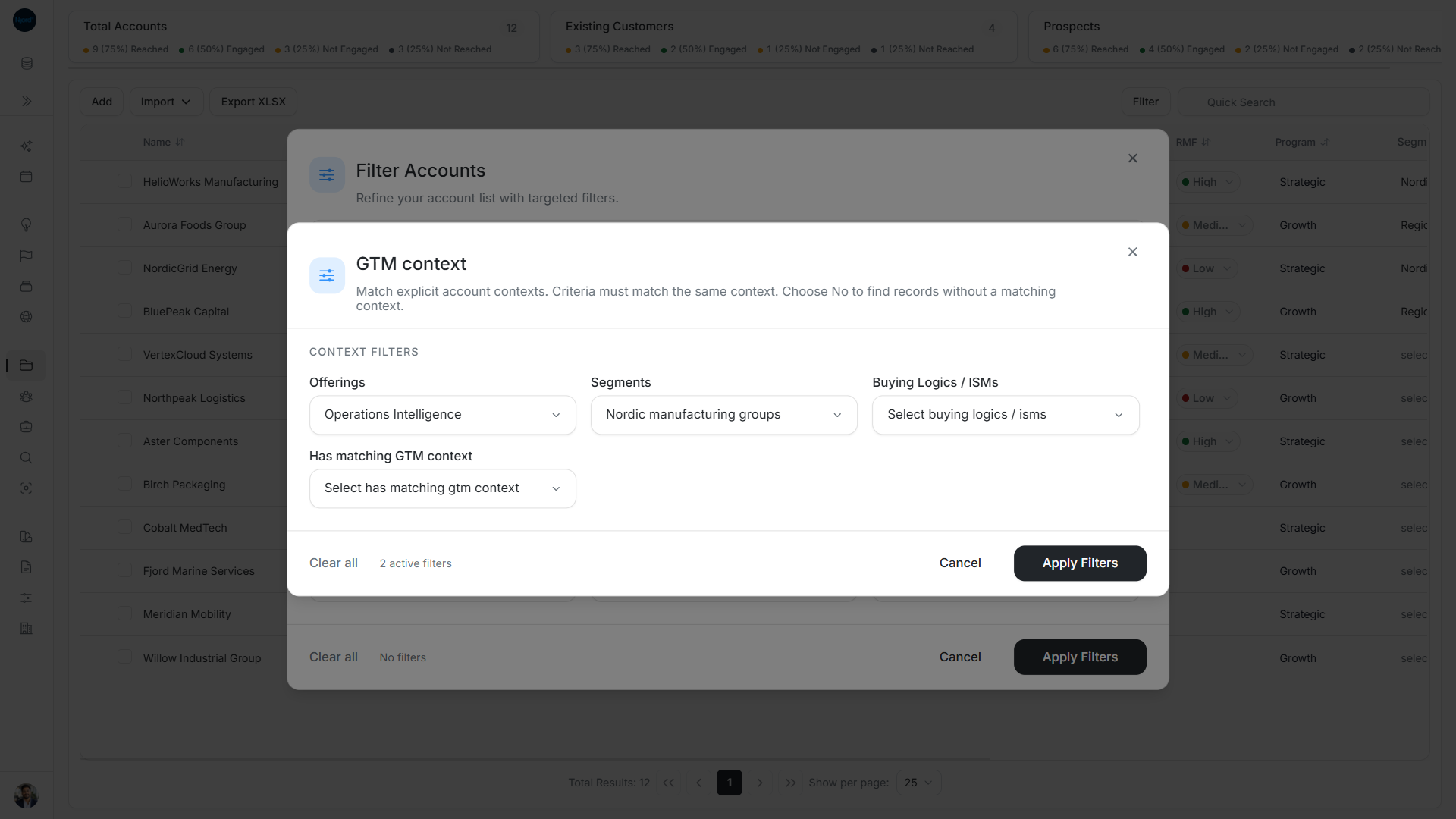
Image guide: This example combines Operations Intelligence with Nordic manufacturing groups. All selected criteria must match the same saved account context. Apply the inner GTM filter, then Apply Filters in the outer Account dialog.
Match filter criteria within one account context
When filtering GTM context, selected Offering, Segment and Buying Logic criteria must match the same saved relationship. A match must come from one saved relationship on that company.
For example, an account has Offering A + Segment North and Offering B + Segment Enterprise. Filtering Offering A together with Segment Enterprise does not match that account unless it also has that combined relationship.
Has matching GTM context → Yes — assigned finds accounts with a relationship matching the selected criteria. No — no matching context finds accounts without that match; they can still have a different context. To find accounts with no GTM context at all, use No without narrowing to a particular Offering, Segment or Buying Logic.
On stakeholder lists these conditions apply to the parent company. Buying roles remains a separate person condition. If GTM choices fail to load, existing selections are retained and other filters still work. Close the nested panel and use Retry in Filters before changing the GTM selection.
Recover a blocked or partly saved Segment update
| Feedback | Next action |
|---|---|
| A Segment is still in use | Check its dependent relationships before trying to remove the assignment. Do not remove unrelated Foundation records to force the update. |
| A selected record is no longer available | Refresh the selection and check which company or definition changed. |
| Some changes were saved | Keep the retained choices and retry to finish the remaining changes. Successful groups are already saved. |
| Choices or current selections could not load | Use Retry; an unavailable read is not an empty set of relationships. |
After a partial save, check the account context and related Segment summaries before rebuilding the selection. Changes that already saved remain saved if another part fails. Closing and reopening reads the current saved state. A pending save disables duplicate actions.
Organize accounts on the Segmentation board
Open Accounts and choose Segmentation in the toolbar. On a smaller screen, look in the toolbar menu. Clear any checked rows first if the action is hidden.
The board uses the workspace's listed accounts, independently of the table filters. Manage Accounts can also include unverified companies. It starts with an Unassigned column, followed by one column for each Segment + Offering pair. The Offering subtitle helps you distinguish similar Segment names. A company can appear in several columns when it has several saved assignments.
- Use the account search to find a company. Use the adjacent Segment/Offering search to find the right destination.
- Drag an Unassigned company into the correct column, or use the card's arrow/grip to choose a destination with the keyboard or touch.
- To move between Segment columns, check the destination in the confirmation. Choose Keep the previous Segment too to copy the assignment instead of moving it.
- To remove an assignment, move the company to Unassigned and read the confirmation. This removes only that column's relationship. It does not delete the account or its other assignments.
- Check the saved result before continuing. A company appears in Unassigned only when it has no active Segment assignments left.
Cards let you edit the company name, Status, Industry, Program and RMF. Changing these fields does not replace its Segment assignments. Show list opens the account list for that column's exact Offering and Segment; the pool link opens unassigned accounts. Manage Segments opens the saved Foundation setup.
Columns load more cards as you scroll. Use Load more when offered, or Retry after a failed read. Refresh reloads the current board. If someone changed an assignment while you were moving it, review the refreshed columns before trying again. If a move only partly saves, both assignments can remain; check both before removing either.
Use Segment references when choosing RMF
The Account's Reference Market Fit editor can show Segment references: customer examples linked to the company's saved Segments. Read the customer, use case, outcome, source and permissions before comparing it with this account.
These references help your judgement. They do not automatically set RMF, prove that a reference is approved for public use, or claim that this account will get the same result. Use Retry if the references fail to load. No linked references means there is no saved example for the selected Segment scope; it does not mean the company is a poor fit.
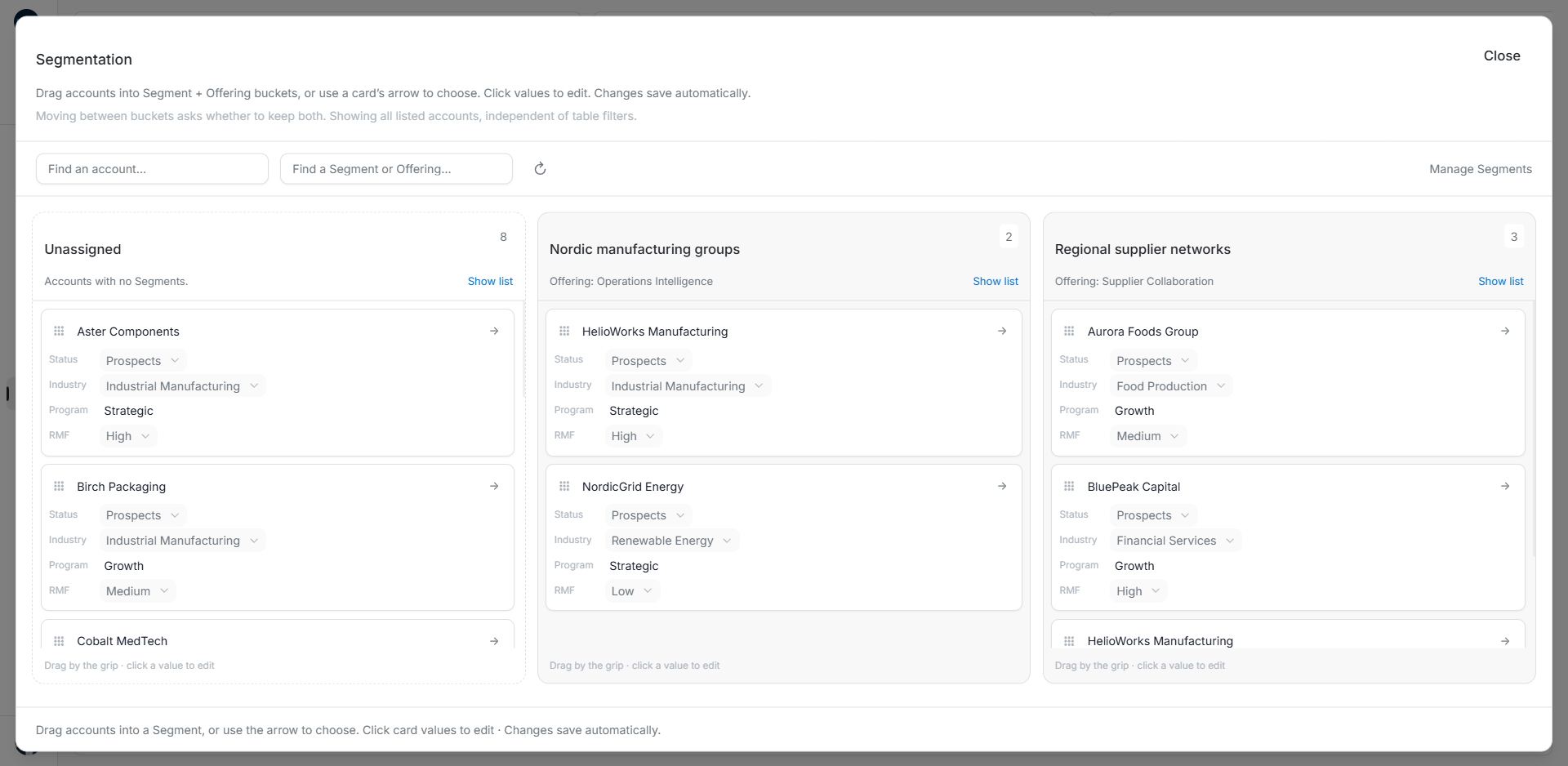
Image guide: The Segmentation board separates Unassigned accounts from each Segment and Offering pair. Fictional sample data in the current app, captured in light mode.
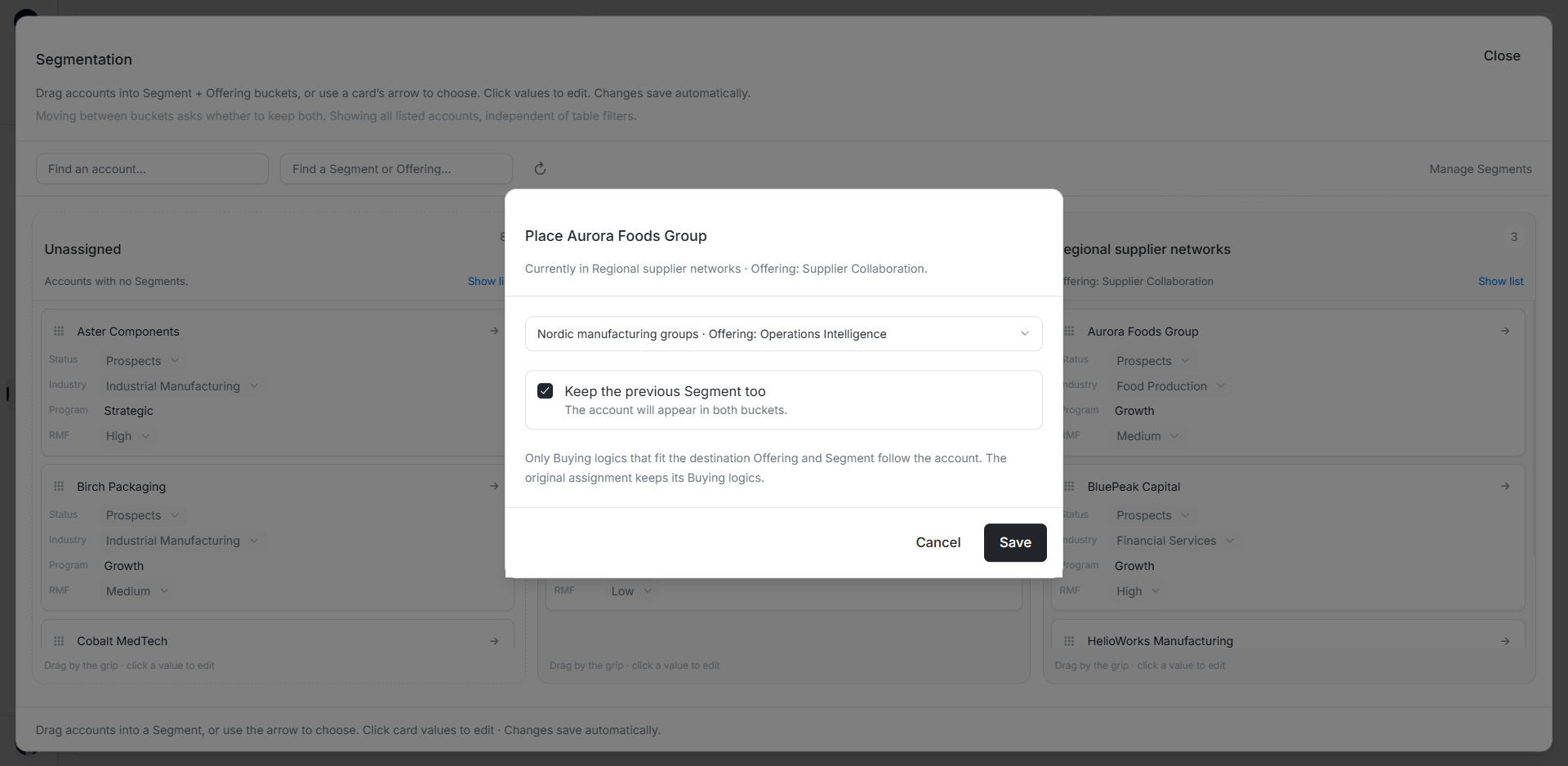
Image guide: Keep the previous Segment too adds the destination while retaining the original assignment. Fictional sample data in the current app, captured in light mode.
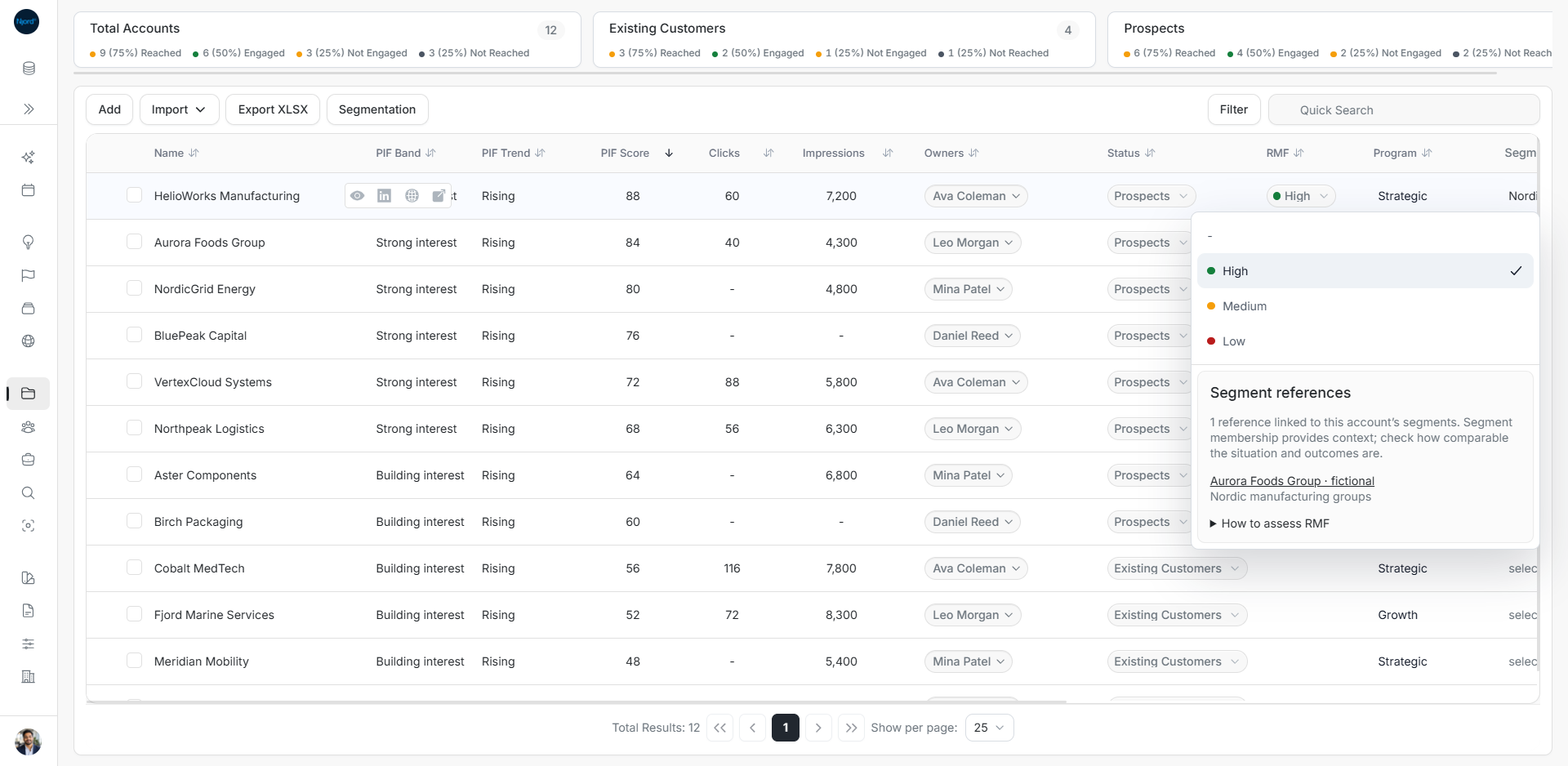
Image guide: RMF choices include reference examples linked to the company’s saved Segments. Fictional sample data in the current app, captured in light mode.
Find a specific Segment task
For visual assignment, moving, copying and column lists, follow Organize accounts by Segment. For the meaning of Low, Medium and High and the evidence beside the editor, use Assess Reference Market Fit.
Edit Segments for several accounts
Select up to 100 companies in Accounts, choose Update → GTM relationships → Update Segments, then read the shared checklist. Its count shows how many selected companies have each relationship. Leave mixed choices untouched to retain their differences. Change the intended boxes, Save and review any removal warning. Check the refreshed companies after a partial result before retrying.
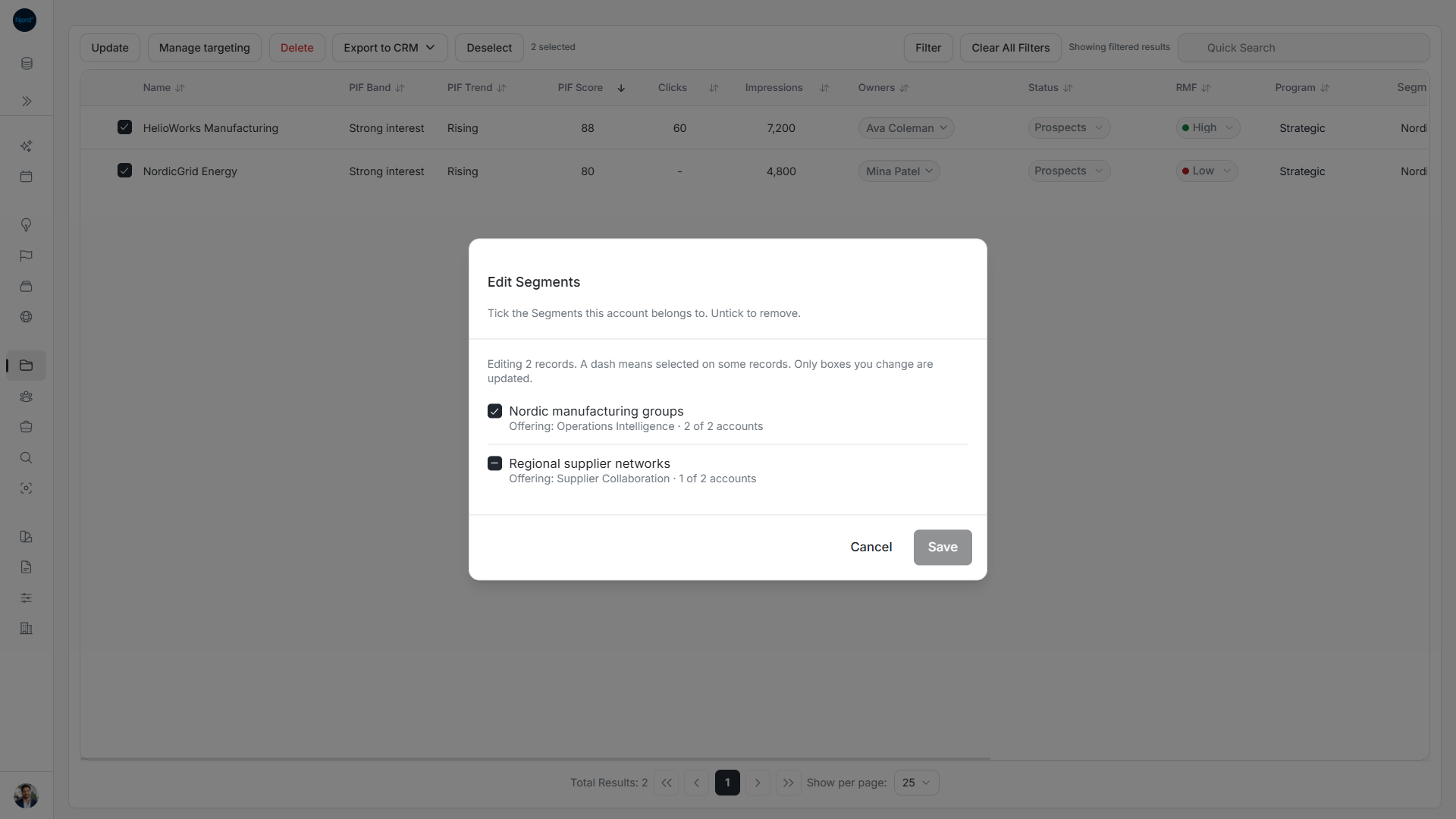
Image guide: The two selected accounts both belong to Nordic manufacturing groups. Only one belongs to Regional supplier networks, shown with a dash. Only boxes you change are updated; an unchanged mixed box preserves the different saved memberships.