Read GTM Foundation coverage
Read GTM Foundation coverage
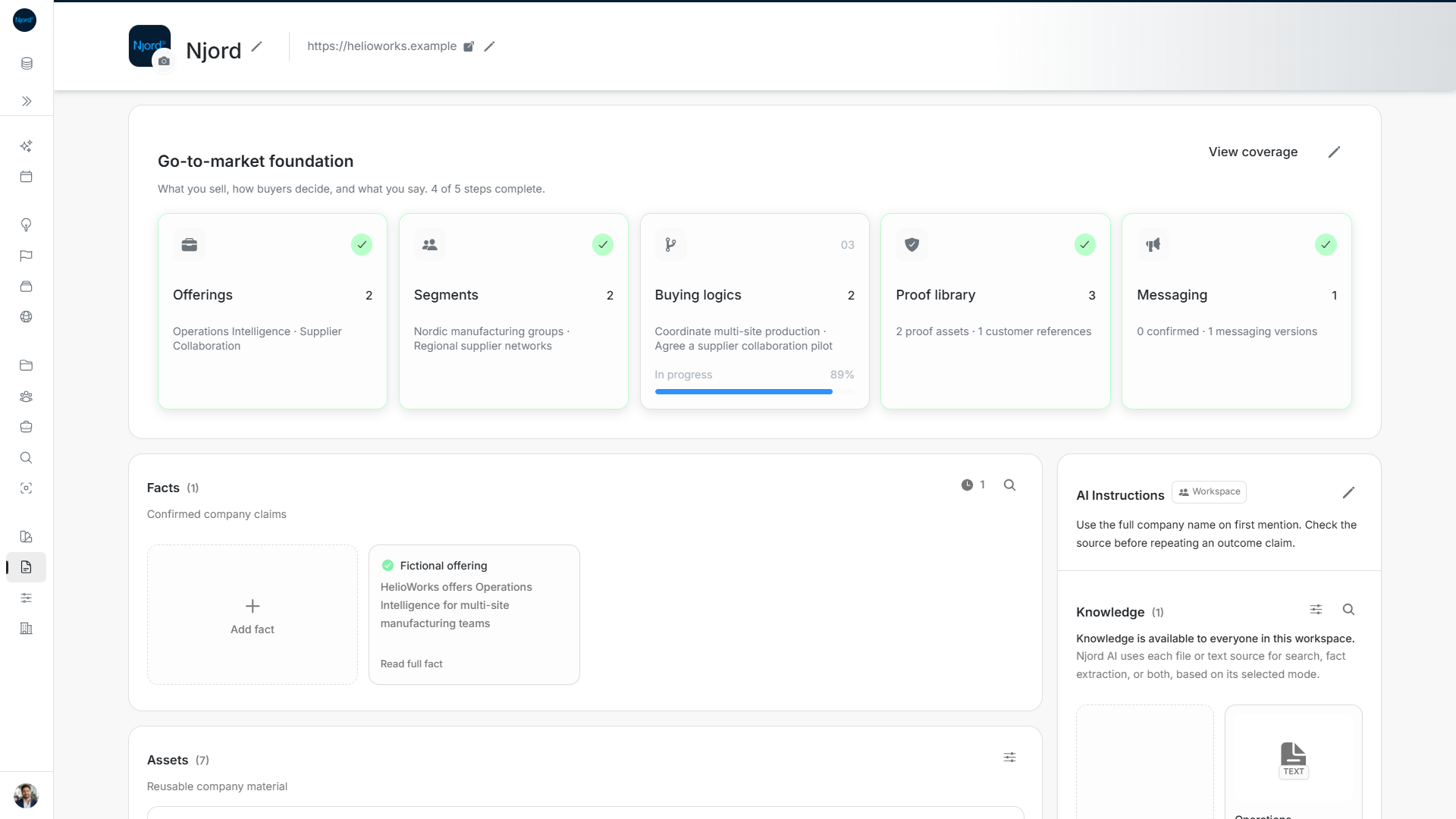
Open Context → GTM Foundation → View coverage to check which companies have saved Segments and where Messaging is ready. This helps you decide what to prepare next.
Image guide: View coverage sits beside the five GTM Foundation cards. Fictional demonstration data in the current product, captured in light mode.
Read the totals
- Choose Segments or Offerings to group the results.
- Read Assigned and Unassigned account totals. Assigned accounts have saved GTM relationships; unassigned accounts do not.
- Read people totals separately. People at assigned accounts means people linked to those companies. Their Buying roles do not change the company's assignment.
- Compare each row's Accounts, People at accounts and Confirmed messaging.
Coverage includes accounts with Active Listing visibility and people at those accounts. A saved message counts as confirmed only after someone confirms it; filled text alone is not enough.
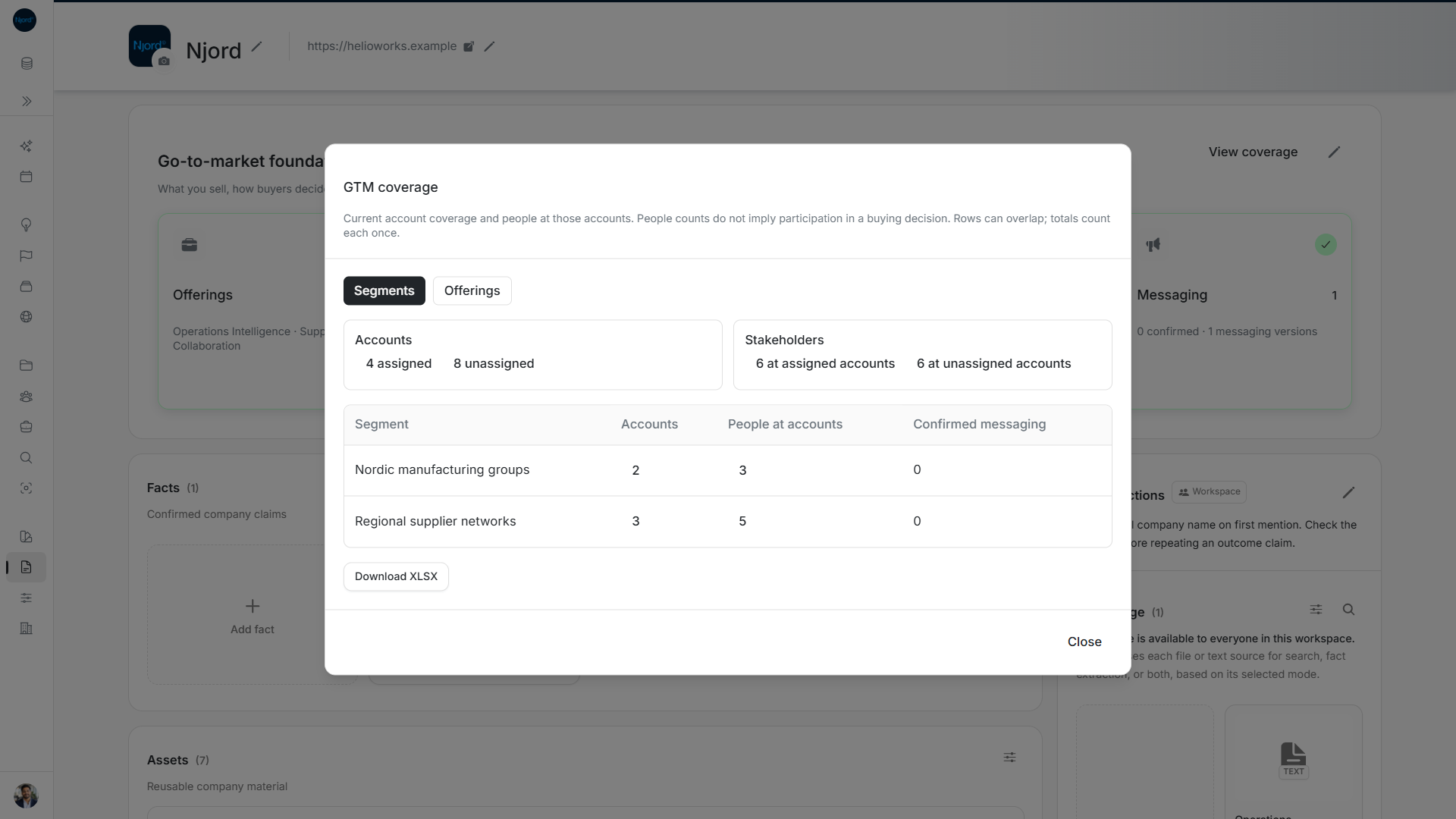
Image guide: Coverage separates assigned and unassigned totals from overlapping Segment rows. Fictional demonstration data in the current product, captured in light mode.
One company can belong to several Segments or Offerings. It can appear in more than one row, while the overall total counts that company once. Do not add the row counts to calculate a new overall total.
Open the matching records
Choose an assigned/unassigned total or a row's Accounts or People at accounts count. Check the heading to confirm which records you opened. Choose a name to open its details.
Use Previous and Next for pages of up to 20 records, and ← Back to coverage to return to the summary. Confirmed messaging is a count, without a link to an editor.
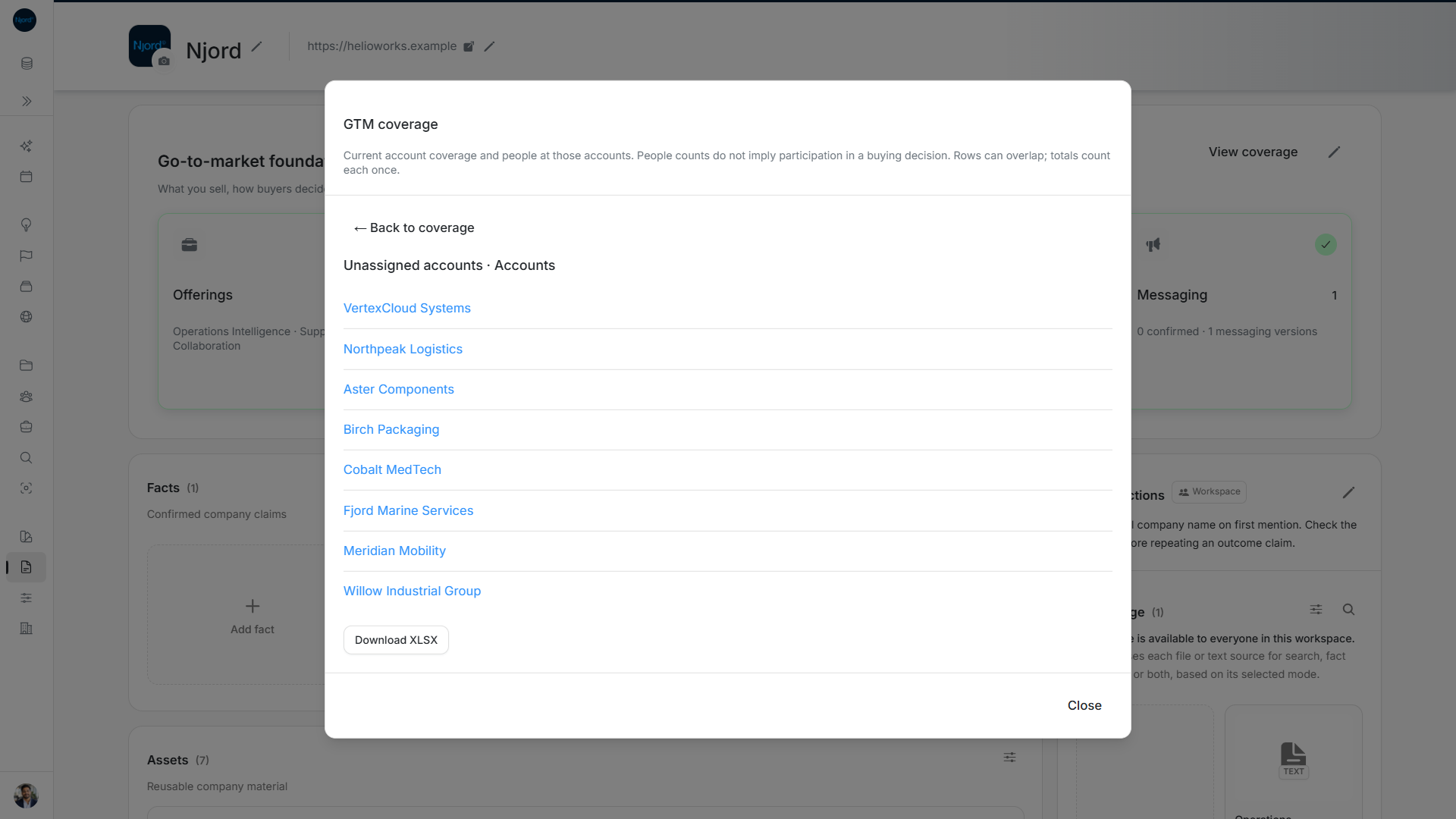
Image guide: An unassigned account count opens its own drill-down list. Fictional demonstration data in the current product, captured in light mode.
Fix a missing assignment or message
| What needs work | Where to change it |
|---|---|
| A company is unassigned | Open the account's GTM context → Edit Segments. |
| People appear under unassigned accounts | Check their parent companies' Segments. Adding Buying roles on people will not assign those companies. |
| Confirmed messaging is missing | Open Foundation's Messaging step, complete the relevant message, review it and confirm it. |
| Counts failed to load | Choose Retry. A failed request does not mean there are no matching records. |
Coverage shows today's saved relationships. It does not show which people took part in a purchase, allocate revenue or measure past advertising results.
Download a summary or record list
Download while viewing the Segment or Offering summary to get group counts across its pages. Open a count first if you need to download the matching account or stakeholder names instead.
Check the heading and grouping before downloading. Admins and Client Admins can also receive record IDs. If a required page fails, the download stops rather than creating an incomplete spreadsheet. Downloading does not assign Segments or confirm messages.
Find the right coverage group
Use the current table controls to search, sort or page through the saved groups. Switch between Segment and Offering grouping, then open an account or stakeholder count to inspect that group. Group rows can overlap; use the overall totals when you need distinct company or person counts.
Coverage shows current saved assignments and confirmed Messaging. It does not show past targeting results or divide revenue between Segments. Use the Segmentation board from Accounts when you want to organize the company assignments behind these counts.
Move from a count to an action
Open an unassigned account count to see the companies needing review. Use Segmentation to assign the appropriate Segment, then refresh coverage. Use the Foundation map for missing planning connections; adding a company assignment does not create or confirm a message.