Define ideal companies and market segments
Define ideal companies and market segments
Use Segments to describe the companies you serve and link that company definition to one or more offerings. Segments are a separate Foundation step between Offerings and Buying logics.
Where to find it: Context > Go-to-market foundation > Segments. Save an offering first. If none exists, choose Go to offerings to create one first.
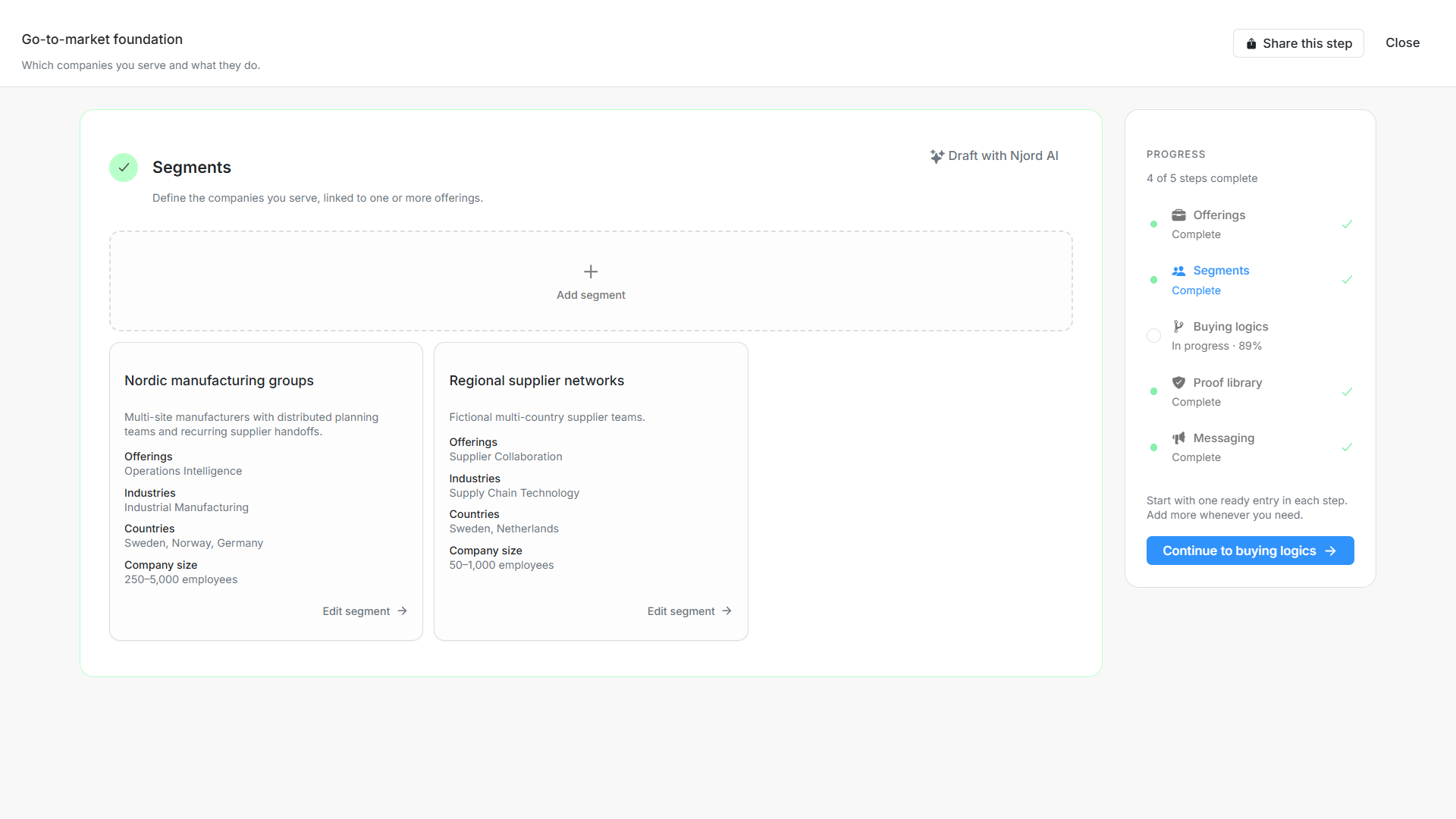
Image guide: Saved Segment cards show linked Offerings, industries, geography and minimum and maximum employee counts. Fictional demonstration data in the current product, captured in light mode.
Create and save a segment
- Choose Add segment and enter a recognizable name.
- Select one or more saved Offerings. Describe what the companies do in the company activity field.
- Choose at least one Industry. Select an existing label or add a suitable custom industry; remove an unwanted selected chip.
- Choose All countries covered by linked offerings, or Select countries to narrow their coverage.
- Add minimum and maximum employee counts, inclusion criteria, exclusions and named custom parameters when useful.
- Choose Save, wait for success and reopen the segment to check the stored values.
A name, an offering, an industry and valid country coverage are required. Description and other optional text do not replace them. The maximum cannot be below the minimum. Leave a limit empty when you do not need it.
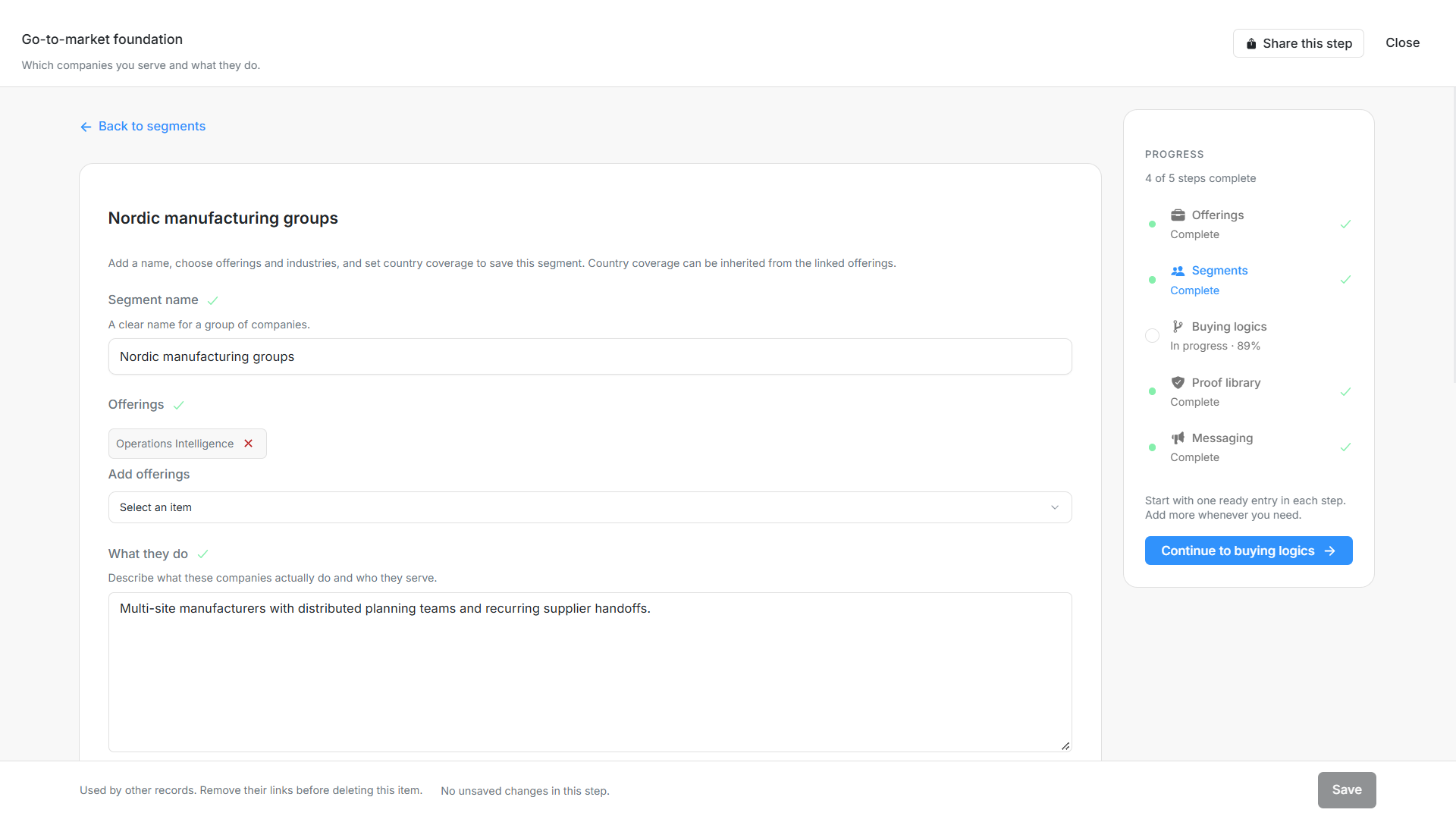
Image guide: The Segment editor separates its name, saved Offering links and company activity. Fictional demonstration data in the current product, captured in light mode.
Choose geography and qualification details
| Field | What to enter or check |
|---|---|
| Segment name | A useful name for the company group. |
| Offerings | One or more saved offerings served by this segment. |
| What they do | What these companies actually do, rather than the names of the people who buy. |
| Industries | At least one matching industry; custom industry labels can be added. |
| Country coverage | Use all countries covered by the linked Offerings, or choose a smaller set. |
| Countries | Choose at least one country. It must be covered by a linked Offering. |
| Minimum employees | Optional lower company-size bound; zero is different from leaving it empty. |
| Maximum employees | Optional upper company-size bound, at least as large as the minimum. |
| Inclusion criteria | Optional conditions that distinguish companies that fit. |
| Exclusions | Optional conditions that rule a company out. |
| Custom parameters | Optional named values; use Add parameter and remove unwanted rows. |
Inherited coverage combines every linked offering. A globally available offering makes inherited coverage global. If you change the linked offerings, a custom country selection is preserved. Countries that no longer fit remain visible with a correction hint; fix them or the parent coverage before saving.
For example, the fictional Nordic manufacturing groups segment links to Operations Intelligence, covers Sweden, Norway and Germany, and describes manufacturers with 250–5,000 employees and at least two production sites. Operations Director belongs in the Buying logic stakeholder matrix, rather than the company activity field.
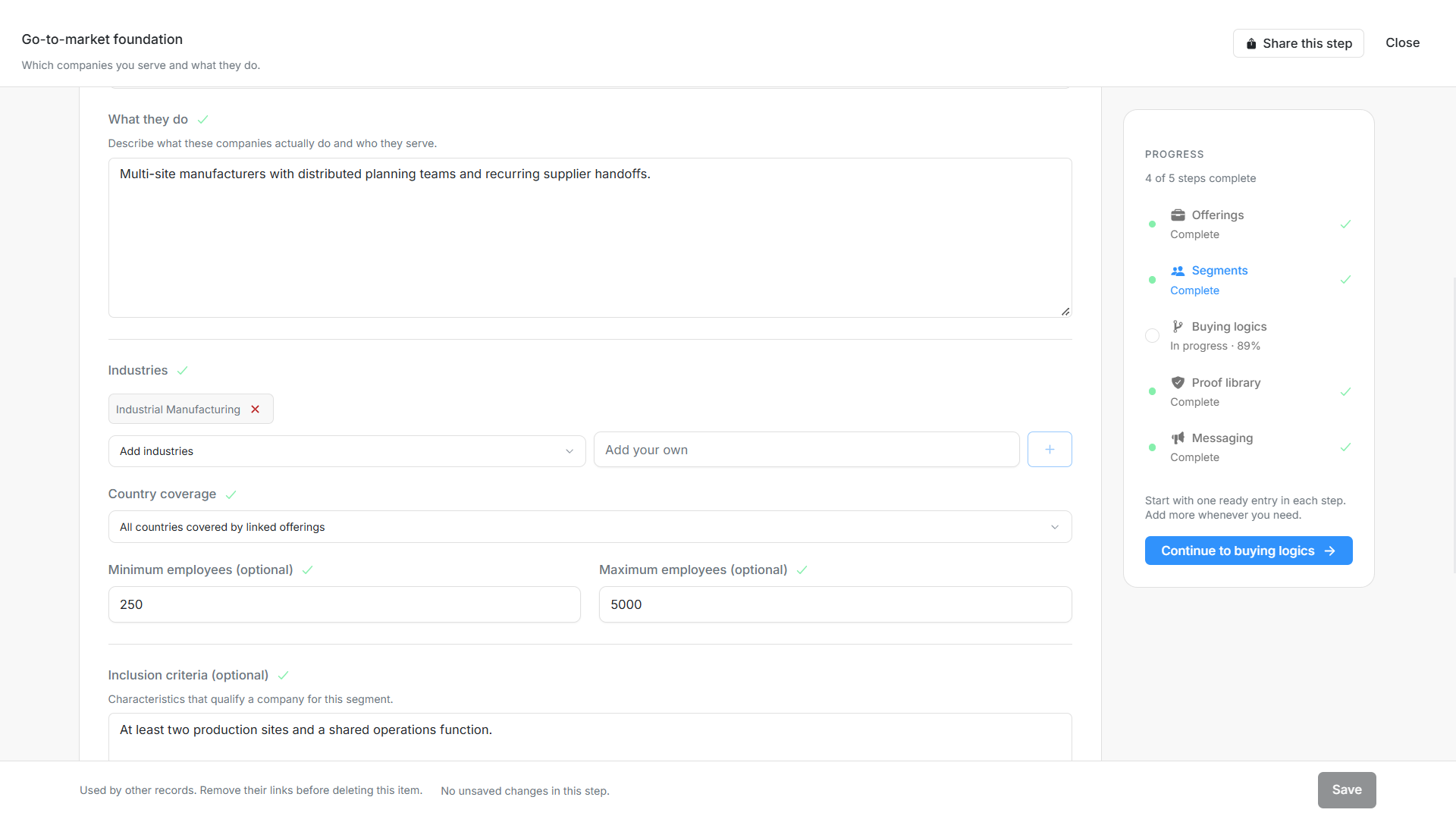
Image guide: Segment geography can inherit Offering coverage alongside optional minimum and maximum employee counts. Fictional demonstration data in the current product, captured in light mode.
Keep drafts and saved records clear
A new segment needs a nonblank name to remain in the local editor after you go Back, change steps or close it. Filling other fields in an unnamed new form does not retain that draft. A named local draft still needs Save before other workflows can use it. Clearing an existing saved segment's name produces a validation issue; it does not silently delete the record.
Removing a segment requires confirmation and saving. Dependent Buying logics and Messaging must have their links handled first. Removal never silently deletes the rest of your Foundation.
Draft and selectively approve segments
Choose Draft with Njord AI, select saved offerings and provide instructions. Supporting files are optional. If Context has no website, enter a valid URL and save it through the dialog before drafting can start. Generation produces suggestions without saving segments.
In Review segments, edit names, offering links, industries, countries and minimum and maximum employee counts. Use Apply for one item, or Select all and Apply selected / Apply all for the chosen group. Only selected drafts must be valid. An incomplete unselected suggestion does not block a valid selected item. Correct the listed issues before applying. Successfully applied items leave the review; failures retain the remaining drafts for correction and retry. Wait for approval to finish before submitting again or closing the review.
AI suggestions use the available industry catalog. If no industry fits, choose or add an industry during review before approval. Cancellation stops the current request; results from a previous workspace must not fill the new one.
Understand Account and Research choices
Assign saved Segments from an account's GTM context. The Segment column can show several relationships with Offering context. Industry remains an independent text field: existing workspace labels remain available alongside GTM suggestions, and an older text label does not automatically become a saved Segment assignment. Subsegments have been removed; use saved Segments and their qualification criteria.
Saving a segment does not create Accounts, Stakeholders or Audience memberships. Company Research selects Segments directly for geography, industry and company size. Stakeholder discovery separately supports optional Buying Logics / ISMs for positions, functions and seniority. Research approval does not assign account context or Buying roles. Review the scope before starting.
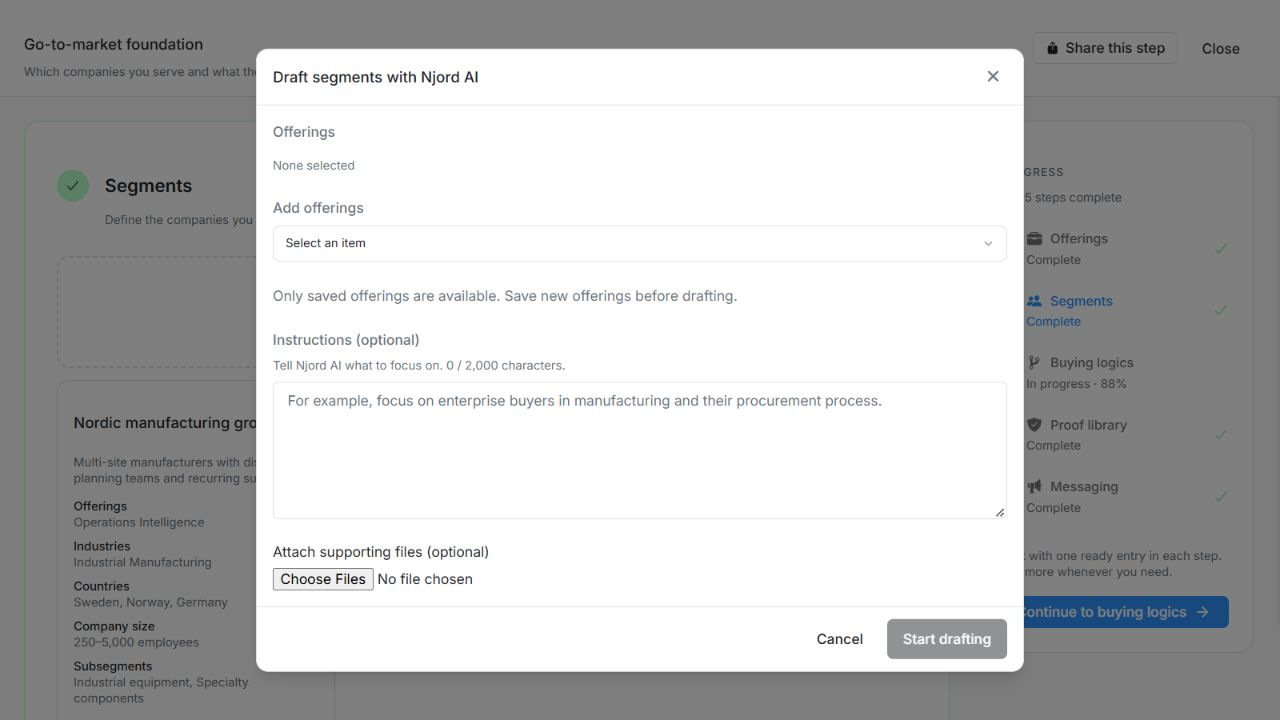
Image guide: Saved Offering selection and optional supporting files before Start drafting. Fictional sample records in the normal authenticated product, shown in light theme.
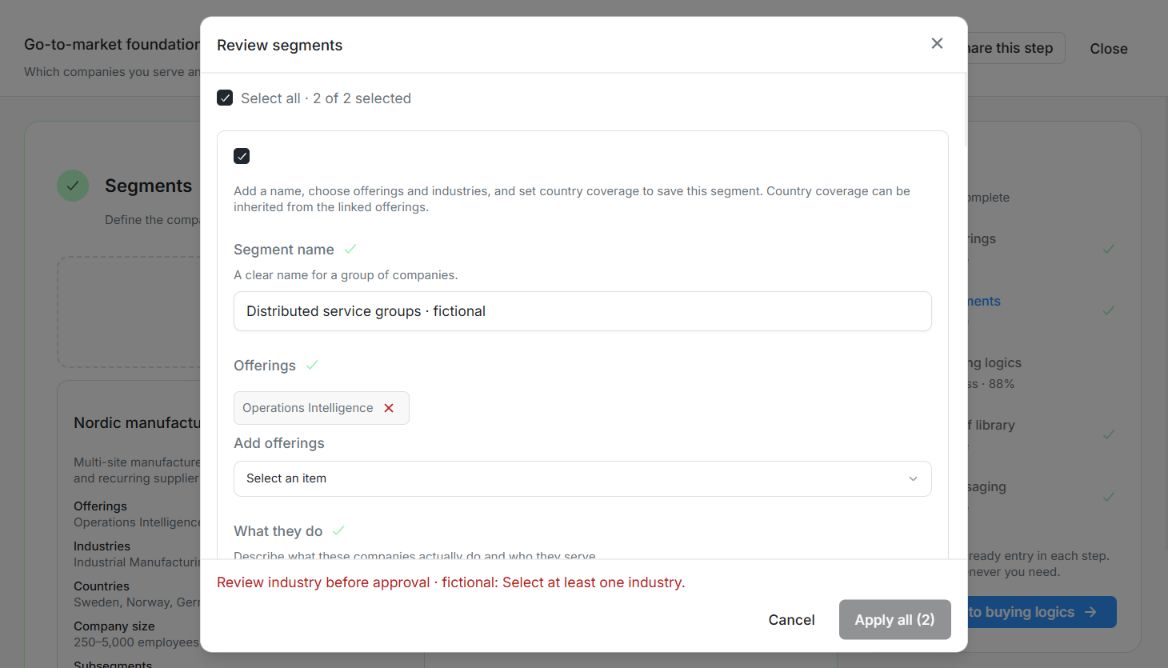
Image guide: Review segments blocks Apply all (2) and names the selected suggestion that still needs an industry. Fictional local example in the normal authenticated product, shown in light theme.
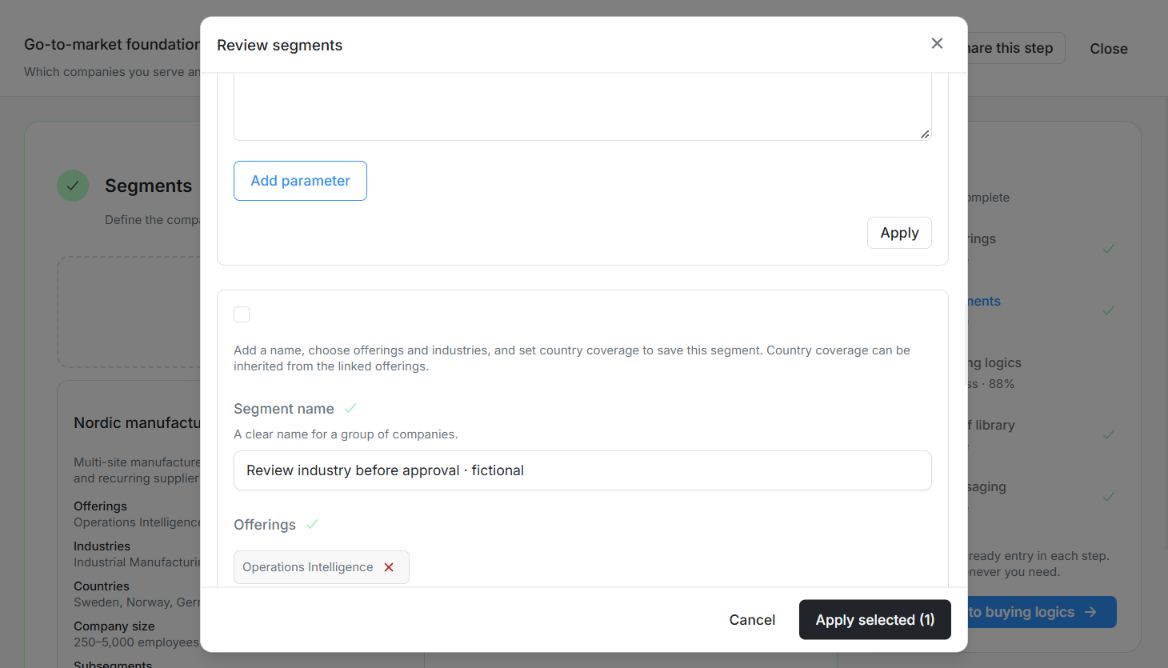
Image guide: With the incomplete suggestion unchecked, Apply selected (1) is enabled. Only selected drafts must pass validation. Fictional local example in the normal authenticated product, shown in light theme.
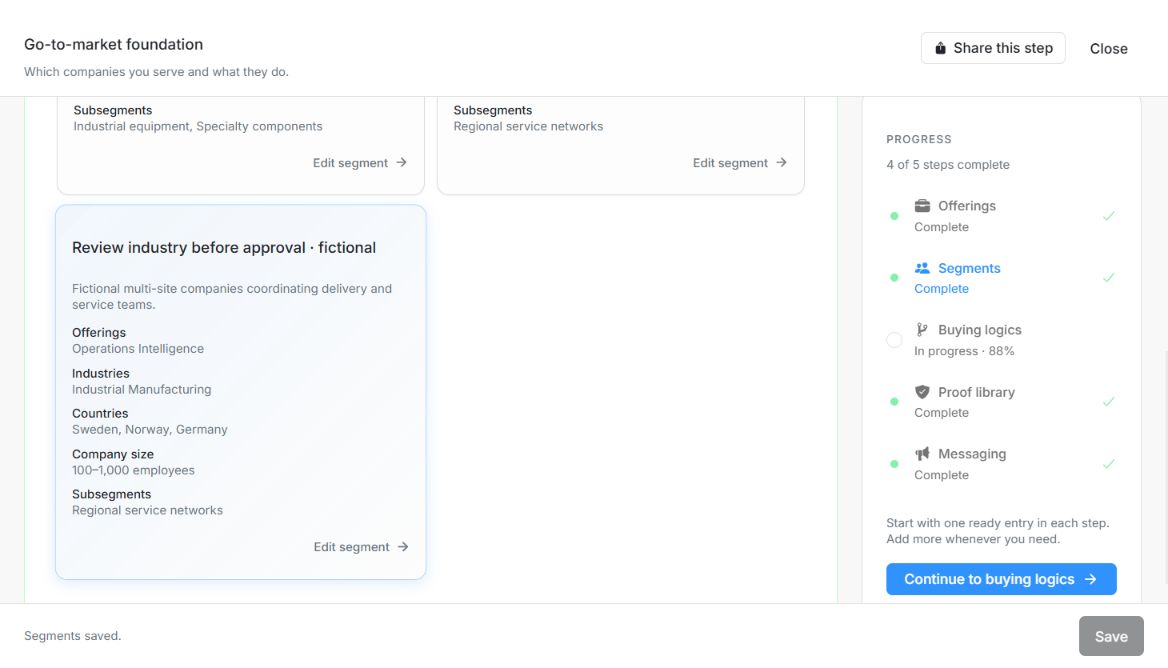
Image guide: The corrected fictional Segment appears in the list with inherited countries, industry, size and a Segments saved footer. Fictional local example in the normal authenticated product, shown in light theme.