Organize accounts by Segment
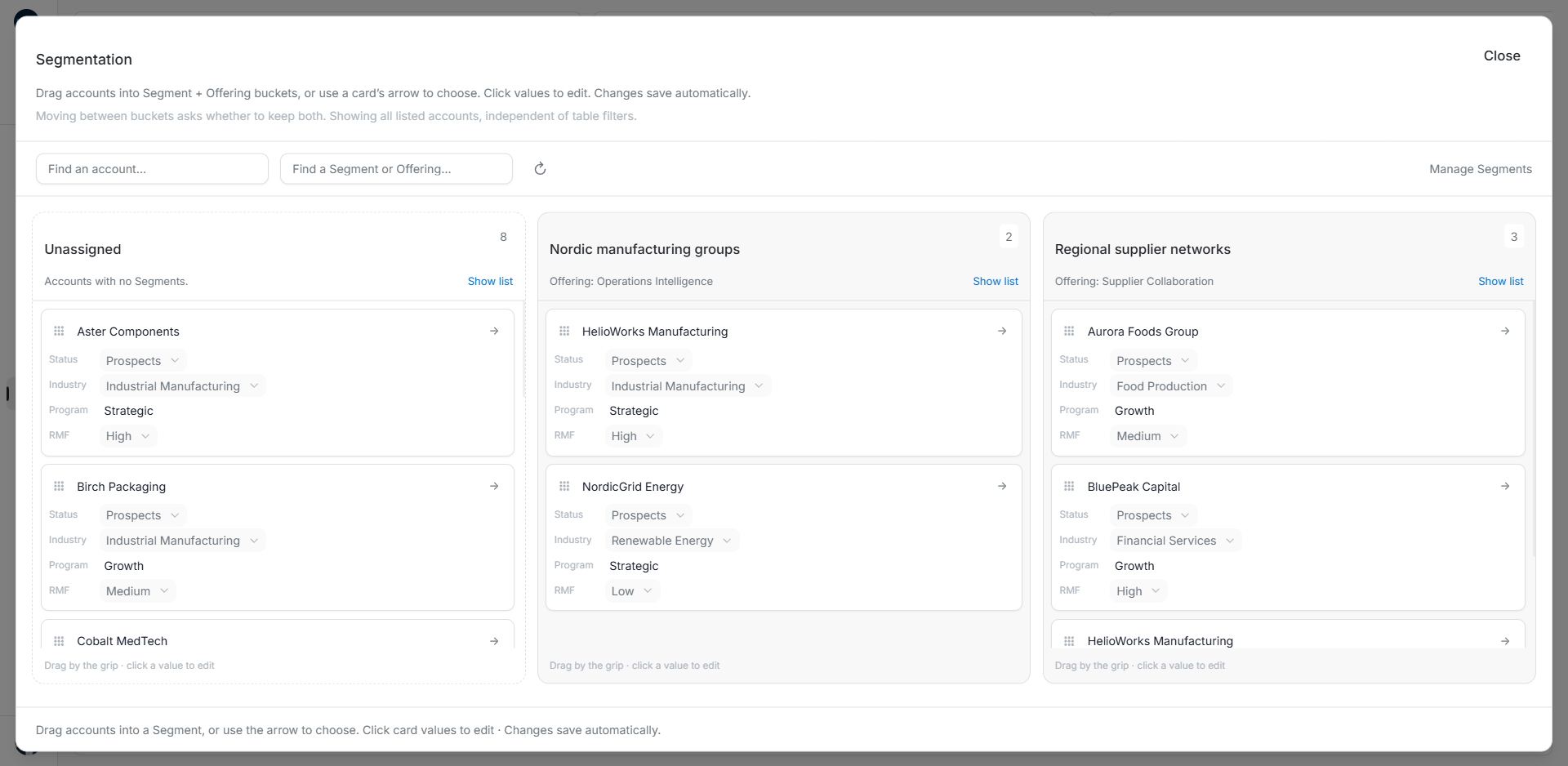
Organize accounts by Segment
Use Accounts → Segmentation when you want to organize several companies visually. You need permission to manage records. On a smaller screen, open the toolbar menu. Clear selected table rows first if Segmentation is hidden.
Read the columns
Unassigned contains companies with no active GTM assignments. Every other column represents one Segment + Offering pair. Read the Offering name beneath the Segment, especially when similar names appear twice.
The board uses listed accounts independently of the account table's filters. Opening it from a narrow table result does not limit it to those rows. Manage Accounts can also include unverified companies. A company with several assignments can appear in several columns.
Assign a company
- Search for the company in the account search.
- Use the adjacent Segment/Offering search to find the right column.
- Drag the company's grip from Unassigned to that column. The assignment saves immediately.
- Alternatively, use the card's arrow or grip to choose a destination without dragging.
- Check the saved result and the column count before continuing.
An assignment connects a saved company to your commercial plan. It does not add the company to an advertising Audience or select Buying roles for its people.
Move it or keep both assignments
Moving between Segment columns opens a Save/Cancel editor. Check the destination and Keep the previous Segment too.
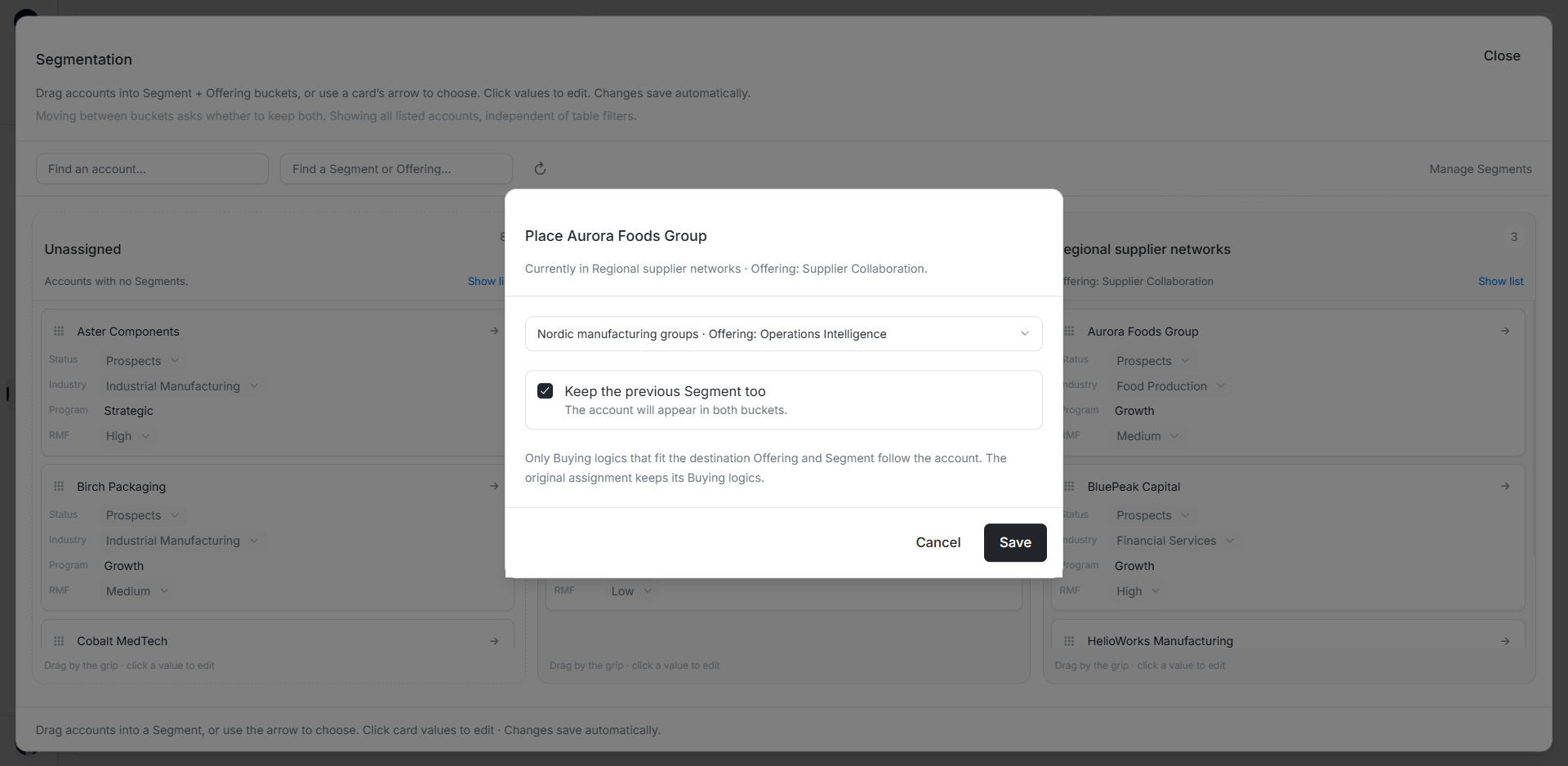
| Your intention | Choice |
|---|---|
| The company now belongs in the destination instead of this source column | Leave Keep the previous Segment too unchecked and save. |
| Both relationships apply | Check Keep the previous Segment too and save. |
| You selected the wrong destination | Cancel. |
Other assignments remain. If the destination already exists, review its current Buying Logics. Only compatible source Buying Logics can follow a move or copy.
Remove one assignment
Move the company from its Segment column to Unassigned and read the confirmation. This removes that source relationship, while keeping the account and its other assignments. It appears in Unassigned only after no active assignments remain.
Open a list or change company details
Show list beside an Offering opens accounts matching that exact Segment/Offering pair. The Unassigned link opens the unassigned group. These links replace the destination list's previous filters. Manage Segments opens Foundation setup.
Cards also offer Name, Status, Industry, Program and RMF editing. A profile change appears on other visible copies of that company; it does not move the company between Segments.
Recover a missing or uncertain result
Columns load more as you scroll. Use Load more or Retry when offered. A failed page is not an empty column. Refresh reads the current board again.
If another person changed an assignment during your move, inspect the refreshed source and destination. A partially completed move can leave both assignments saved. Check them before repeating the move or removing either. Wait for a write to finish before closing or following a list link.