Add files to Njord AI
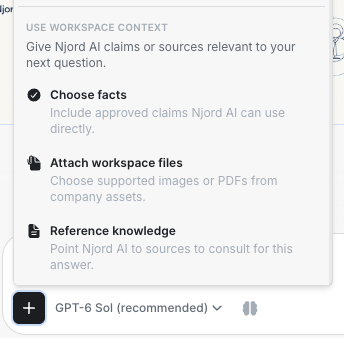
Add files to Njord AI
Add a document or image when an answer must use that exact material. You can upload a private file from your device or choose a file already saved in workspace Assets.
Image guide: A private file and a workspace reference appear as removable labels above the draft. The labels are checked before the message is sent.
Where it sits in DOE: Njord AI > Add to message, beside the message box.
Choose the right file source
| Choice | Use it when | Who can use it later |
|---|---|---|
| Upload files | The document or image is on your device and is needed for this message. | The upload stays private to you in the current workspace. It is not added to shared Assets or searchable Knowledge. |
| Attach workspace files | The file already exists in Assets and should be used for this message. | Existing workspace permissions stay unchanged. |
| Reference knowledge | Njord AI should search a saved source for relevant passages instead of reading it only as an attached file. | The source remains shared through Knowledge according to workspace access. |
Upload files is in beta. Both private and workspace files are used for the next message only. Attach them again when a follow-up must use them.
Upload a private file
- Open Add to message.
- Choose Upload files.
- Select documents or images from your device. You can also drop files onto the composer or paste files and images from the clipboard.
- Wait until every label says the file is ready.
- Remove anything the question does not need.
- Name the file in the question when more than one file is attached.
- Send the message.
Ordinary pasted text stays in the message box. Njord AI does not download a file from an image or file link that you only paste as text.
Attach a workspace file
- Open Add to message.
- Under Use workspace context, choose Attach workspace files.
- Select up to five supported files from Assets.
- Preview a label when you need to confirm the file.
- Send the message with a clear instruction about what to read, compare or create.
Njord AI uses the saved file version selected for that message. A later replacement in Assets does not rewrite an earlier conversation.
Supported files and limits
| File | Limit |
|---|---|
| PNG, JPEG, WebP or GIF | About 7 MB per image. The selected model must support images. |
| PDF, Word or PowerPoint | Up to 10 MB per file. The selected model must support document reading. |
| Text, Markdown, Excel, JSON, XML, YAML or HTML | Up to 10 MB per file. |
You can attach up to five private and workspace files together, with a combined size of 25 MB. Video and audio are not accepted as input files. A model can also have fewer file-reading abilities than another model; DOE prevents a file from being selected when the current model cannot read it.
Keep private and shared material separate
A private upload does not become an Asset, a Knowledge source or a file another member can browse. Add it to Assets when the team should reuse the original. Add it to Knowledge when Njord AI should search it in future questions.
Removing a private label removes it from the draft. It does not publish the file. Reloading can recover a prepared draft, but DOE does not send it automatically; review the labels and question first.
If a file cannot be added
| What you see | What to do |
|---|---|
| The file is too large | Reduce or split it, then attach the smaller version. |
| The file is unavailable with the selected model | Choose a model that supports images or documents, then select the file again. |
| Upload is still in progress | Wait until the label is ready before sending. |
| Upload failed | Retry once. Remove it and upload again if the retry fails. |
| A workspace file is missing | Check the workspace, Assets access and file type. |
| The same source is needed often | Add it to Knowledge for search, or Assets for shared reuse. |