Files, media and charts
Files, media and charts
Njord AI can return a file, a picture, a video, a chart or a flowchart in the same answer. This guide is about the output you ask Njord AI to create. For documents and images used as input, see Add files to Njord AI.
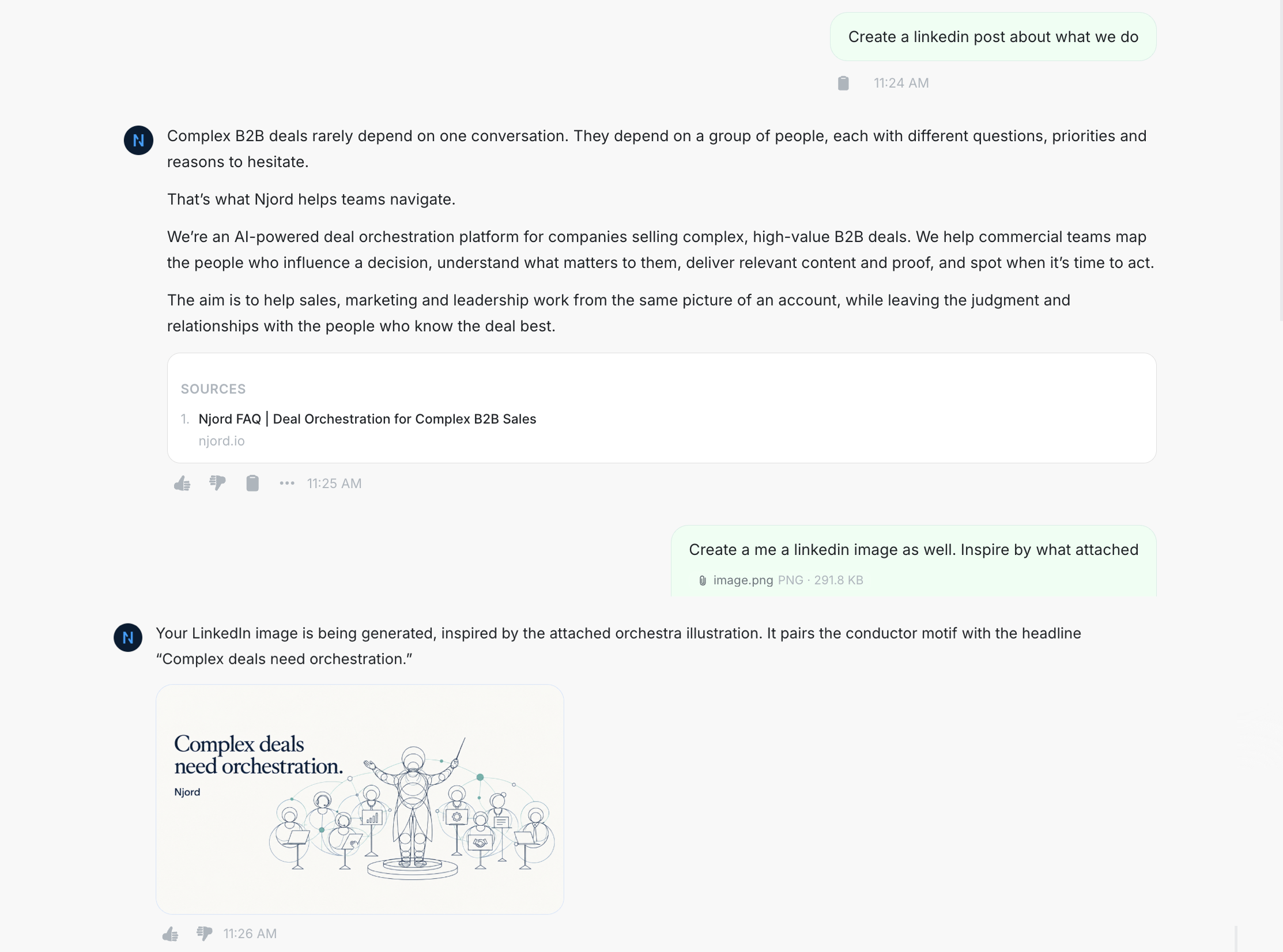
Media generation
Image and video generation is in beta.
- Say whether you want an image or a video, and describe the result.
- Attach a reference when the result should follow it. The reference can be an Asset or another file.
- Download the result, or share it from the answer.
- Save it as an Asset when the workspace should keep it. The save step uses the asset types the workspace already accepts.
Brand colors are used for PDFs and slides. Other Assets are used only when you attach them.
Image guide: A generated image or video sits in the answer. The actions include Download and Save as asset. A reference file is attached above the answer.
Files you can ask for
Ask for the file in the question. These are the formats the answer can hand back.
| Format | How you take it |
|---|---|
| Markdown | Export the answer as Markdown. |
| Export the answer as PDF on desktop. Brand colors are used. | |
| Spreadsheet | A generated spreadsheet can be previewed in the answer and downloaded. |
| Slides | Ask for a slide deck. Brand colors are applied. Save or download the file the answer returns. |
Save a generated file as an Asset when the team should reuse it. Share or download it when you only need a copy.
Charts, graphs and flowcharts
Ask for a bar chart or a pie chart when the answer is a comparison. Ask for a graph or a flowchart when the answer is a sequence. The drawing appears on the answer page with the explanation.
If the chart is the wrong shape, say which chart you wanted and which numbers it should use. Ask Njord AI to show the underlying values when the result will support a decision.