Assets
Assets
Assets are original files the workspace should keep and reuse. Store the file here when people need to preview, download or share it, but Njord AI does not need to read its contents automatically.
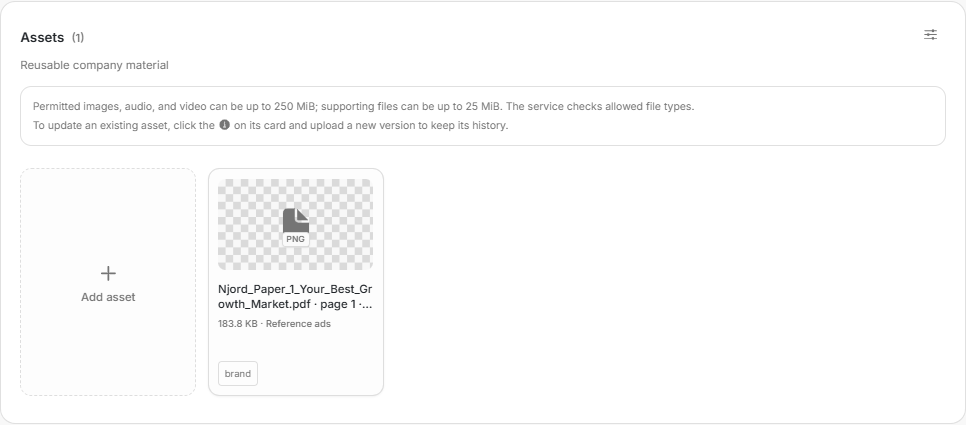
Image guide: Assets contains saved originals and the control for adding another asset.
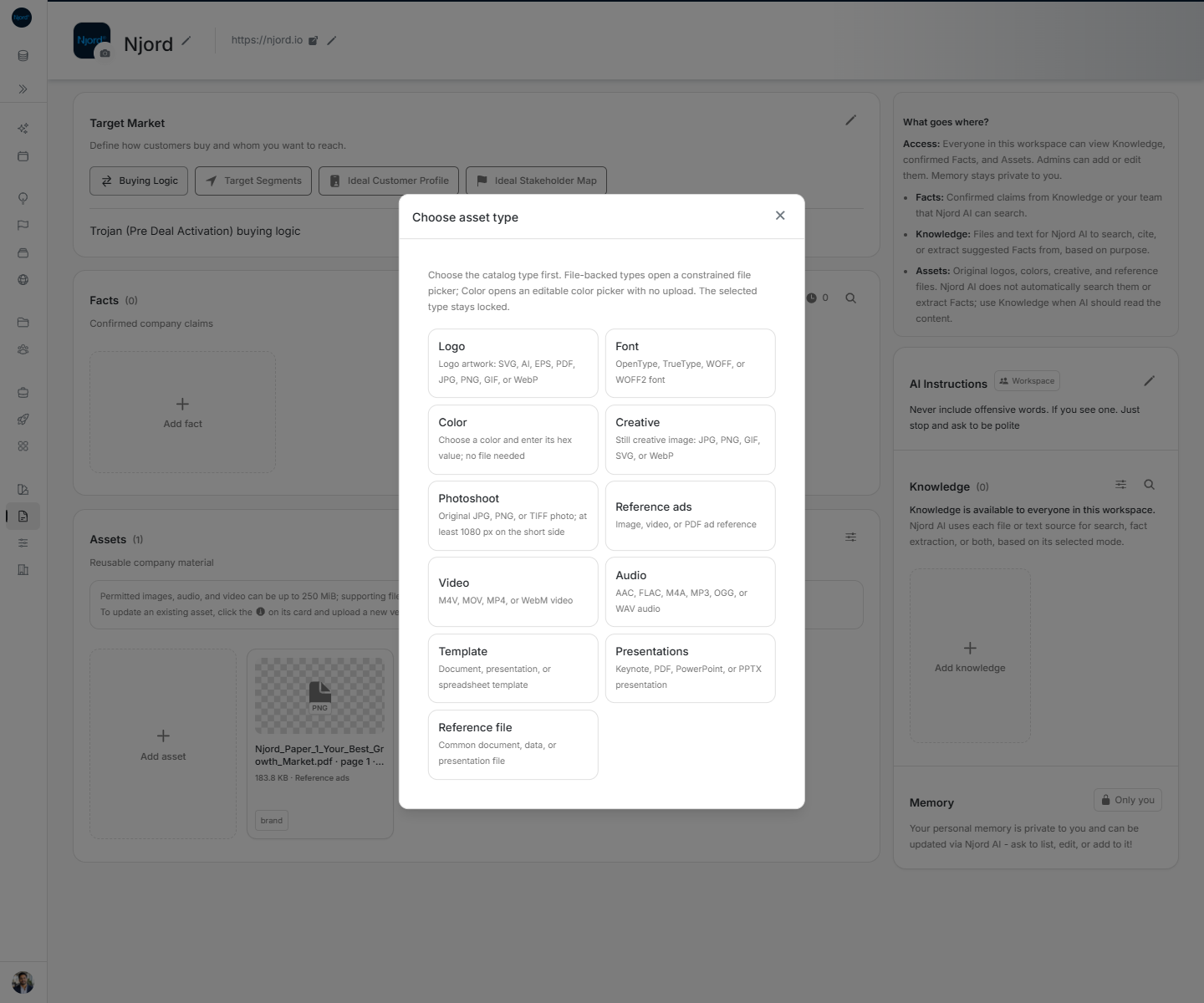
Image guide: Choose what kind of asset you are adding before selecting the file or entering its details.
Where it sits in DOE: Our company > Context > Assets.
What belongs in Assets
Assets can hold logos, fonts, colors, creative, photographs, reference ads, video, audio, templates, presentations and reference files. Use a clear title and the correct type so another person can find the original later.
Files added through Brand also appear here. Use Brand for the guided set of logos, colors, fonts, Rainmaker photos and reference ads.
Add an asset
- Choose Add asset.
- Choose the asset type.
- Select the file, or enter the details for a color or linked font.
- Add a clear title.
- Explain the intended use when DOE asks for a description.
- Add tags when they will help the team filter the collection.
- Save and open the item once to check it.
The asset type cannot be changed after it is created. If the wrong type was chosen, remove the item and add it again with the correct type.
Keep files useful
- Add a new version when the file changes; the latest version becomes the one people see first.
- Open the version history when an earlier file is needed.
- Use filters when the collection is large.
- Share the DOE link with someone who already has workspace access.
- Delete a file added through Brand from the Brand step that owns it.
Attach an Asset to Njord AI
When an answer must read a supported file from Assets, open Njord AI > Add to message > Use workspace context > Attach workspace files. Select the file, preview the label and say what Njord AI should do with it.
The file applies to the next message only. Attach it again when a follow-up must read it. Existing workspace permissions remain unchanged, and the message keeps the selected saved version instead of changing when a newer version is added later. See Add files to Njord AI for formats and limits.
Choose Assets or Knowledge
| If you need to… | Use |
|---|---|
| Keep the original for people to preview, download or reuse | Assets |
| Let Njord AI search or cite the words inside it | Knowledge |
| Save a confirmed claim | Facts |
| Complete the company's visual identity set | Brand |
Njord AI uses saved brand colors when creating PDFs and slides. Other Assets are not automatically read or attached to a conversation. Add the content to Knowledge when it should be searchable across future questions, or attach the Asset for one message.