Edit deal details and notes
Edit deal details and notes
Keep the Deal Details card current so the team can understand ownership, next steps and the forecast. Open a Deal from Pipeline, List or Quick Win, then scroll to Deal details. Editing controls require permission to manage records.
Edit a field
- Choose the pencil beside the field you want to change. The pencil in the card header edits the Deal name.
- Review the current value in Edit value and select or enter the replacement.
- Choose Submit. Use Cancel to abandon the draft.
- Check the saved value in the card and, where relevant, the updated header.
| Field | What to check |
|---|---|
| Deal owners | Select the responsible workspace members; multiple owners can be shown. |
| Activation Point | Choose the relevant next activation milestone. |
| Deal Stage | Choose an available stage and review its stage-change date. |
| Deal Value | Enter the amount and check the displayed currency. |
| Value Type | Choose the relevant commercial value type, ARR or MRR. |
| Deal Type | Choose Land or Expand; follow the dedicated type-change guide. |
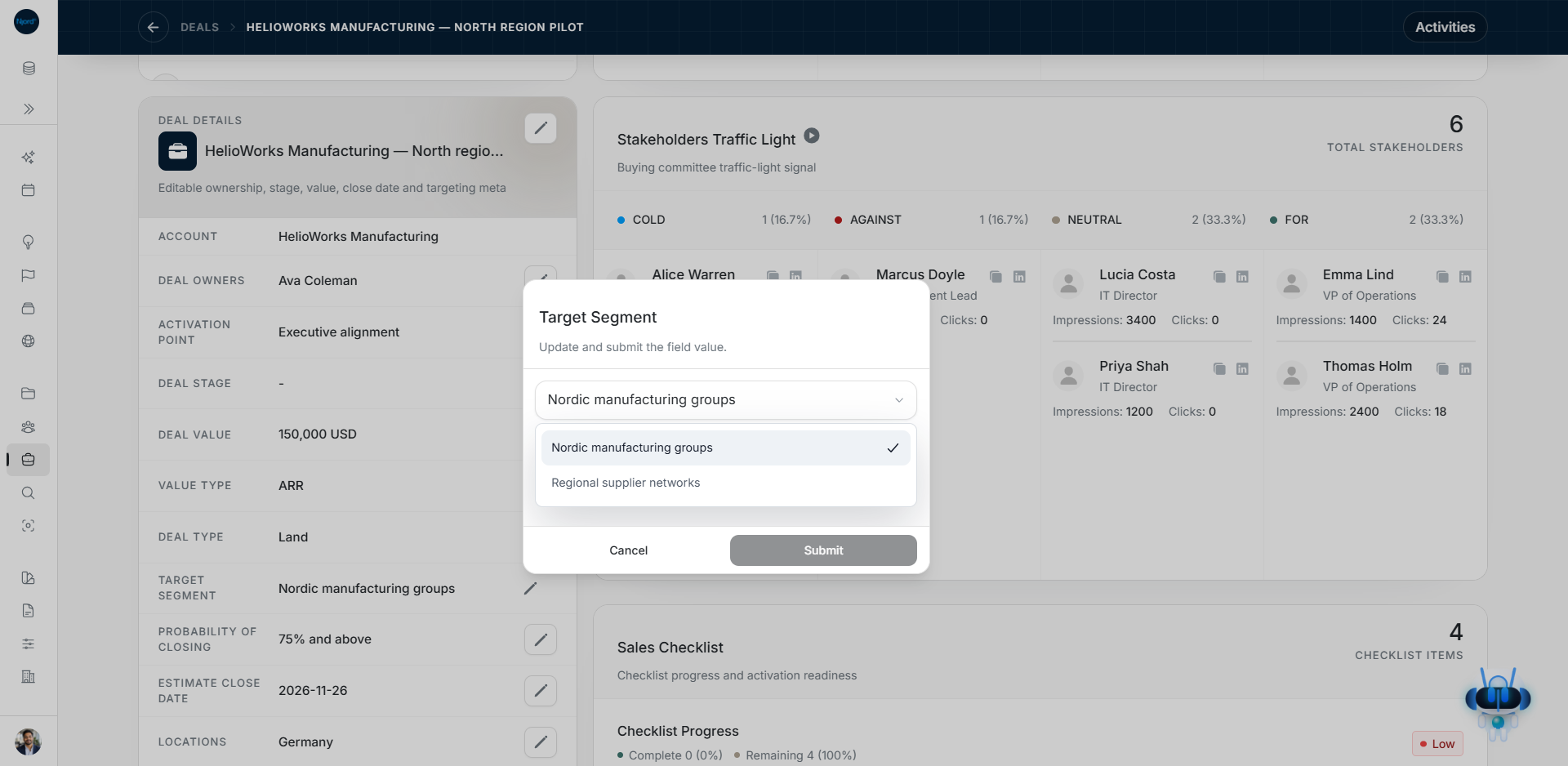
| Target Segment | Choose the relevant available segment. |
| Probability of Closing | Choose the shown probability band; it is separate from Product Interest Fit. |
| Estimate Close Date | Set the forecast close date; it is separate from when the stage changed. |
| Locations | Select the relevant countries. |
| Champion Stakeholder and Title Fight | Choose the status that reflects the current buying process. |
The Account name opens the linked Account. Created and Updated show record dates. They are not forecast or stage-change inputs.
Write the two kinds of remarks
Activation Point Remarks explains the activation milestone. Remarks holds general Deal notes. Type in the appropriate text area; these fields save automatically after a short pause rather than using the field editor's Submit button. Check for a save error before leaving. Do not paste an activation note into the general field unless it belongs there too.
If the change does not save
Keep the editor open if it shows an error and retry after resolving it. A disabled Submit button can mean the value is unchanged or invalid. Read-only users do not have the same pencil controls. Changes to individual Deal fields do not automatically rewrite every stakeholder's record or Audience membership.
Choose a Target Segment from the parent account
Choose the parent Account first. Target Segment offers the saved Segment names assigned to that company. If none are available, define a Segment in GTM Foundation and assign it to the parent account before selecting it on the Deal. The editor provides Open parent account when you need to do this. Use Retry if the account's Segments fail to load.
An older saved value can still be shown even when it is no longer an available choice. Check the account's current assignments before changing it. Selecting a Target Segment for a Deal does not create an account assignment or add an Audience membership.
Image guide: Target Segment choices come from the parent account's saved Segment assignments. Fictional sample data in the current app, captured in light mode.
Check the parent account before changing Segment
An existing Target Segment remains visible when you view the Deal. New choices come from its parent account, rather than every Segment in Foundation. A GTM filter on Deals follows the parent company’s saved relationships. Choose a Deal Target Segment explains that difference and the unavailable states.