Create and maintain an offering
Create and maintain an offering
An offering is what you sell. Separate offerings when they are distinct products or services; use several buying logics beneath one offering when buyers reach the decision in different ways.
Where to find it: Context > Go-to-market foundation > Offerings.
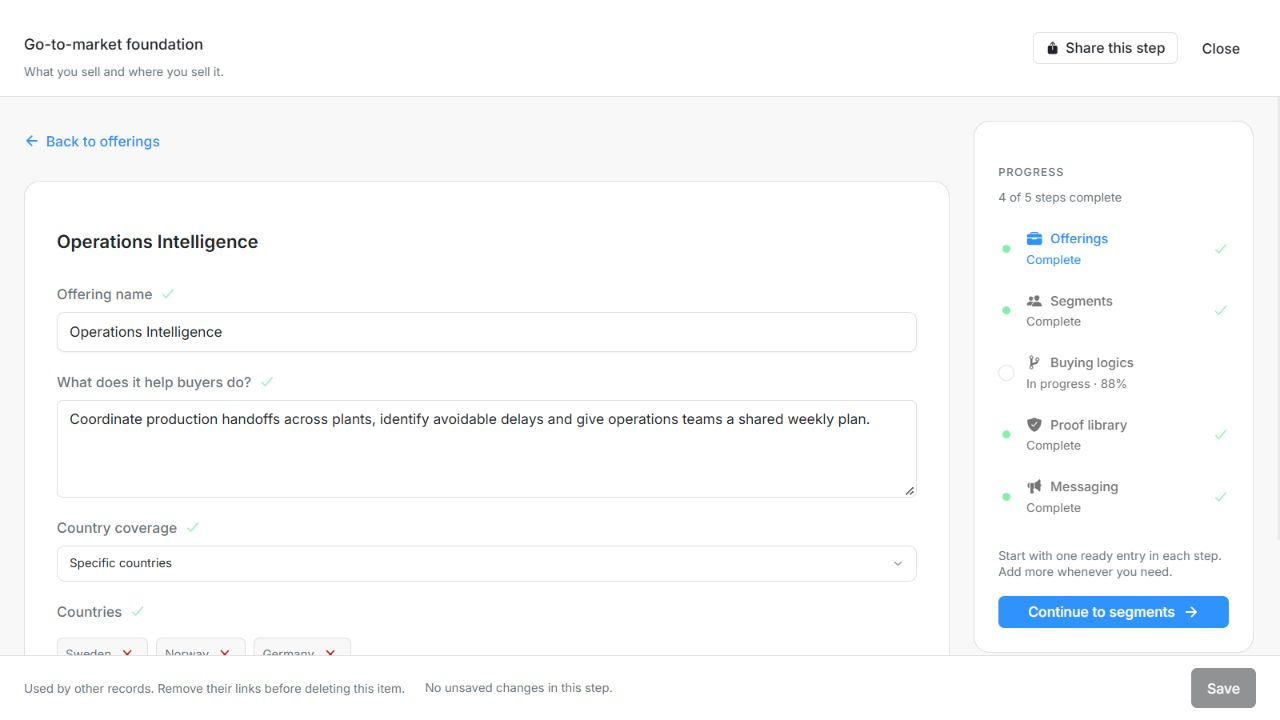
Image guide: Offering name, description and country coverage in the current editor. Fictional sample records in the normal authenticated product, shown in light theme.
Add an offering
- Choose Add offering.
- Give it a specific Offering name and explain What does it help buyers do? in the buyer's language.
- Set Country coverage. Choose all countries only when that is accurate, or select the countries you actually cover. A selected-country scope needs a valid selection.
- Choose Save. A successfully saved new offering returns to the list and can be selected by buying logics.
| Field | What to enter or check |
|---|---|
| Offering name | The distinct product or service being sold. Up to 200 characters. |
| What does it help buyers do? | Explain the buyer outcome this product or service enables. Up to 20,000 characters. |
| Country coverage | Choose All countries or Selected countries for this offering. Inheritance is a Segment choice beneath linked Offerings, not an Offering coverage option. |
| Countries | Countries in scope, using the available country choices. Up to 200 characters. Up to 100 entries. |
Edit, inspect or remove
The offering card shows its description, country scope and number of buying logics. Use Edit offering; a view-only member sees View offering. Save a change before using it elsewhere. An empty untouched Add form does not create an offering.
Use the editor's removal action only after reviewing the confirmation. Removal is staged until Save, and an offering with dependent Segments, Buying logics or Messaging cannot be removed while those links remain. Remove or change dependent relationships first; removing an Offering does not cascade through the rest of Foundation.
Draft offerings with Njord AI
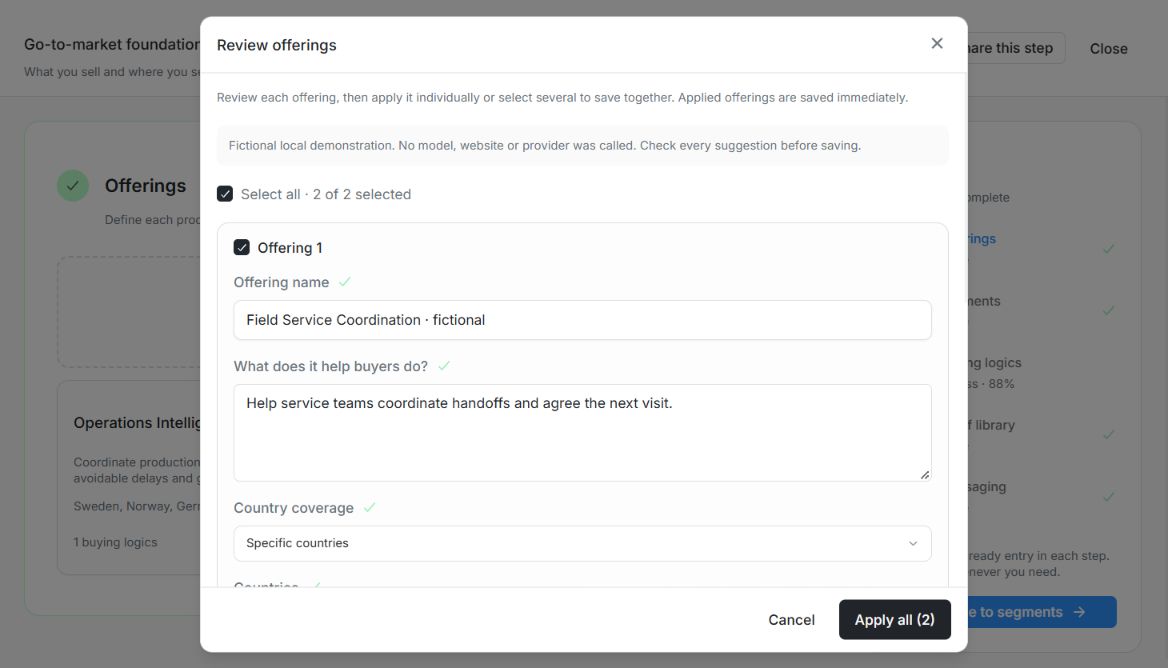
Image guide: Review offerings provides per-item Apply and Apply all (2), with editable names, descriptions and country coverage. Fictional local example in the normal authenticated product, shown in light theme.
Use Draft with Njord AI and provide optional instructions. A saved Context website is used automatically; otherwise enter a valid URL, which must save successfully before drafting starts. Review the returned offering cards, edit their names, descriptions and countries, and select only useful suggestions. Apply selected or Apply all persists the selected suggestions. Closing the suggestions without approval does not add them. Existing successful approvals remain saved if a later approval fails.
For a fictional example, “Launch Enablement” could help a software team prepare its first campaign. Do not present this demonstration outcome as verified customer evidence.
Use offerings with segments
Save an offering before linking it from Segments. A segment may serve several offerings and inherit their combined country coverage. Buying logics and Messaging then select segments belonging to their chosen offering. Handle these dependent links before removing an offering; deletion does not cascade.