Save, share and recover Foundation changes
Save, share and recover Foundation changes
Foundation is shared workspace planning. Treat the saved result as the team's baseline and the open form as your draft until Save succeeds.
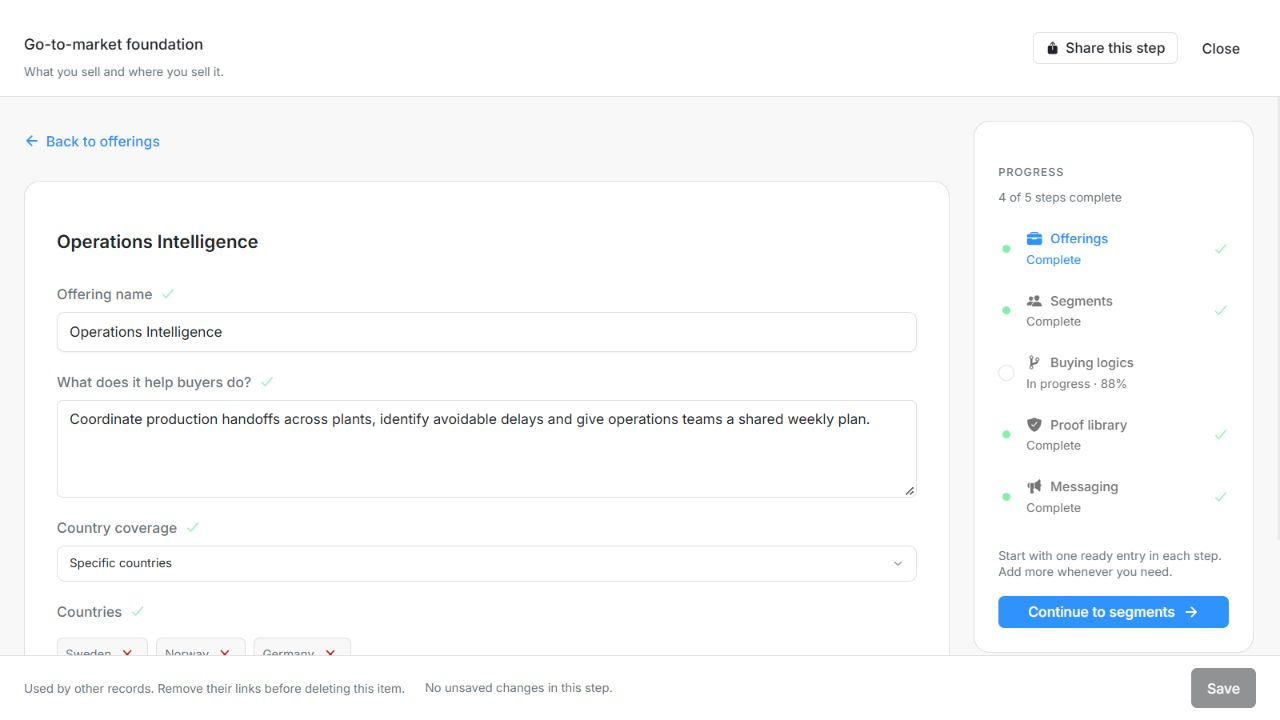
Image guide: The editor keeps the saved parent context and Save action visible. Fictional sample records in the normal authenticated product, shown in light theme.
Save and leave an editor safely
The sticky footer keeps Save and the current saved/unsaved feedback visible while the form scrolls. A filled field or complete draft is not a successful save. An untouched empty form creates nothing. During Saving, avoid a second submission or changing workspace to force a result.
After success, new Offerings and new Proofs/References return to their list. Existing Proofs/References, Buying logics and Messaging stay open. Closing with unsaved edits offers Keep editing or Discard changes. Discarding removes the unsaved work, not the previously saved records.
Follow dependencies without deleting a whole plan
Segments link to one or more offerings. Buying logics require one offering and its segments. Messaging requires an offering and segments, with optional multiple buying logics. Proofs and references can be linked to messages. Removing a record first stages a change and requires Save. Linked records explain why removal is blocked. Remove or replace the dependent links first, including links in other unsaved step drafts. Removal does not silently cascade through the entire plan.
Resolve failed or conflicting saves
A failed save keeps your form and edits. Partial success keeps successful rows as the new saved baseline while the remaining edits stay available. Retry the remaining work rather than re-creating every successful item.
If someone else changed the saved record, read the conflict guidance and use Reload saved data when ready. Discarding your own unsaved edits requires confirmation. A missing permission or expired session is different from a field validation issue; regain access before retrying. Do not assume a reload will merge two conflicting narratives for you.
Share a step or a saved item
Share this step copies a link to the current Foundation section. Saved item editors can offer their own Share action after Save provides a saved item. An unsaved new item cannot be shared as if it already exists. Copy success is shown as Copied.
Recipients still need to sign in and belong to the same workspace. The link opens the step or saved item; it does not grant access, publish it publicly or turn an encoded link into a secret. If the item was removed or is unavailable, verify the workspace and current saved item before sending another link.
Interpret progress and confirmation accurately
One complete saved record completes its step. Additional drafts do not undo that completed step. Unsaved readiness can be previewed, but the step becomes Complete only after Save. Proof progress needs a source, checked permission and the required context; reference progress needs the required customer and use case, verified outcome and an applicable usage permission.
Messaging content progress and confirmation are separate. Optional empty claims and proof do not block completion; added evidence still needs valid links and permission. Own content changes return messaging to Draft. Parent/evidence changes do not erase the historical approval record automatically, so review readiness again when the underlying plan changes.
Read on a smaller screen or with a keyboard
Use the step navigation to switch sections, the back action to return to an item list, and the fixed bottom actions while scrolling long forms. The editor returns focus to its trigger on close. View-only members can inspect saved records and follow existing links without editing controls. If a menu is open, Escape first closes that menu; read any unsaved-changes prompt before dismissing the editor.
Recover dependency and partial-save problems
Parent records save before their dependents; staged deletion follows the reverse order. Dependency protection prevents automatic cascading deletion. If some changes save and others fail, keep the acknowledged rows as the new baseline, correct the remaining issues and retry only unsuccessful changes. Revision conflicts require reviewing current saved values first. Meaningful drafts remain available without creating empty placeholder records.
Messaging confirmation records the person, revision and time explicitly. Editing that message resets its confirmation. A later change to a parent or evidence item does not silently rewrite the original confirmation attribution; review the message's suitability deliberately.