Explore the Foundation map
Explore the Foundation map
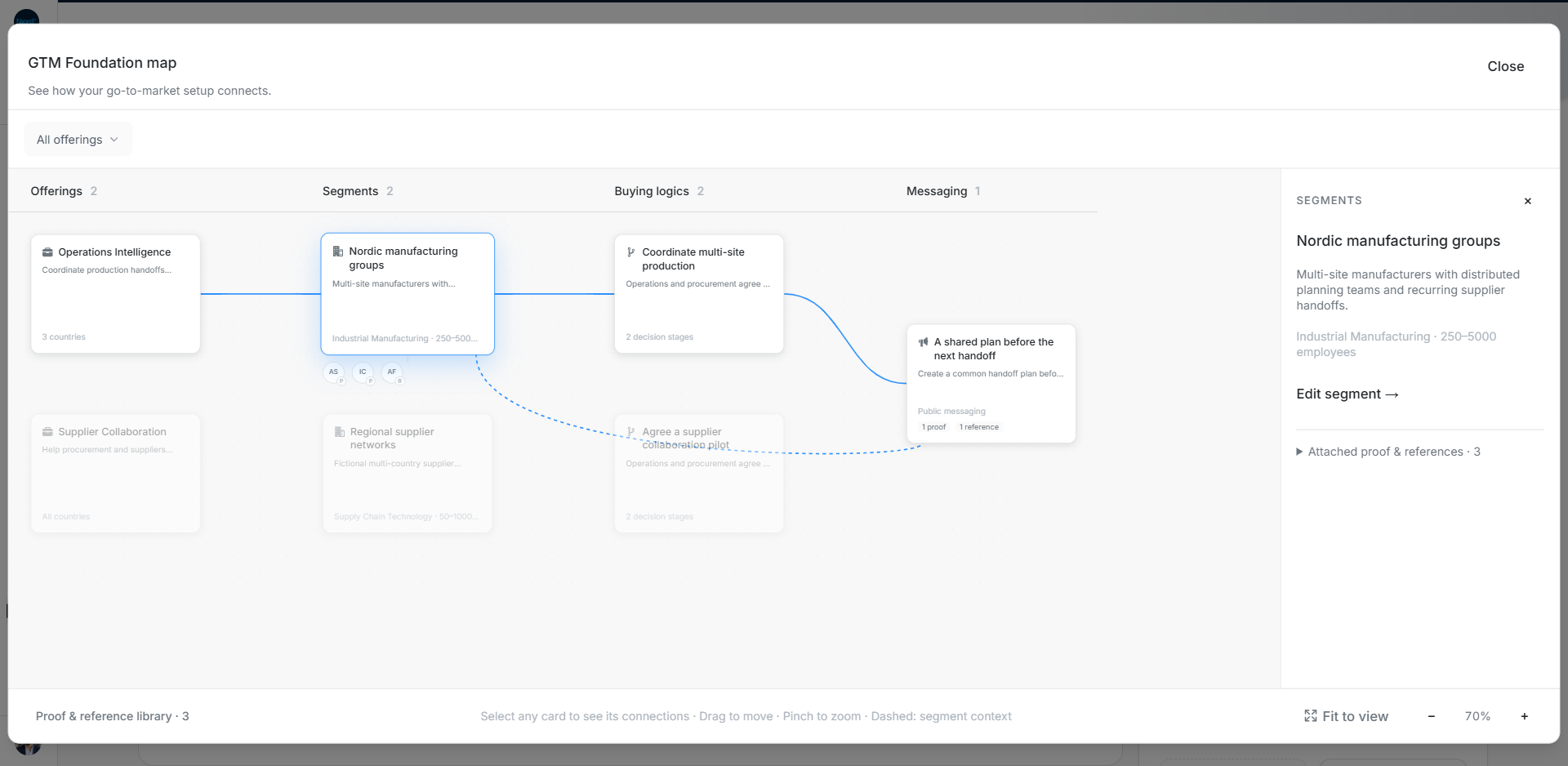
Open Context → Go-to-market foundation and choose its graph icon. The Foundation map shows how your saved commercial setup connects. It is separate from account assignments, Audience membership and Deal Pipeline stages.
Start with the whole map
- Start with All offerings.
- Select a Segment, Buying Logic or Messaging card. Its connected paths appear in blue and unrelated cards fade.
- Read the selected card's details in the preview. Select it again to clear the highlighted path.
- Use Edit/View to open its existing saved item.
The full map initially hides connections until you select a card. A shared Segment can appear once with several Offering connections. The highlighted path follows that branch rather than selecting every sibling that shares a parent.
Focus on one Offering
Choose the Offering in the top picker, double-click its card, or use Show offering tree. The map changes to a top-down view of that Offering, its Segments, Buying Logics and Messaging, with connections shown.
Use Reset view or All offerings to return to the full map. There is an Offering picker rather than a map search box. Empty layers offer Set up or View, depending on your access.
Read evidence attached to a Segment
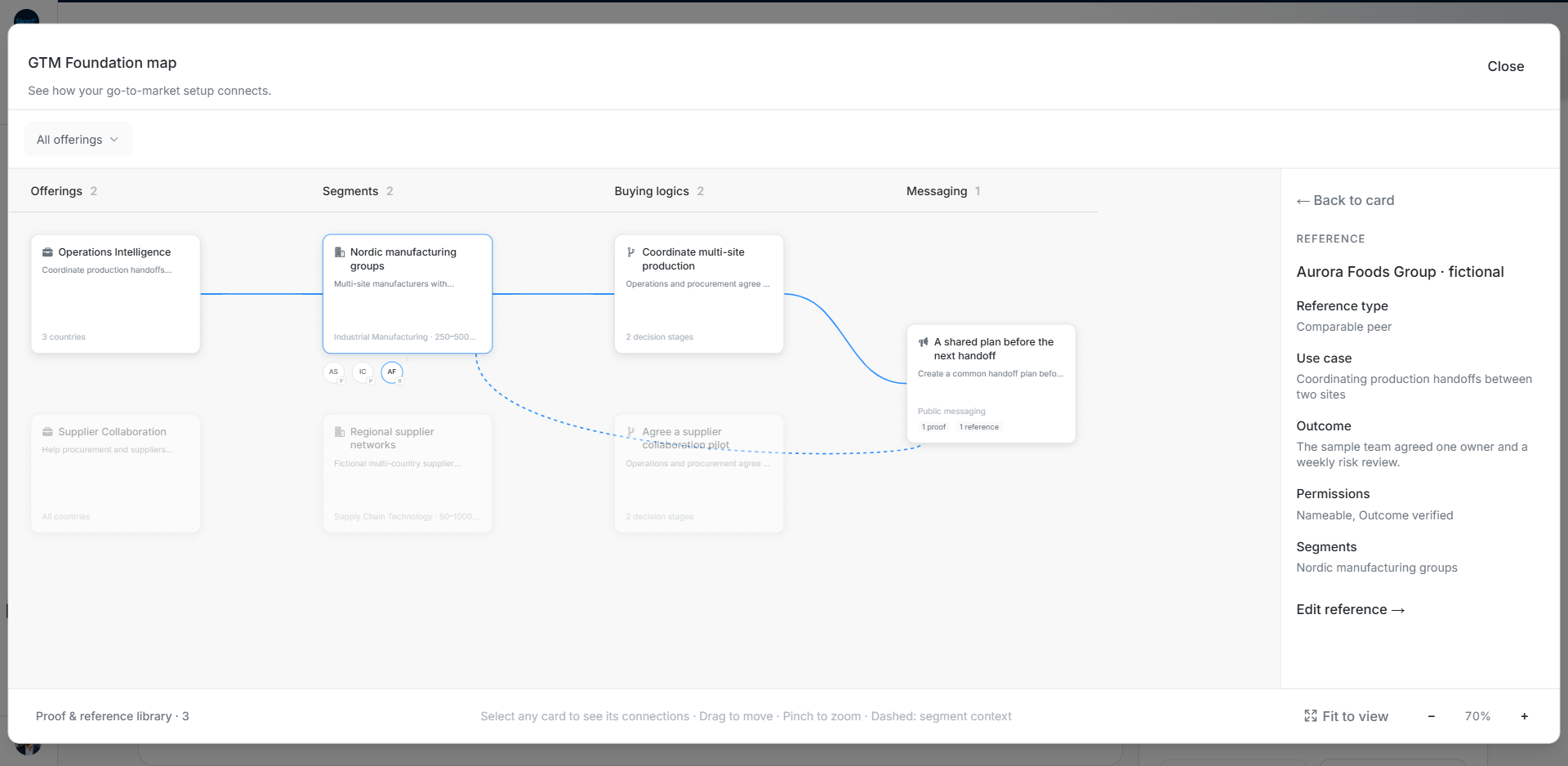
Select a small P or R attachment below a Segment to read its Proof or Reference. Use Back to card to return to the Foundation item. Open the library to review evidence without a Segment attachment.
A proof in a Segment's library and a proof linked to a specific Messaging claim are different relationships. Check the claim's actual evidence. A visible connection does not confirm Messaging or grant permission to name a customer publicly.
Move around a large setup
Pan across the canvas and use the zoom controls. Touch dragging pans; a two-finger pinch zooms. Fit to view returns to 70% zoom and the start of the canvas. Card previews remain readable separately from the drawing; on a smaller screen the preview sits below it.
If an expected connection is missing, open the saved item and check its parent selections. Do not infer a relationship merely because two cards are close together. Account and people counts belong in View coverage.