Create, review and confirm messaging
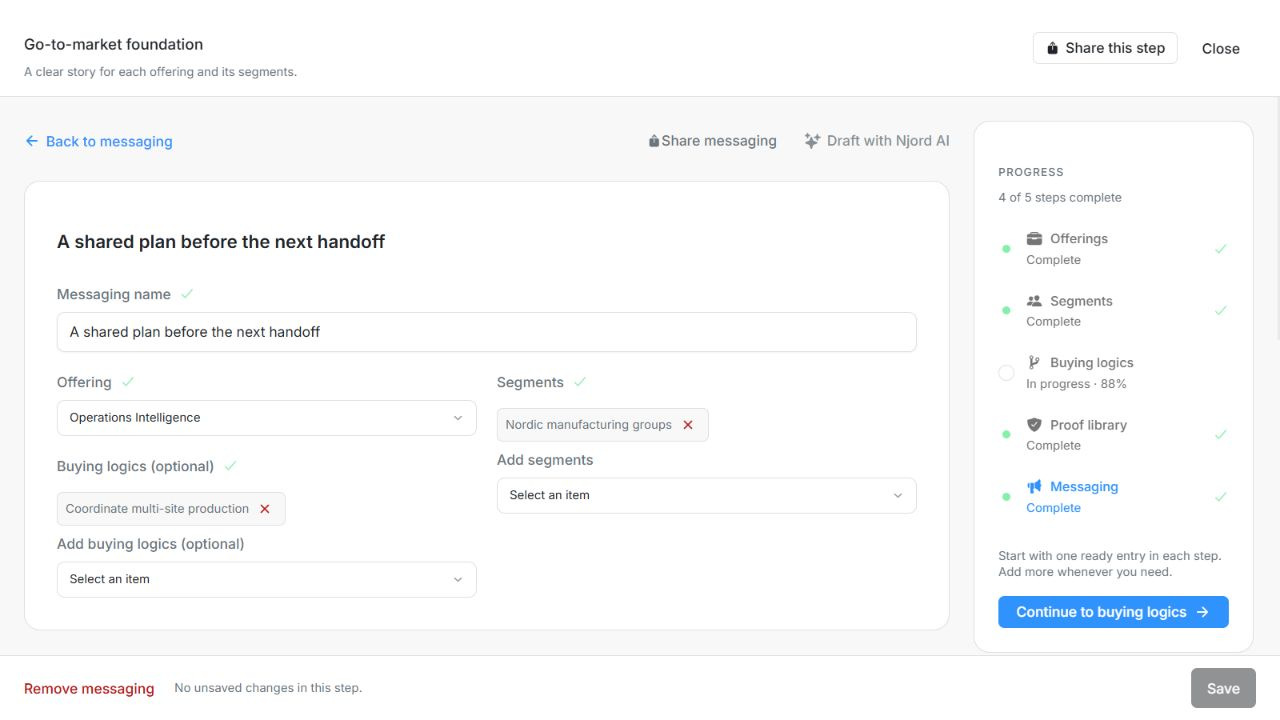
Create, review and confirm messaging
Messaging turns the offering and buying logic into a story buyers can recognize, find relevant and defend. A message belongs to one saved offering and one or more segments; buying logics are optional and can be multiple; use separate messages when the situation or intended story differs.
Where to find it: Context > Go-to-market foundation > Messaging.
Image guide: Messaging selects Offering and Segments, with optional Buying logics. Fictional sample records in the normal authenticated product, shown in light theme.
Start from saved context
- Add messaging and select its saved Offering and one or more Segments. Optionally select matching Buying logics. Save new parents first; the prerequisite action takes you to Offerings before Segments when both are missing.
- Name the message. Describe Where are buyers today?, What belief needs to change? and Where do deals get stuck?.
- Work through the seven layers using the vertical layer list and content card. The three groups are Recognition, Relevance and Safety.
- Use One-page summary and Decision path to review the complete story. Write returns to editing; Review identifies missing or unsuitable content and takes you to the field to fix it.
- Choose the intended usage. New messages default to Publicly; select Private conversations when that matches the permission and intended work.
- Save the message, review any remaining issues and use Confirm messaging when you are ready to approve it.
| Field | What to enter or check |
|---|---|
| Messaging name | Give this messaging version a clear name. Up to 200 characters. |
| Offering | The selected offering this record belongs to; choose a saved offering in this workspace. |
| Segments | One or more saved segments under the selected offering. |
| Buying logics | Optional saved buying logics; several may support the same message. |
| Where are buyers today? | Select the best-supported current decision stage, not the desired destination. Explain inferred assumptions in draft notes. Up to 20,000 characters. |
| What belief needs to change? | The buyer belief that currently prevents decision movement. Up to 20,000 characters. |
| Where do deals get stuck? | The recurring point where decision movement stops. Up to 20,000 characters. |
| Comparable references (optional) | Existing references with comparable industry, scale, geography, use case and scope. Up to 100 entries. |
| The story in a few sentences (optional) | A concise one-page story connecting the problem, category choice, vendor value and defensibility. Up to 20,000 characters. |
| Where will this messaging be used? | Public or private usage. Defaults to public; evidence must have the appropriate usage permission. Choices: Private; Public. |
Review evidence for the chosen usage
Claims and supporting proofs are optional. When you add a claim, choose its layer and an eligible checked proof. A proof must fit the selected segment scope and the message's private/public usage. Comparable customer references also need the appropriate permission. A private source cannot justify public use simply because it appears in the library.
Review issues are actionable links back to the relevant content. Fix what the review identifies rather than adding made-up claims, proofs or references to make the screen complete. Saving a draft does not confirm it.
Understand confirmation and later edits
Confirmed records the approving workspace member, the time and the saved version. Content completion and confirmation are separate: a saved message can reach 100% required content while remaining Draft. Optional empty claims and proofs do not prevent content completion.
Editing the message's own content returns it to Draft and needs a fresh review. Editing a parent offering, buying logic or linked evidence does not automatically erase the saved confirmation record; it can still change whether the message is ready to use. Recheck the story and permissions after those changes. The editor can offer Confirm again for a renewed approval.
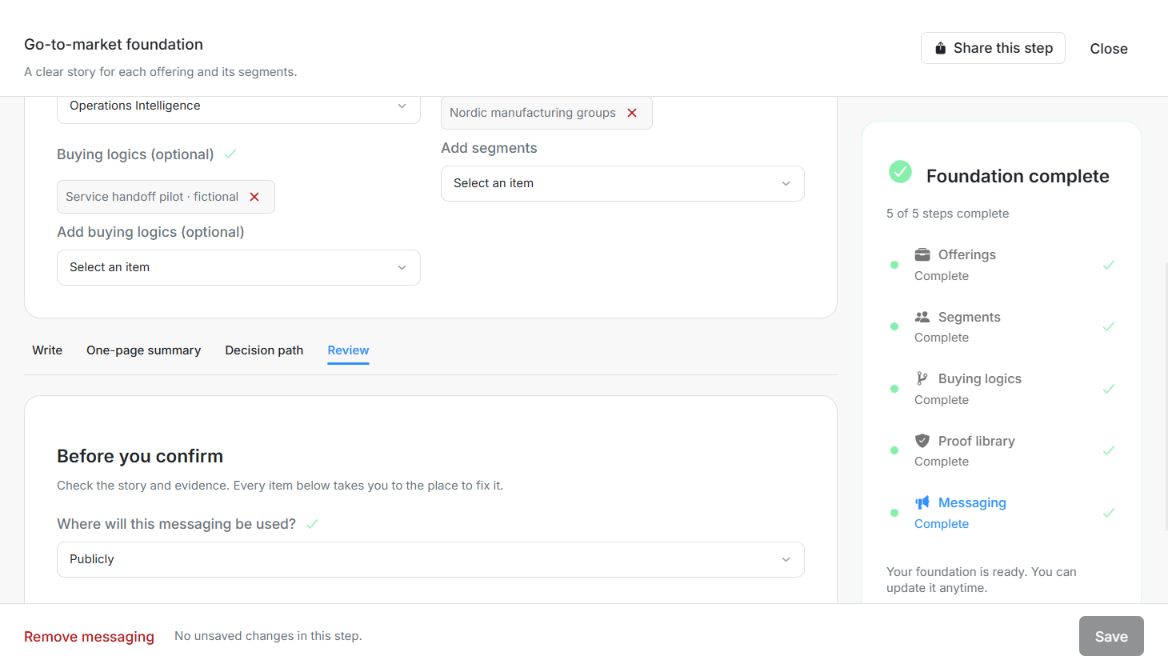
Image guide: The Review view says the required answers and proof are in place and offers Confirm messaging. Content readiness is separate from confirmation. Fictional local example in the normal authenticated product, shown in light theme.
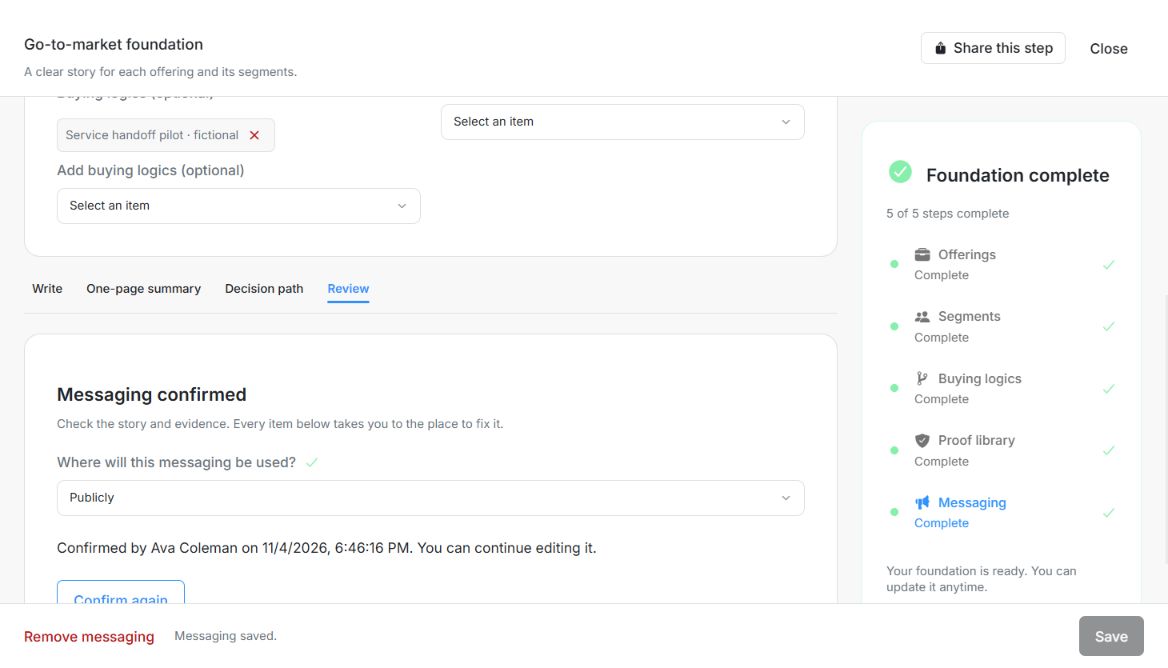
Image guide: Messaging confirmed records the fictional confirmer and time. Confirm again remains available after the local confirmation succeeds. Fictional local example in the normal authenticated product, shown in light theme.
Clone or draft without overwriting the original
Clone creates an independent unsaved draft. Check its name, offering, segments, optional buying logics, usage and evidence, then Save. Draft with Njord AI needs selected saved parents, accepts instructions and warns before replacing populated content. It fills an unsaved draft and clears that draft's confirmation; Save commits the edits.
Use an honest buyer starting point. A fictional Northstar buyer investigating missed launches should not be described as ready to award a contract unless that is the situation you are modelling. Record assumptions in review notes rather than treating them as facts.
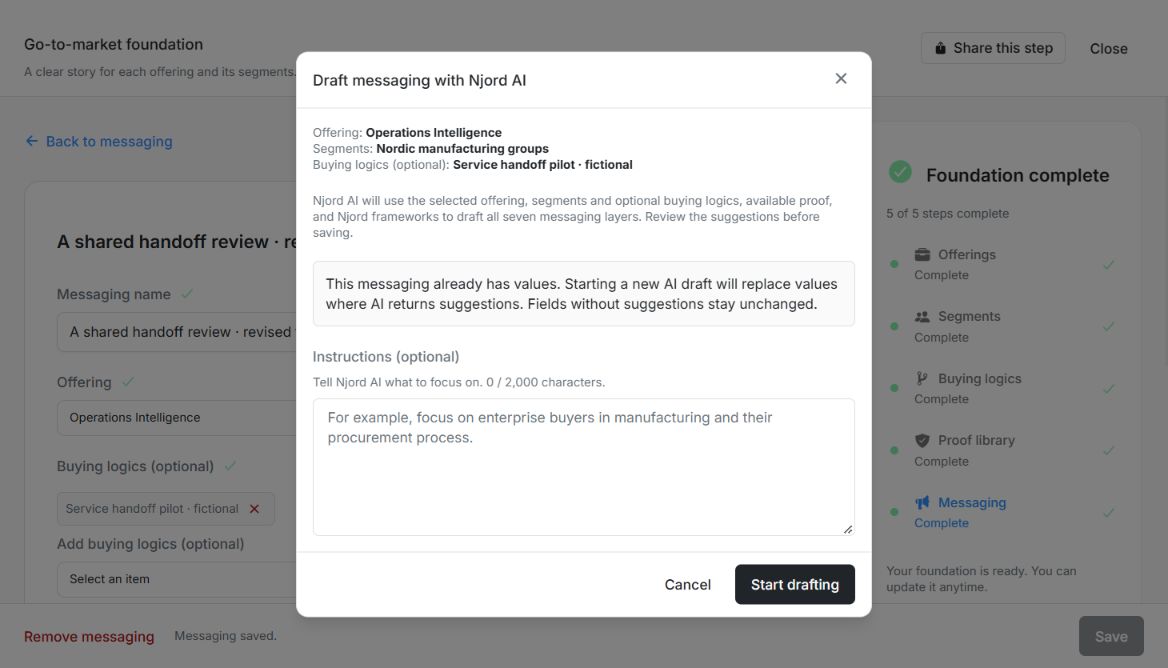
Image guide: Messaging preflight lists the Offering, Segment and optional Buying logic and warns before replacing existing suggested values. Fictional local example in the normal authenticated product, shown in light theme.
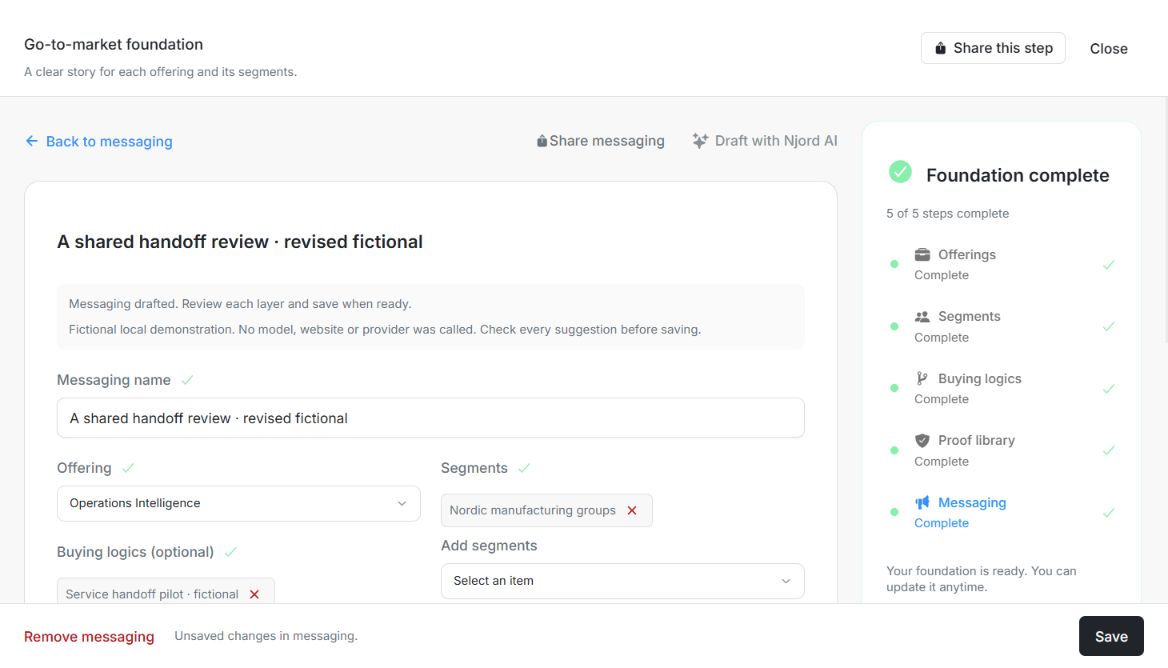
Image guide: Messaging drafted asks for layer review; the enabled Save and Unsaved changes footer show the generated form is still a draft. Fictional local example in the normal authenticated product, shown in light theme.