Use Ad Library on a smaller screen
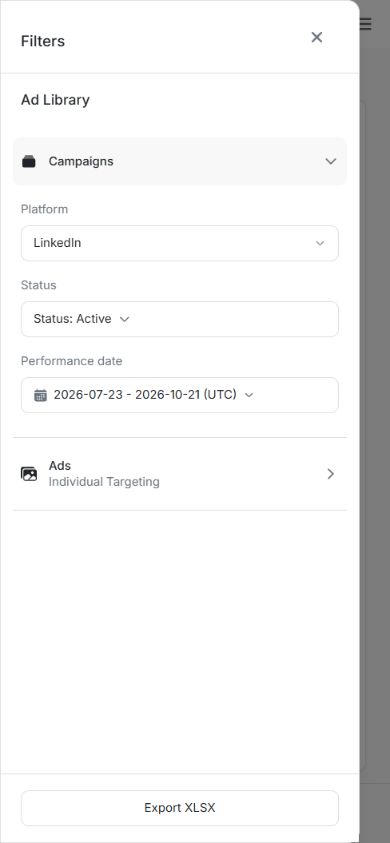
Use Ad Library on a smaller screen
On a smaller screen, Ad Library moves its side controls into Filters. Campaigns, ads and their available actions follow the same workflows as on desktop.
Choose the review from Filters
- Open Ad Library and tap Filters above the results.
- Expand Campaigns or Ads.
- Choose the platform.
- Set applicable campaign selection, status and Performance date.
- Choose Close filters to return to the results.
- Read the summary to confirm the applied source, scope and dates.
Image guide: Filters contains the controls that appear in the side panel on a larger screen. Campaigns and Ads retain their own platform choices.
Review a campaign or ad card
Use View ads on a campaign to open its ads. In the campaign's ad review, Back to campaigns returns to campaigns. An ad card keeps its message, image, headline, metrics, status and View action together. Scroll down the card if its actions are below the screen.
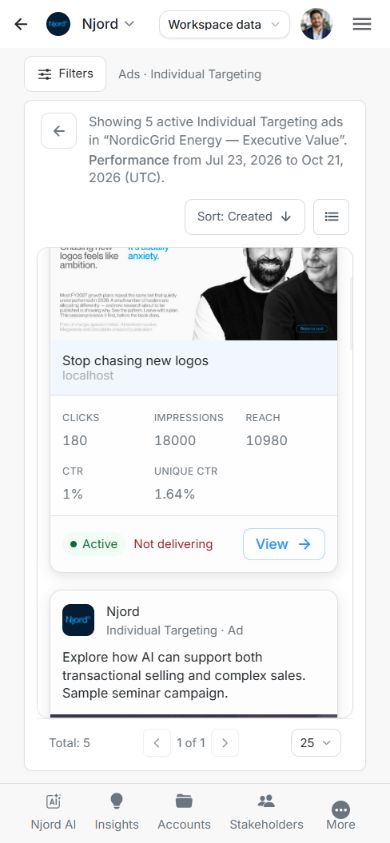
Image guide: The campaign name and reporting window appear above the cards. Scroll to review the rest of a card and the next ad.
Tap the copy to read the full message. Use the destination action to open the landing page, or View to inspect details. LinkedIn also provides the quick post and original-post actions when available.
Inspect full details
The full preview stacks its sections vertically: copy and destination, lifetime results, ad details and available creative. Scroll inside the preview to reach content below the fold. Close preview returns to the result you were reviewing.
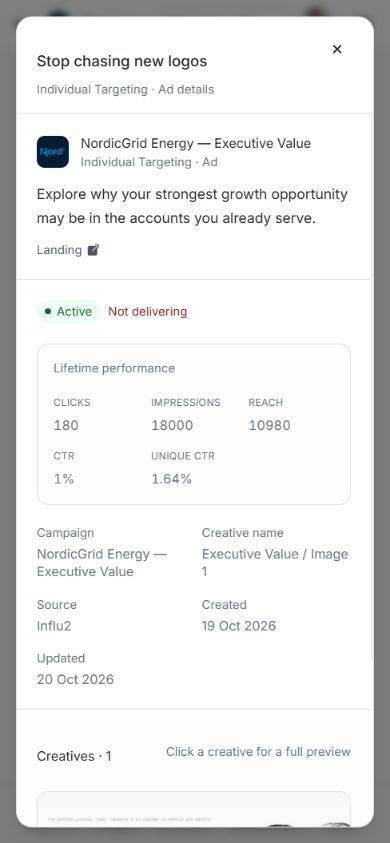
Image guide: The preview retains Lifetime performance and the campaign context. Continue scrolling for Creatives when they are below the visible area.
Select an image to open its full preview; close that image to return to the ad details. Videos start when you choose play and expose the supported player controls. Closing or changing a video stops its playback.
Find Create and Export
Open Filters and look at the bottom of its Ad Library controls. Export XLSX downloads all matching results. Create a Campaign can appear for Individual Targeting campaigns, while Create Ad can appear after you open a specific Individual Targeting campaign. Available creation actions depend on your access.
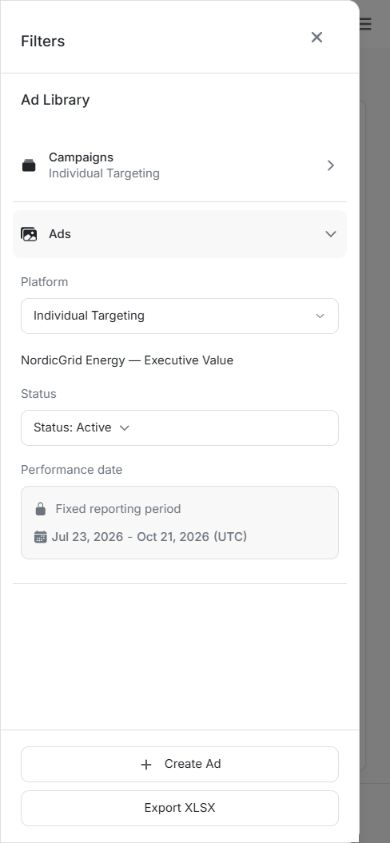
Image guide: These actions belong to the current review. Confirm the campaign name before adding an ad.
After a download, open your browser's downloads to find the workbook. Closing Filters or a preview returns you to Ad Library; following an external destination opens a separate page or tab.
For the full comparison controls, use Sort and move through results. The separate task guides explain downloads, campaign creation and adding an ad.