Manage Stakeholders
Manage Stakeholders
Manage Stakeholders is the people workspace inside an account. Use it to add one stakeholder, import many stakeholders, export the visible list, filter/search the table, review columns, and open Ad Preview from the row's media/CTA evidence.
Start from the stakeholder table
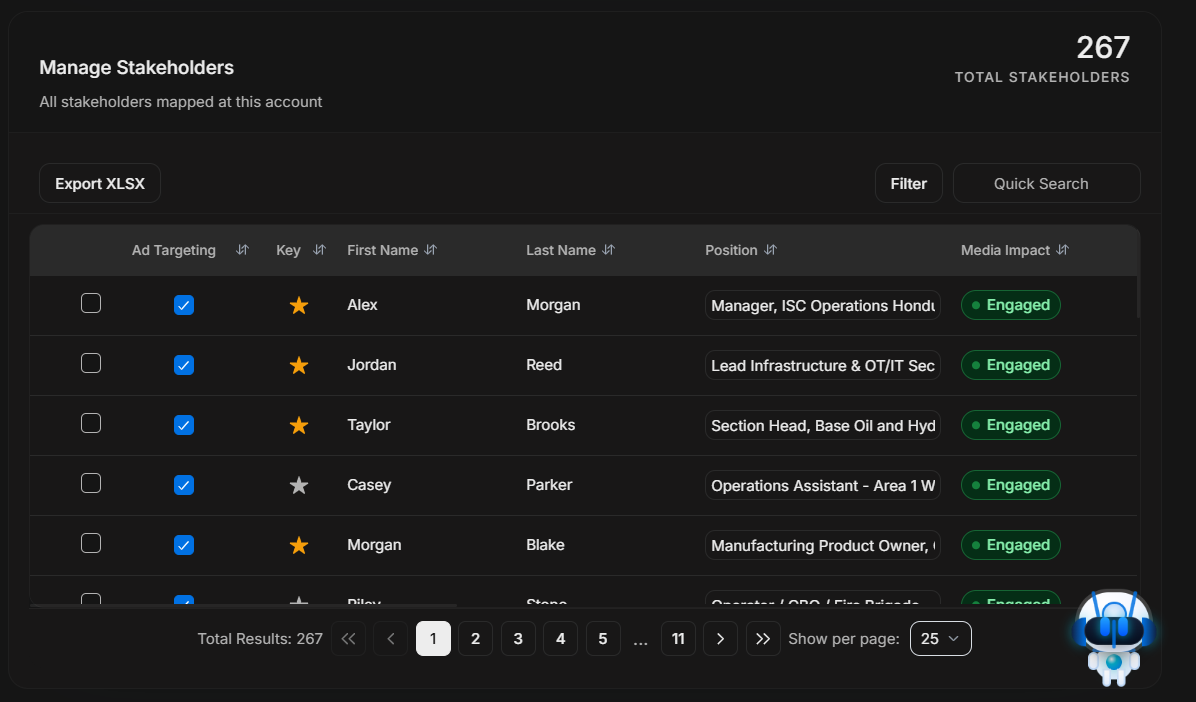
Image guide: This is the main stakeholder table for the selected account. It shows targeting membership, key-person marking, stakeholder identity, roles, media impact, activity columns, table controls, and pagination.
Toolbar actions
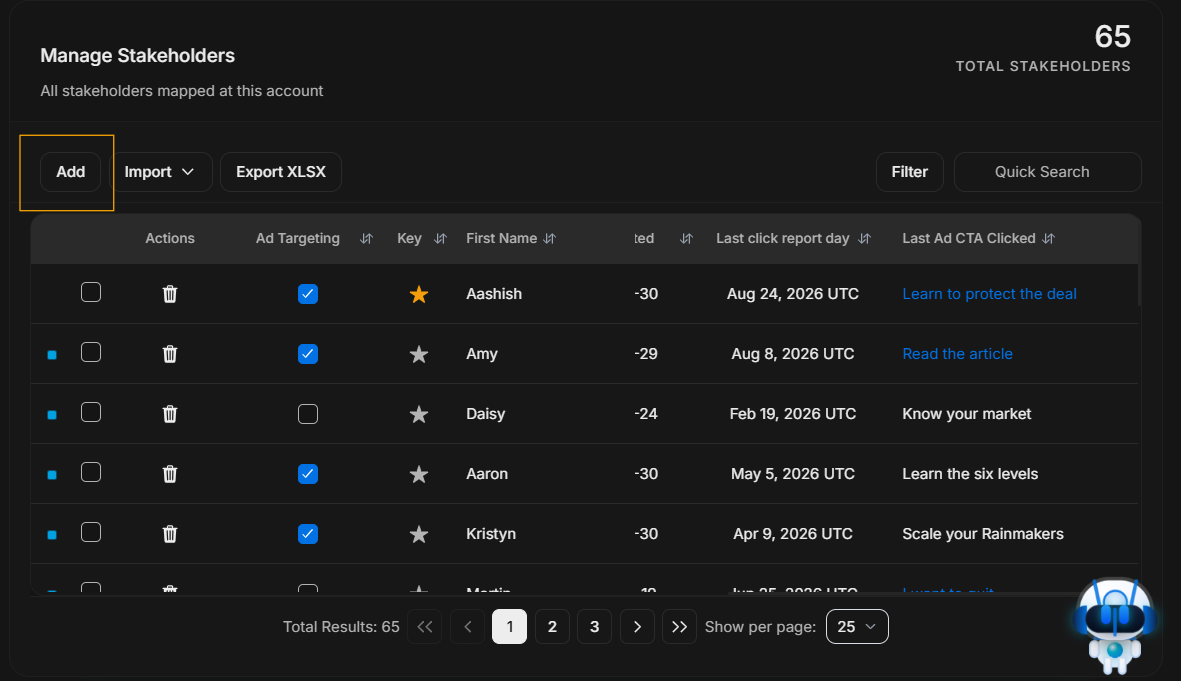
Image guide: The toolbar sits above the table. Add, Import, Export XLSX, Filter, and Quick Search are table actions, not Signals actions.
Add one stakeholder
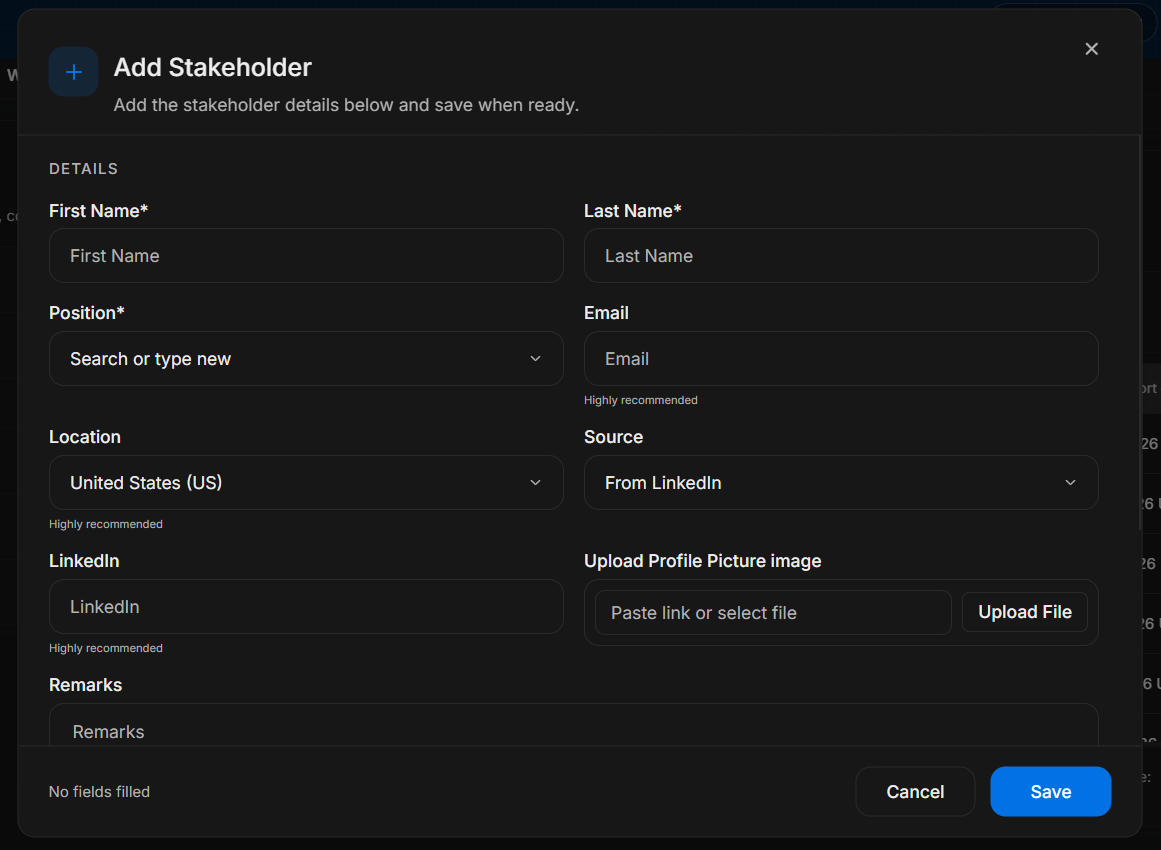
Image guide: The Add Stakeholder modal captures one person's details, including name, position, location, source, LinkedIn, email, and profile image.
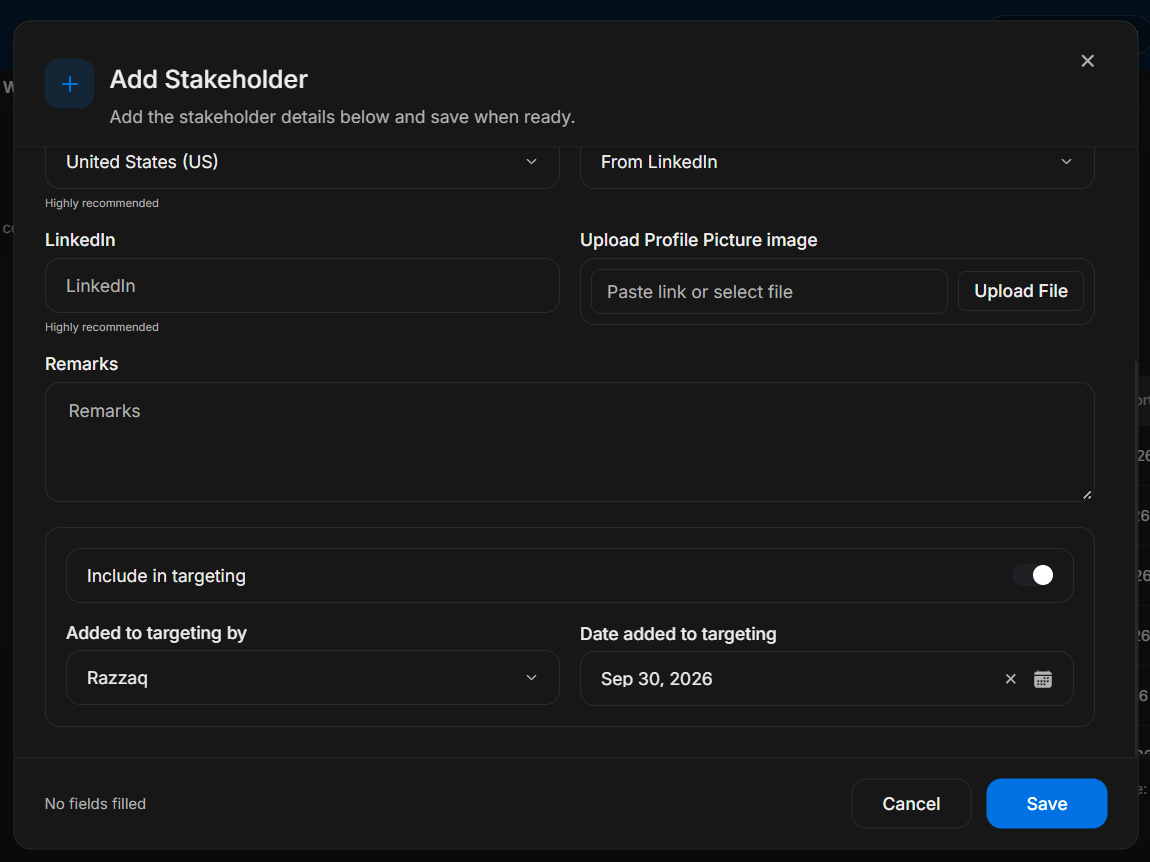
Image guide: The lower part of the Add modal controls targeting state, who added the person to targeting, and the targeting date. Save only after identity and targeting fields are correct.
Import stakeholders
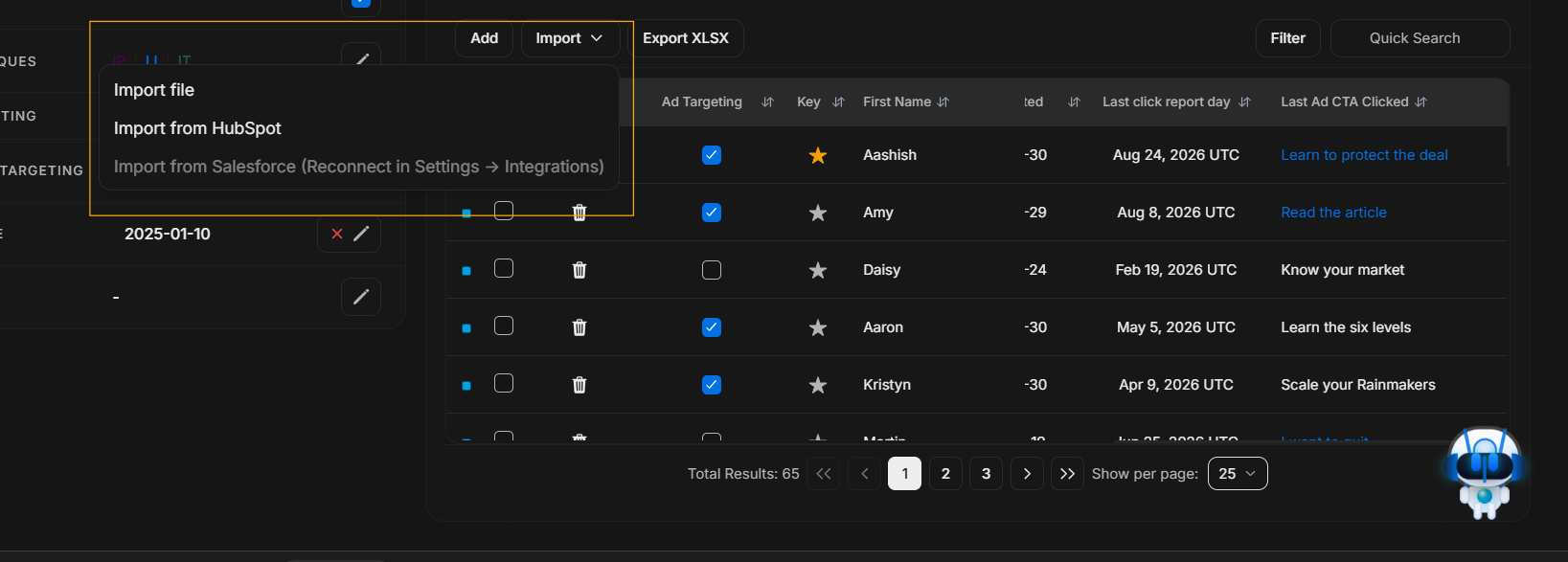
Image guide: Import is for bulk data. It can show file import and CRM import options such as HubSpot. Disabled options usually mean an integration setup or permission issue.
Export stakeholders
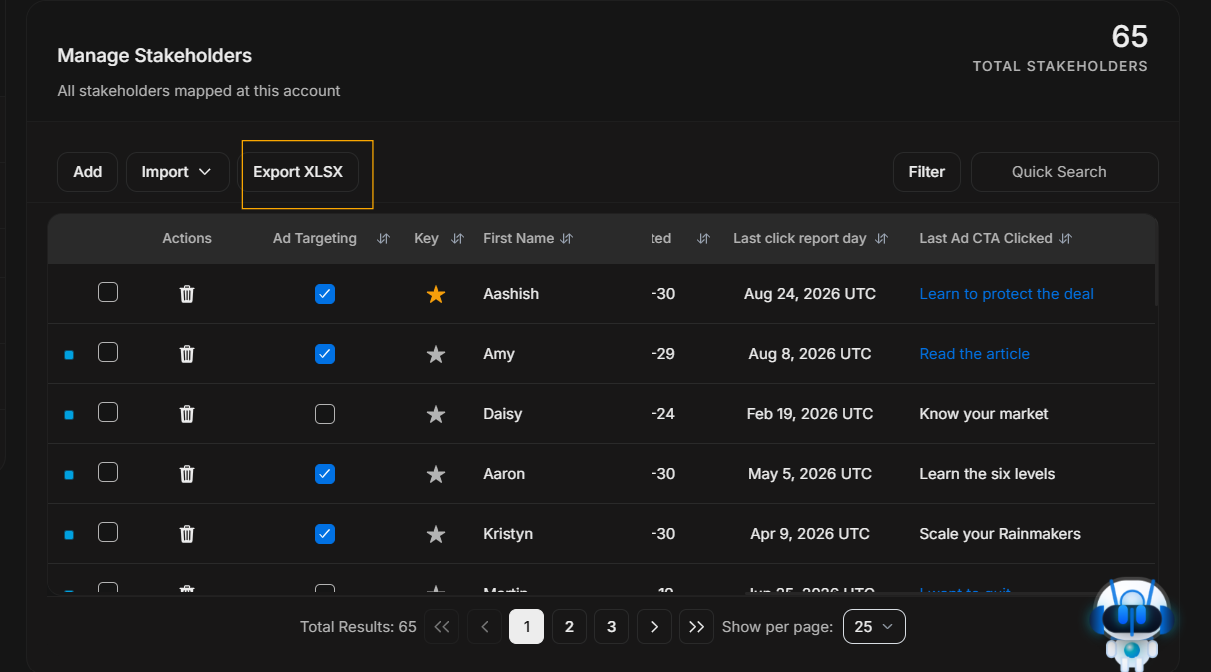
Image guide: Export XLSX downloads the current stakeholder table view. Check filters, search, and table context before exporting.
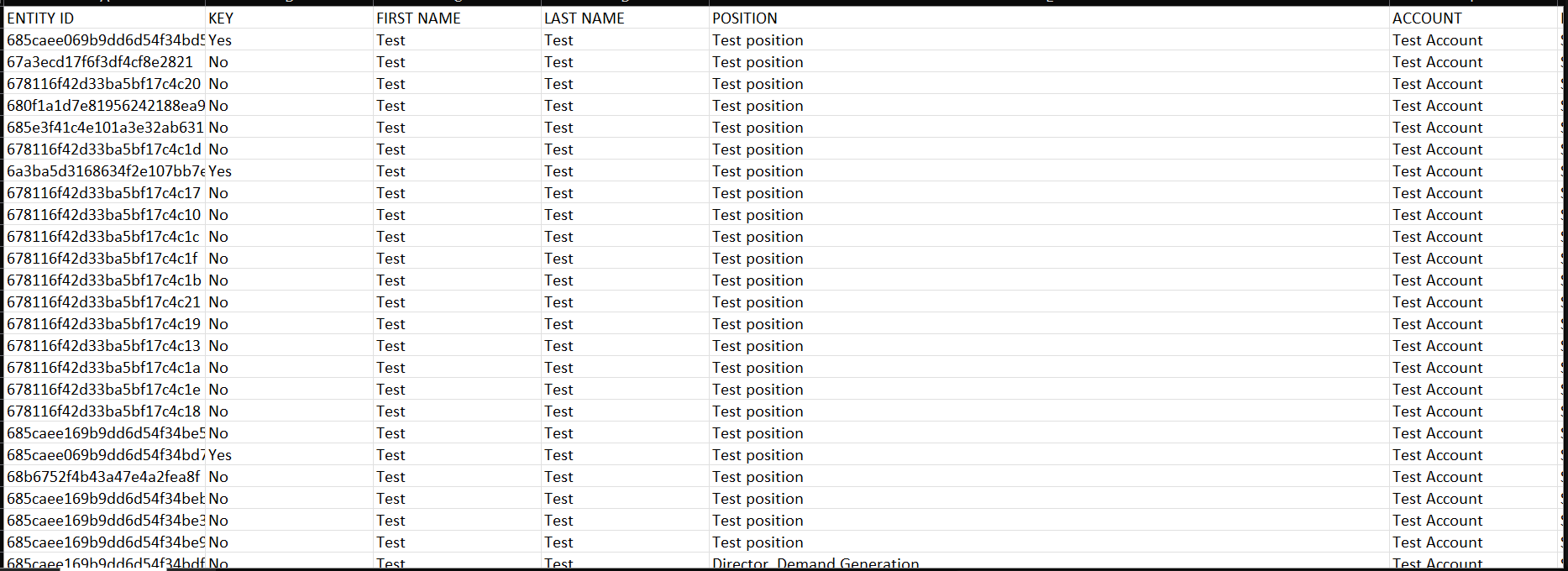
Image guide: This is the spreadsheet export result. It belongs to the Export workflow, not Ad Preview.
Filter and search the table
Use Filter when the user needs structured narrowing. Use Quick Search when the user knows a name, title, account, or visible row value. Clear filters before deciding a person is missing.
Review table columns before action
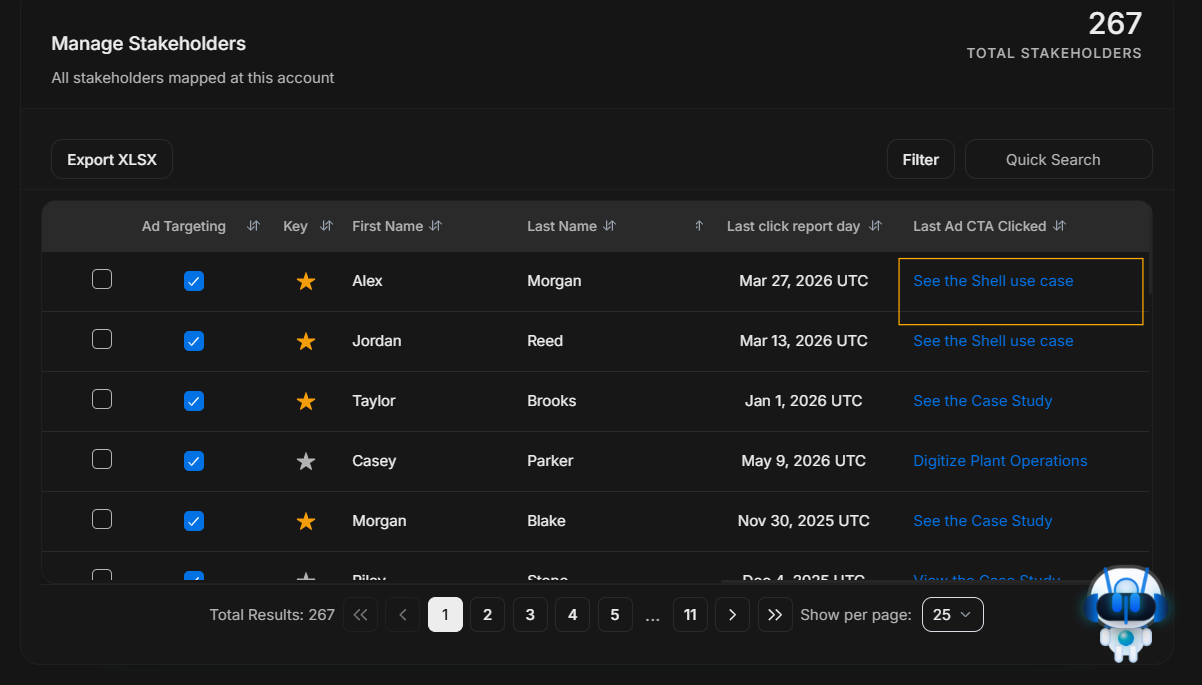
Image guide: Scroll horizontally to reach additional columns. These include engagement/media fields such as last click report day and last ad CTA clicked.
Open Ad Preview from the row's last CTA/media evidence
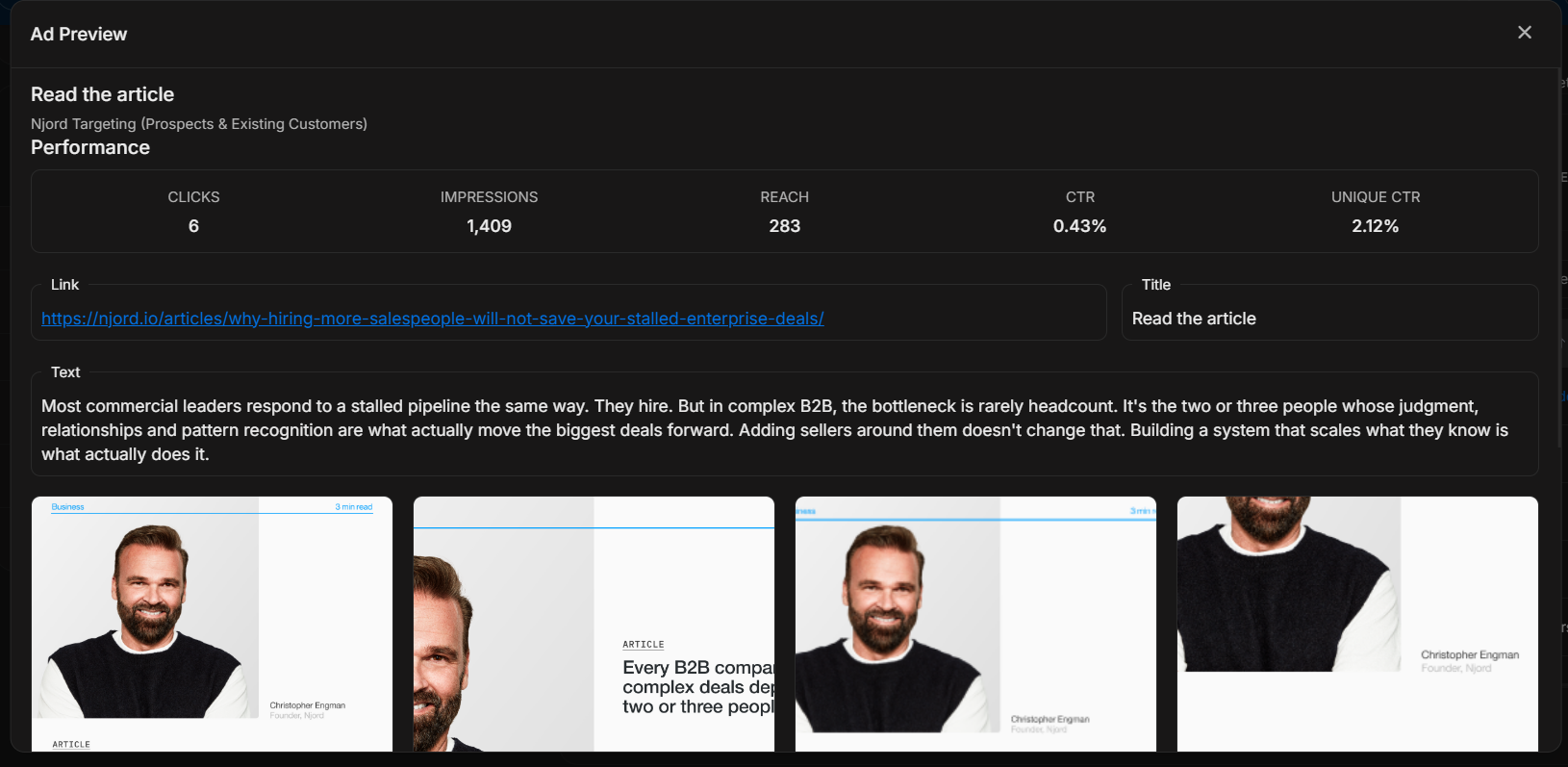
Image guide: Ad Preview opens from the stakeholder row's media/CTA evidence, typically the last ad CTA/content column near the right side of the table. It is not opened from the Signals panel. Use it to inspect the creative, link, title, text, preview images, and performance numbers behind that stakeholder's engagement.
Correct journey
- Start with the table and confirm the stakeholder row.
- Use Add for one missing person.
- Use Import for many stakeholders.
- Use Filter or Quick Search to narrow the visible rows.
- Review targeting, key-person, role, media impact, and engagement columns.
- Use Export when the stakeholder list needs to leave DOE.
- Open Ad Preview only from the row's media/CTA evidence, not from Signals.
Important distinction
Signals explain recent account activity. Manage Stakeholders explains people and table row evidence. Ad Preview belongs to the stakeholder table row, because it previews the ad or CTA behind a stakeholder's engagement.