Live signals on an account
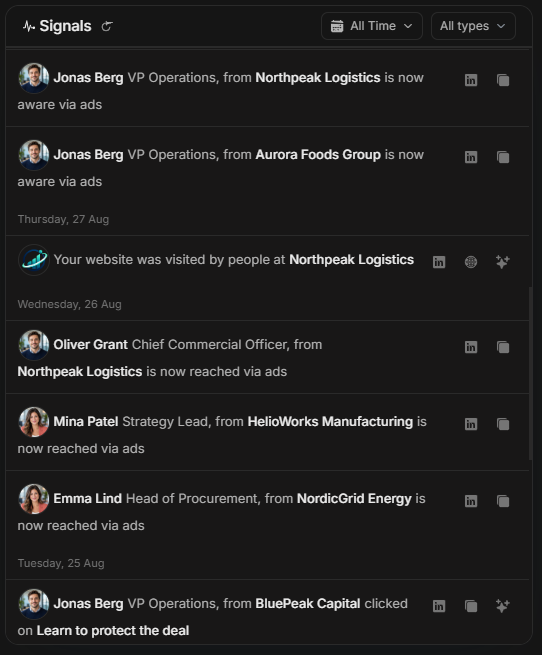
Live signals on an account
Live Signals show recent account activity. They are separate from the stakeholder table and separate from Ad Preview. Use Signals to understand what happened recently, then use stakeholder table columns when you need row-level media or CTA evidence.
Signals panel
Image guide: The Signals panel lists dated account activity. Read each signal from left to right: date, person or account, role/context, action text, and the available action icons.
Signal actions
A signal can expose actions such as opening LinkedIn, copying details, opening a website/content link, or asking AI to analyze the signal. These actions belong to the signal feed. They do not mean the Ad Preview modal is open.
Filter by date
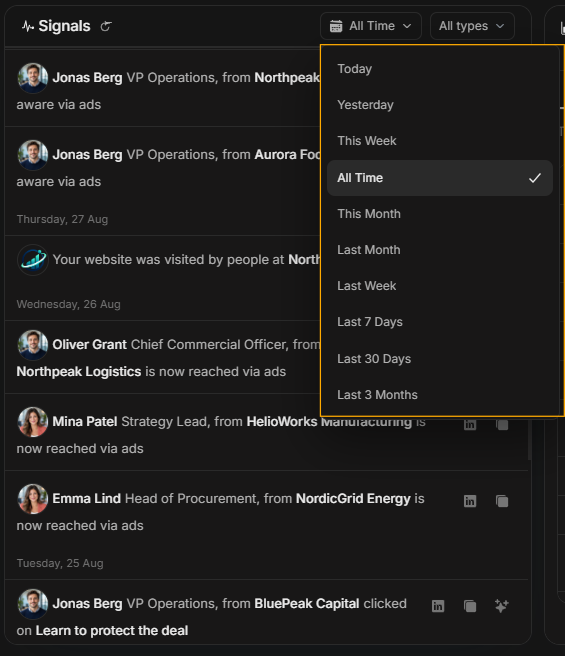
Image guide: The date range control narrows Signals to a recent window. Use it when the user only wants current activity.
Filter by signal type
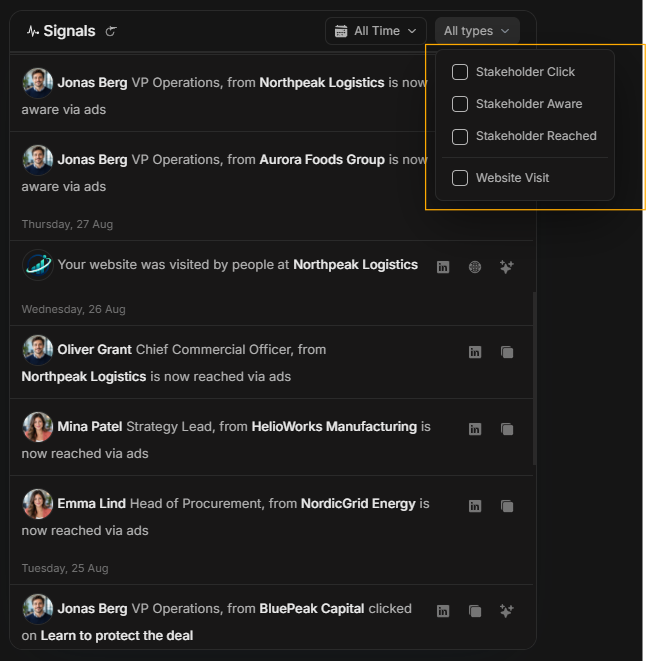
Image guide: The type filter narrows the feed by signal category, such as visits, clicks, reach, awareness, or engagement.
How to interpret signals
Signals are evidence, not final conclusions. A single visit or click can be useful, but several recent signals from relevant stakeholders are stronger. Compare signal timing with PIF trend, stakeholder media impact, open deals, and events before deciding what to do next.
Step-by-step
- Read the newest signal first.
- Confirm whether the signal is from a person or from account-level website activity.
- Use date or type filters only when the feed is too broad.
- Compare Signals with PIF and stakeholder engagement.
- Use the stakeholder table's media/CTA columns when you need Ad Preview evidence.