Signals and stakeholders targeting map
Signals and stakeholders targeting map
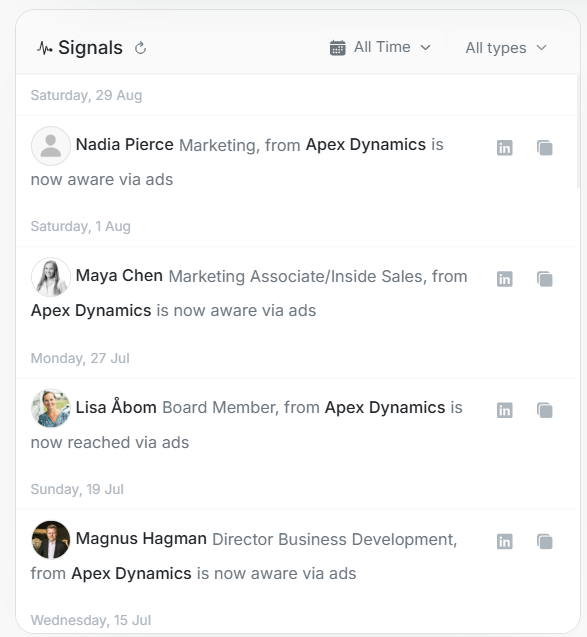
Signals and the Stakeholders Targeting Map help you understand what happened at the account and which people are showing media activity.
Signals
Signals show account and stakeholder activity in a feed. Each row can include a person, role, account name, activity type, date, and quick links.
Use the date filter to choose periods such as Today, Yesterday, This Week, Last Week, This Month, Last Month, Last 7 Days, Last 30 Days, Last 3 Months, All Time, or a custom Date Range when available.
Use the type filter to focus on:
| Type | Meaning |
|---|---|
| Stakeholder Click | A mapped person clicked. |
| Stakeholder Aware | A mapped person reached awareness state. |
| Stakeholder Reached | A mapped person was reached. |
| Website Visit | The account had matched website activity. |
Stakeholders Targeting Map
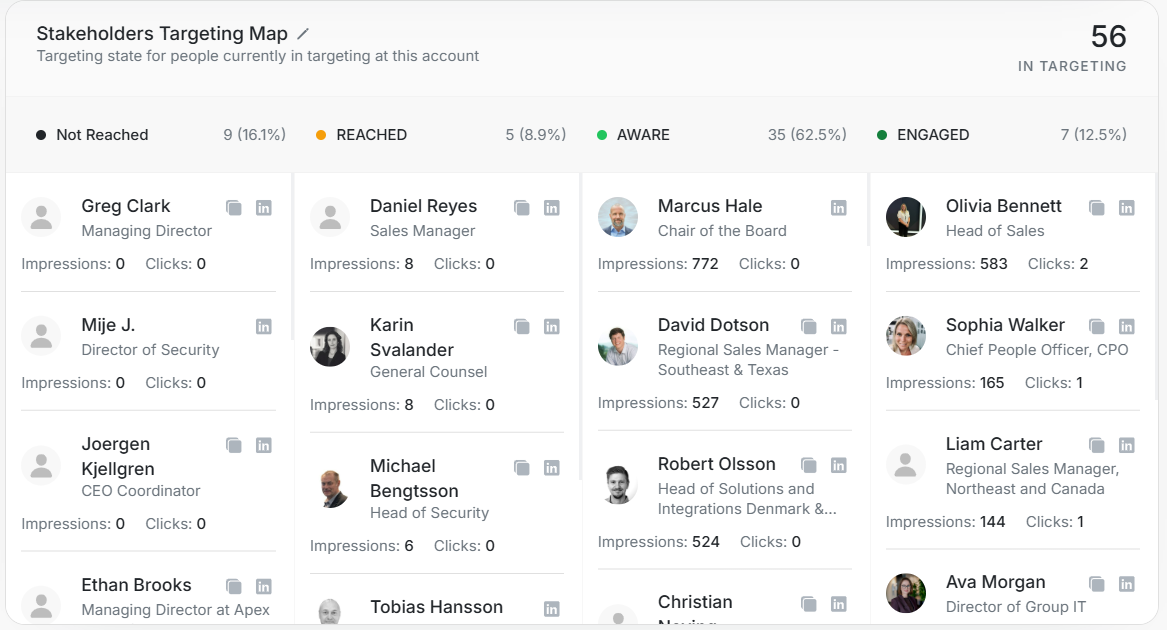
The Stakeholders Targeting Map groups people currently in targeting by media impact state.
| State | How to read it |
|---|---|
| Not Reached | In targeting, but no reach evidence yet. |
| Reached | Reached through media or targeting. |
| Aware | Shows awareness-level activity. |
| Engaged | Shows stronger engagement activity. |
Each group shows a count and percentage. Each stakeholder card can show the person's role, impressions, clicks, and quick actions.
How To Use Both Together
- Start with Signals to see the most recent activity.
- Compare the people in Signals with the Targeting Map.
- Check whether active stakeholders are already in targeting.
- Look at impressions and clicks before changing targeting.
- Open Manage Stakeholders when a person needs cleanup, targeting changes, or key-contact review.