Import accounts
Import accounts
Use Import when account data should come from a file or connected CRM instead of being typed one record at a time.
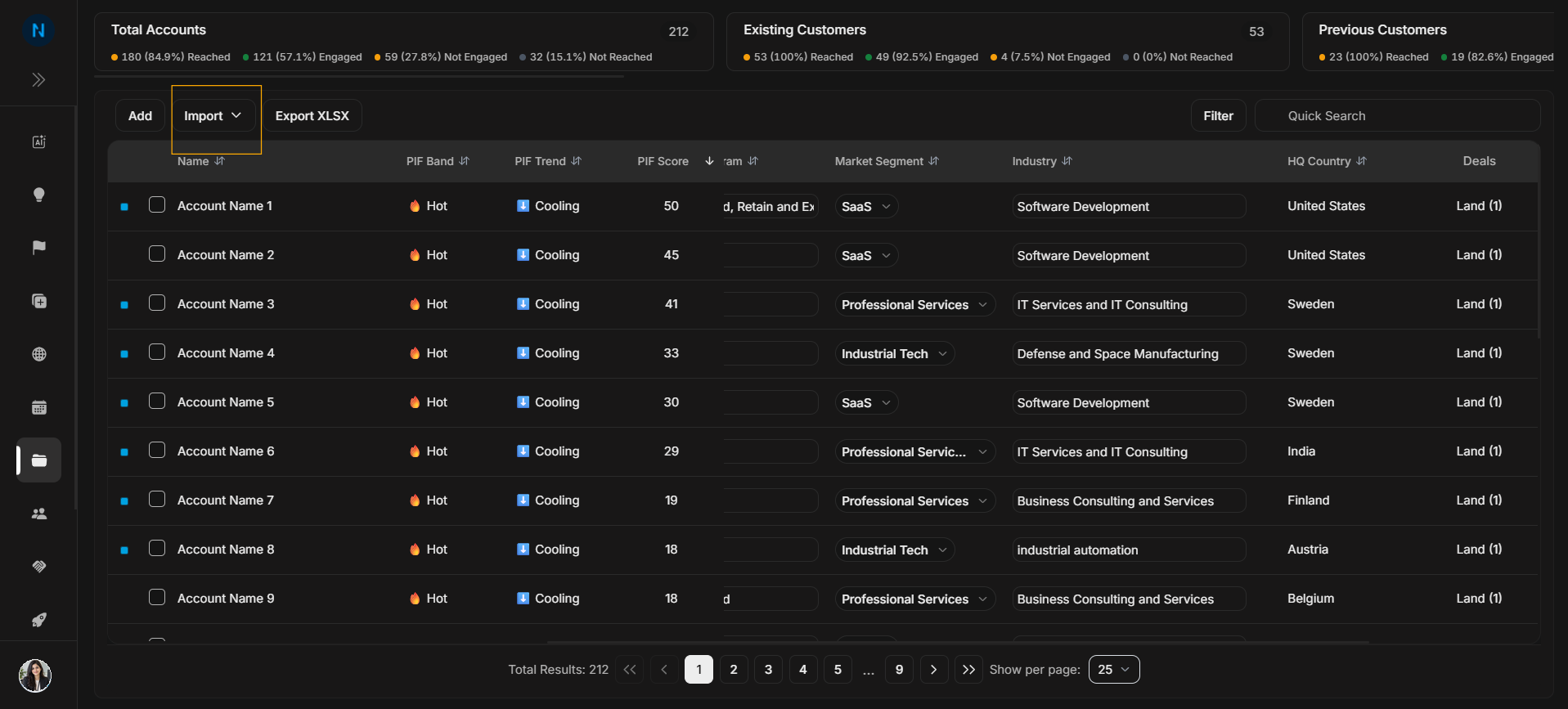
Image guide: The highlighted Import button sits beside Add. It opens the import menu.
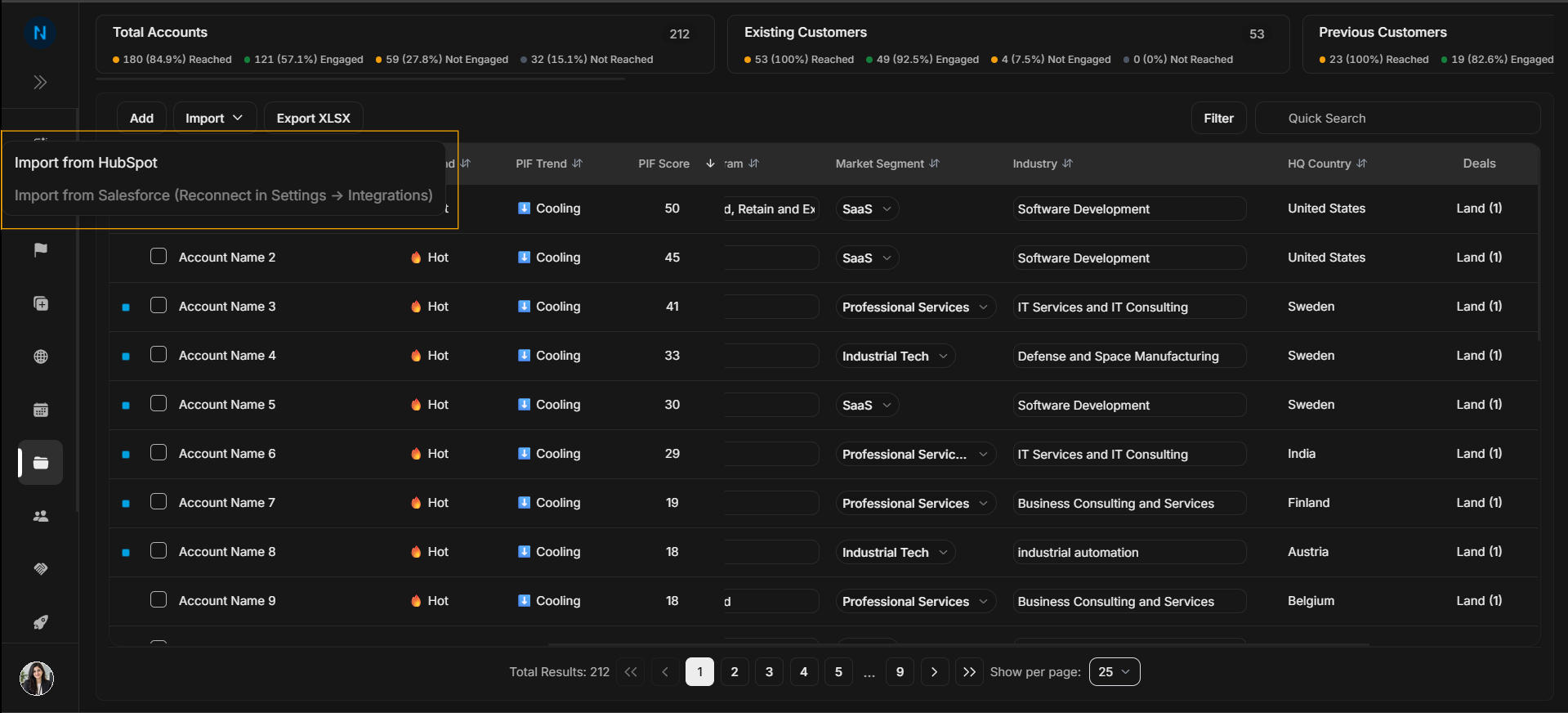
Image guide: The Import menu exposes import options available in the workspace, such as file import or connected CRM import.
Before importing
Import is meant for multiple records or records that already exist in another system. Before using it, check that the file or CRM source uses consistent account names, websites, countries, owners, and lifecycle values. Cleaner source data means fewer corrections after import.
After import, do not assume every row is immediately ready for use. Search for a few sample accounts, confirm required fields, and review any warnings from the import flow.
Step-by-step
- Open Import.
- Choose the source, such as file import or a connected CRM option.
- Follow the import flow for that source.
- Review warnings or missing-field messages before confirming.
- Return to the Accounts table and search for the imported account.
When to use it
Use Import for bulk account creation, CRM sync workflows, or account lists that already exist outside DOE.