Filter accounts
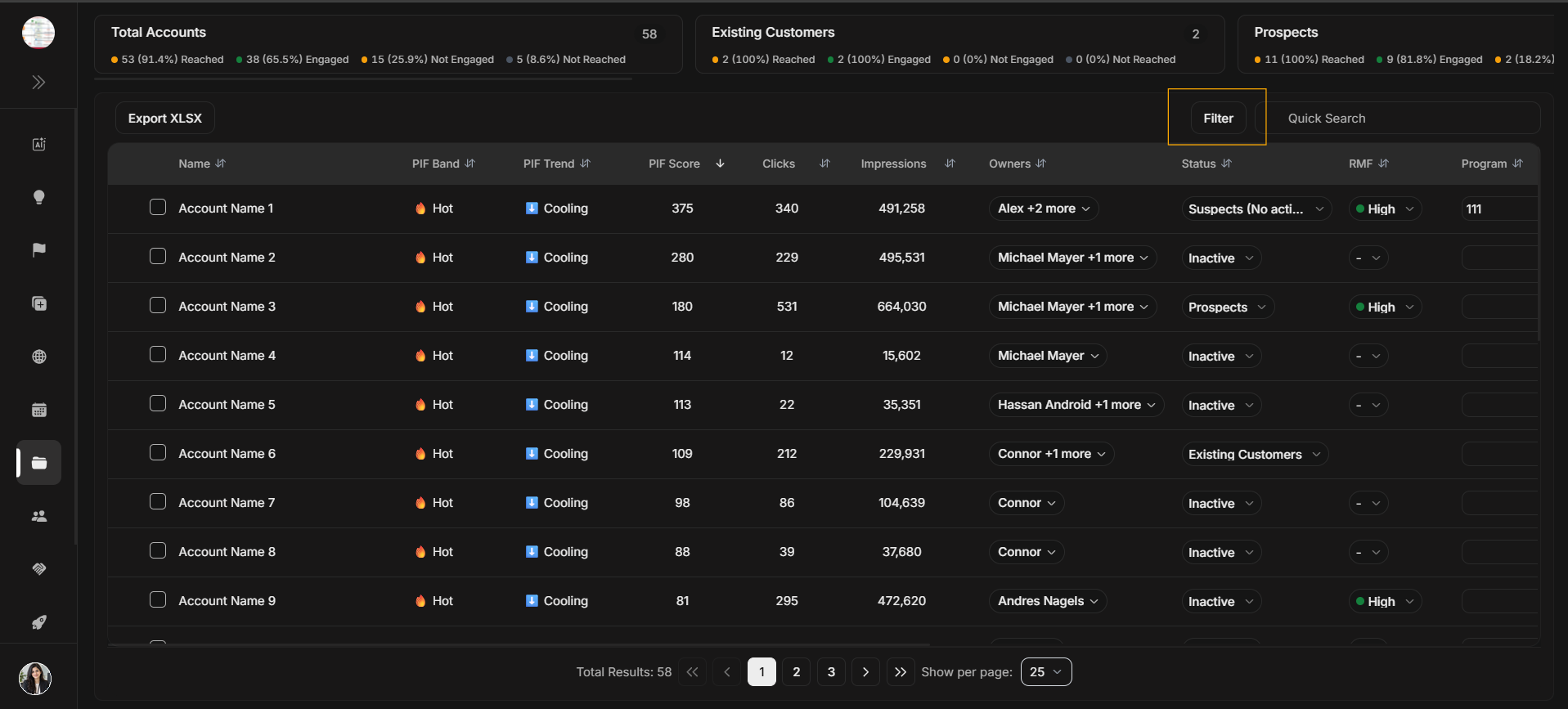
Filter accounts
Use Filter when you need to narrow the Accounts table by structured account properties. This page is only for the Accounts filter modal, not table row dropdowns.
Image guide: The Filter button opens the account filter modal. Use it when the visible account list is too broad.
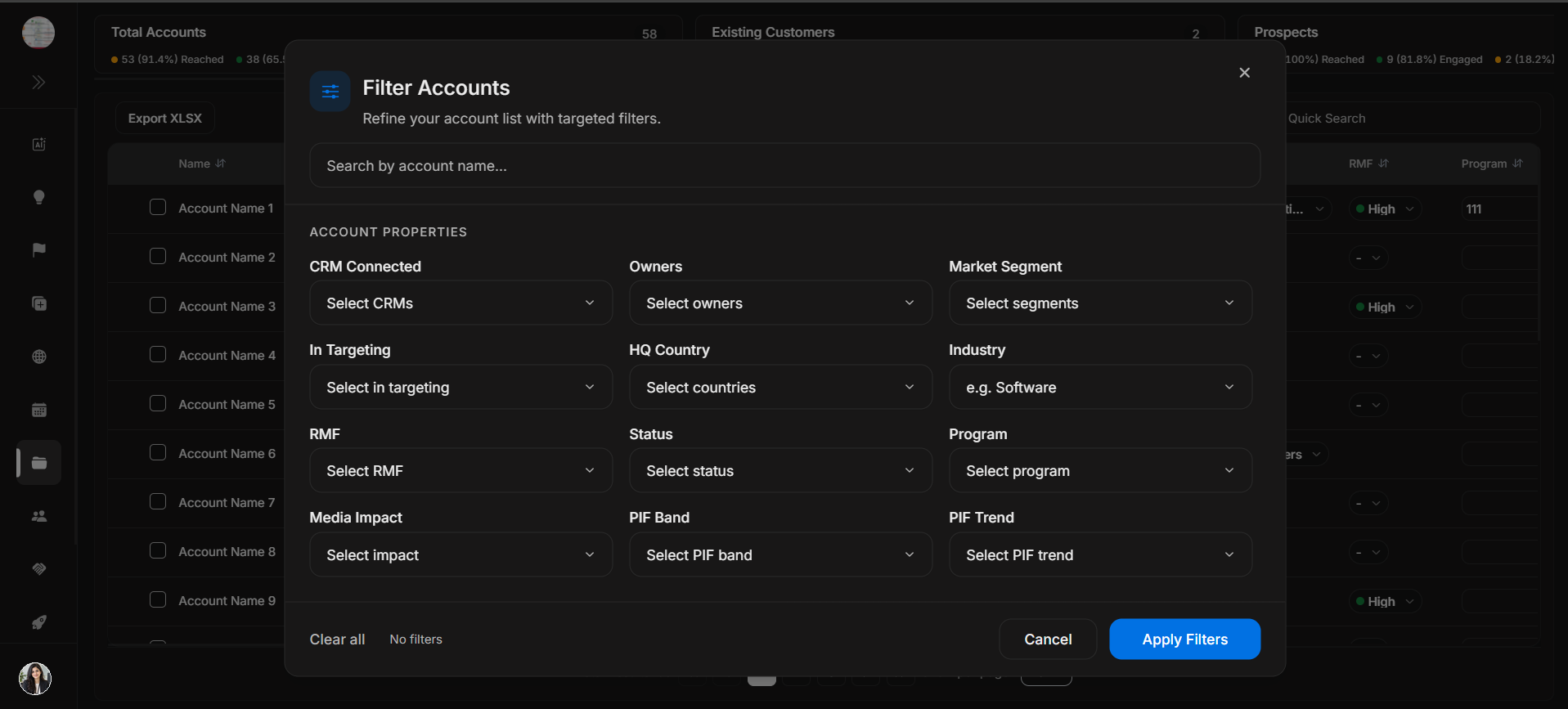
Image guide: The modal contains account properties such as CRM Connected, Owners, Market Segment, In Targeting, HQ Country, Industry, RMF, Status, Program, Media Impact, PIF Band, and PIF Trend.
How to choose filters
Start broad, then narrow. A good first filter might be owner, status, market segment, country, or targeting state. Add PIF, RMF, media impact, or program filters only when you need a more specific working list.
If the result set becomes empty, remove the most specific filter first. Empty results often mean the filter combination is too strict, not that the account data is missing.
Clear filters
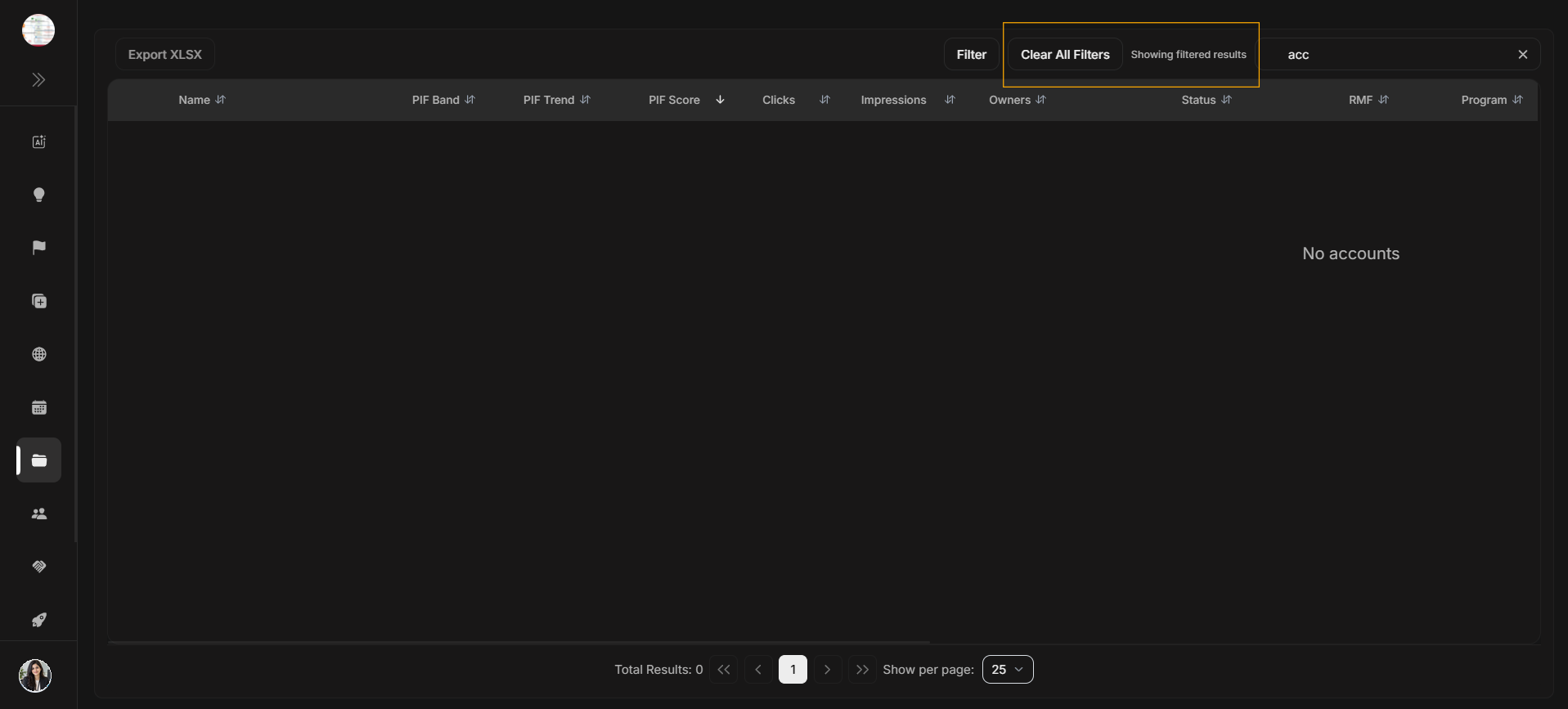
Image guide: When filters or search remove all results, use Clear All Filters before assuming the account does not exist.
Step-by-step
- Select Filter.
- Choose one or more account properties in the modal.
- Apply the filters.
- Review the table results.
- Clear filters before starting a new search.
Filter versus table dropdown
| Control | What it does |
|---|---|
| Filter modal | Narrows which account rows are visible. |
| Table dropdown | Changes or inspects a value on one visible row. |