Account table columns
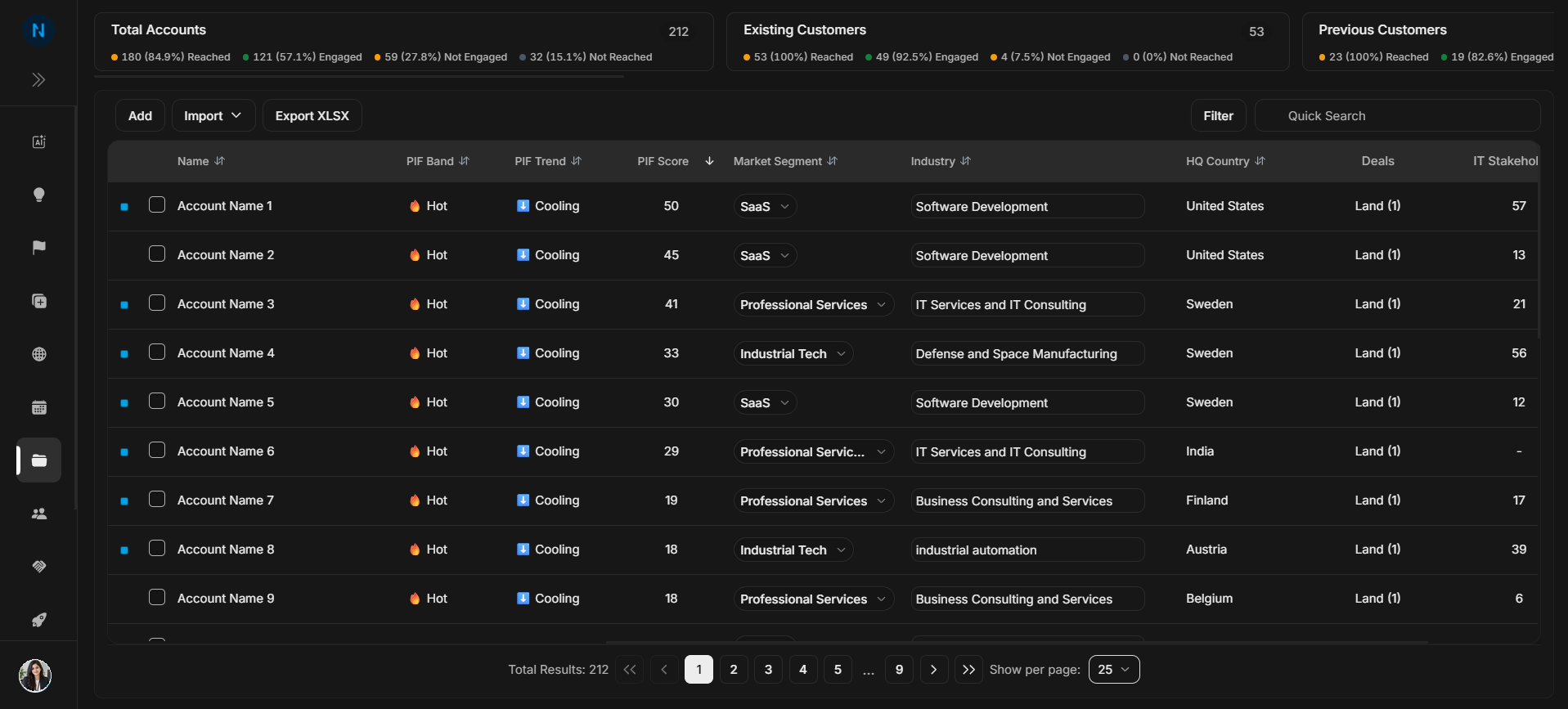
Account table columns
The table is where users compare accounts. Columns explain what each row means; filters decide which rows appear.
Image guide: The core columns show Name, PIF Band, PIF Trend, PIF Score, Clicks, Impressions, Owners, Status, RMF, and Program.
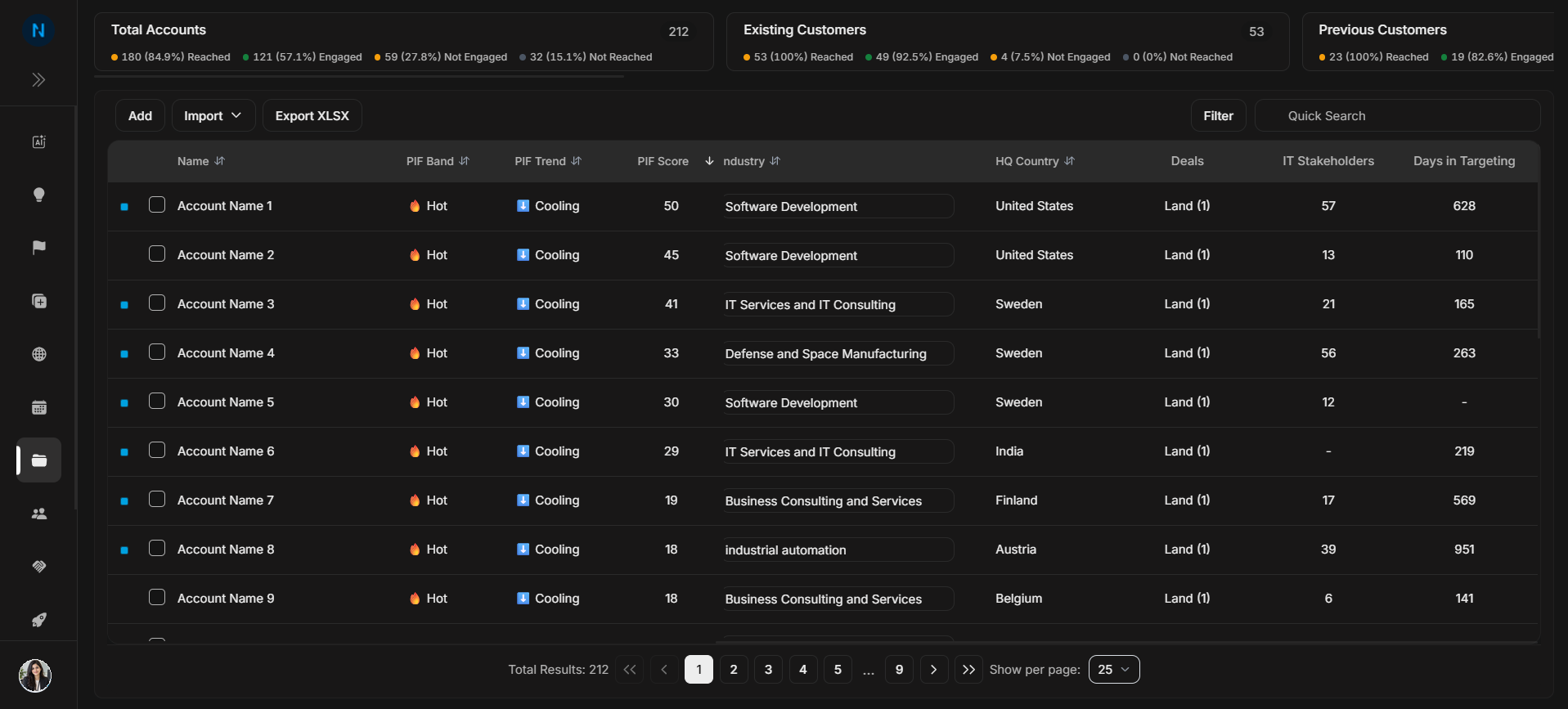
Image guide: The right side continues with business fields, related counts, targeting fields, and row-level controls.
How to read the row
Read each account row from left to right. The left side tells you which company you are looking at. The middle scoring and engagement columns explain current interest. The business columns explain ownership and classification. The right-side columns and controls show related work and row-level actions.
Avoid making decisions from one metric alone. A strong PIF score is more useful when clicks, impressions, owner context, status, and related deals point in the same direction.
Column-by-column explanation
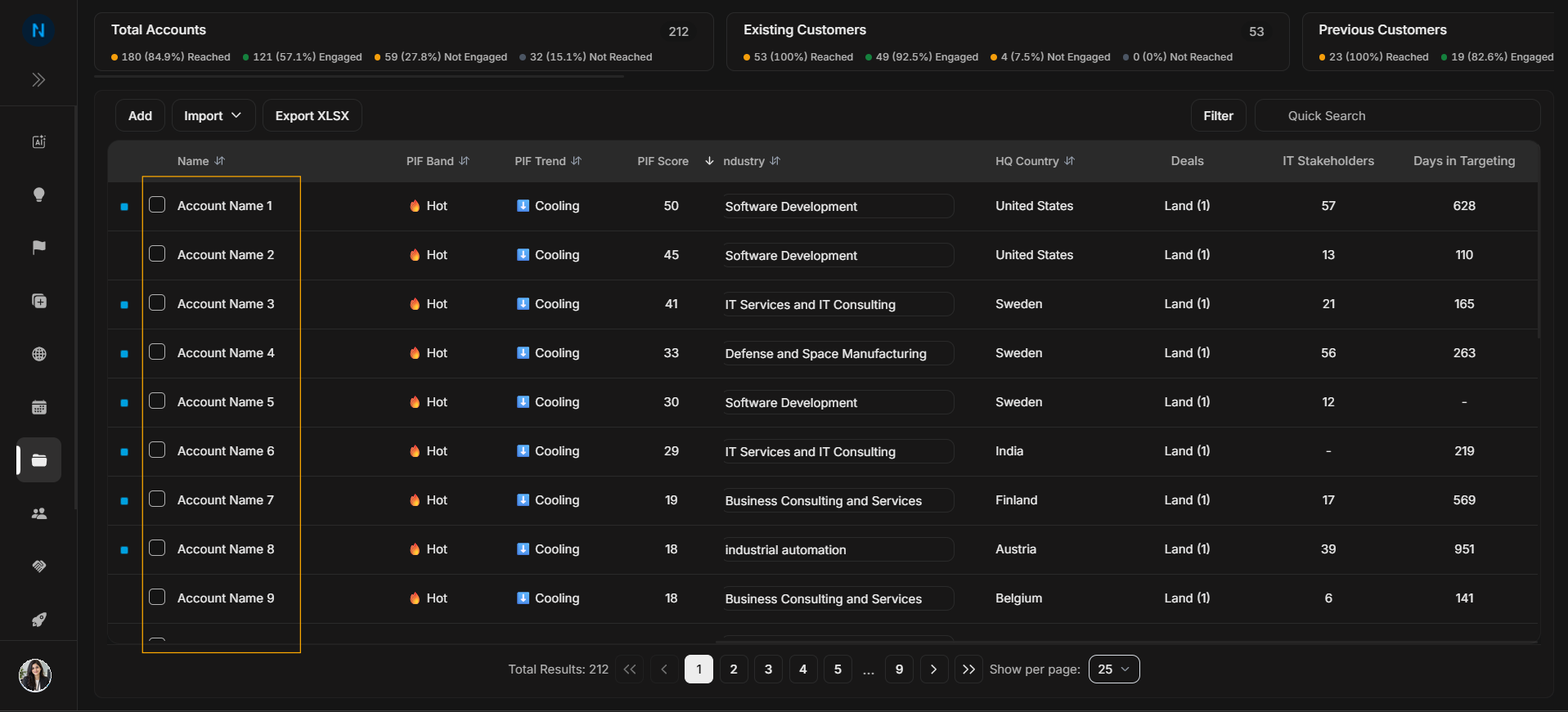
Image guide: Name opens the Account Detail page. The checkbox is used when selecting rows for bulk action.
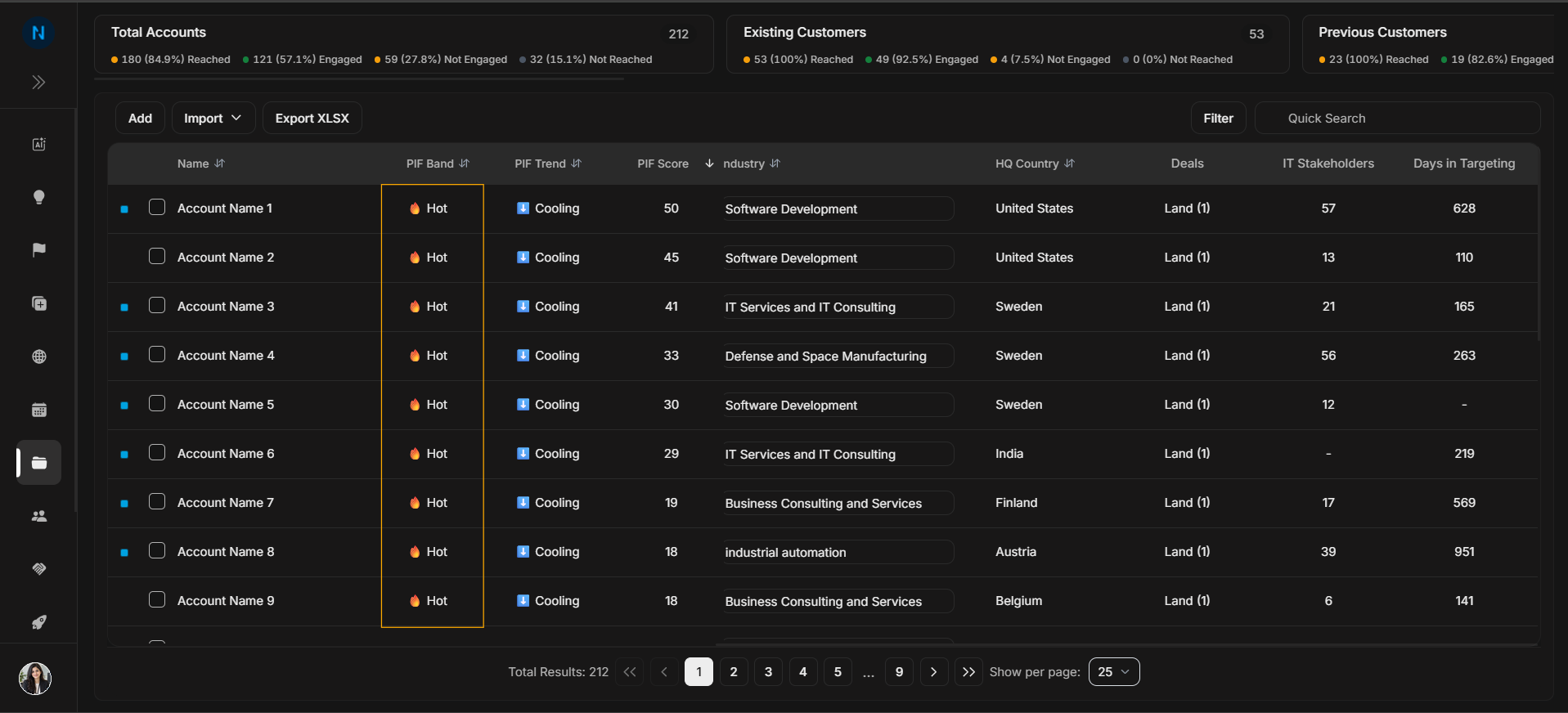
Image guide: PIF Band gives a quick interest label for the account.
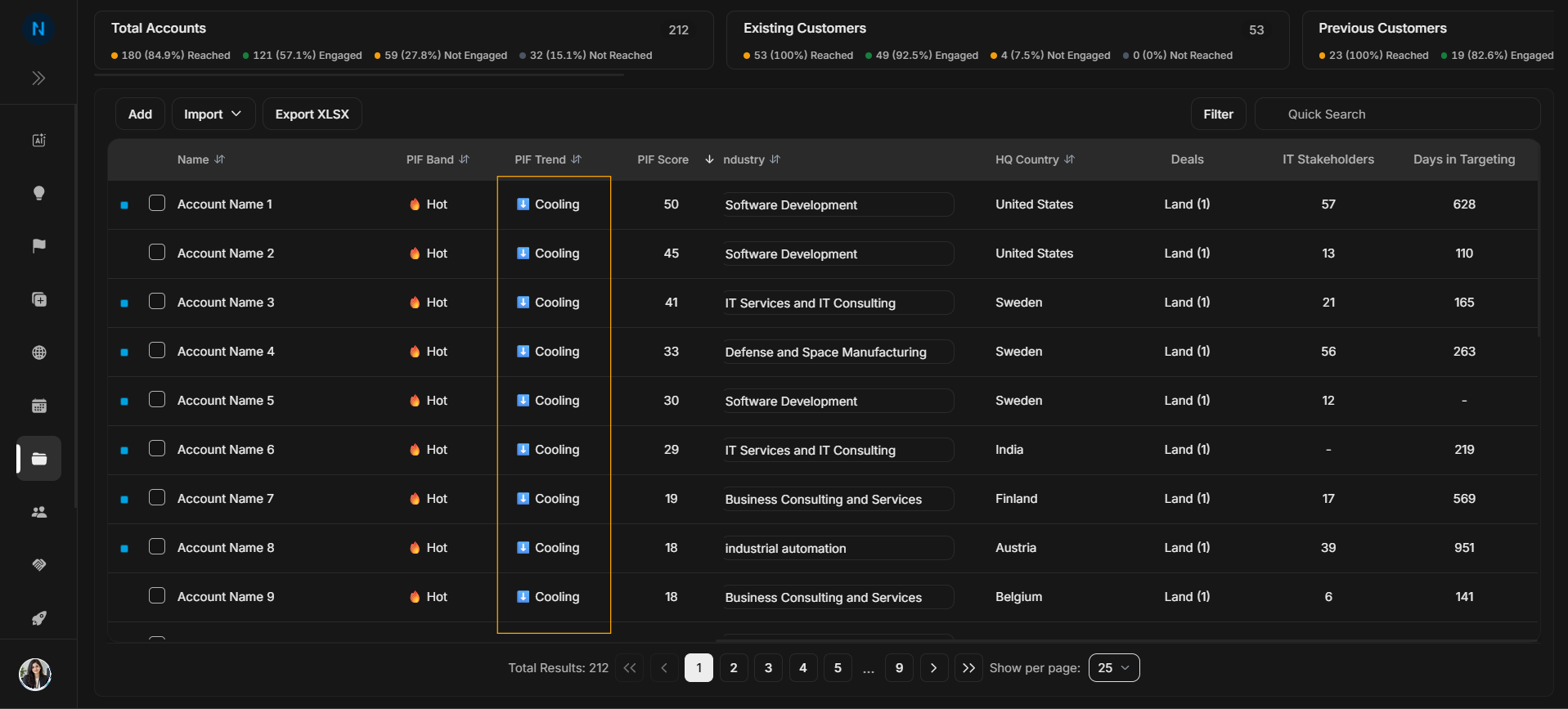
Image guide: PIF Trend shows whether interest is warming, cooling, or holding.
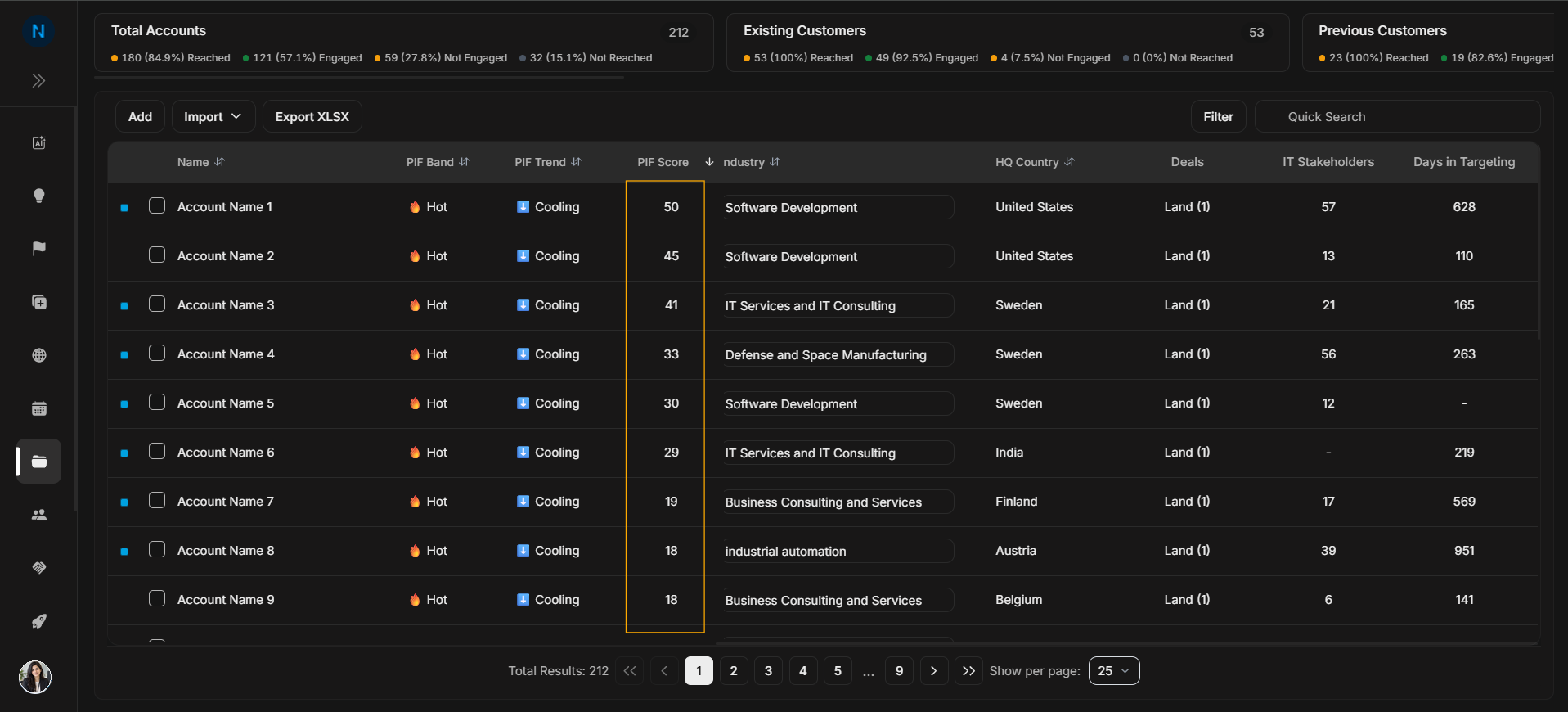
Image guide: PIF Score is the numeric Product Interest Fit value.
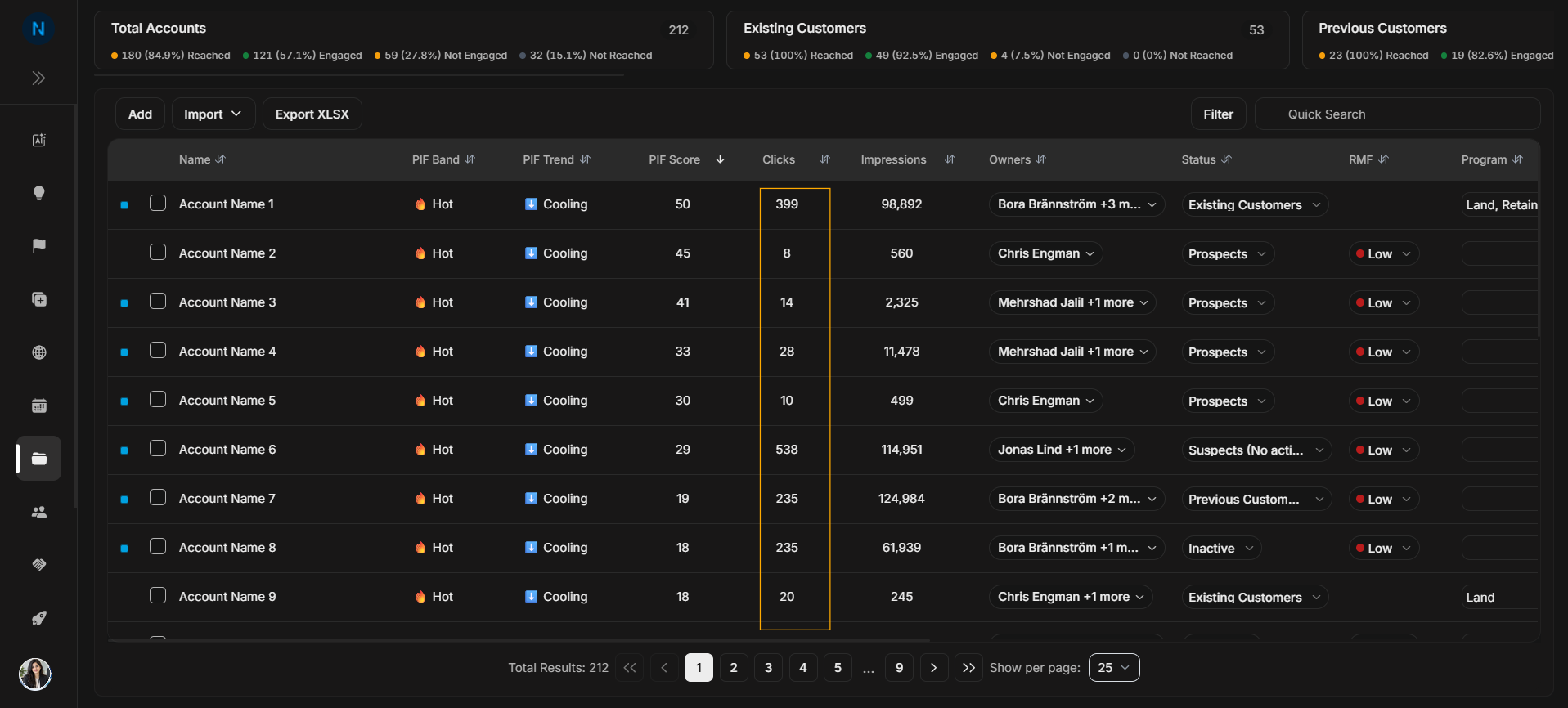
Image guide: Clicks show account-level click activity.
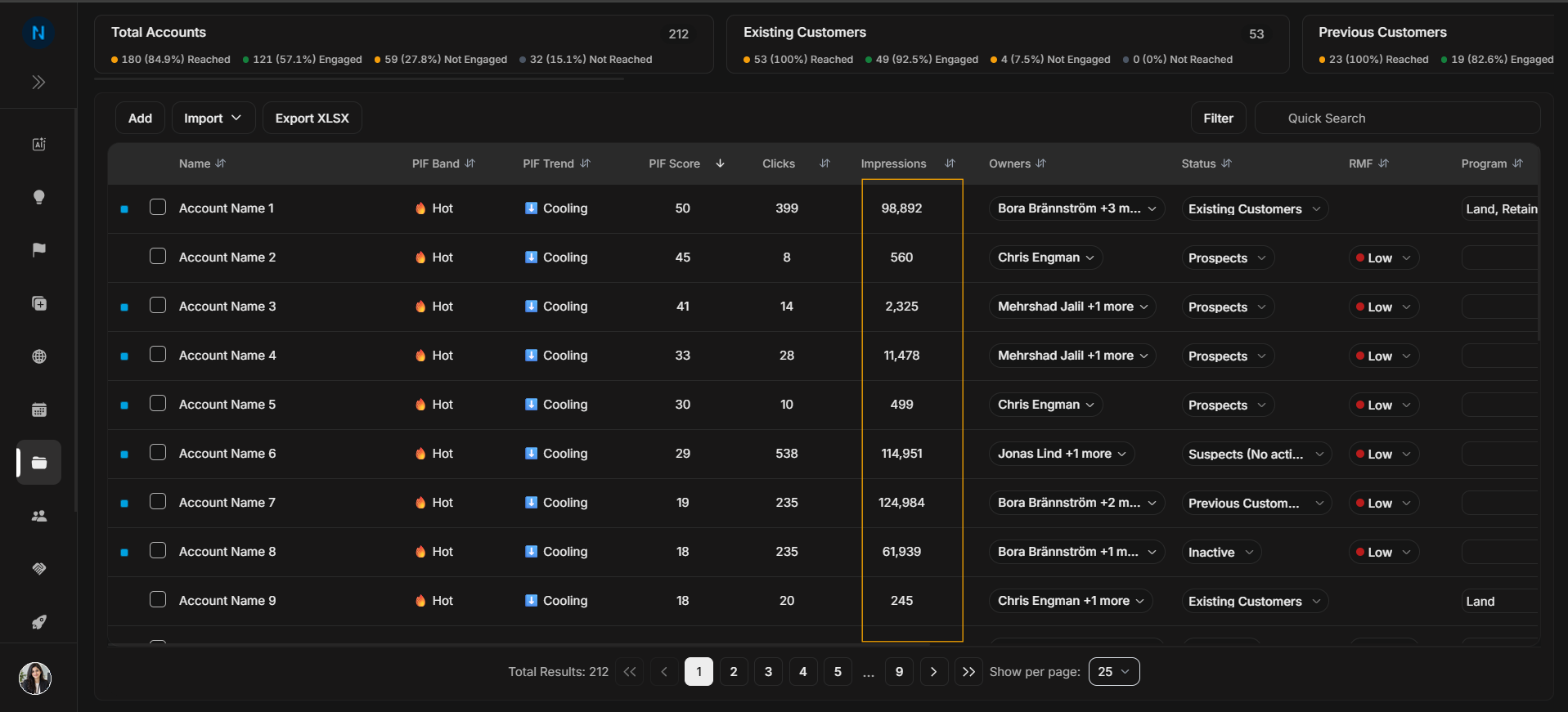
Image guide: Impressions show account-level reach volume.
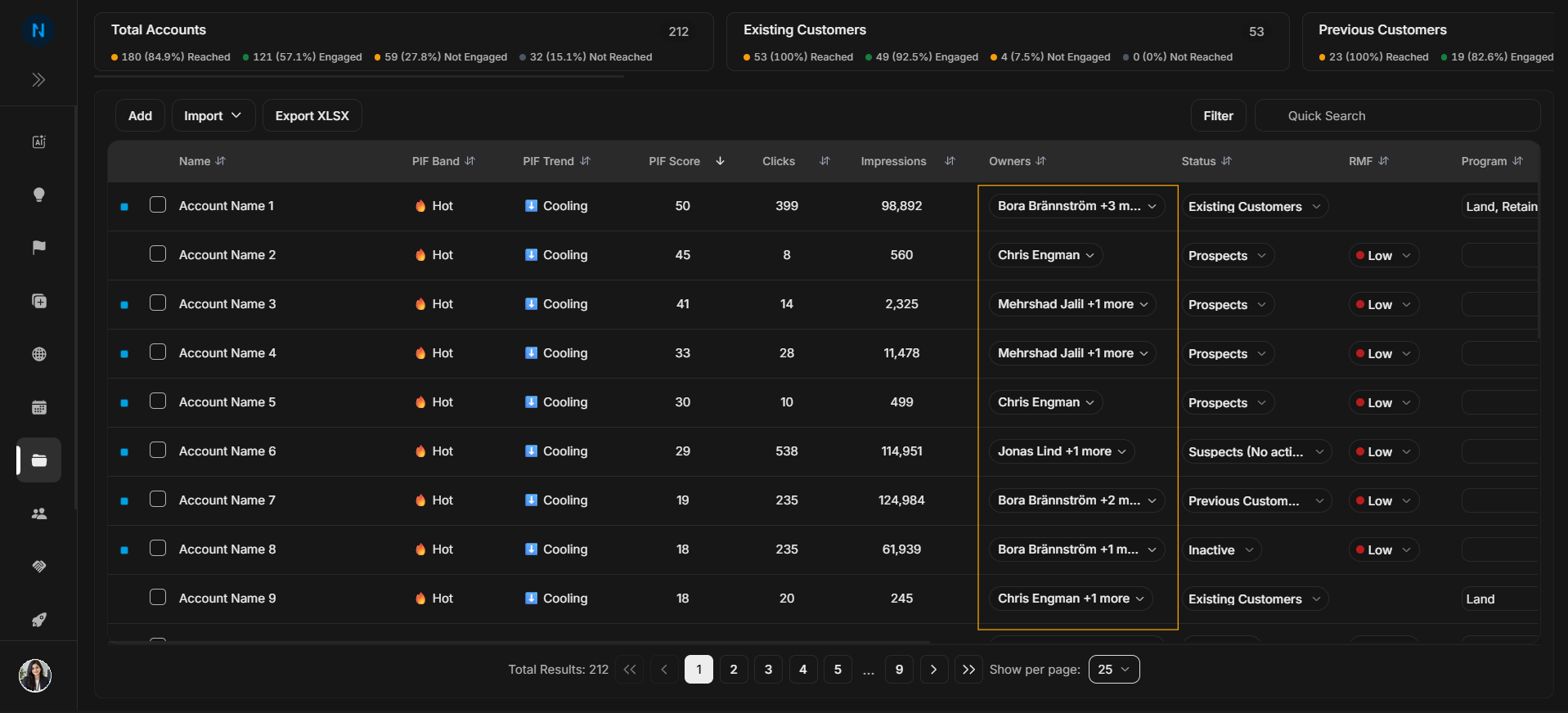
Image guide: Owners are the users responsible for the account.
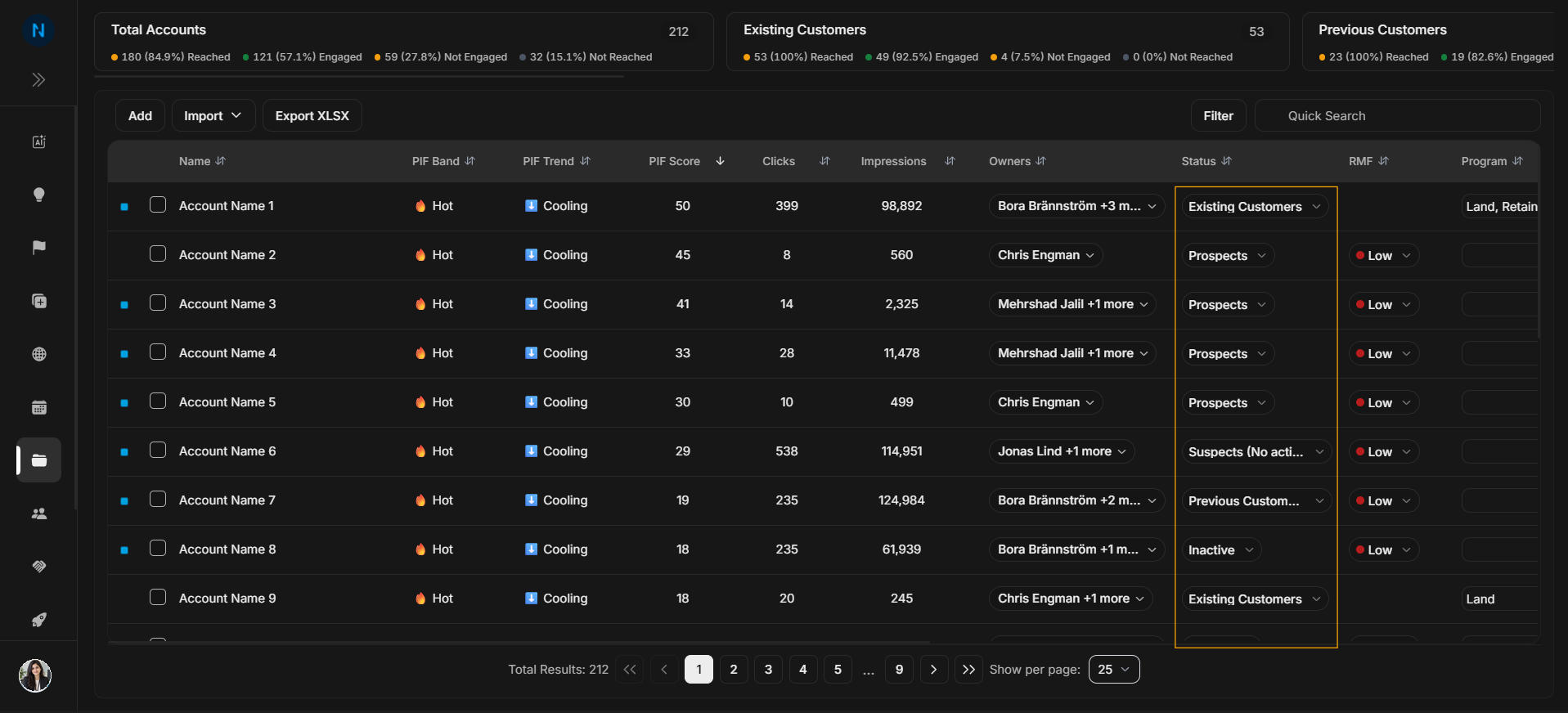
Image guide: Status shows the account lifecycle state.
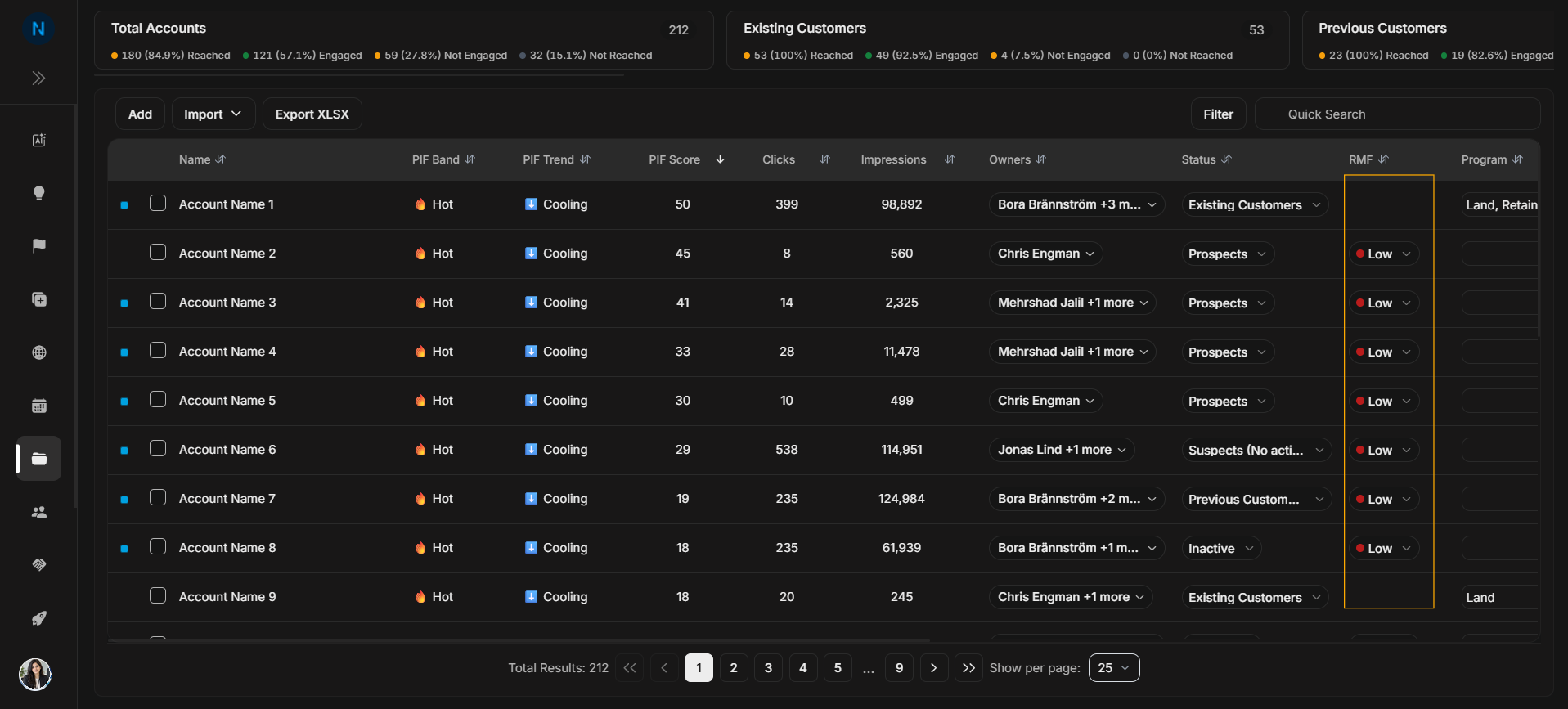
Image guide: RMF means Reference Market Fit and helps prioritize accounts.
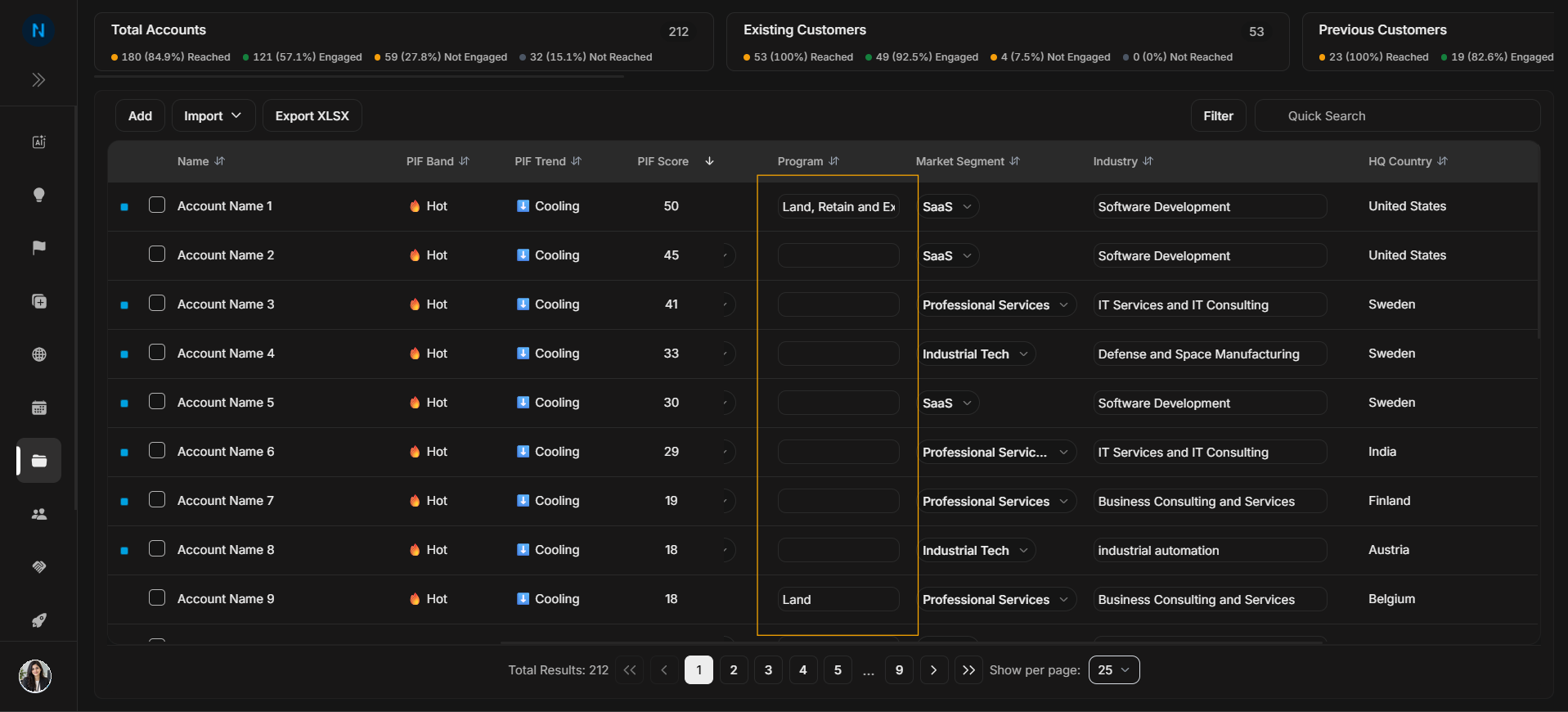
Image guide: Program shows the commercial motion or program connected to the account.
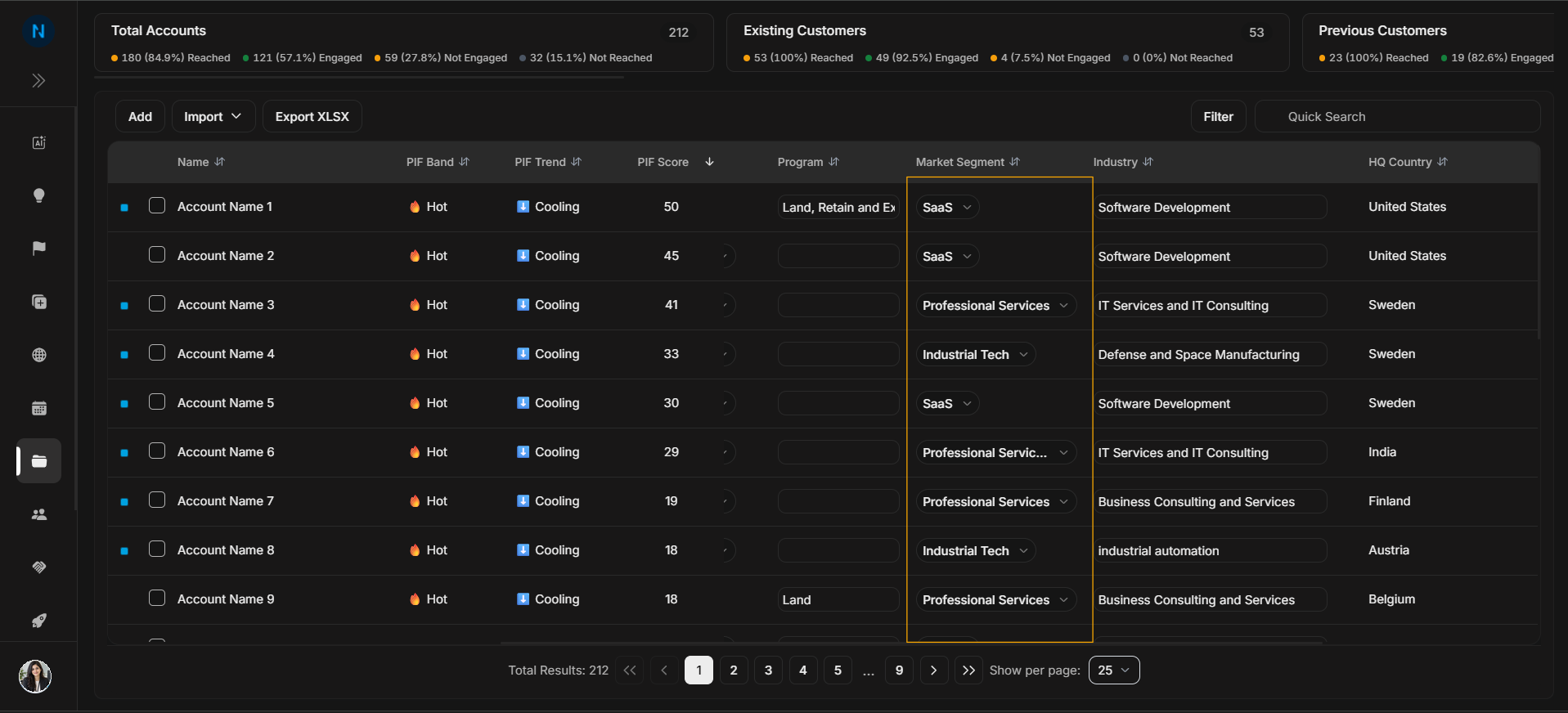
Image guide: Market Segment groups accounts into business segments.
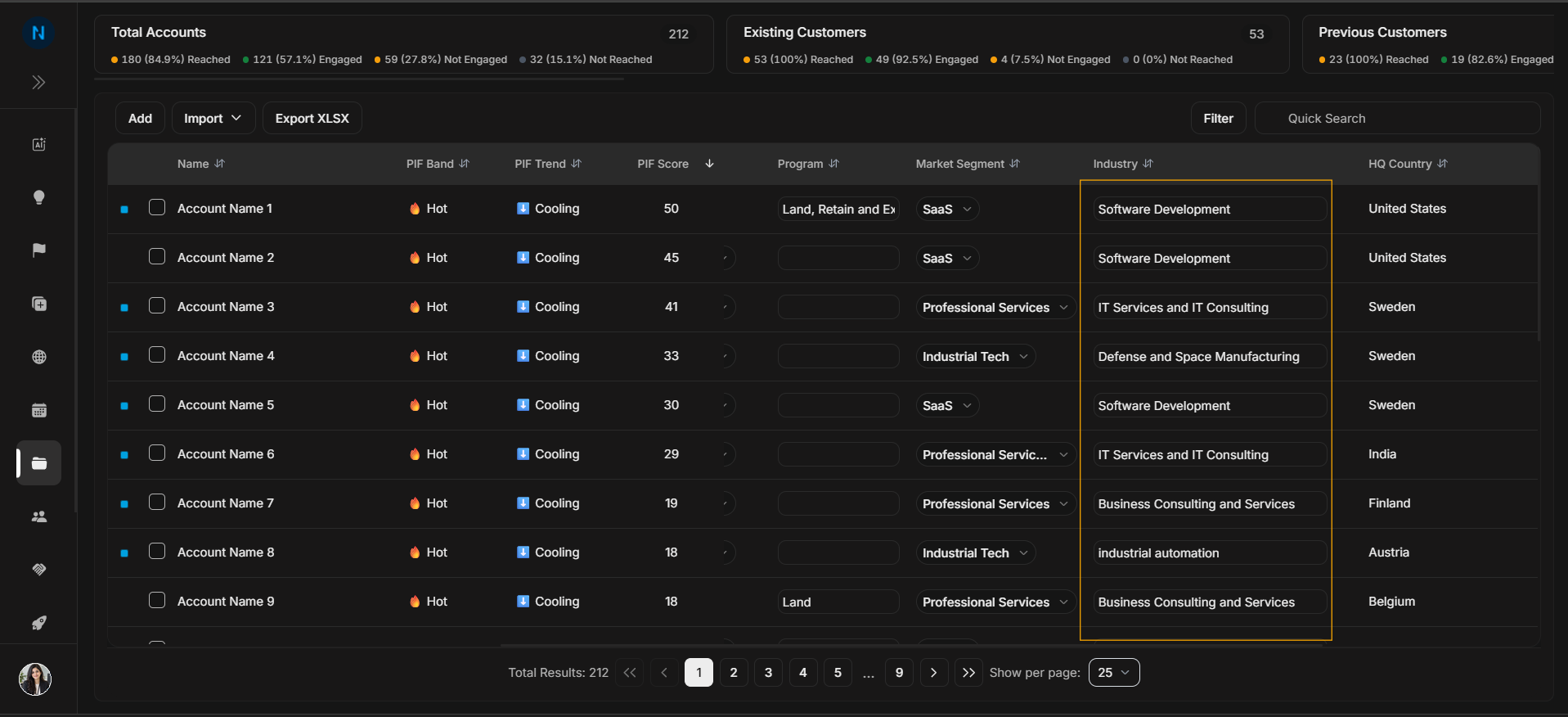
Image guide: Industry stores the company category.
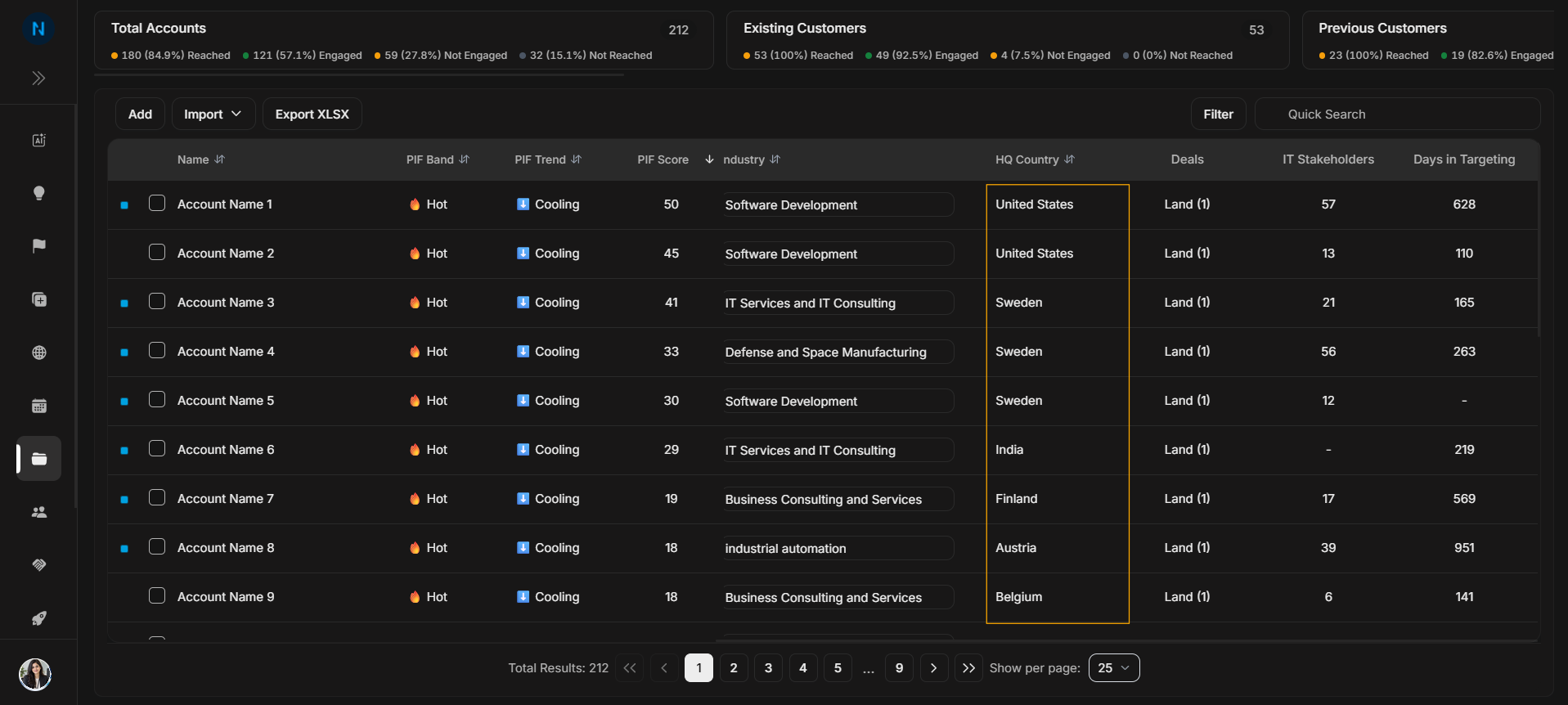
Image guide: HQ Country shows headquarters location context.
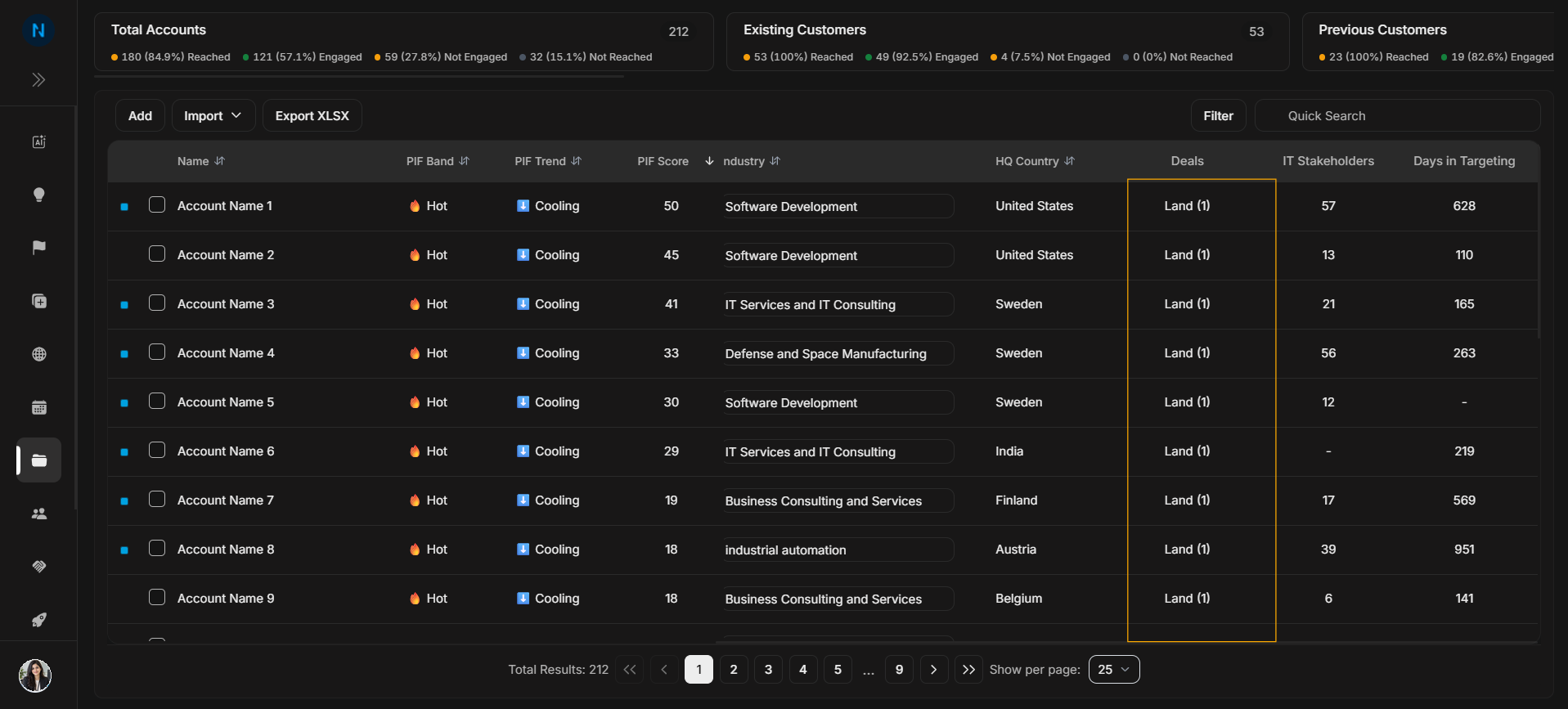
Image guide: Deals shows linked opportunity context for the account.
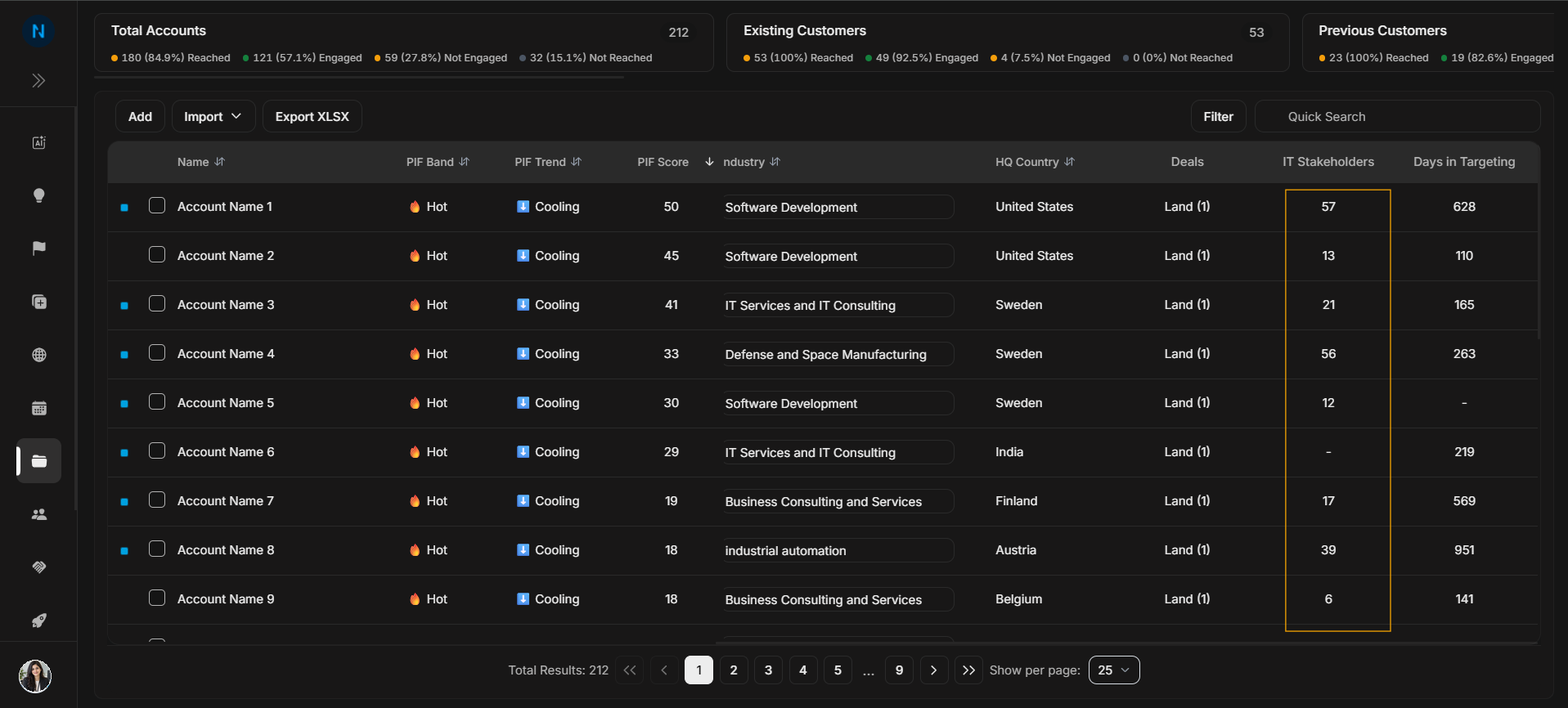
Image guide: This column area shows the right-side row controls as part of the full Accounts table layout. Read it with the other table columns before moving into dropdown-specific behavior.
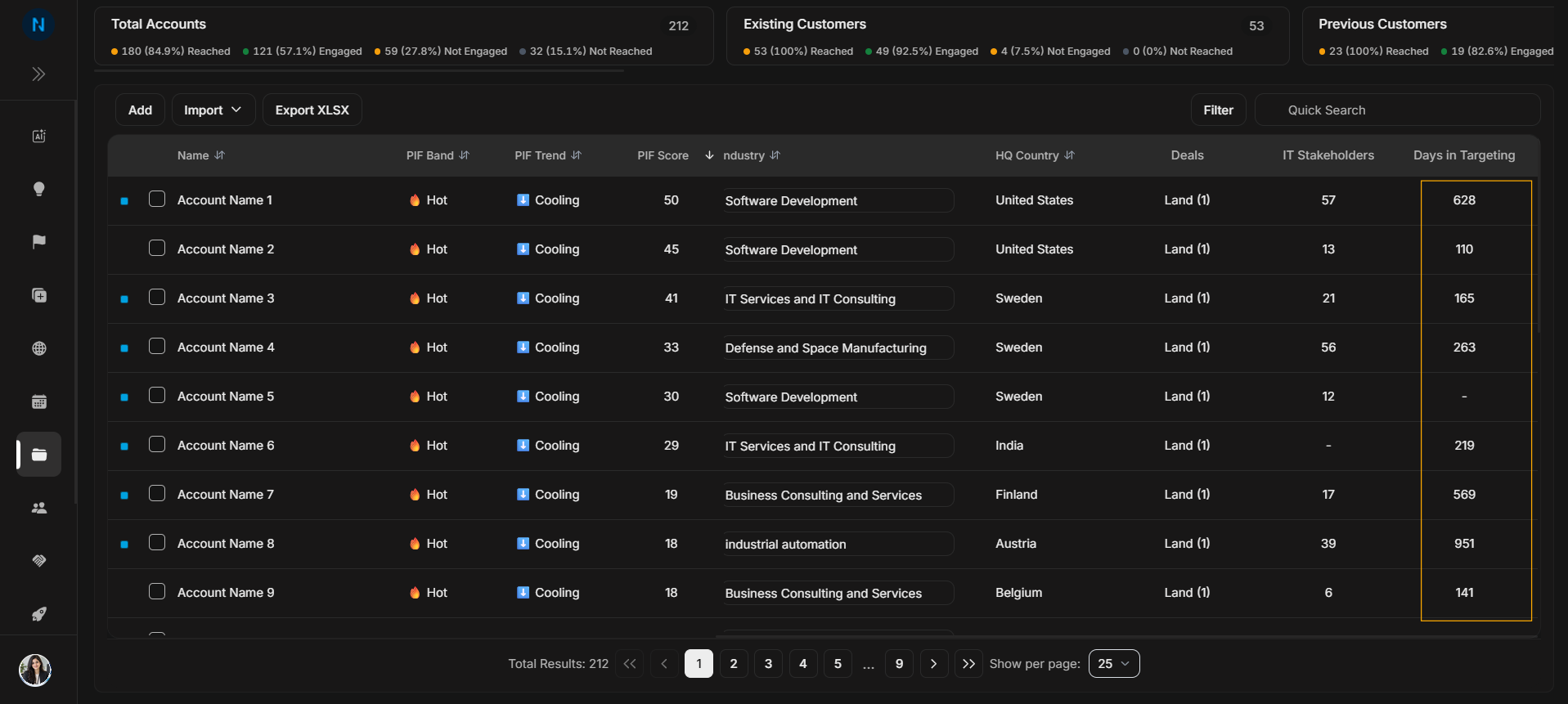
Image guide: Listing visibility indicates whether the account is visible in the relevant workspace listing state.
Step-by-step
- Start with Name to confirm the company.
- Read PIF Band, Trend, and Score together.
- Compare Clicks and Impressions.
- Check Owners, Status, RMF, Program, Segment, Industry, and HQ Country.
- Use Deals and stakeholder counts to decide whether to open Account Details.