Accounts pagination
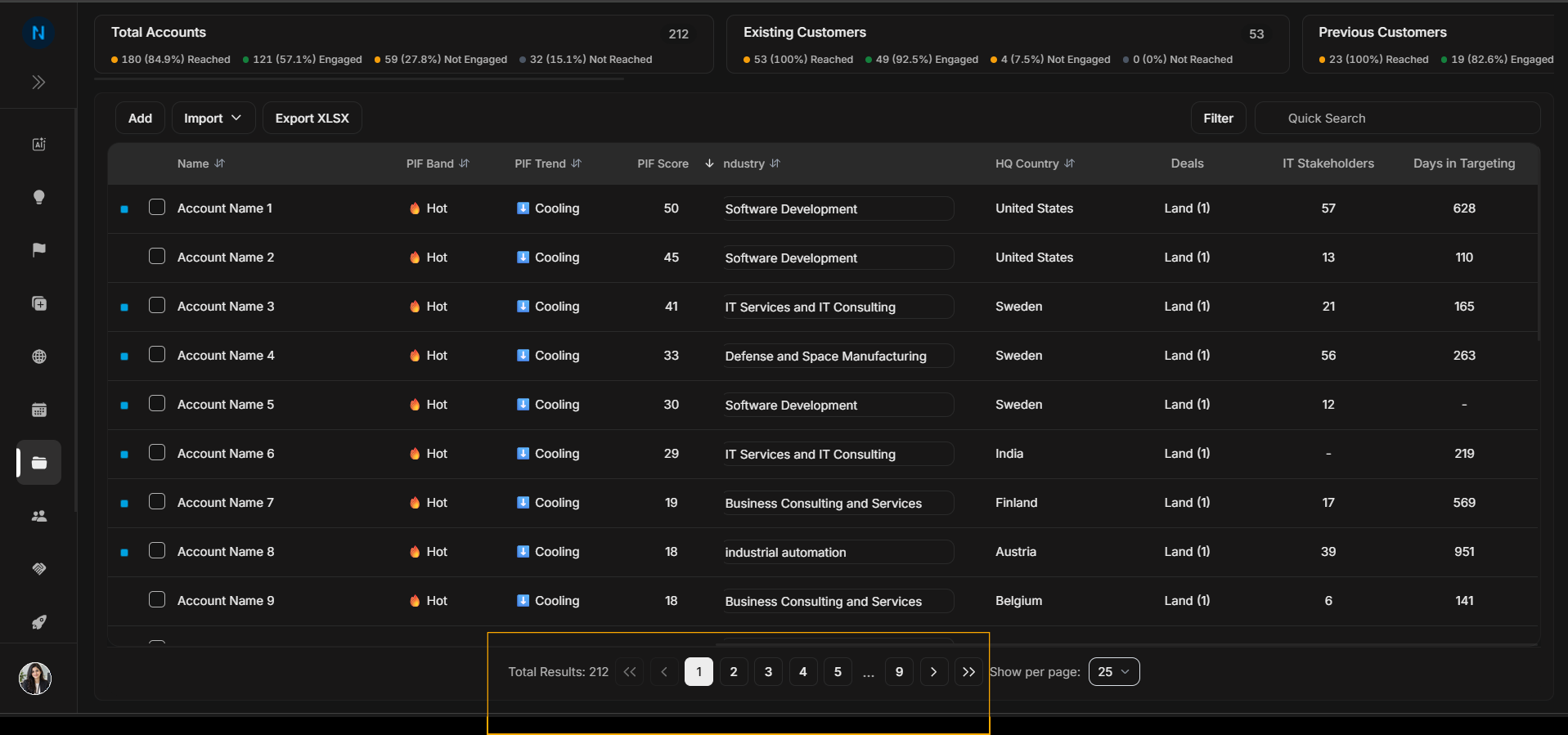
Accounts pagination
Use pagination when the Accounts table has more rows than can fit on one page.
Image guide: Pagination appears below the table. It shows total results, page numbers, next/previous controls, and the rows-per-page dropdown.
How pagination affects review
Pagination does not change account data; it only changes which rows are visible on screen. Use a smaller page size when you want focused review, and a larger page size when scanning or comparing many rows.
If a user cannot find an account, check both search/filter state and pagination. The account may be on another page, or the current filters may be hiding it.
Change rows per page
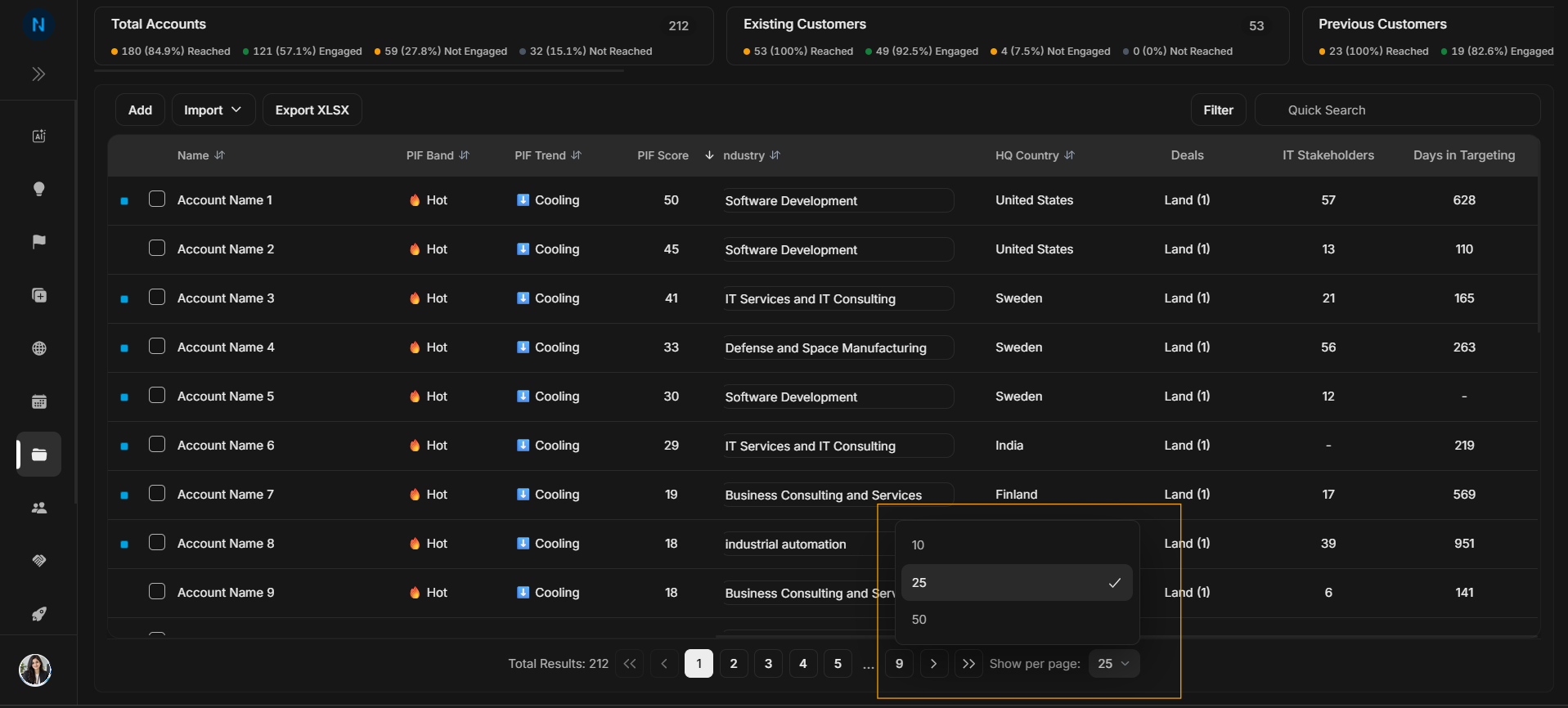
Image guide: The rows-per-page selector lets the user switch how many accounts appear at once, such as 25 or 50 rows per page.
What the controls mean
| Control | Meaning |
|---|---|
| Total Results | Number of accounts matching the current view. |
| Page numbers | Move directly to a page. |
| Previous and next | Move one page at a time. |
| Show per page | Change how many rows appear on each page. |
Step-by-step
- Apply filters or search first if needed.
- Check Total Results.
- Move through pages using page numbers or next/previous.
- Change Show per page when you need fewer or more rows visible.