Stakeholder table dropdowns and row actions
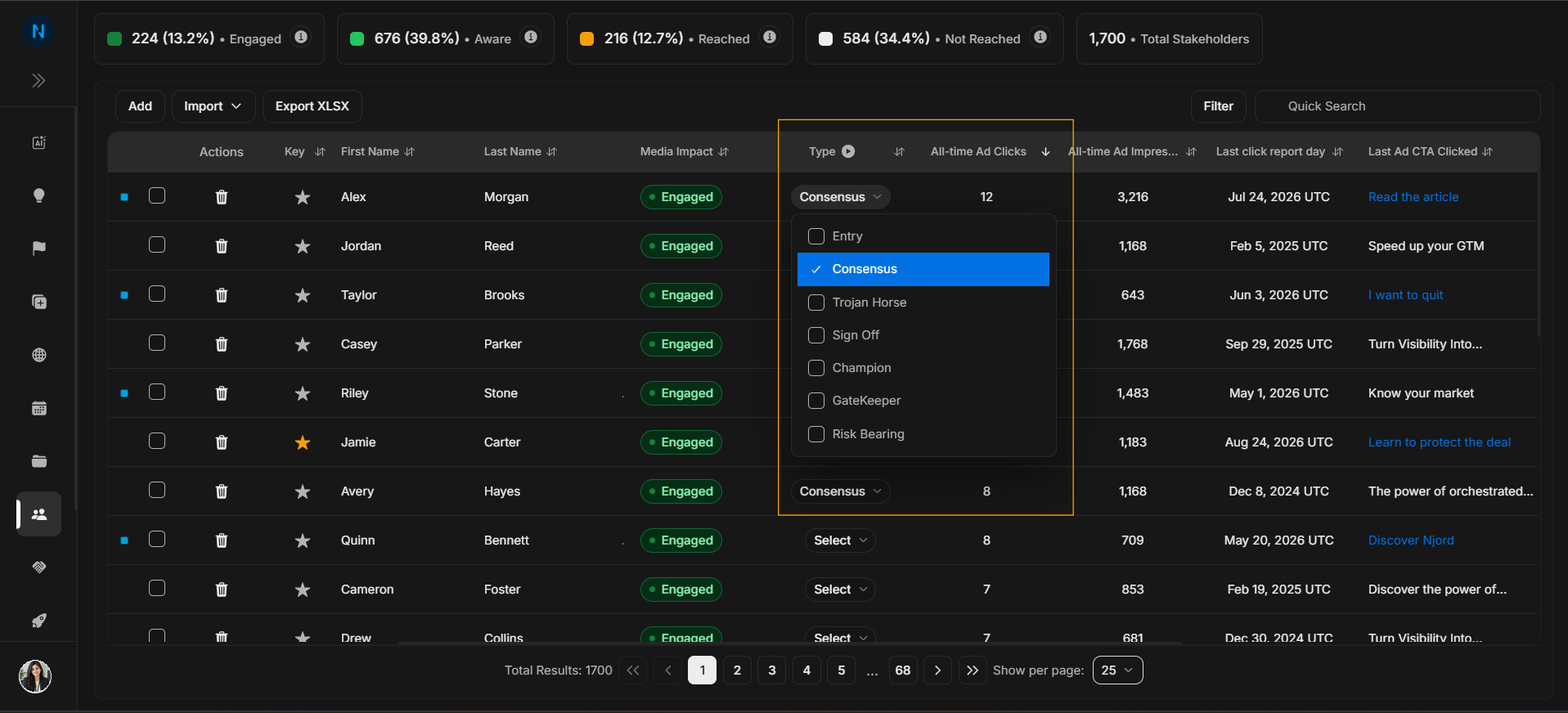
Stakeholder table dropdowns and row actions
Use this page when one visible stakeholder, or a selected set of stakeholders, needs a specific action. Read it as a journey: open a row control, select rows for bulk work, click an action, then review the modal or menu that appears.
Start from the visible row
Image guide: Table dropdowns change or inspect a value on the visible row. Confirm the stakeholder name and account before changing any value.
Open a stakeholder from the table
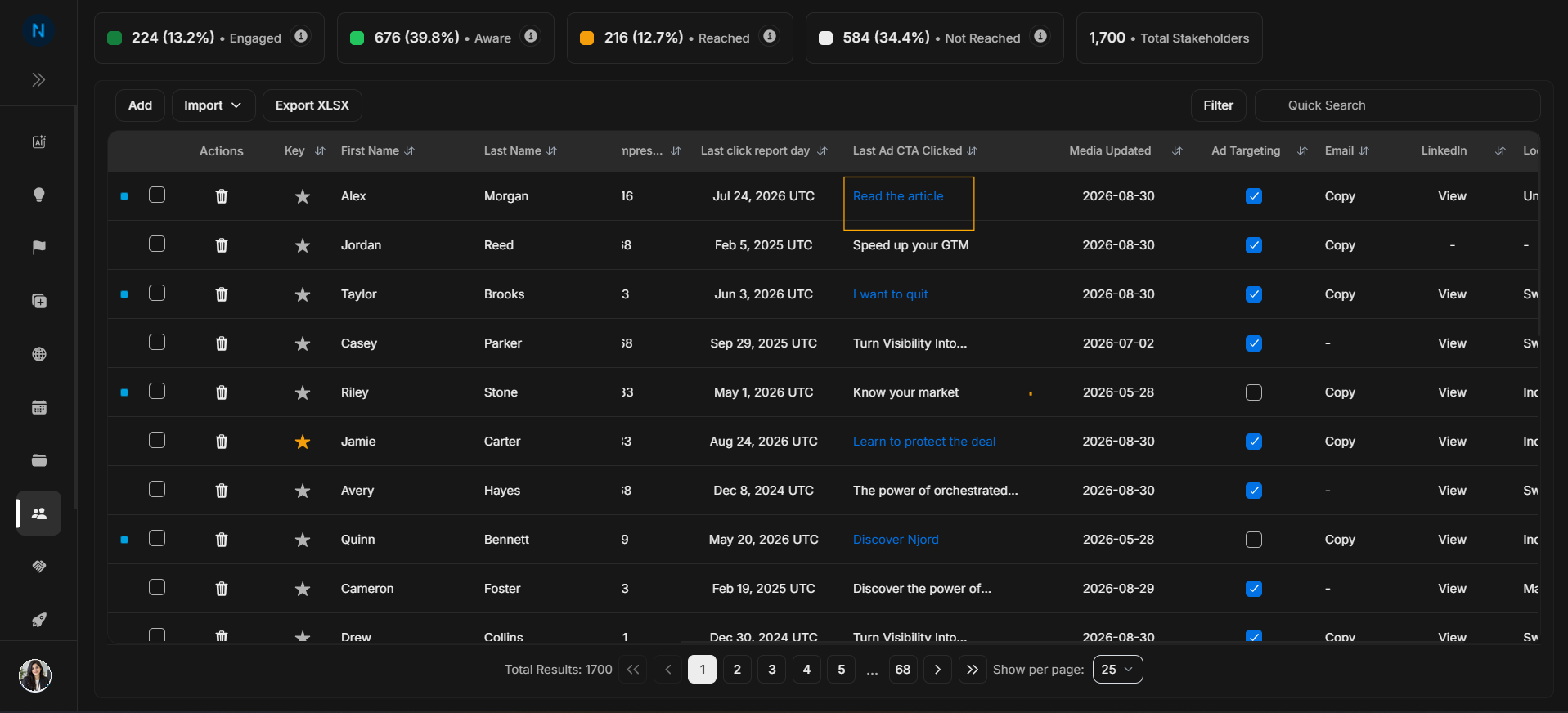
Image guide: Stakeholder names can open the person record. Use this when the table is not enough and the user needs the full Stakeholder Detail page.
Preview ad engagement
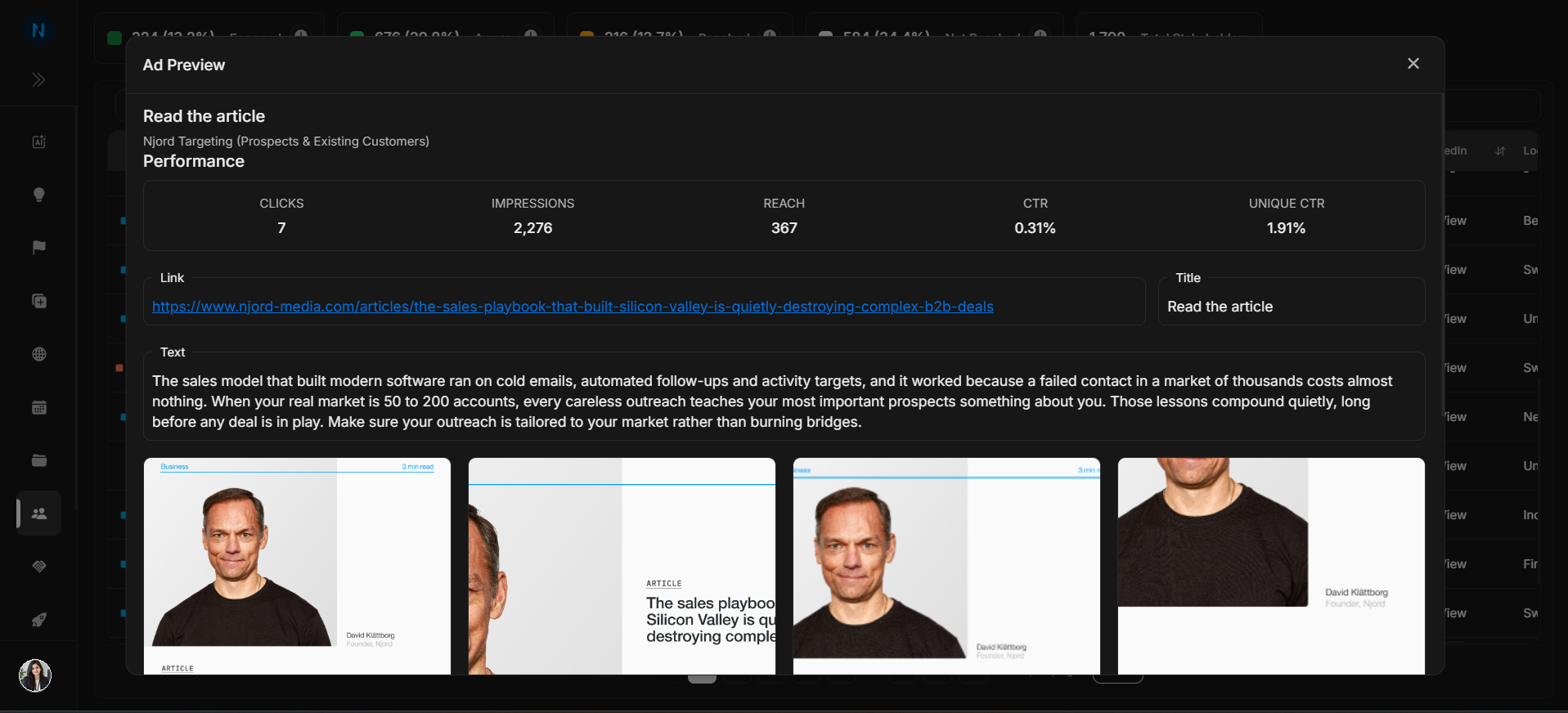
Image guide: Ad Preview shows the creative and engagement context behind an ad CTA. Use it to understand what the stakeholder clicked or viewed before making follow-up decisions.
Select rows for bulk actions
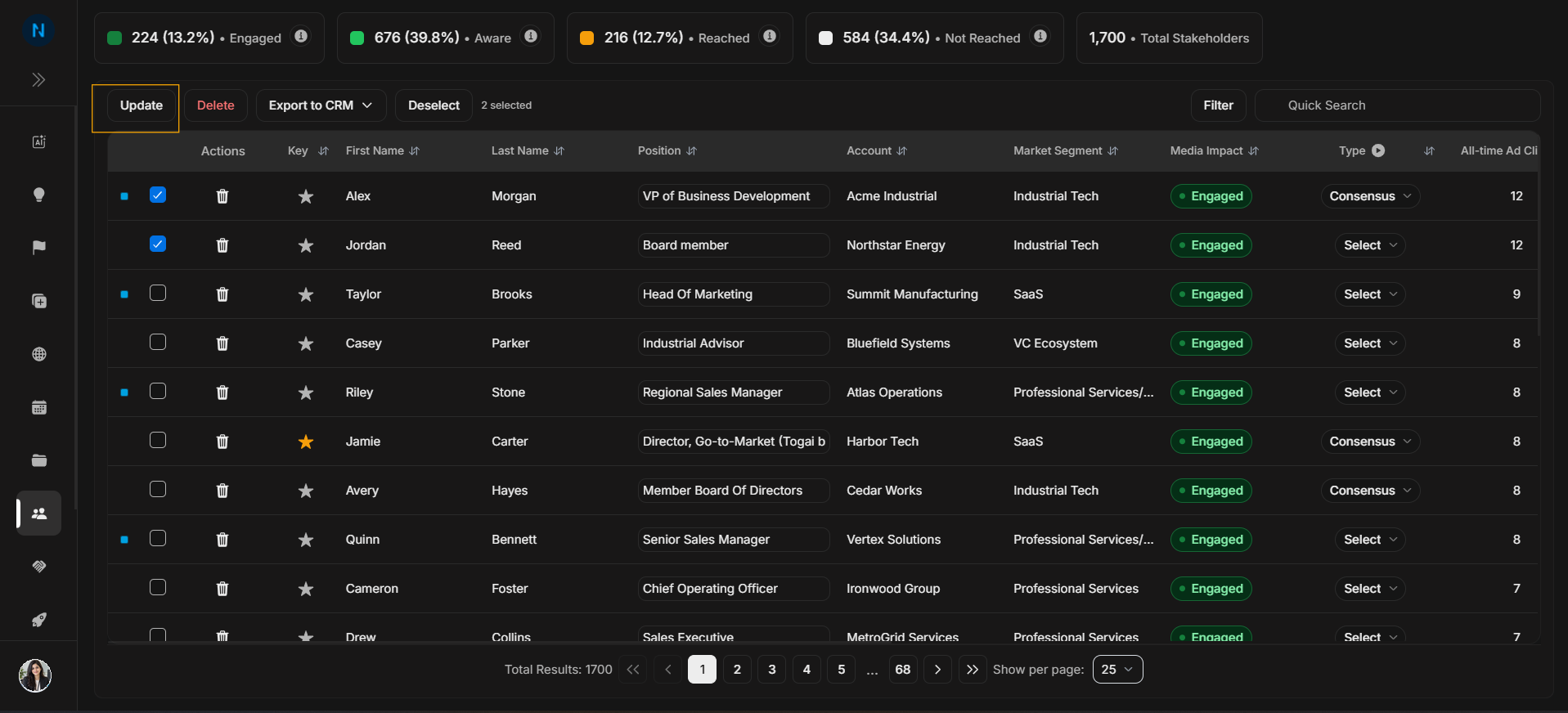
Image guide: Selecting one or more rows changes the toolbar. Review the selected count before clicking Update, Delete, Export to CRM, or Deselect.
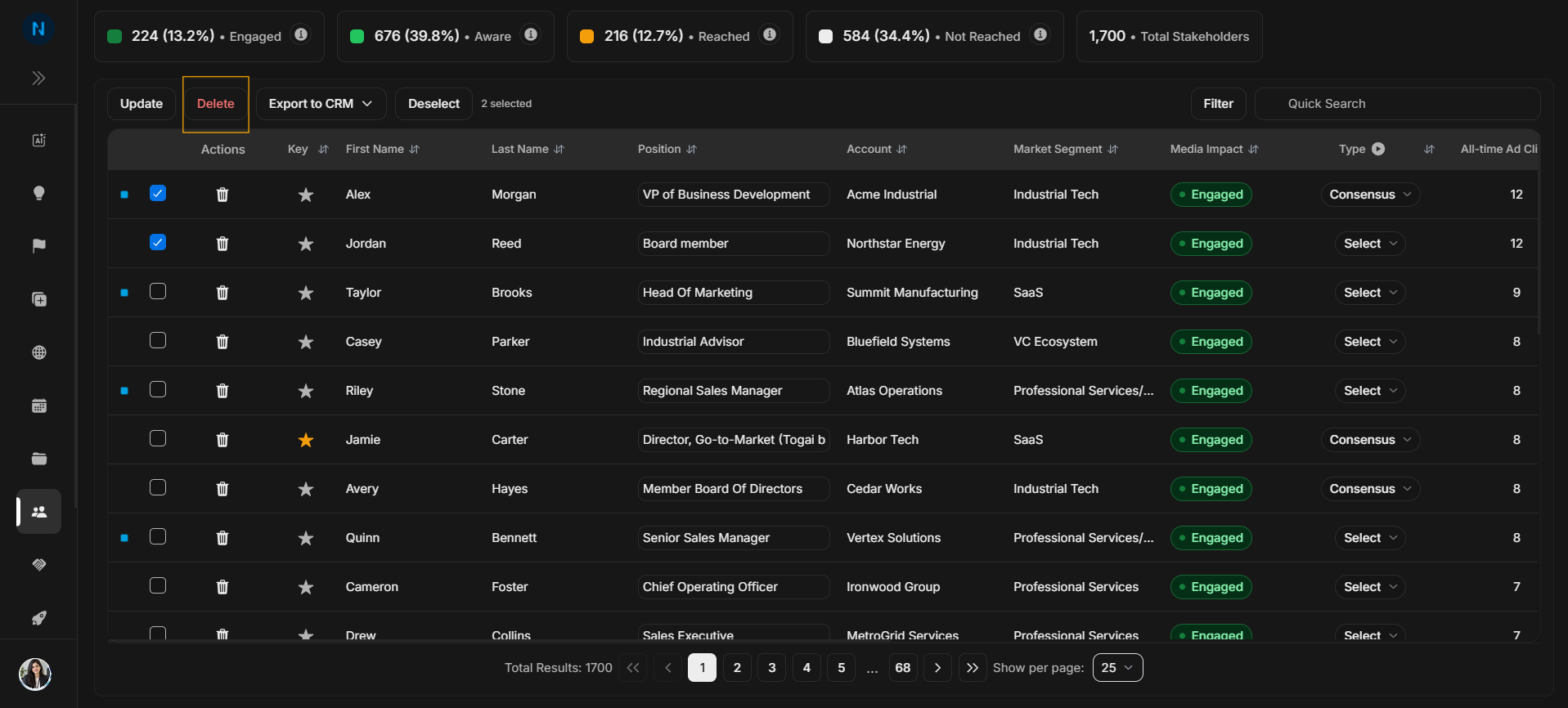
Image guide: The bulk toolbar is the action hub for selected stakeholders. If the wrong people are selected, use Deselect before continuing.
Click Update
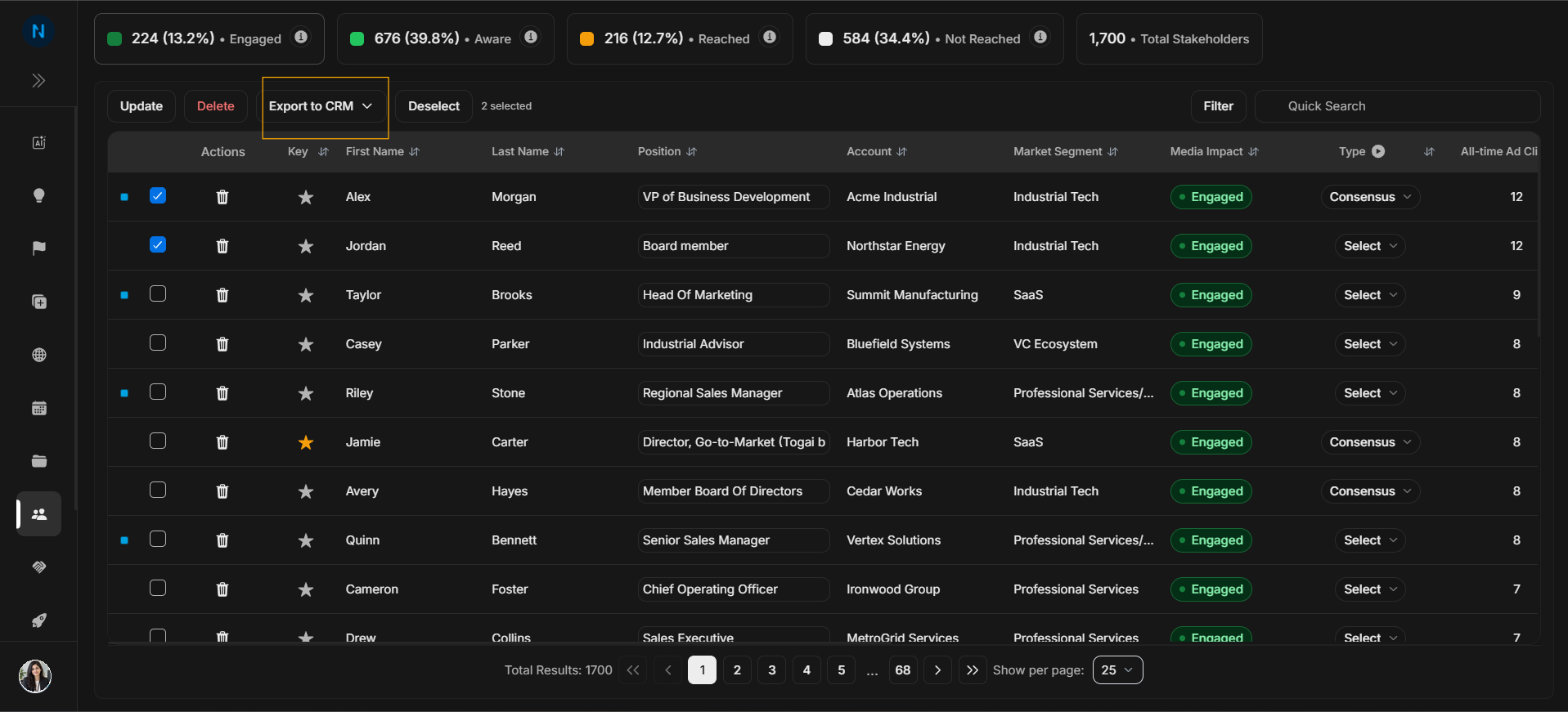
Image guide: Click Update only after confirming the selected count and selected stakeholder rows.
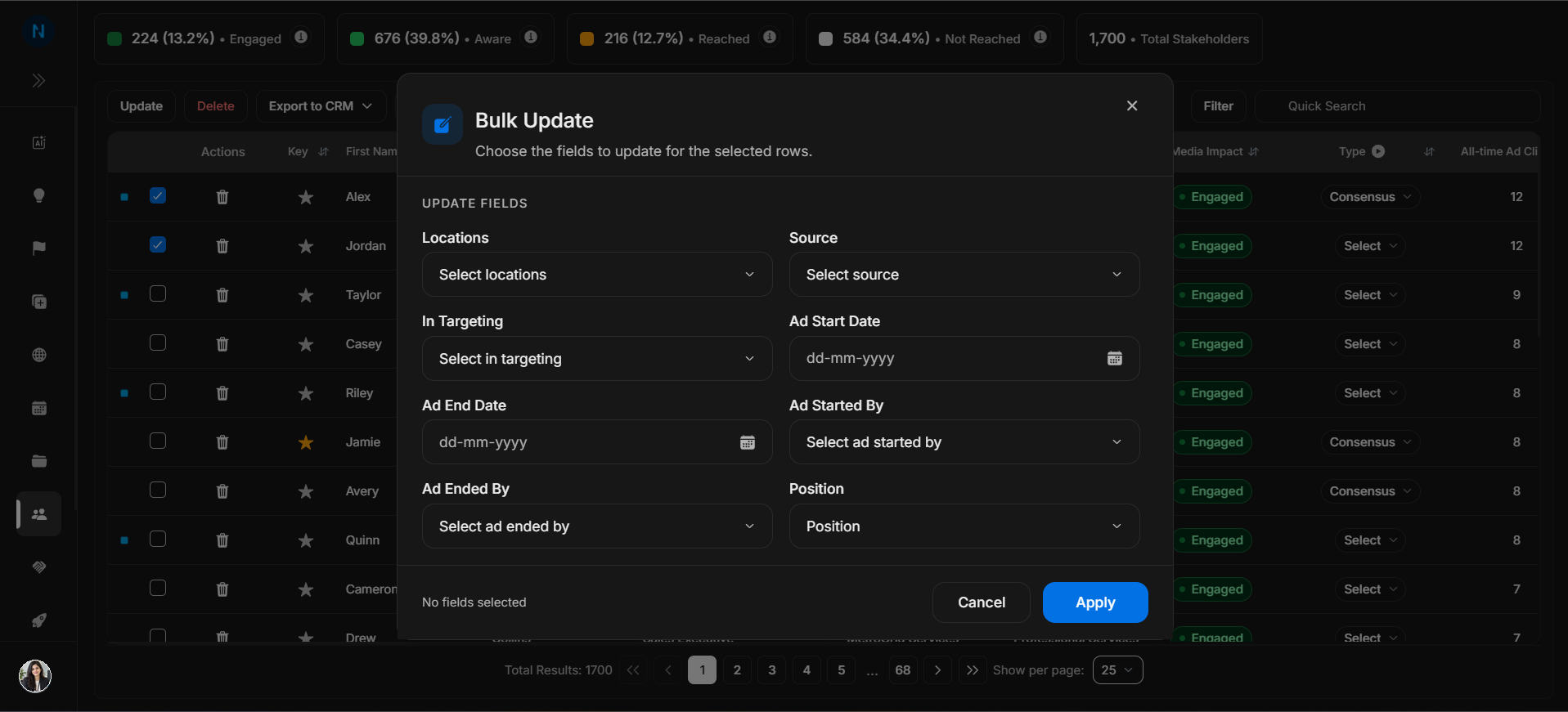
Image guide: The Bulk Update modal opens after clicking Update. Choose only the fields that should change for the selected stakeholders, such as Locations, Source, In Targeting, Ad Start Date, Ad End Date, Ad Started By, Ad Ended By, or Position. Leave fields untouched when they should not change.
Click Delete
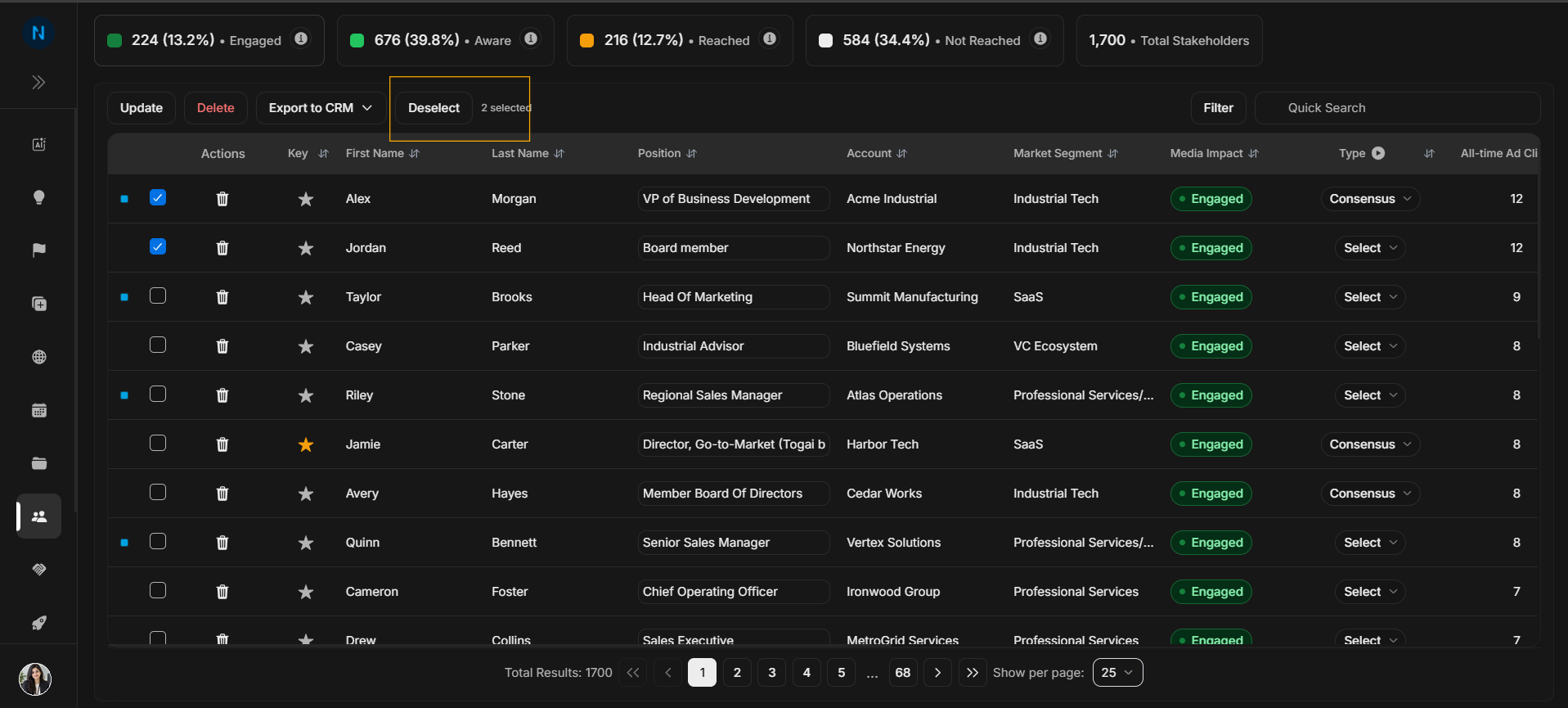
Image guide: Click Delete only when the selected stakeholder rows should be removed.
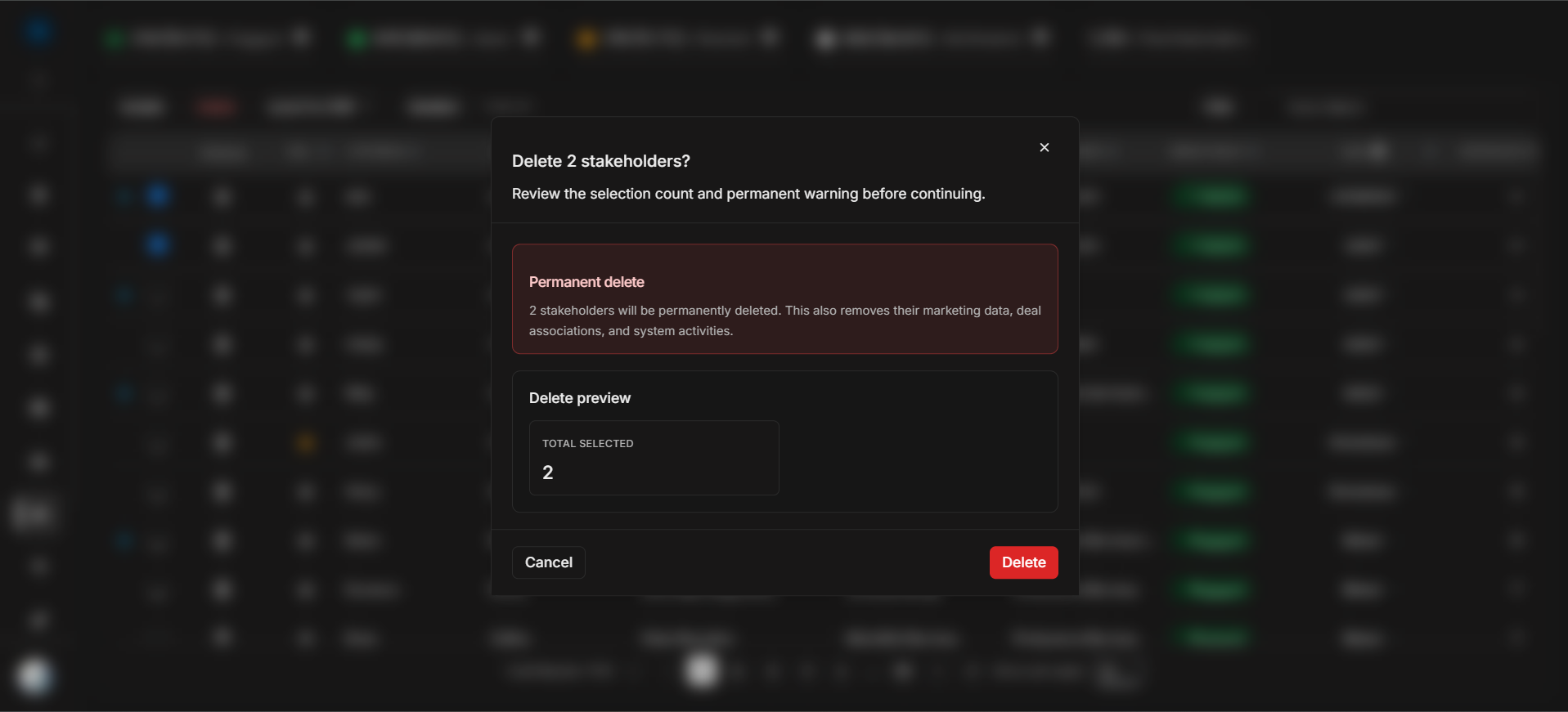
Image guide: The delete confirmation modal opens after clicking Delete. It shows the selected count and a permanent-delete warning. Read it carefully before confirming because deletion can remove marketing data, deal associations, and system activities.
Click Export to CRM
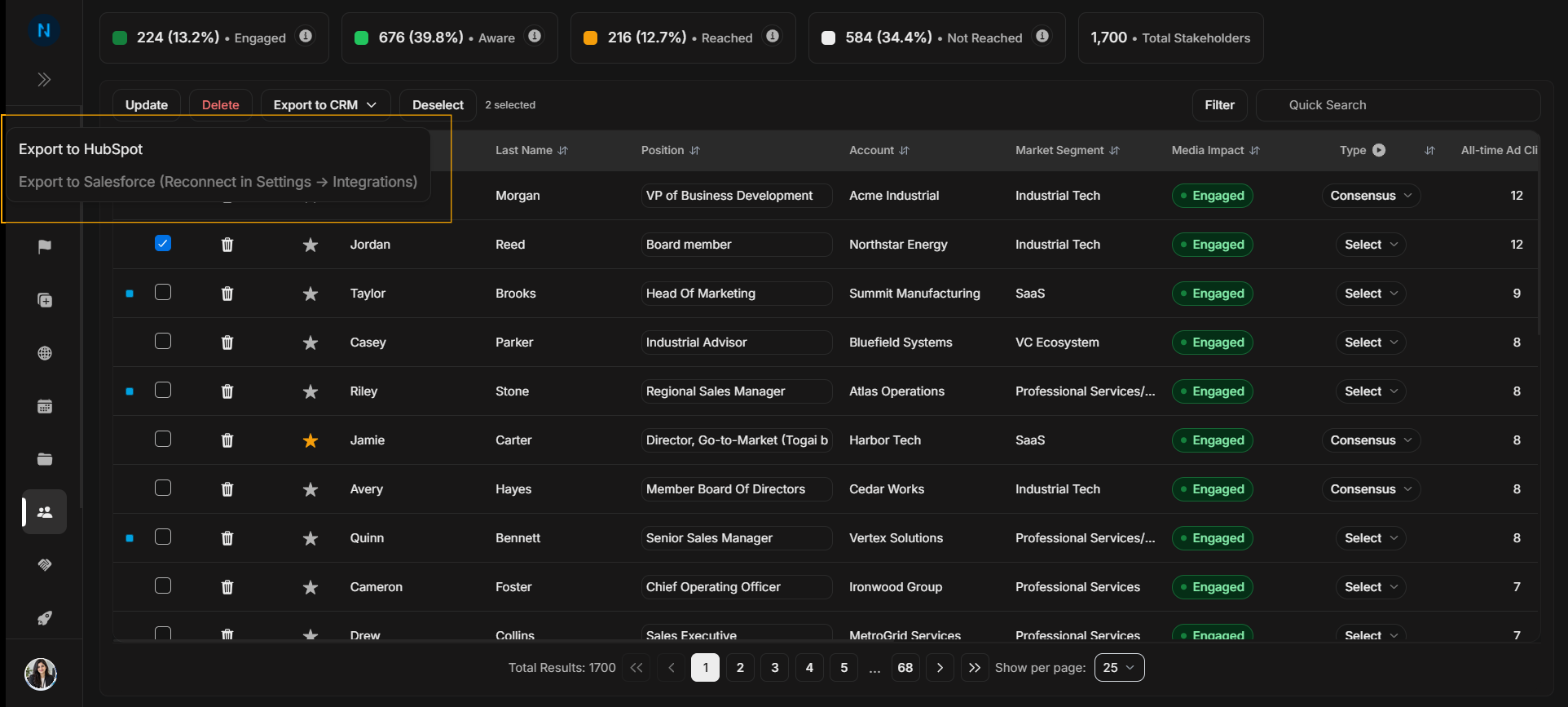
Image guide: Export to CRM opens the export options for selected stakeholders. Use Export to HubSpot when HubSpot is connected. Disabled CRM options, such as Salesforce reconnect messages, mean the integration must be fixed in settings before that export can be used.
Safe journey
- Filter or search until the intended rows are visible.
- Select the exact stakeholder rows.
- Confirm the selected count.
- Click Update, Delete, or Export to CRM.
- Review the modal or menu that opens after the click.
- Apply the action only when the selected stakeholders and fields are correct.
- Use Deselect when the task is complete or the wrong rows are selected.