Stakeholder import, filters, search and export
Stakeholder import, filters, search and export
Use Import when you need to add stakeholders from a file or connected CRM. Use Quick Search when you know the person or account text. Use Filter when you need to narrow the list by stakeholder properties. Use Export XLSX when you need the current list in a spreadsheet.
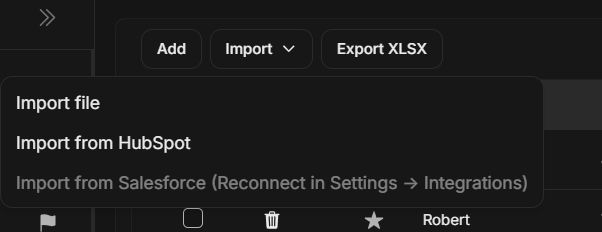
The Stakeholders toolbar has Add, Import, and Export XLSX. Open Import to choose a file import or a connected CRM source. A disabled CRM option with reconnect copy means the provider must be reconnected in Settings > Integrations before it can import.
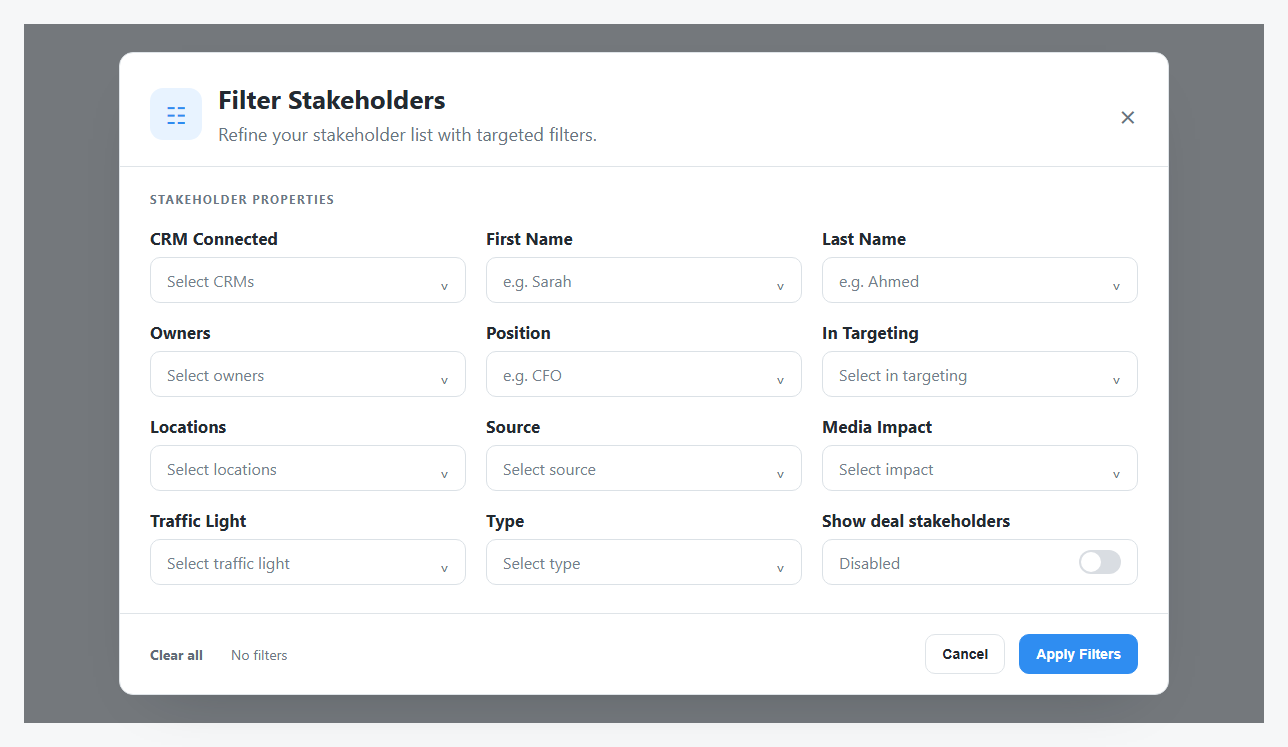
The filter dialog groups stakeholder properties into one form and shows whether any filters are currently active.
Import Stakeholders
The Stakeholders import menu can show:
| Option | Meaning |
|---|---|
| Import file | Upload stakeholder/contact records from a file. |
| Import from HubSpot | Import stakeholder/contact records from a connected HubSpot app. |
| Import from Salesforce (Reconnect in Settings -> Integrations) | Salesforce exists but must be reconnected before import works. |
After importing, use Quick Search or Filter to confirm the person appears, then review account, position, source, type, traffic light, location, and targeting fields.
For the full workflow, see Import Stakeholders.
Quick Search
Quick Search is best for simple text lookup. Search by visible stakeholder text, then clear the search before assuming a stakeholder is missing.
Use Quick Search when:
- You know a first name, last name, account, or position.
- You want a fast lookup without changing filters.
- You need to narrow the table before exporting.
Filter Fields
| Filter | Use it when you need to find stakeholders by |
|---|---|
| CRM Connected | CRM contact connection or mapping state. |
| First Name / Last Name | Exact or partial name. |
| Owners | Internal owner or assigned user. |
| Position | Job title or role. |
| In Targeting | Current targeting inclusion. |
| Locations | Country or region. |
| Source | Origin such as LinkedIn, CRM, import, or manual entry. |
| Media Impact | Engaged, Aware, Reached, or Not Reached. |
| Traffic Light | For, Against, Neutral, or blank where used. |
| Type | Buying-committee type such as Consensus or Champion. |
| Show deal stakeholders | Include stakeholders associated through deals when shown. |
Position And Deal Stakeholder Filters
Position accepts more than one job title. Use the field-level Clear action to reset Position without clearing the rest of the form.
On stakeholder list pages, Show deal stakeholders switches from the normal program view to people connected through Land, Expand, and Capital deals. DOE remembers this choice for the current workspace. Clear all resets it, and the summary cards and XLSX export use the same view as the table. A person linked to several matching deals is counted once.
Export XLSX
Export uses the current table view and includes all matching rows, not only the visible page. If you need a filtered export, apply the filter or search first, then export. If DOE cannot load every matching page, it does not create a partial file.
Before exporting, check:
- The workspace is correct.
- Search and filters are intentional.
- The table columns include the fields you need.
- You are allowed to download stakeholder data from this workspace.
Troubleshooting
| What you see | What to do |
|---|---|
| No rows after filter | Clear all filters and try one condition at a time. |
| Expected person missing | Search alternate spellings and confirm the account. |
| Export looks incomplete | Clear unintended filters and export again. |
| Filter options are empty | Confirm the workspace has source data for that field. |