Complete and review the deal checklist
Complete and review the deal checklist
The Deal checklist makes sales or activation readiness explicit. A checked item records completed work for this opportunity; it is not an automatic change to the Deal's stage or close probability.
Where to find it: open a Deal and scroll below Stakeholders Traffic Light.
Complete or reopen an item
- Read the current panel title: Sales Checklist or Deal Activation Checklist. The Deal's stage selects which one appears.
- Read an item's title and supporting description. Open its Video when offered if you need the concept explained.
- Select the checkbox only when the evidence supports completion. Wait for the save to finish before changing the same item again.
- To reopen work, clear its checkbox and check the saved result.
- Scroll within the checklist's item area to reach lower rows; the progress summary stays visible.
Read progress accurately
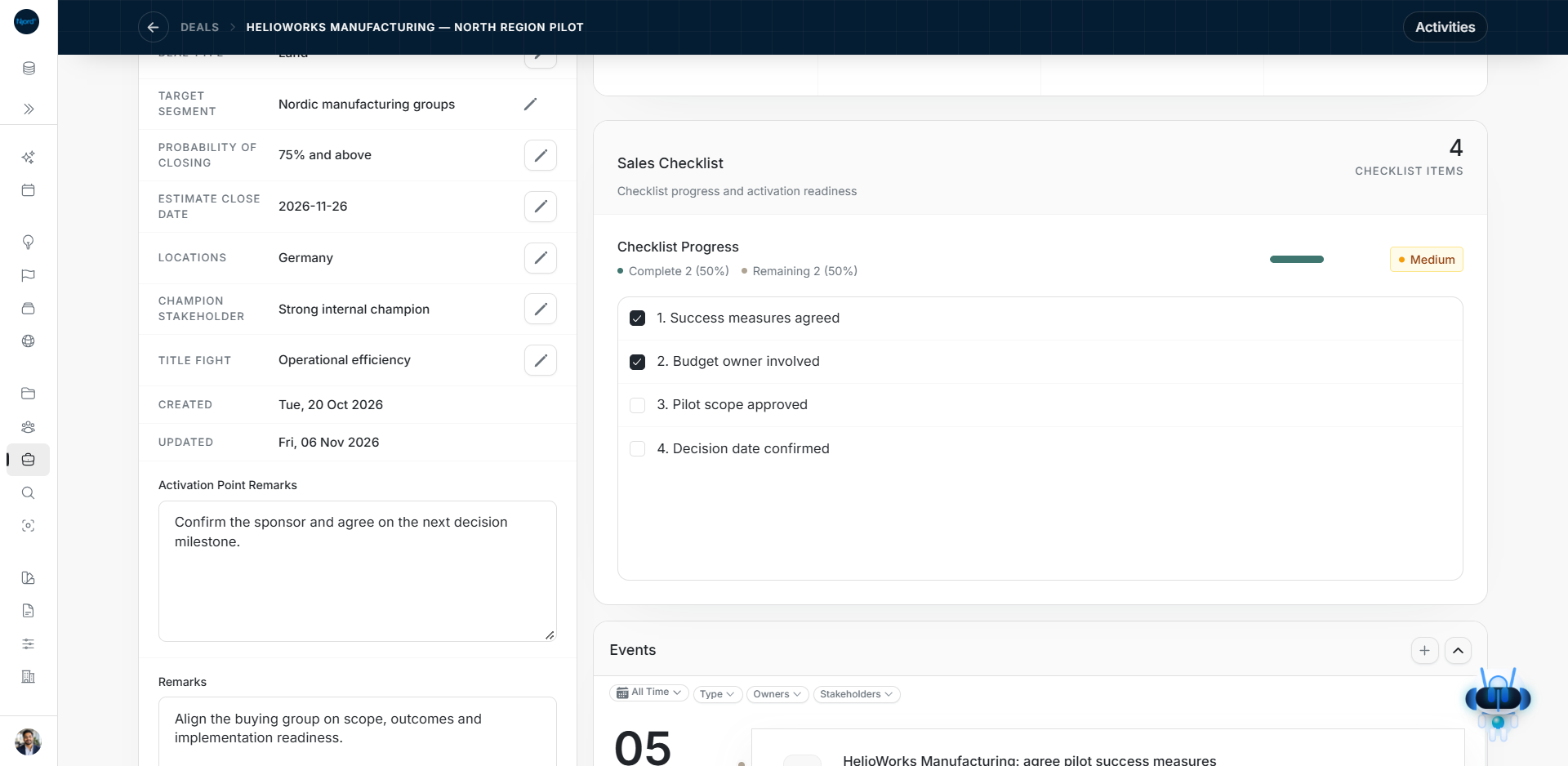
Complete and Remaining show counts and percentages of the current checklist's items. The example shows 2 of 4 completed (50%), with 2 remaining (50%). These percentages are not Probability of Closing or Product Interest Fit. The workspace defines the available checklist items.
Stage changes and failures
The Sales and Deal Activation checklists store their own completed items. Changing stage can show the other checklist; it does not imply that an unchecked item was deleted or that all work must be done again. Review the current stage and panel title before comparing counts.
A pending item is protected against duplicate updates. If saving fails, the checkmark returns to the saved state and an error is shown. Resolve the error and retry the intended change. A temporary checked appearance is not proof that the server saved it.
Keep completion separate from engagement
Checklist progress counts completed checklist items. It is not Product Interest Fit and does not set the weights in that score. Mark only work that has actually been completed, reopen an item when needed and check that the saved count changes. If a stage change shows a different checklist, review the requirements for that stage rather than assuming earlier ticks mean the new stage is complete.
Change the checklist itself
Admins and Client Admins define the workspace's item names and points in Scoring → Sales Checklists. Here on the Deal, you mark actions completed for that opportunity. Those are separate changes.
Image guide: Two of four Sales Checklist items are saved, showing 50 percent complete and two remaining. Fictional sample data in the current app, captured in light mode.