Work with the deal pipeline
Work with the deal pipeline
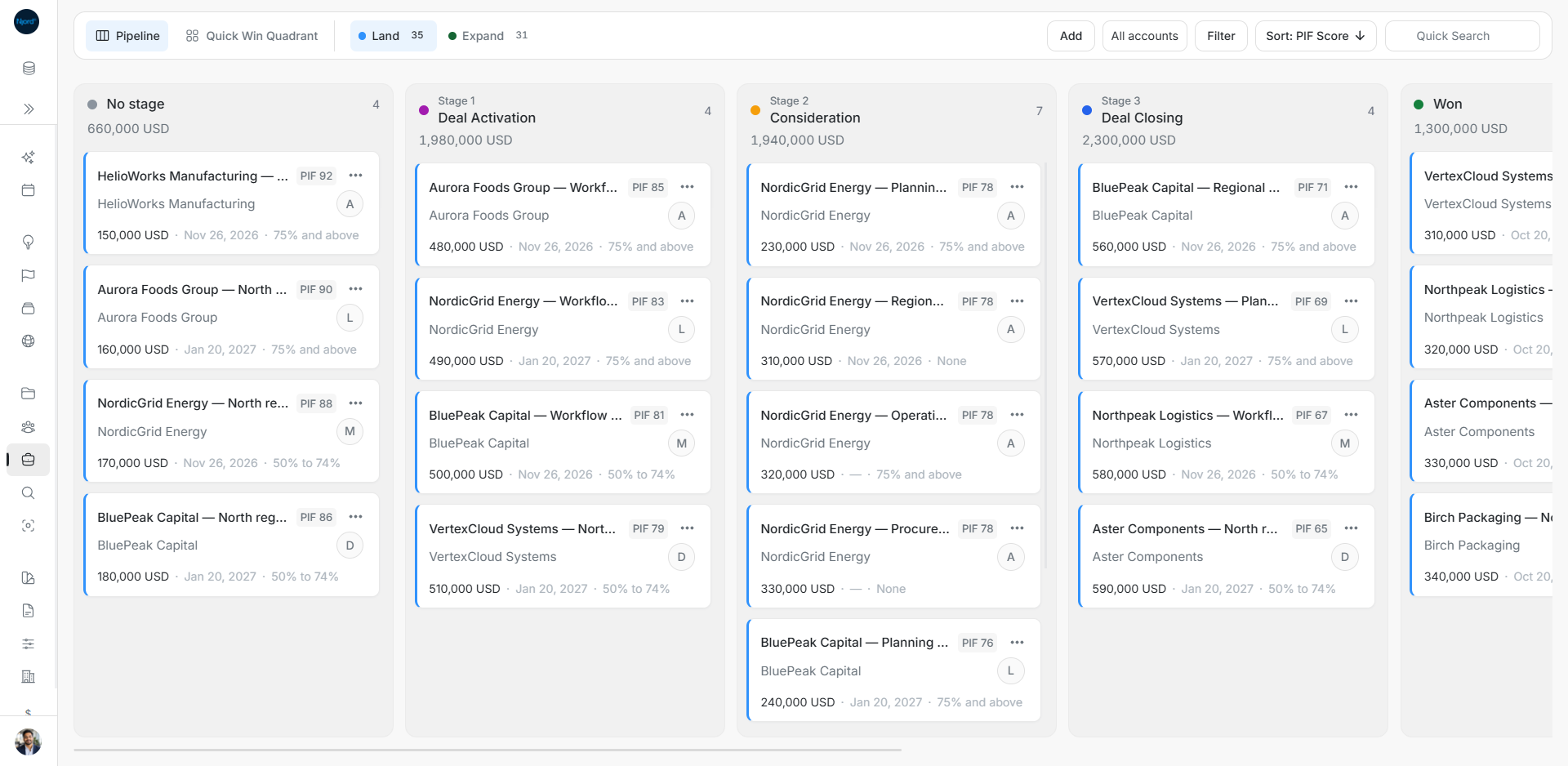
Pipeline shows each opportunity in its saved stage. Use it to review progress, update a forecast and decide what needs attention.
Open and read the board
- Open Deals and choose Pipeline instead of List.
- Select Land or Expand. Check the workspace, data scope and currency before comparing values.
- Read the count and combined value in each lane heading.
- Open a card to review the full opportunity. Scroll sideways to reach later stages and scroll inside a lane to see more cards.
No stage holds opportunities without a saved stage. Land continues through Deal Activation, Consideration and Deal Closing, followed by Won, Lost, Nurture and Disqualified. Expand starts with Expansion Potential Identified and has no Nurture lane.
Cards show the deal name, parent account, value, owner, estimated closing date, closing probability and available PIF score. A dash means the field has no value. PIF 0 is a recorded score of zero.
Change a stage and record its date
- Open the card's three-dot menu, choose Change stage and select the destination. You can also drag a card to a supported stage.
- Check the proposed stage in the confirmation window.
- Set Stage changed at to the date the transition happened.
- Choose Submit to save, or Cancel to leave the original stage in place.
- Check the destination lane and its count after the save completes.
For example, moving the sample 150,000 USD HelioWorks opportunity from No stage to Consideration reduces the first lane from four deals to three and increases Consideration from seven to eight. Its value moves with it. The estimated closing date and probability remain separate fields.
A drag remains a draft until Submit succeeds. Escape cancels an active drag. No stage is not offered as a destination for clearing an existing stage. A failed save keeps the original stage; read the error before retrying.
Update the forecast from a card
| Control | What to do |
|---|---|
| Owner avatar | Search for people, then check or uncheck the owners. Multiple owners are allowed. The choice saves from the picker. |
| Estimated closing date | Open the date, choose the forecast date and select Submit. Clear date removes it; Cancel discards the draft. |
| Closing probability | Choose 75% and above, 50% to 74%, 25% to 49%, 0% to 24%, or None. The choice saves directly. |
Stage changed at records when a stage transition happened. The estimated closing date forecasts when the opportunity may close. None means no closing probability was supplied. These fields have different purposes.
The closing date and probability help determine Quick Win placement. The opportunity must also be in a supported active stage and match the selected scope and filters.
Find and arrange the right opportunities
Use All accounts to choose a company, Quick Search to find an opportunity and Filter for field-specific conditions. Sort changes the field and direction used to order the results. These controls change what you see; they do not change saved deal fields.
Pipeline starts with PIF descending. Stage is represented by the lanes rather than offered as a Pipeline sort. Name sorting applies across matching results before pages load.
Drag a card between other cards to arrange it. Reordering inside the same lane does not change the stage or stage date. With the drag handle focused, keyboard users can use Alt+ArrowUp or Alt+ArrowDown. During a drag, keep the card near a horizontal edge to reach off-screen lanes.
Manual positions are remembered for this browser, workspace, data scope, filters and sort. They are not shared with teammates or other devices. Choosing a sort clears manual positions for the current board.
Check incomplete results and access
Lane cards can load in pages. The heading's count and total can cover more matching deals than are currently visible. If a lane stops short or offers Reload stage, reload that lane and check the filters. A read error is not proof that the lane is empty.
Switching Land/Expand replaces the stage sequence and clears incompatible stage criteria. My data, workspace data and owner filters can produce different results. Compare amounts in the same currency; changing display currency does not change a deal's saved commercial currency.
Read-only members can inspect the board without editing controls. Check record-management access if an expected action is unavailable.
Image guide: Land Pipeline with stage counts, combined values and opportunity cards. Fictional sample data in the current app, captured in light mode.
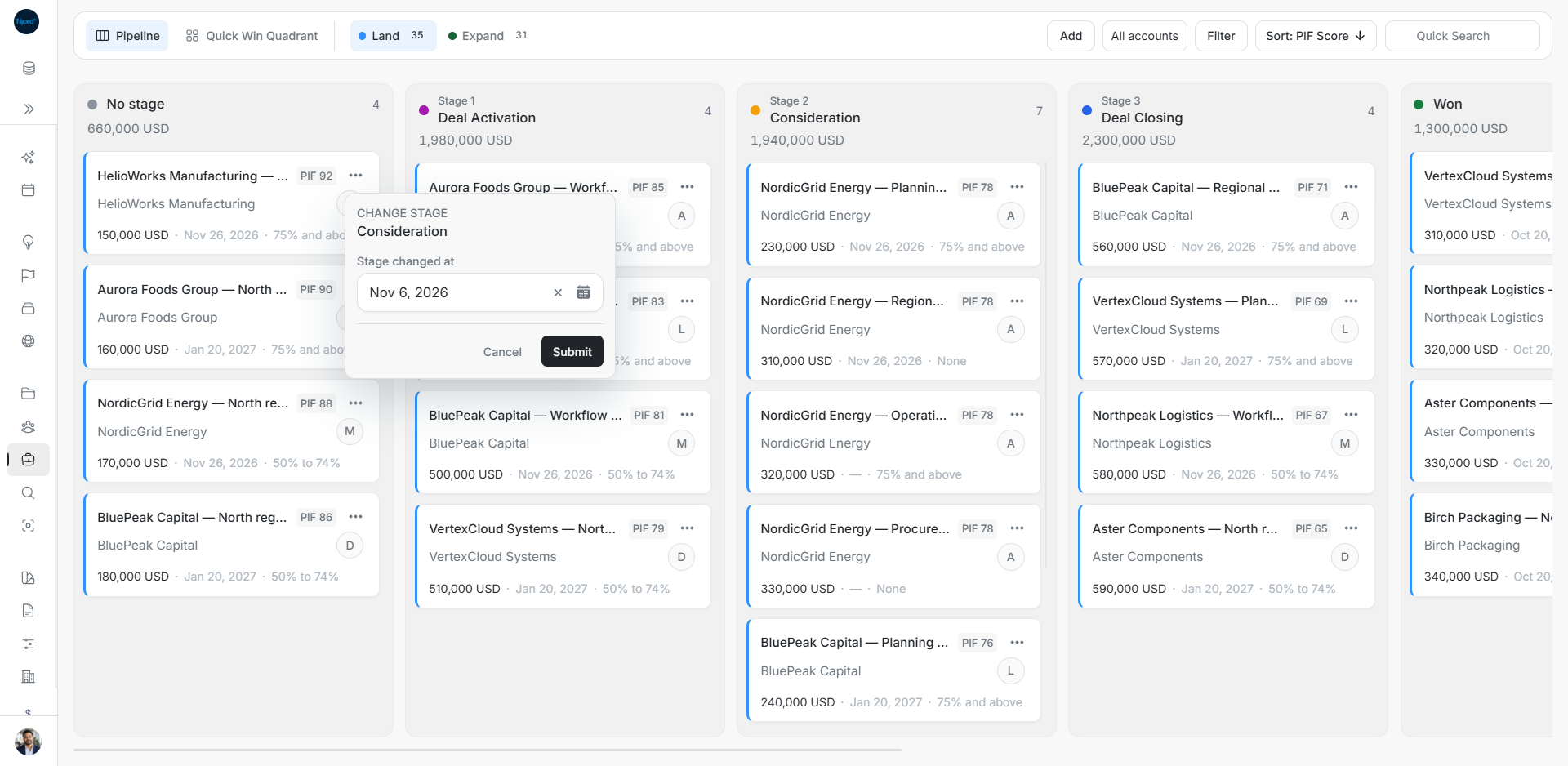
Image guide: Confirm Consideration and the Stage changed at date before choosing Submit. Fictional sample data in the current app, captured in light mode.