Set up Sales Checklists
Set up Sales Checklists
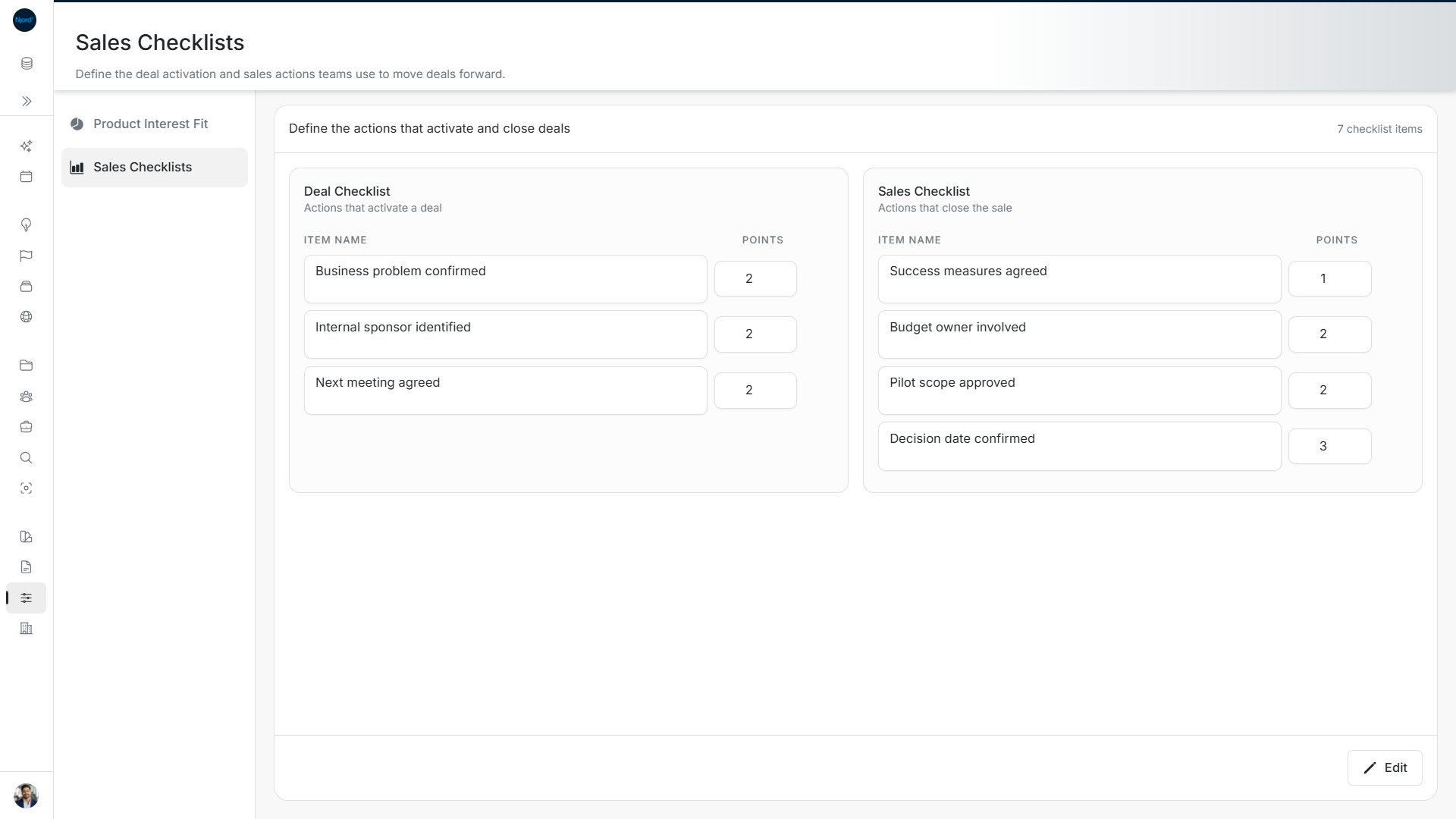
Image guide: Deal Checklist defines actions that activate a Deal; Sales Checklist defines actions that close the sale. Each item has its own points. These are workspace definitions, not completed actions on a particular Deal.
Open Scoring → Sales Checklists to define the checks your team uses on Deals. Admins and Client Admins can change these workspace settings.
Two checklists
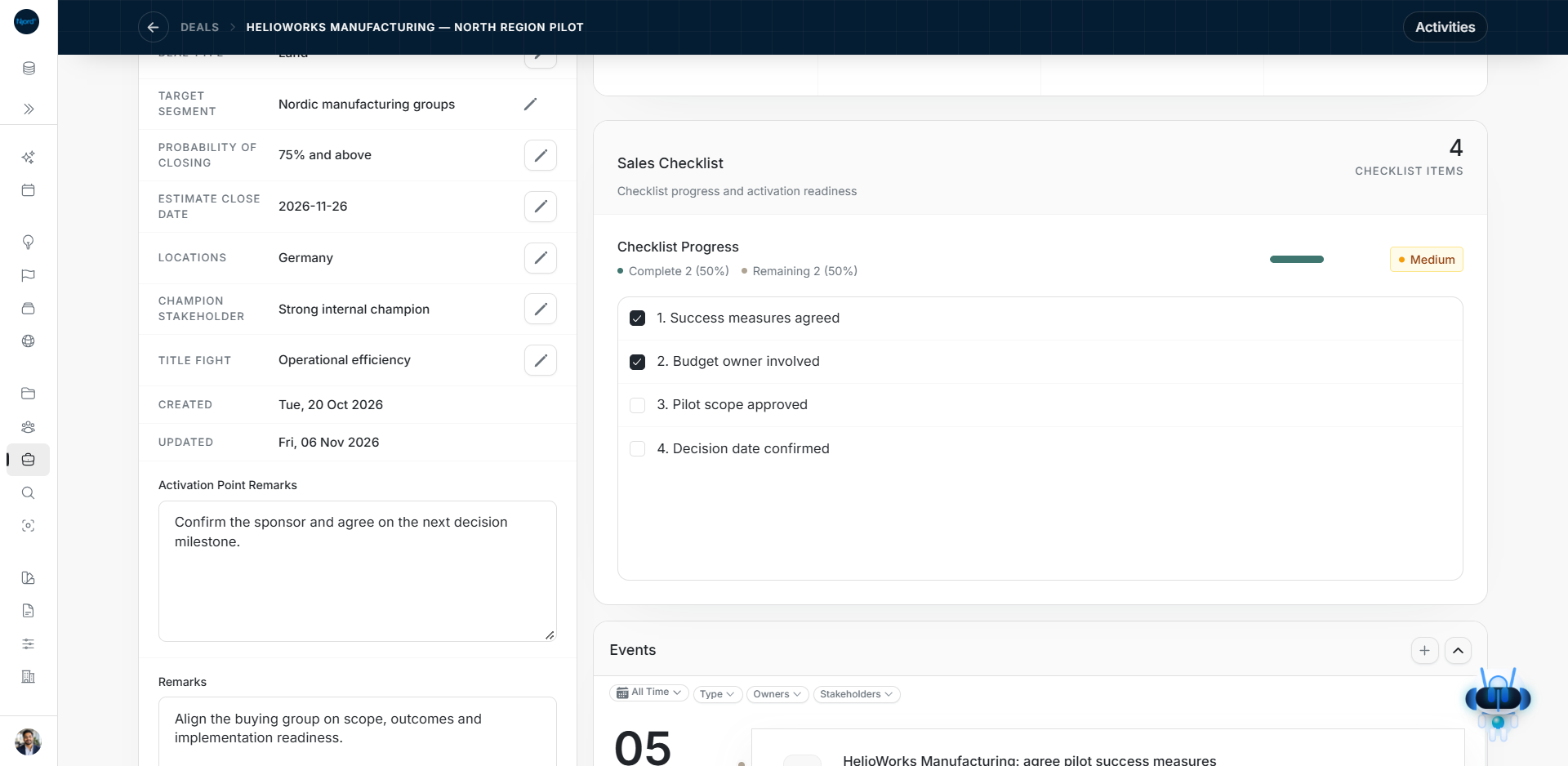
Deal Checklist holds the checks used to activate a Deal. On a Deal detail page, this is called the Deal Activation Checklist. Sales Checklist holds the actions used as the Deal progresses. These are checklist definitions; completing an item on a particular Deal is a separate action.
Add or change items
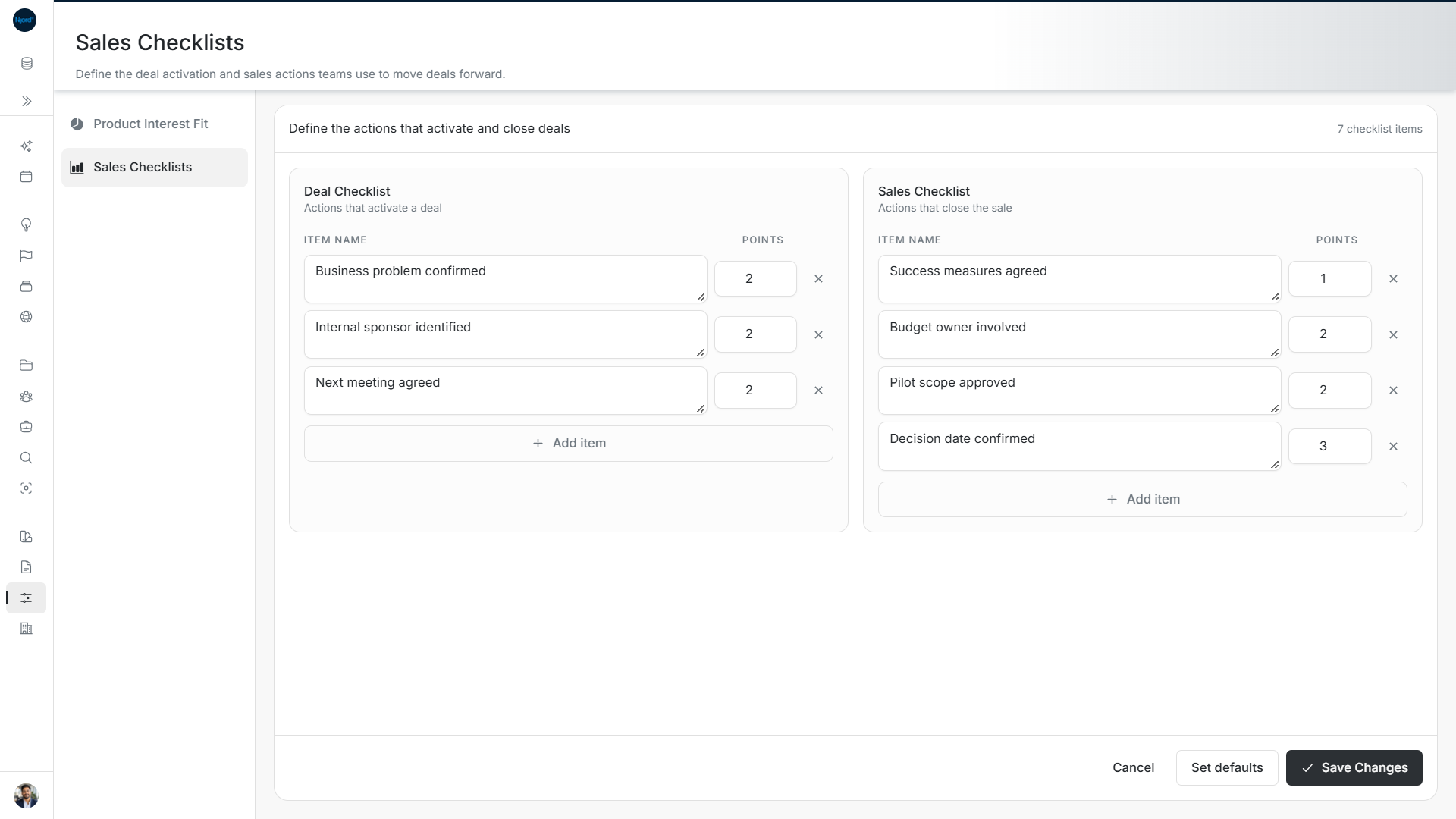
Image guide: Edit names and points, choose Add item to add a row or use its cross to remove one. Save Changes saves the draft; Cancel discards it. The editor also has a Set defaults action.
- Choose the edit control, or Add sales checklists when none exist.
- In the checklist you need, choose Add item.
- Enter its Name and Points. Points cannot be negative.
- Change or remove other items as needed.
- Choose Save Changes, then check the saved list.
Use a clear action name so teammates know when to mark it complete. For example, “Budget owner identified” is easier to use than “Budget”.
Cancel restores the saved list and drops your unsaved edits. Removing a row while editing is not saved until you save the checklist.
Use defaults
The empty state can offer Use defaults; the editor shows Set defaults. This submits a request to use the default checklists; it is different from adding an unsaved item. Wait for the result and inspect the list it returns.
Use the checklist on a Deal
Open the Deal's checklist to mark completed actions. Changing a checklist definition does not itself change the Deal's stage, forecast or Audience targeting. Use Deal checklist progress for the record-level steps.
If saving fails, keep the editor open, read the error and retry the unfinished change. A failed load is not an empty checklist.