Review a company website
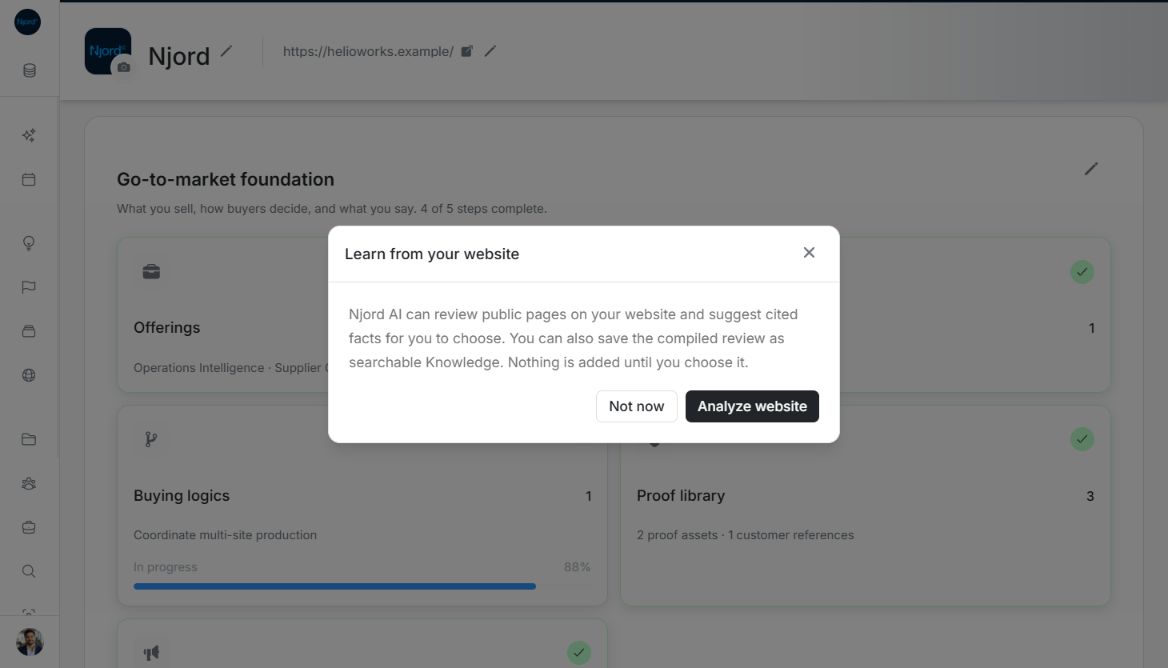
Review a company website
Use a public website as a starting point for Context, then decide which findings are reliable enough to save. Website review can create selected Facts and an optional searchable summary; it does not save everything it finds automatically.
Where to find it: Our company > Context > Knowledge > Add knowledge > Website. The first successful save of the workspace website may also offer a review when the required features are available. Admins and Client admins can save the results.
Start and check the review
- Choose Website, enter the full public company URL, and choose Continue.
- Wait for the review. Use Cancel review if you need to stop it.
- Inspect the findings and the linked pages reported as reviewed.
- Check every claim against those pages. Pages requiring sign-in or unavailable to the reviewer may be absent.
The results can cover offerings, messaging, markets, brand identity and relevant public team members. A suggested Rainmaker's relevance is an assessment, not proof of sales performance. Website review does not add Rainmaker photos, colors or other Assets to Brand.
Choose what to save
Select the Facts you want to keep and correct their wording before submitting. Keep only statements with evidence that you have checked. Your selected website Facts are confirmed directly; they are not sent through the separate extracted-suggestions queue.
Choose the optional Knowledge save when Njord AI should be able to search and cite the compiled website review later. Review that summary too. You can keep selected Facts without saving all findings as Knowledge.
Nothing is added until you submit your choices. Saved items can appear with processing progress while Context refreshes. Check for completion or an item-specific error before starting the same save again.
Leave or regenerate carefully
Leaving a completed review asks whether to discard unsaved findings. Keep the review to return to the draft, or discard when you no longer need it. Previously saved items remain saved. If you regenerate, check the replacement findings again rather than assuming the previous selections are still correct.
If no usable pages were reviewed, correct the URL or add approved text or a file through Knowledge instead. A website review is a checked snapshot, not continuous monitoring; review changed source material again when needed.
Review findings and select what to save
Read the source pages and check the grouped findings. Generated text needs review. Website review can identify people or brand information in the findings; it does not automatically create Rainmaker photographs or named Color Assets.
Select only the Fact candidates you want. Check their title, Subject, Claim, Detail and evidence and correct them before saving. The optional Also save the compiled website review as searchable Knowledge checkbox saves the compiled review as a separate source. The save button shows the selected Fact count and whether Knowledge is included. Saving these selected Facts confirms them directly; it does not place them in the extracted-suggestions queue.
Regenerate or discard the draft
Choose Regenerate if the draft missed relevant material. Add optional guidance and confirm the new review; inspect the replacement results before selecting what to save.
Closing an unsaved result opens Discard website results?. Choose Keep reviewing to return to it, or Discard results to remove the generated draft. Removing the draft does not remove already saved company material. If you want the findings available later, complete the explicit Fact and/or Knowledge save first.
Image guide: After the first Website save, Learn from your website offers Analyze website or Not now; it explains that review does not add findings automatically. Fictional local example in the normal authenticated product, shown in light theme.
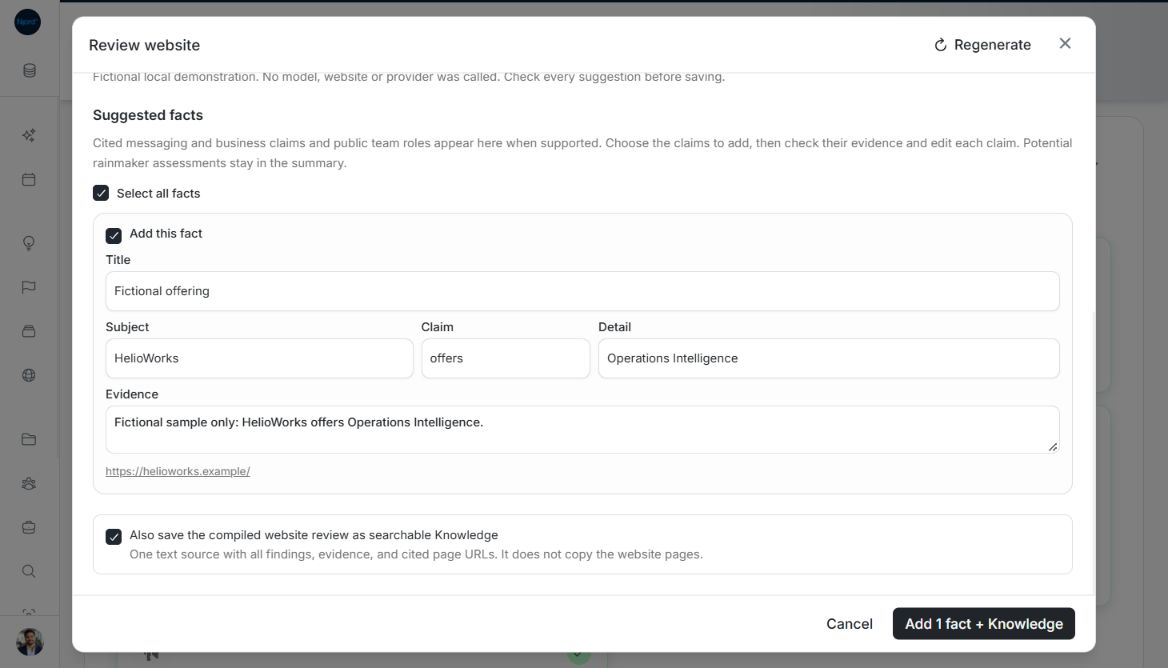
Image guide: Review website has one fictional claim selected and Also save the compiled website review as searchable Knowledge checked. Add 1 fact + Knowledge saves that choice. Fictional local example in the normal authenticated product, shown in light theme.