Upload files to Knowledge
Upload files to Knowledge
Upload a Knowledge file when Njord AI should find passages in it or suggest company Facts from its contents. Upload reusable artwork and creative files to Assets instead.
Where to find it: Context > Knowledge. Admins and Client admins add sources.
Choose and review a file
- Use the file upload control in Knowledge and choose a supported file, such as a PDF, Word document, spreadsheet, presentation or text file. Each Knowledge file must fit the 25 MB limit.
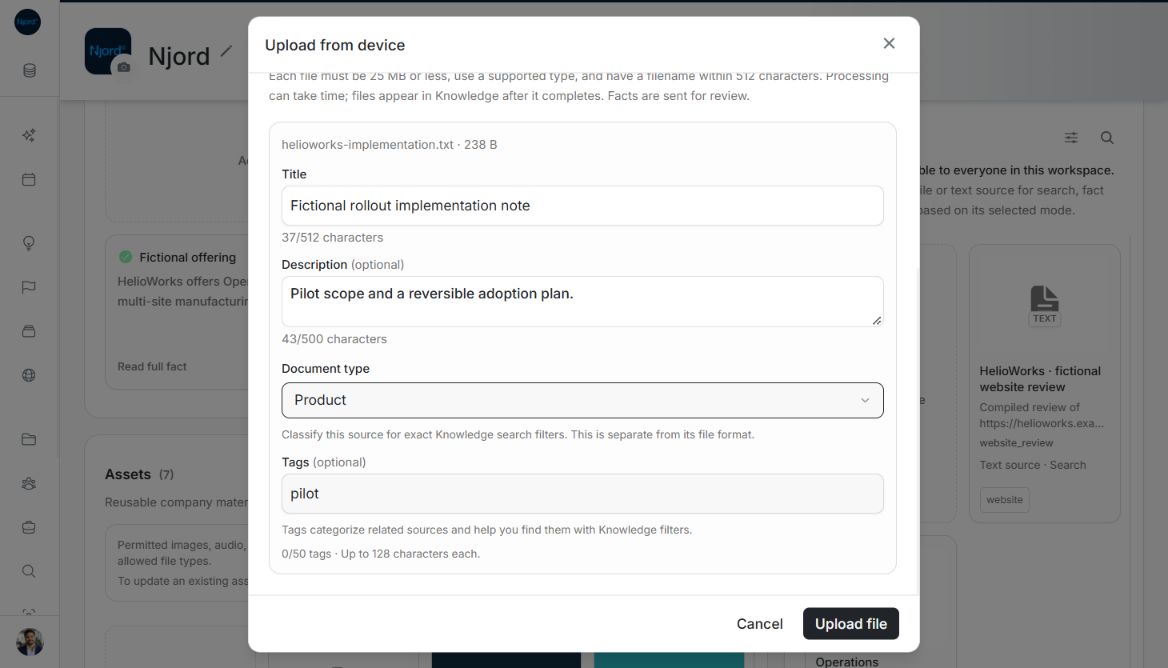
- In Upload from device, check the selected file and its title.
- Choose Search to make passages searchable, Facts extraction to produce suggested claims, or Both for both outcomes.
- Add a useful description, choose the appropriate document type, and add tags. A document type classifies what the file is for; it is separate from the file format.
- Choose Upload file. Keep the source card's progress or error state in view until processing finishes.
Read the result
Search and Both sources become searchable after processing. Facts extraction and Both can produce suggestions: open the Facts pending-review count and inspect evidence before accepting any claim. Successful processing does not guarantee suggestions.
If processing fails, use Retry where offered. Remove an unsuitable source only after checking its deletion warning. Fix a format or size rejection before uploading again; renaming the extension does not convert a file.
Files, pasted text and metadata
Use Add text for material you want to paste directly. Both paths require a processing purpose. View details changes title, description, document type and tags; it does not edit the original file or pasted text. To replace original content, follow the source replacement guide.
Upload several files and follow each result
The file chooser can stage several files. Review each file's title, description, document type and tags; the selected processing purpose applies to the batch. Remove an unwanted staged file before uploading. Each file has its own processing result. A successful sibling does not need to be uploaded again when another file fails.
Processing tiles use status text, which can remain at one stage for a while; the UI does not promise a continuously increasing percentage. Use the existing Retry action after an error and keep the same intended input. If the result of a save is uncertain, inspect the source list before adding another copy.
Check source purpose and file limits
Knowledge accepts CSV, DOC, DOCX, HTML, JSON, MD, PDF, PPTX, TXT, XLSX, XML, YAML and YML files, up to 25,000,000 bytes per file (shown as 25 MB). This differs from the 250 MiB original-file limit in Assets. Store reusable images in Assets or Brand.
Choose Search, Facts extraction or Both according to the source's purpose. Search makes material available for retrieval; Facts extraction produces suggestions for review. It does not confirm those suggestions automatically. Check the default document type and required tags before saving. Edit source metadata later when needed; replace the source to change its original text.
Image guide: Upload from device shows Search, Facts extraction and Both alongside a fictional file, title, Product classification and pilot tag. Fictional local example in the normal authenticated product, shown in light theme.