Search Knowledge and filter sources
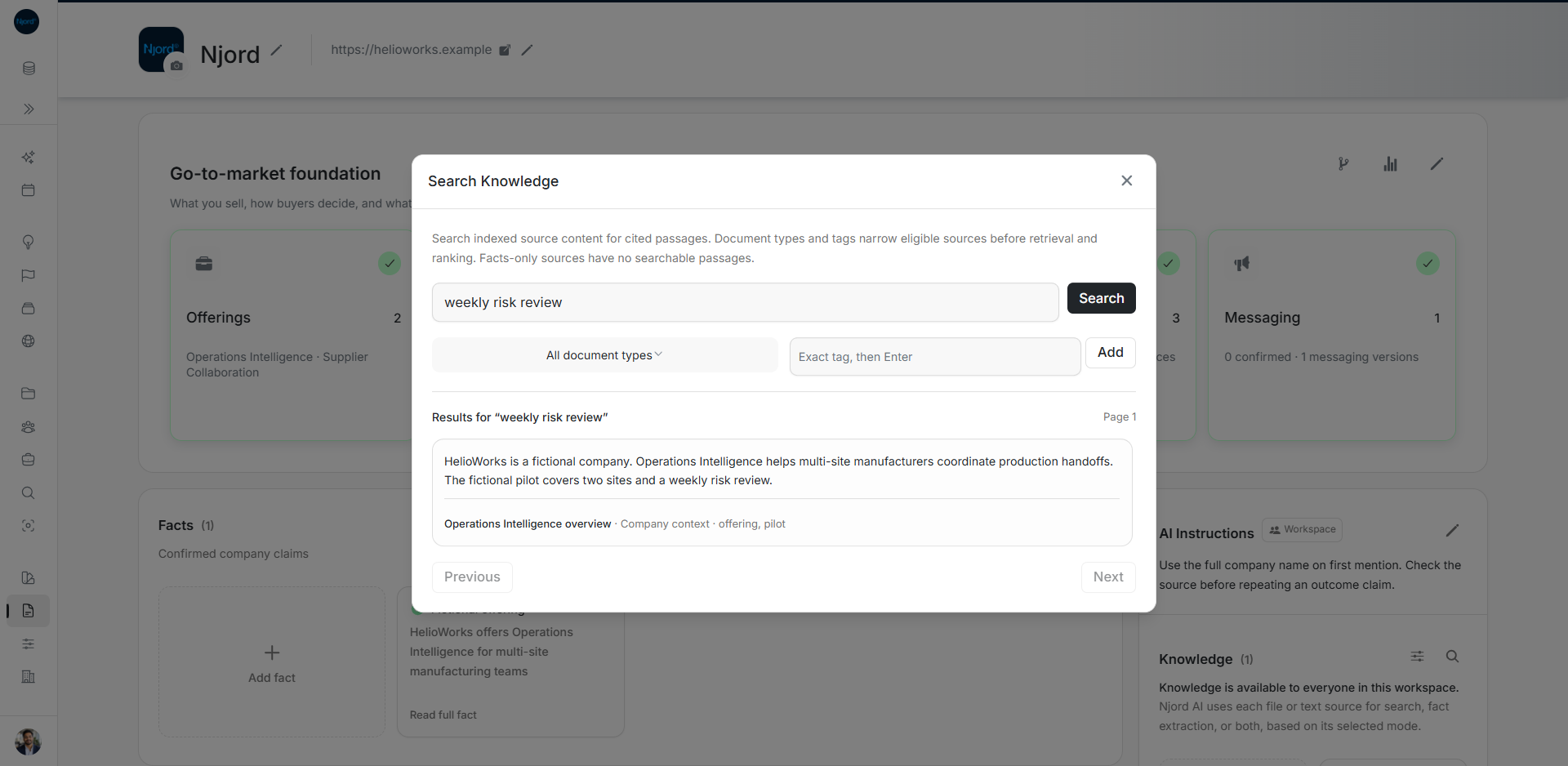
Search Knowledge and filter sources
Search inside workspace Knowledge when you need an answer or a passage to check. Filter the source list when you need to find a saved source by its classification.
Where to find it: Our company > Context > Knowledge. All joined members can read sources and search available content. Admins and Client admins manage the saved material.
Search the content
- Choose the search icon, Search Knowledge content, beside Knowledge.
- Enter a question or meaningful phrase, such as “What does onboarding include?”
- Optionally choose document types and add exact tags, such as onboarding.
- Choose Search.
- Read the passage and its source title. Check the underlying source before relying on a claim.
- Use Previous or Next when another results page is available.
Use the copy icon on a passage to copy its text. A changed query starts a new result sequence. Search needs a nonempty question or phrase; it is not a way to list every source.
Only sources prepared for Search or Both have searchable passages. A source prepared only for Facts extraction may produce suggestions but will not appear as searchable passages. Processing must finish before new content is ready.
Filter the saved source cards
Choose Filter knowledge beside the heading. Select document types or add exact tags. Multiple document types match any selected type; multiple tags match any selected tag. With both groups set, a source must match both groups.
These filters narrow the loaded source cards. Scroll or choose Load more to include older sources. Content-search filters instead narrow which sources can contribute passages to that search. The source list has no name-search field.
Classify a source clearly
Open View details to update a title, description, document type or tags, then Save details. Choose an available document type; it describes the source's purpose, separately from its PDF or text format.
The original text cannot be edited in this details window. To replace outdated content, add the revised source and check the removal warning before removing the old one, especially if it produced Facts.
If there are no results
Check that the source finished processing and was added for Search or Both. Remove narrow type or tag filters, try wording present in the document, and retry after a temporary failure. An empty search does not prove that no matching company Fact exists; use Search Facts for confirmed claims.
Image guide: Search Knowledge returns a passage from the uploaded fictional file with Product and pilot filters applied, source attribution and Copy passage. Fictional local example in the normal authenticated product, shown in light theme.