Build a checked proof library
Build a checked proof library
A proof is checkable evidence for a claim. It is different from merely storing a PDF or image in Assets, and different from a customer reference that establishes comparability.
Where to find it: Context > Go-to-market foundation > Proof library > Proof.
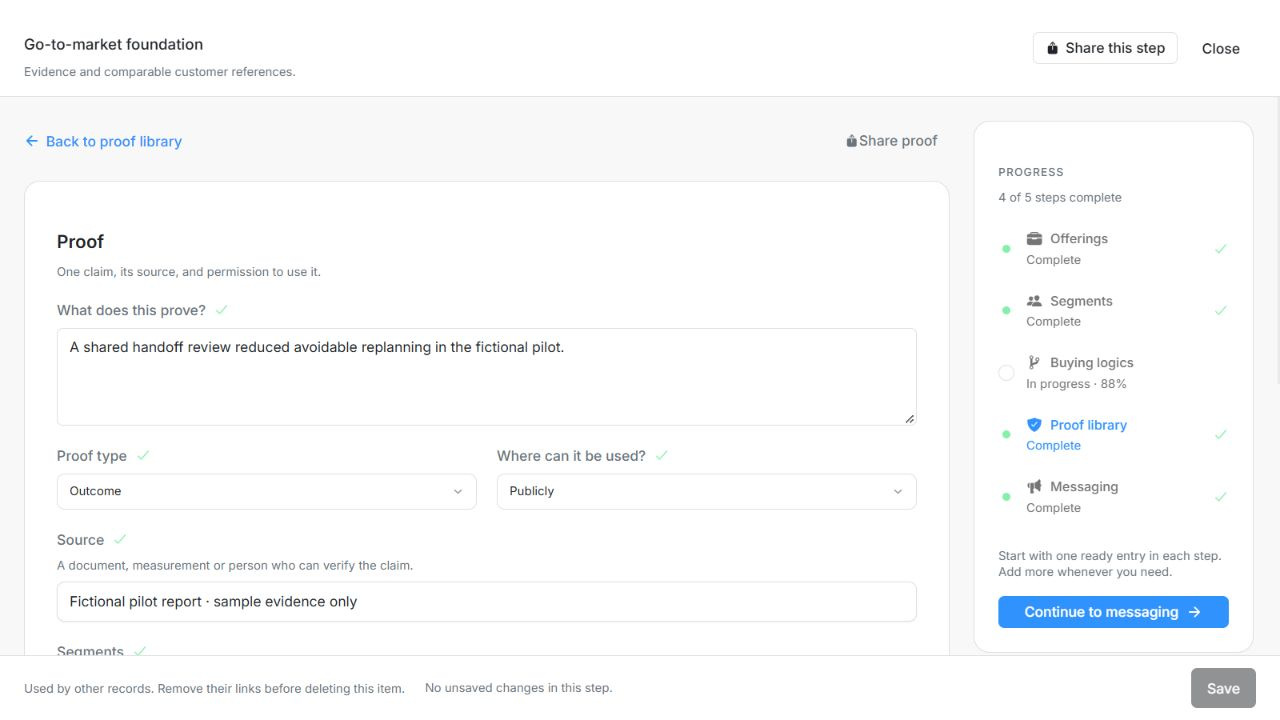
Image guide: A proof has its own claim, permission and source, with Segments below. Fictional sample records in the normal authenticated product, shown in light theme.
Add and check one proof
- Add a proof and state What does this prove?. Keep one coherent claim per entry.
- Choose its Proof type: outcome, association, certification or expert.
- Enter the Source and decide Where can it be used?: Not confirmed, Private conversations or Publicly.
- Select Segments, or leave the selection empty when the proof is not restricted to particular segments.
- Record limits or notes and inspect the source/permission check at the end of the form. Mark it checked only after doing that review.
- Choose Save. New evidence returns to the list; saving an existing proof keeps its editor open.
| Field | What to enter or check |
|---|---|
| What does this prove? | The specific claim supported by this evidence; do not present unverified assertions as settled. Up to 20,000 characters. |
| Proof type | Outcome: measured result; association: named relationship; certification: formal validation; expert: qualified external endorsement. Choices: Outcome; Association; Certification; Expert. |
| Source | A document, measurement or person who can verify the claim. Up to 20,000 characters. |
| Where can it be used? | Explicit usage permission: unknown, private or public. Public visibility alone does not grant reuse permission. Choices: Unknown; Private; Public. |
| Source and permission checked | Whether the evidence source and usage permission have been checked. This is separate from the permission value. |
| Segments | The saved segments this proof supports. Empty means unrestricted within this workspace. Up to 100 entries. |
| Limits or notes (optional) | Evidence limitations, caveats, assumptions and verification gaps. Up to 20,000 characters. |
Choose evidence suitable for the message
Messaging can use eligible checked proofs whose Segment scope and usage permission fit the message. A proof approved for private conversations is not permission to put the claim in public messaging. A missing source or Not confirmed permission needs review; a confident sentence alone is not evidence.
For a fictional Northstar walkthrough, a demonstration launch-checklist result can explain how the field works, but label it as fictional. Do not invent a real certification, customer result or permission.
Draft, share and remove
Draft with Njord AI returns suggestions for review. Inspect the suggested source, attributes and permission before selecting an item. Apply selected or Apply all saves selected proofs and marks them checked; untick any suggested attributes you do not approve. Failed approval retains suggestions for retry and successful siblings stay saved.
Saved proofs can be shared from their editor. Share does not grant workspace access. A proof linked from messaging cannot be removed until that dependency is handled; removal is confirmed and staged until Save. Proofs are not automatically converted into confirmed Facts or Knowledge sources.
Check AI approval defaults
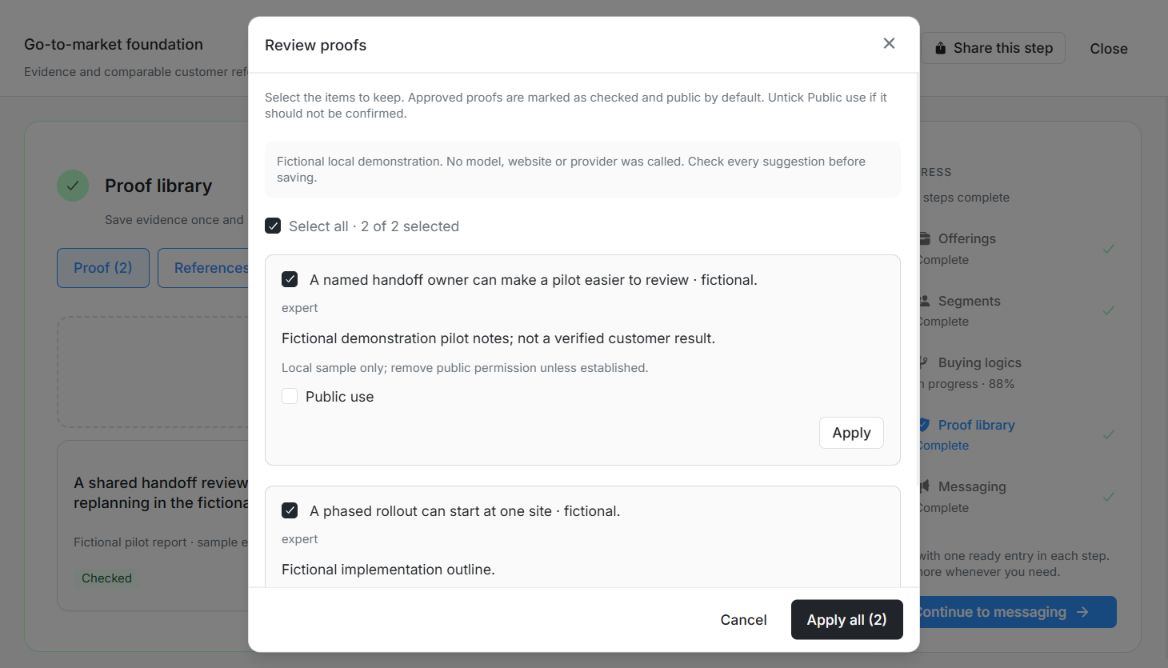
Image guide: Public use is unchecked for the first fictional Proof while both suggestions remain selected for approval. Fictional local example in the normal authenticated product, shown in light theme.
AI-drafted proofs default to checked and public when approved. Review Public use and remove the check when public use is not established. These defaults do not verify the source or establish permission. Keep fictional examples clearly identified.
Check Segment eligibility before using a proof
A proof with no Segment restriction can support applicable messages across the workspace. A proof restricted to Segments must fit the message's selected company scope. Checking a proof does not automatically make it suitable for every Offering or Buying Logic.
Read Where can it be used? independently of Source and permission checked. Private-conversation permission does not permit a public claim. When AI approval offers Public use, review that choice deliberately before applying the suggestion. Changing a permission does not verify an outcome or approve a customer reference's Nameable/Quotable permissions.
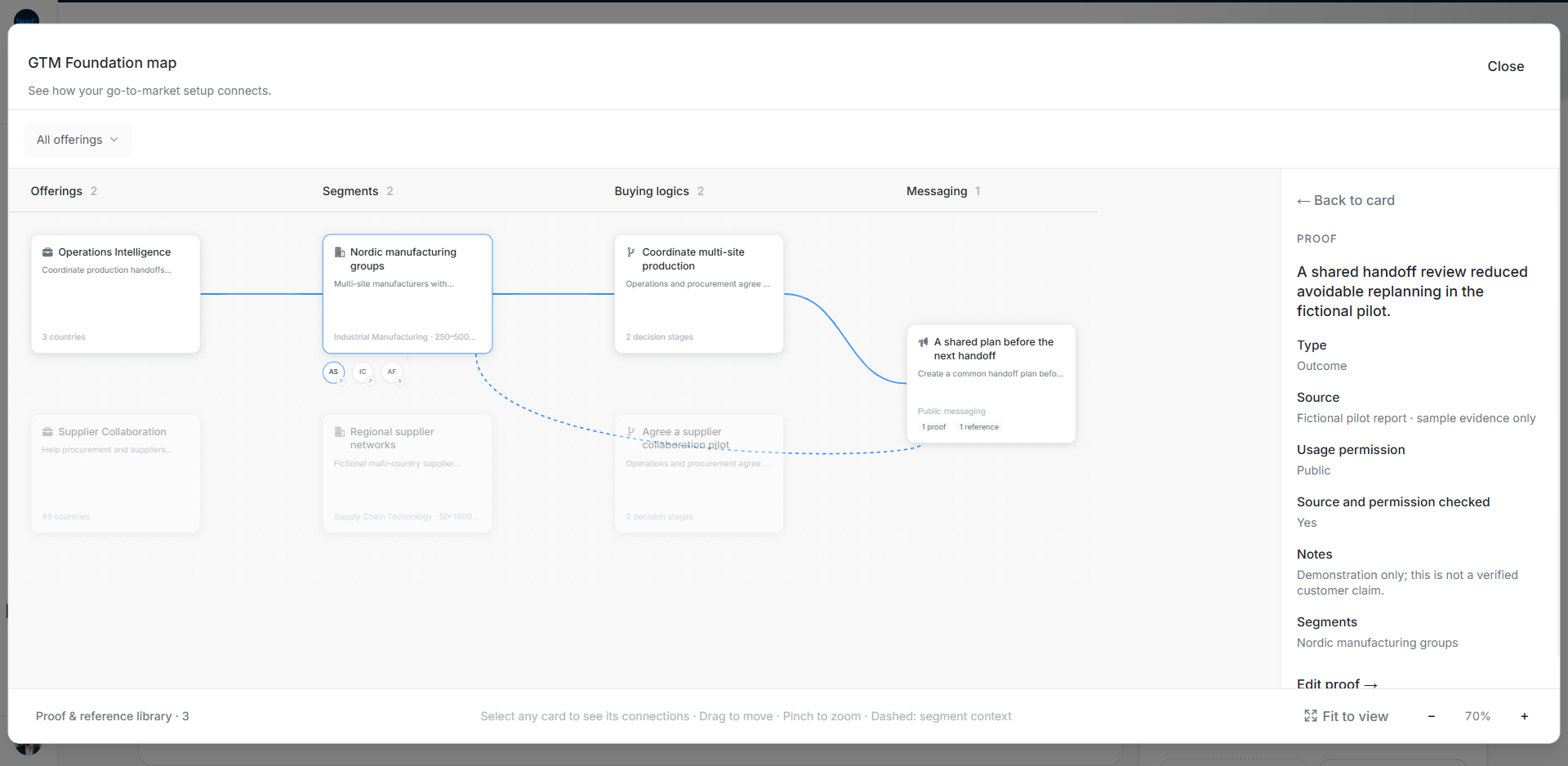
Image guide: A linked Proof shows its claim, source, usage permission, checked state and limits. Fictional sample data in the current app, captured in light mode.