Draft Foundation content with Njord AI
Draft Foundation content with Njord AI
Njord AI can help prepare a first draft. Its suggestions are not automatically approved facts, verified customer outcomes or permission to reuse someone else's material.
Where to find it: open the relevant Go-to-market foundation step and choose Draft with Njord AI.
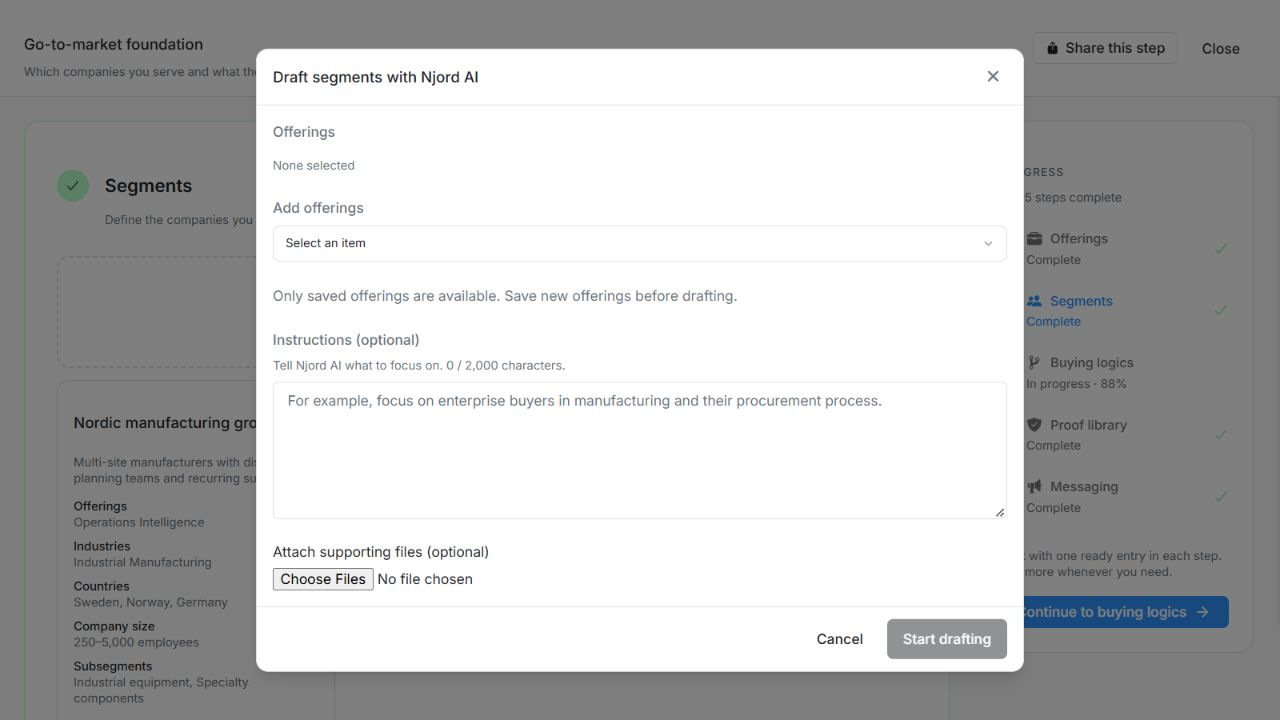
Image guide: Segment drafting requires saved Offerings and accepts optional instructions and files. Fictional sample records in the normal authenticated product, shown in light theme.
Give the draft a supporting file
- Open Draft with Njord AI for the Foundation item you want to prepare.
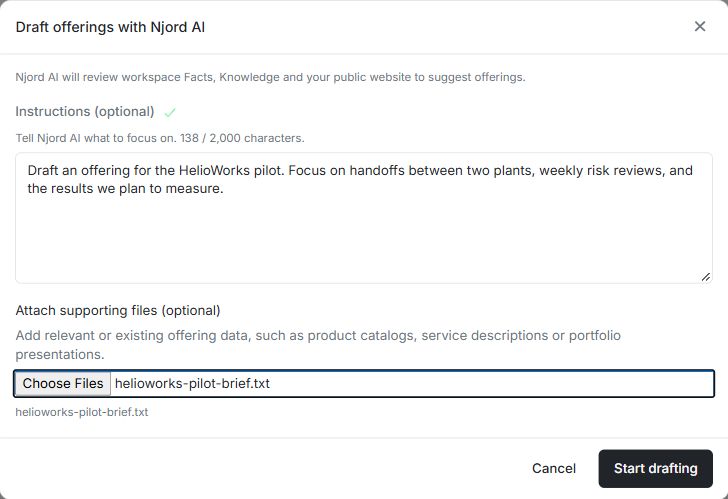
- Add any required details, such as the Offering or Segment, and attach a supporting file. Fictional HelioWorks might attach its pilot brief while drafting an Offering.
- Check that the file name appears under Attach supporting files (optional), then select Start drafting. If DOE flags a file it cannot read, remove it or try a supported file.
- Compare the suggestions with the source. Check figures, customer claims and permissions before applying anything. A pilot target belongs in a draft as a goal until you have evidence it was achieved.
Use this flow for Offerings, Segments, Buying logics, Proofs, References and Messaging.
Choose the right draft workflow
| Content | Context to prepare | What approval does |
|---|---|---|
| Offerings | Optional instructions; a saved Context website or a valid URL when missing; existing offerings for comparison. | Review and edit suggestions, select them, then Apply selected or Apply all. |
| Segments | Select saved offerings, add instructions and optional supporting files. | Review and edit suggestions, then apply individual or selected valid segments. |
| Buying logic | Select a saved offering and segments and provide optional focus instructions. | Fills an unsaved logic form; review all parts, then Save. |
| Proofs | Explain the evidence needed; existing saved evidence is considered. | Review source, attributes and permissions; approved proofs save as checked. |
| References | Explain the relevant customer situation and comparability. | Review suggested attributes, outcome and permissions before approval and save. |
| Messaging | Select a saved offering and segments, optionally select buying logics, and state the intended usage. | Fills an unsaved message and clears that draft's confirmation; review and Save. |
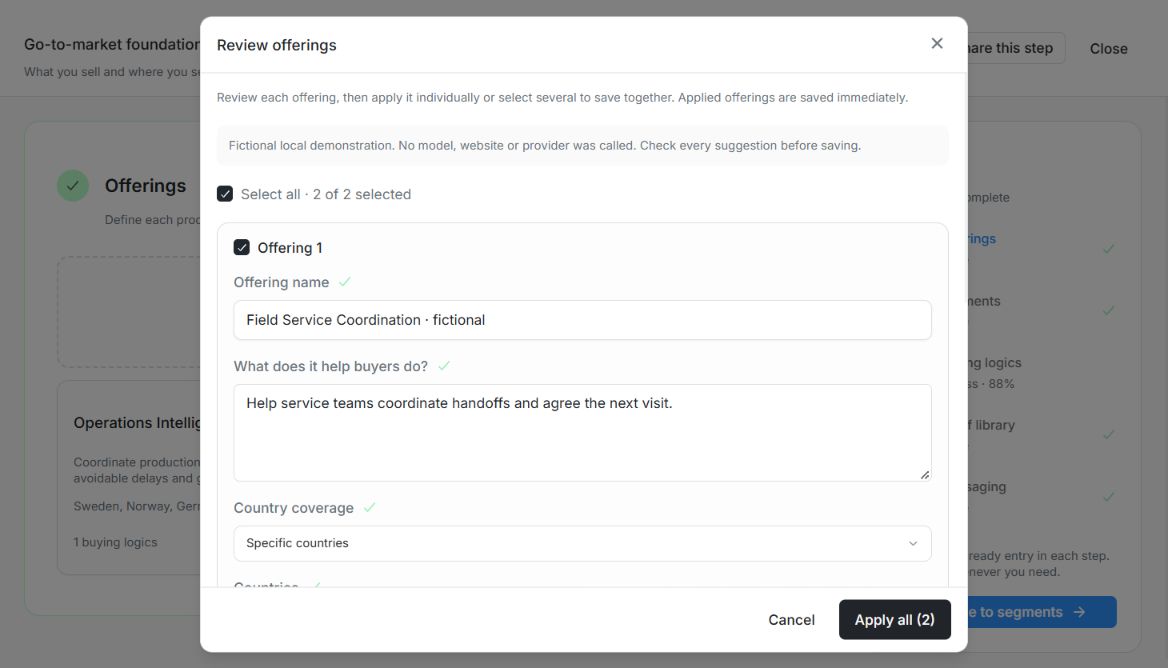
Image guide: Review offerings provides per-item Apply and Apply all (2), with editable names, descriptions and country coverage. Fictional local example in the normal authenticated product, shown in light theme.
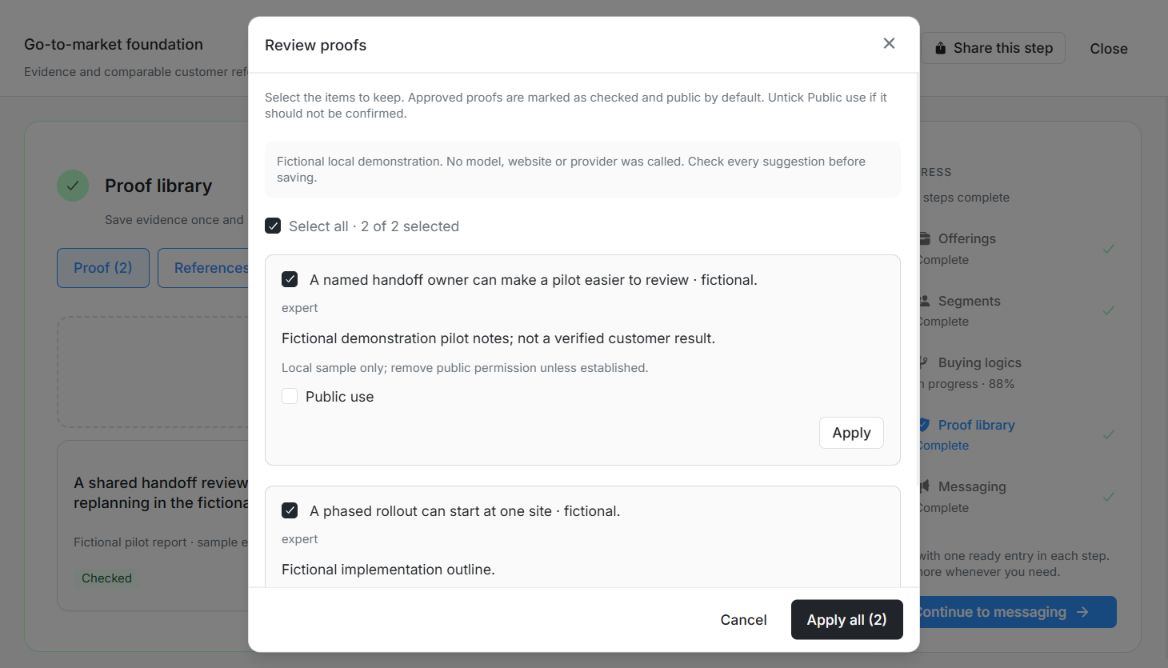
Image guide: Public use is unchecked for the first fictional Proof while both suggestions remain selected for approval. Fictional local example in the normal authenticated product, shown in light theme.
Review before replacing or saving
- Confirm the workspace, selected item and saved parents. Unsaved parent edits are not the same as the saved context used by drafting.
- Add instructions that explain the intended outcome, language and missing detail. Existing selected language is preserved unless you ask for another.
- Read the overwrite warning when a populated buying logic or message will be replaced. Cancel keeps the current draft.
- During generation, read the progress text. Cancelling or leaving the item prevents late results from being applied to another item.
- Inspect the result. Edit or deselect suggestions, check source notes and links, and confirm suggested attributes and permissions deliberately.
- Save or approve only what you can support. Saving and approval controls stay locked while a request is pending.
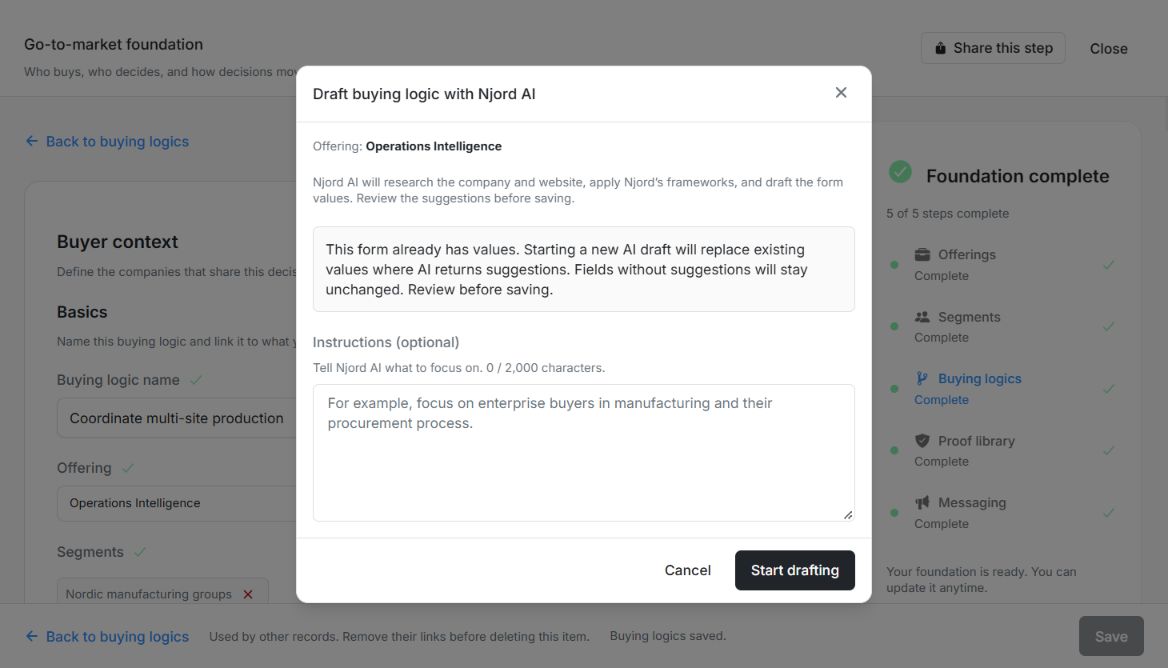
Image guide: Buying logic drafting warns that suggested fields replace existing values while fields without suggestions stay unchanged. Fictional local example in the normal authenticated product, shown in light theme.
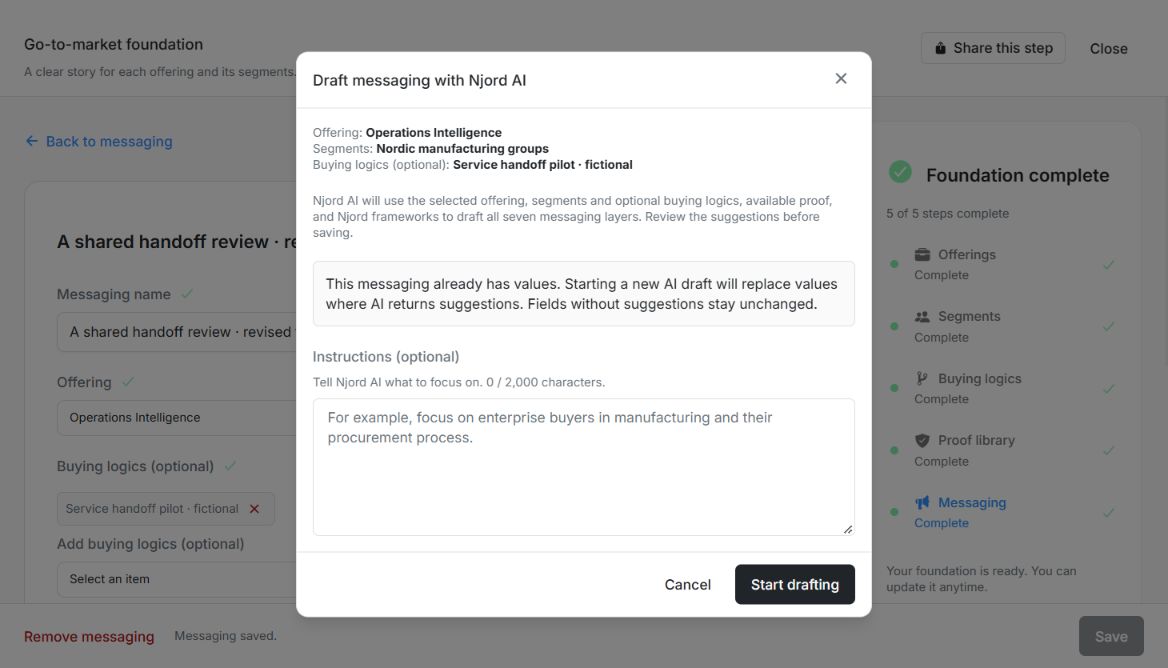
Image guide: Messaging preflight lists the Offering, Segment and optional Buying logic and warns before replacing existing suggested values. Fictional local example in the normal authenticated product, shown in light theme.
Check existing-item and evidence notes
Drafting compares with saved items where the flow supports it. Unsaved sibling drafts are not part of that saved comparison. Read warnings about incomplete lookup or duplicate coverage; do not interpret an unavailable lookup as proof that no similar item exists.
A messaging result can retain useful text while omitting unavailable or ineligible evidence links. Review the notes and select a suitable proof or reference yourself. Do not manufacture evidence to fill the omitted link. The buyer starting point is the current situation, not the desired end state.
Recover a failed draft or approval
Missing saved parents, an unavailable compatible model, a stopped run and an invalid structured result require different recovery. Save the required parent, choose an available model or try the draft again after reading the explanation. Unexpected transport errors offer safe retry guidance.
If approval partly saved a set, successful items remain saved and failed suggestions remain available. Retry the remaining work; do not approve an already saved suggestion again merely because another one failed. Closing unapproved suggestions does not add them to the workspace.
Save prerequisites and apply only reviewed items
Save new Offerings and Segments before requesting dependent drafts. When Context has no saved website, a valid URL is required; it must save successfully before AI starts. A failed website save or cancellation does not start generation.
Offering, Segment, Proof and Reference reviews support Apply per item and Select all, Apply selected or Apply all for a group. Generation does not save records. Successful items leave the review; failed items retain edits for retry. Validation applies to selected items. Wait for the approval spinner to finish before another action.
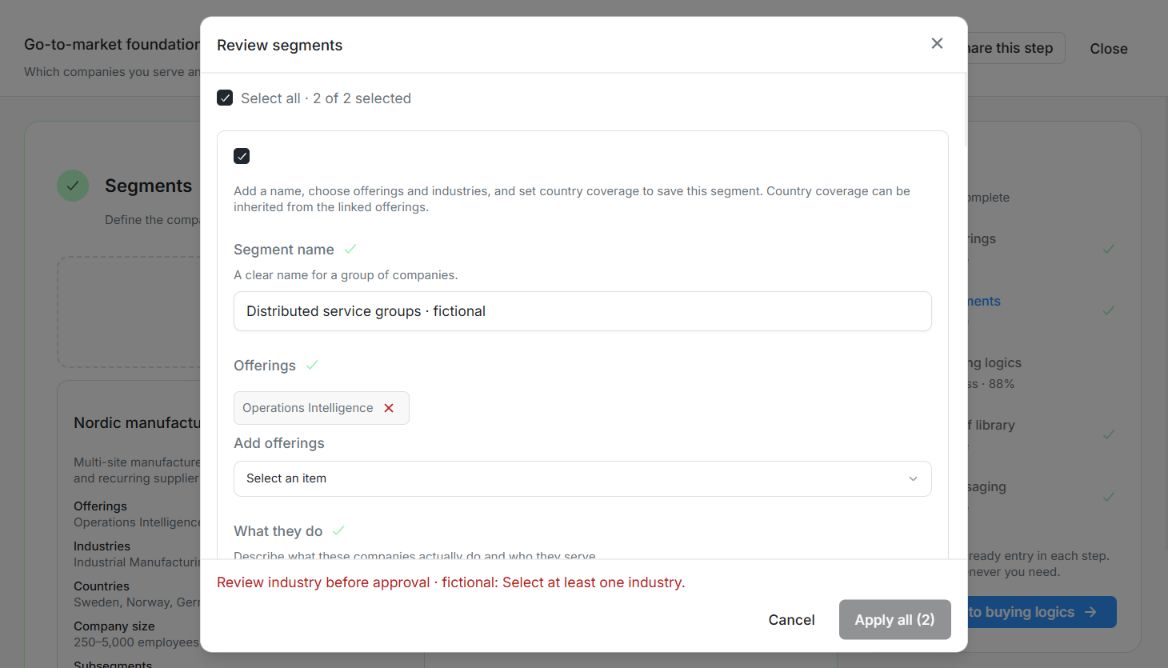
Image guide: Review segments blocks Apply all (2) and names the selected suggestion that still needs an industry. Fictional local example in the normal authenticated product, shown in light theme.
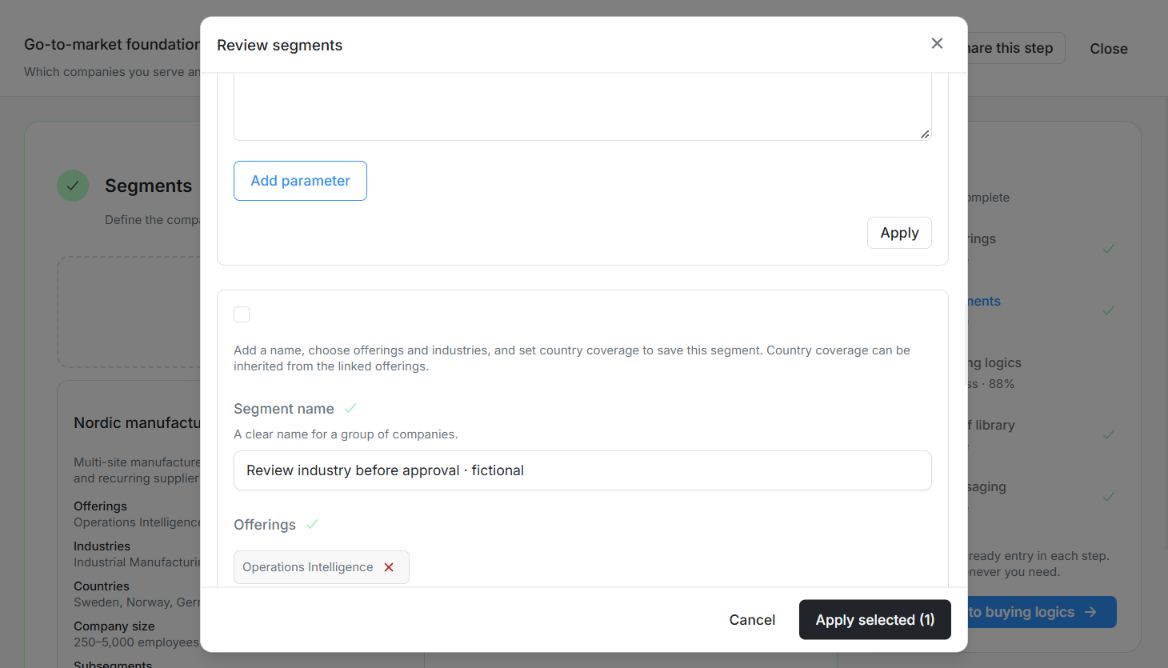
Image guide: With the incomplete suggestion unchecked, Apply selected (1) is enabled. Only selected drafts must pass validation. Fictional local example in the normal authenticated product, shown in light theme.
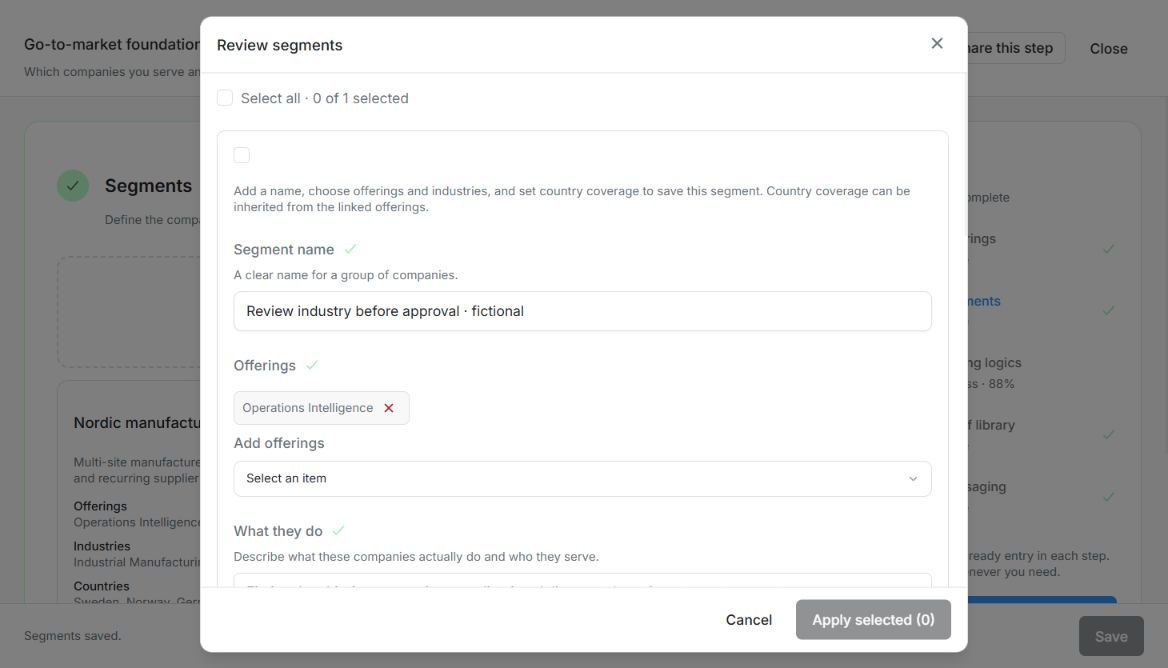
Image guide: After applying the valid selection, one unselected suggestion remains in Review segments for correction. Fictional local example in the normal authenticated product, shown in light theme.
Review each kind of suggestion against saved parents
Offerings, Segments, Buying Logics, Proofs/References and Messaging support drafting. Save prerequisite parents first. Applicable drafting also requires a saved website; newly entered website details must save successfully before generation starts. Unknown or redacted parent references need correction rather than a guessed match.
Generation does not save records. Edit suggestions and Apply one, selected or all items. Valid selected items can proceed while unselected incomplete items remain for later. Successful items become the new saved baseline; retry remaining failures instead of replaying everything. Cancellation stops applicable uploads or generation, and results from another workspace must not enter the current draft.
Segment manual Save and selected AI approval share the same name, Offering, industry, geography and employee-range validation. Choose from the current industry catalog or add an appropriate custom label during review. AI-drafted Proofs expose a Public use choice that may start checked: inspect and change it according to real permission. A default checkbox is not evidence of consent. References retain their explicit permission rules.