Review and extract Brand document assets
Review and extract Brand document assets
Turn a useful Brand document into reusable colors, typefaces and artwork without adding every suggestion automatically. You decide which findings belong in the Brand collection.
Where to find it: Our company > Brand > Brand document, then the sparkle action on a saved document. Admins and Client admins can start the review and save its findings.
Start the review
- Add your current Brand document or choose the sparkle action on an existing one.
- Read Extract brand assets and optionally say what to focus on. For example: “Find the primary blue, approved font link and current master logo; skip campaign artwork.”
- Choose Continue. The review uses the latest saved document version.
- Wait for the available findings and images. Choose Skip if you are not ready to review the document.
Supported PDFs and images can be reviewed by Njord AI. Large supported files remain stored even when AI analysis is unavailable; local image extraction can still supply usable images. Not every saved format supports extraction.
Review colors and font links
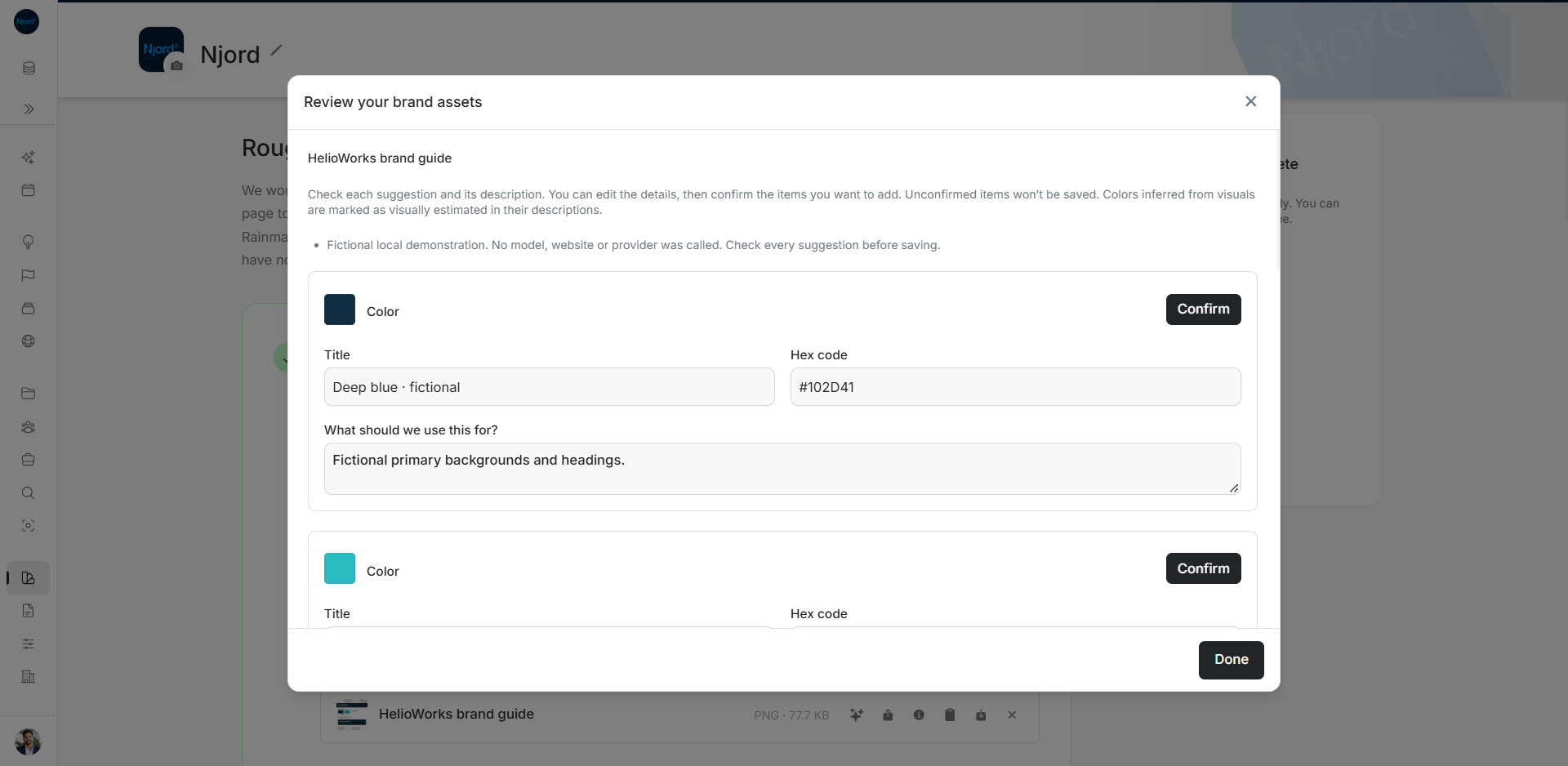
Check each suggested name, color value or source link and usage description against the document. A color marked Visually estimated is an estimate from the artwork, not an exact published brand code. Prefer an explicit approved code when available.
Add the required description before confirming a Color or Typeface. A font link should point to the approved source; a suggestion is not a substitute for checking access, family, weights and styles. Confirm each useful item individually. Saved items enter their matching Brand steps; unconfirmed suggestions are not added.
Image guide: Review your brand assets presents a fictional Color finding with editable title, hex code, usage and an individual Confirm action. Fictional local example in the normal authenticated product, shown in light theme.
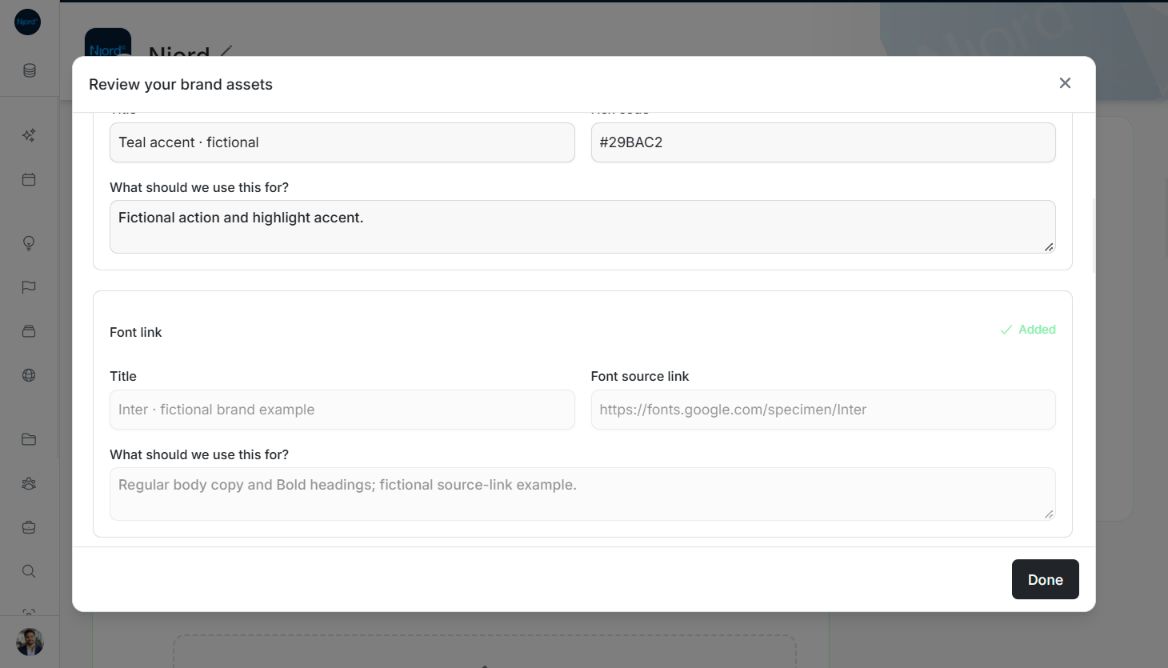
Image guide: The Font link card is marked Added after individual confirmation while a sibling Color still has editable fields. Fictional local example in the normal authenticated product, shown in light theme.
Review images and choose their destination
Open the image preview and check its framing, clarity and purpose. Choose Logo, Reference ad or Rainmaker as appropriate, edit the title and description, and identify a Rainmaker only when you know who the person is. Choose Confirm image to save that item.
Use Show more images to inspect additional suggestions. For vector or composed artwork, use Select area from page when available. Select the page area, adjust Left, Top, Width and Height if needed, add the area to the review grid, then inspect and confirm it. Adding an area to the grid does not save an asset. Page crops are PNG copies; retain the original vector logo separately when available.
Finish, retry or review a newer version
Close the review when the useful items are saved. Unconfirmed findings are discarded, while confirmed items remain. A failed item can be corrected and retried without adding its already-saved siblings again.
If extraction misses something, add it manually in the relevant Brand step. After replacing the source document, use its sparkle action again to review the latest version. Uploading offers an optional continuation; extraction starts only after you choose Continue in the instructions dialog. Adding a replacement version does not start extraction by itself.
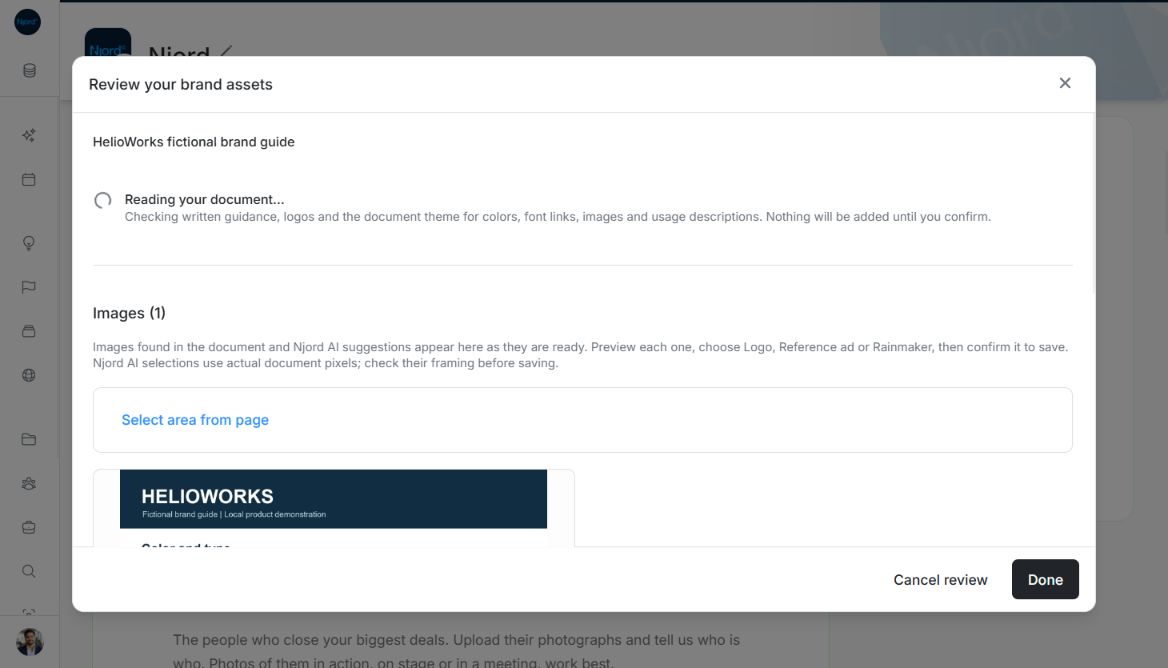
Image guide: Redo extraction reads the latest source and shows local Images (1) while the fictional structured review is pending; Cancel review is available. Fictional local example in the normal authenticated product, shown in light theme.
Select a page area for vector or scanned artwork
For a supported image or a PDF with composed artwork, choose Select area from page, enter a page number, then Show page. Drag over the page image, or adjust Left (%), Top (%), Width (%), and Height (%). Choose Add area to image review, inspect the resulting PNG, choose its Brand section and confirm it separately. Selecting an area alone does not save an Asset. The crop is a PNG even if the original logo was vector artwork; keep the original vector file when you have it.
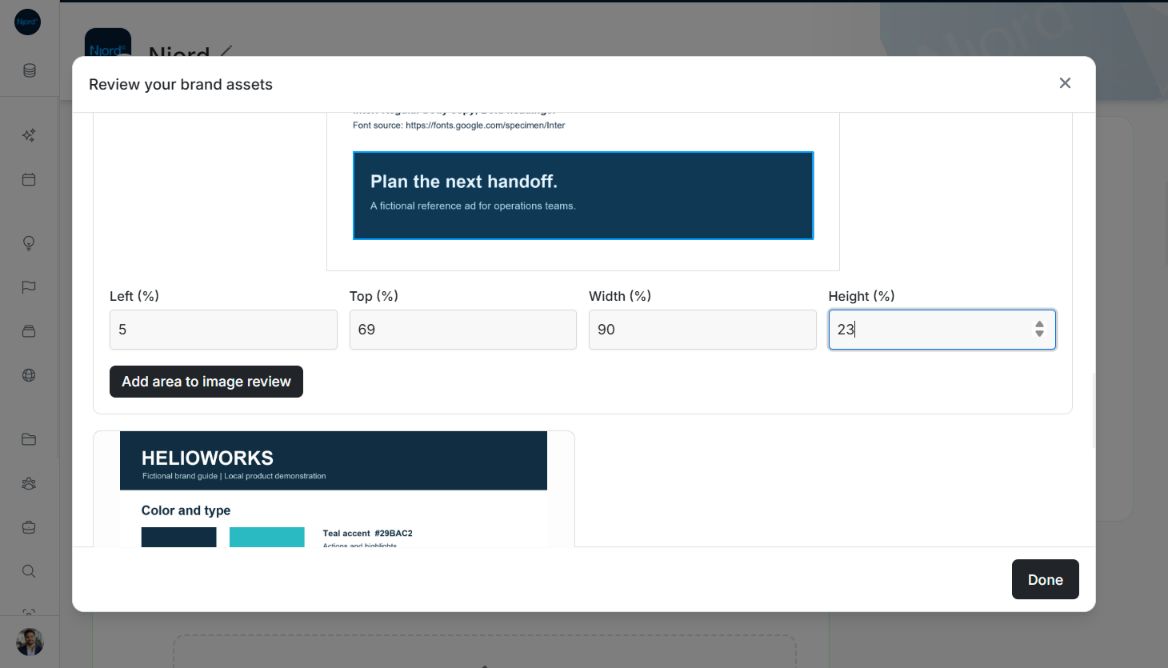
Image guide: Select area from page shows the source pixels and editable Left, Top, Width and Height percentages before Add area to image review. Fictional local example in the normal authenticated product, shown in light theme.
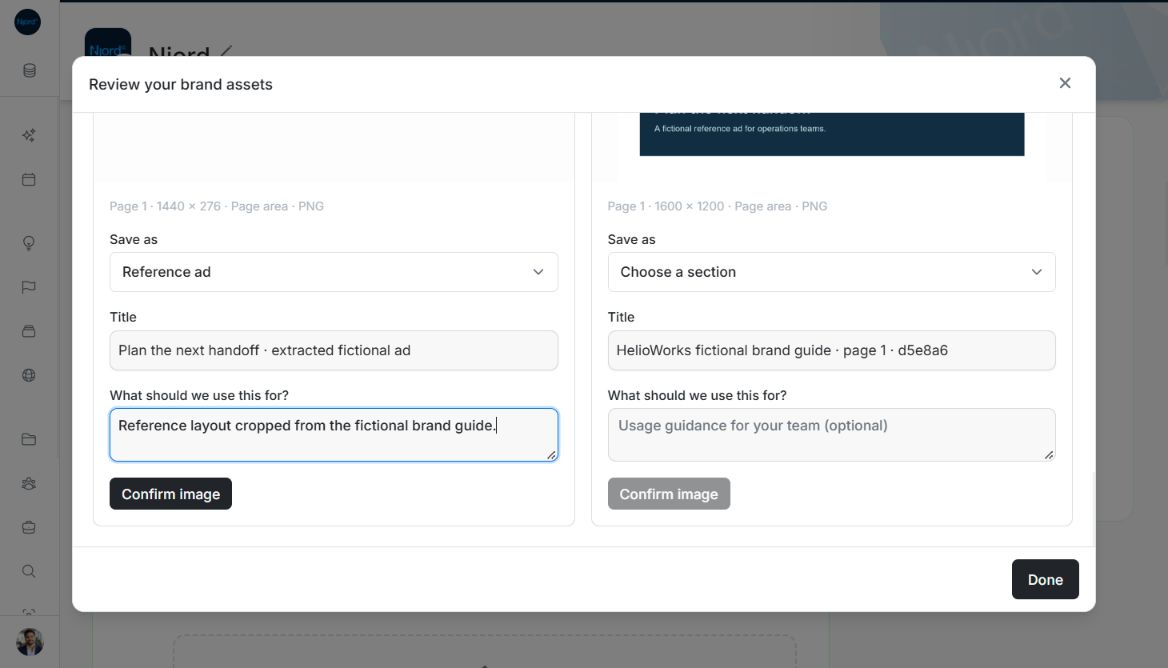
Image guide: The selected page area becomes a 1440 × 276 PNG review card. Choose Reference ad, edit its title and usage, then Confirm image to save it. Fictional local example in the normal authenticated product, shown in light theme.
Keep local image results when AI review fails
An AI review failure can leave useful locally extracted images available. Review those images and any already saved approvals before choosing Retry API review. A large supported document can remain stored even when it needs a smaller copy for AI review. A password-protected PDF needs an unlocked copy. Unsupported file formats remain saved but do not offer an active extraction action.
Cancelling, closing or switching workspace stops the current review and ignores late results. No derived assets are saved simply by opening a review or choosing an image area. Pending confirmation prevents dismissal and repeat submission; after a failed confirmation, correct or retry that item while keeping saved siblings.
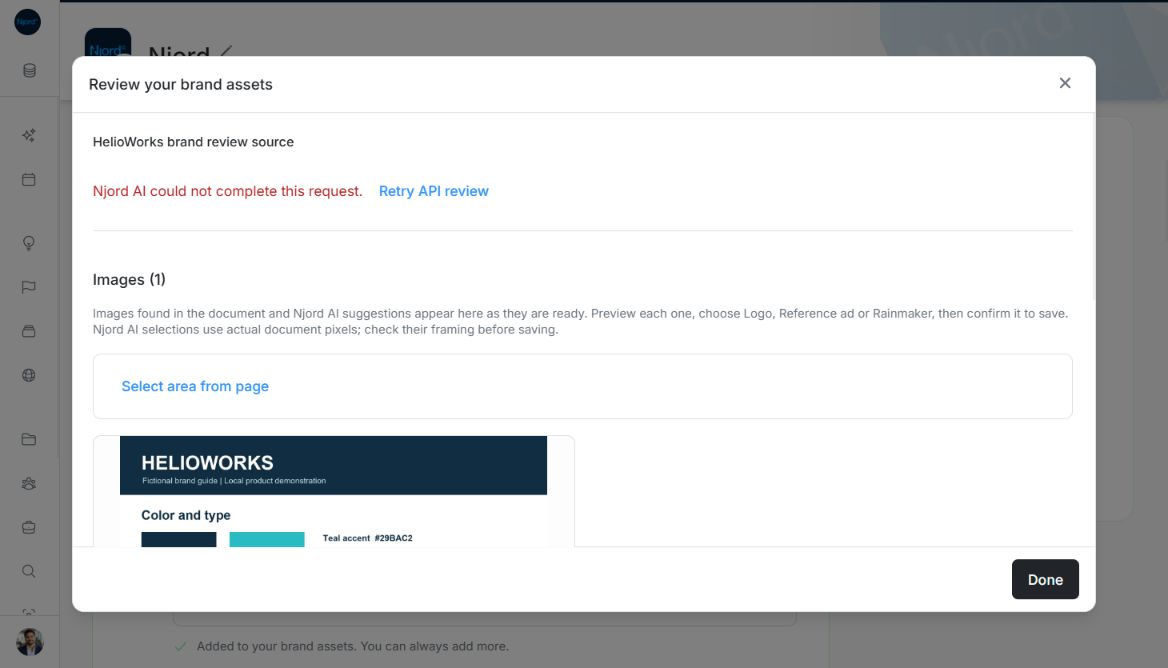
Image guide: When the fictional API review fails, Retry API review appears while Images (1) retains the locally extracted source pixels. Fictional local example in the normal authenticated product, shown in light theme.
Continue extraction deliberately
After uploading a new Brand document, explicitly continue into review or use Redo extraction. Add focus instructions when you want particular assets checked. Local image extraction can remain available when the file is too large for the selected AI review path; retry API review without discarding accepted or locally extracted work.
Review proposed colors, images and font source links individually. Estimated visual colors are different from exact supplied codes. A missing font URL must be supplied or left absent rather than invented. Use the original-file or crop workflow when an extracted image needs adjustment; generation/review does not automatically create all suggested assets.