Brand file versioning
Brand file versioning
Replace a Brand file when the approved material changes. Keeping the replacement on the same item prevents the team from choosing between duplicate logos or outdated brand guides.
Where to find it: Our company > Brand, then the information icon on a saved file. Admins and Client admins can edit; other members can view the files and available history.
Update an existing Brand file
- Open the owning Brand step: Brand document, Rainmakers, Logotype, Typefaces or Reference ads.
- Reveal the saved item's actions and choose View details, the information icon.
- Check its title and description. Save any required changes first; an uploaded Font needs a saved usage description.
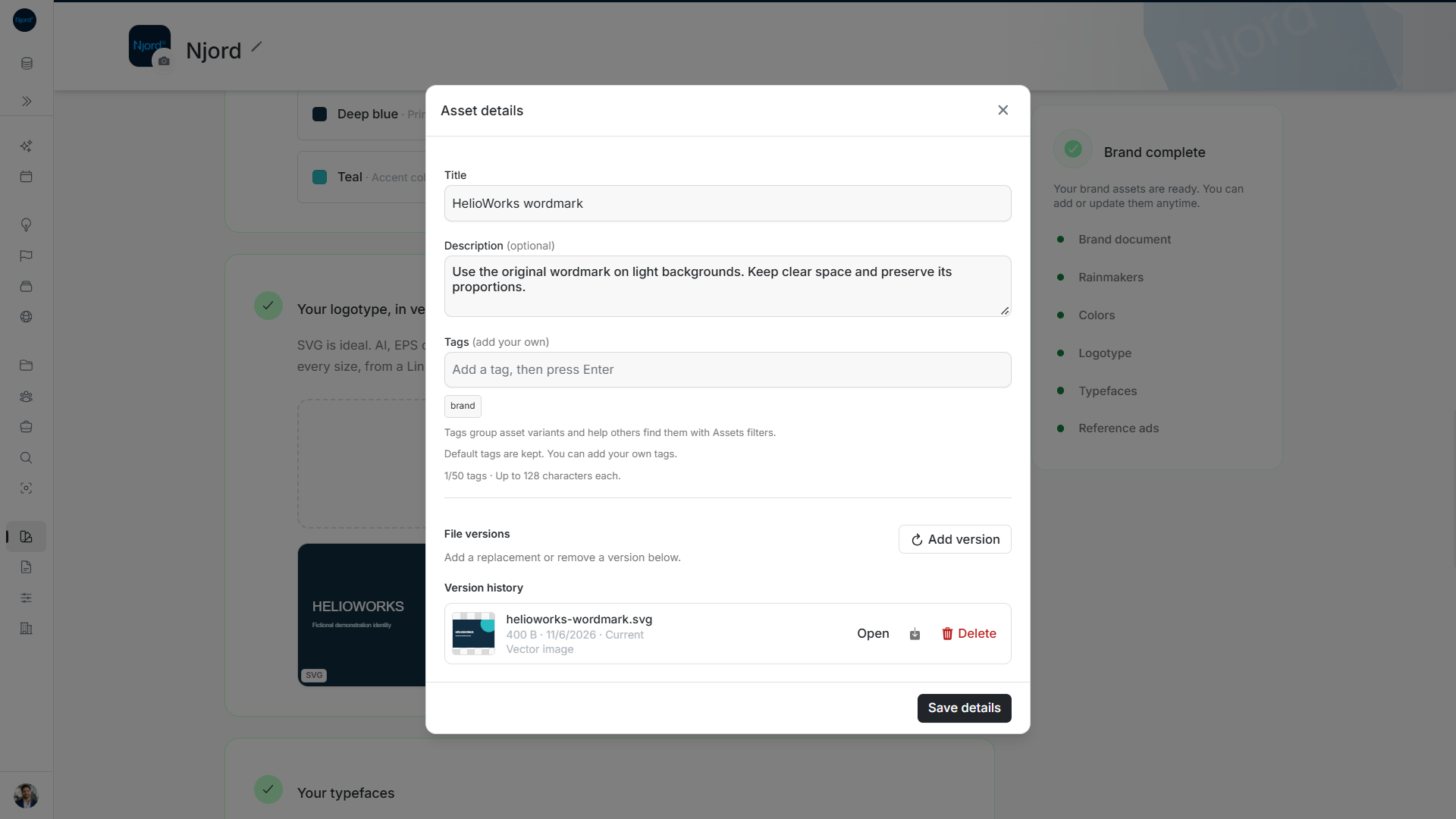
- Scroll to File versions, choose Add version, and select one or more replacements. A single file opens review. Several files first ask How should we save these files?; choose Versions of “the asset title” to update this existing item.
- Check the preview, version count and Upload order. Saved details and tags are kept. Choose Upload files to save; choosing files alone does not upload them.
- Wait for saving to finish, then reopen the item and check its new Current file.
For example, keep Northstar's master logo on one Logotype item while its artwork changes. The latest file appears in ordinary previews, and earlier files remain available in history even if they share the same filename.
Start with several versions
The Brand upload area accepts several files too. Choose One asset with versions when they are revisions of the same item, or Separate assets for different photographs, font weights or documents. One group has one title, usage description, tag set and current preview. Files must share an Asset type to be grouped.
Check the displayed Upload order: the largest measured image in an image group moves last and becomes current. Equal largest sizes prefer the last selected image. SVG has no fixed raster resolution. Groups with no measurable image size, mixed image/document groups and non-image groups keep selection order. Filenames and version numbers in names do not decide the current file.
Choose Add asset to save the reviewed new group. This creates a new Brand item; it does not locate an existing item by filename. For an existing logo or guide, use its Add version control instead. Brand and Context Assets show the same saved item.
Find an earlier file
Use Open or download on the required row in Version history. These controls use the historical version you select. Looking at an old file does not promote it to current; download it and add it as a new version if it needs to become current again.
Brand and Context Assets show the same underlying items. Updating a Brand file updates its current file in Context too; there is no second copy to maintain.
Image guide: Logo details keep usage notes and the original file, with Add version and version history.
Change a color or font link
Colors and font source links contain details rather than uploaded file history. Open View details, update the hex value or source link and its required usage description, then choose Save details. They do not have Add version or downloadable file versions.
Remove outdated material
Use Delete in history to remove one file version. Removing the current version promotes the newest remaining one. Removing the final version removes the asset and may make that Brand step incomplete.
To remove the entire Brand item, use its Delete action on Brand and review the confirmation. Context directs you back to Brand for whole-item removal. Deletion is permanent; download anything you need to retain first.
If a file fails, the review footer stops at that file and shows how many are already saved. Choose Retry remaining files to continue without repeating saved versions. Cancel closes a failed review but leaves saved versions in history. Do not create a duplicate Brand item merely to retry a replacement.
Cancel and restart safely
- Before saving, choose Cancel to discard the staged review. Cancelling the native file picker alone returns you to the existing review.
- To start a new item, close that review and use Add asset, or the intended Brand upload area, again. To update an existing item, reopen that named item's details and choose Add version.
- Check the destination before submitting. A new item has editable title and usage fields. A replacement review explicitly says Add a version to [asset name] or Add N versions to [asset name] and keeps its saved details and tags.
- Check the grouping choice, preview, file count and order again after Add more files. Choosing files does not save them.
- After a partial failure, read the interruption message and check which items or versions have already saved. Retry remaining files continues unfinished work. Cancelling at that point leaves already saved files in the library; check history before starting another batch.
If the review names an unintended existing item, cancel without uploading and reopen the intended workflow. Confirm the workspace as well as the item name.