Profile, settings and theme
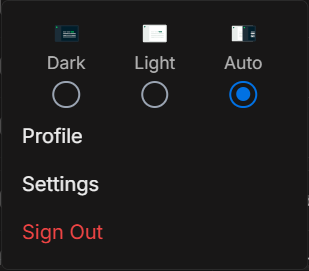
Profile, settings and theme
Use the profile menu to change your visual theme, open your profile, open settings where your role allows it, or sign out.
Image guide: the profile menu includes theme choices, Profile, Settings, and Sign Out. Theme changes are personal preference controls for your DOE session.
Open The Profile Menu
- Open DOE.
- Select your avatar in the sidebar or account area.
- Choose the action you need.
Choose A Theme
| Theme | What it does |
|---|---|
| Dark | Keeps DOE in the dark interface. |
| Light | Keeps DOE in the light interface. |
| Auto | Follows the device or browser appearance setting when supported by DOE. |
Theme choice affects how DOE looks for you. It does not change workspace data, member access, reports, targeting, or CRM connections.
Edit Profile Details
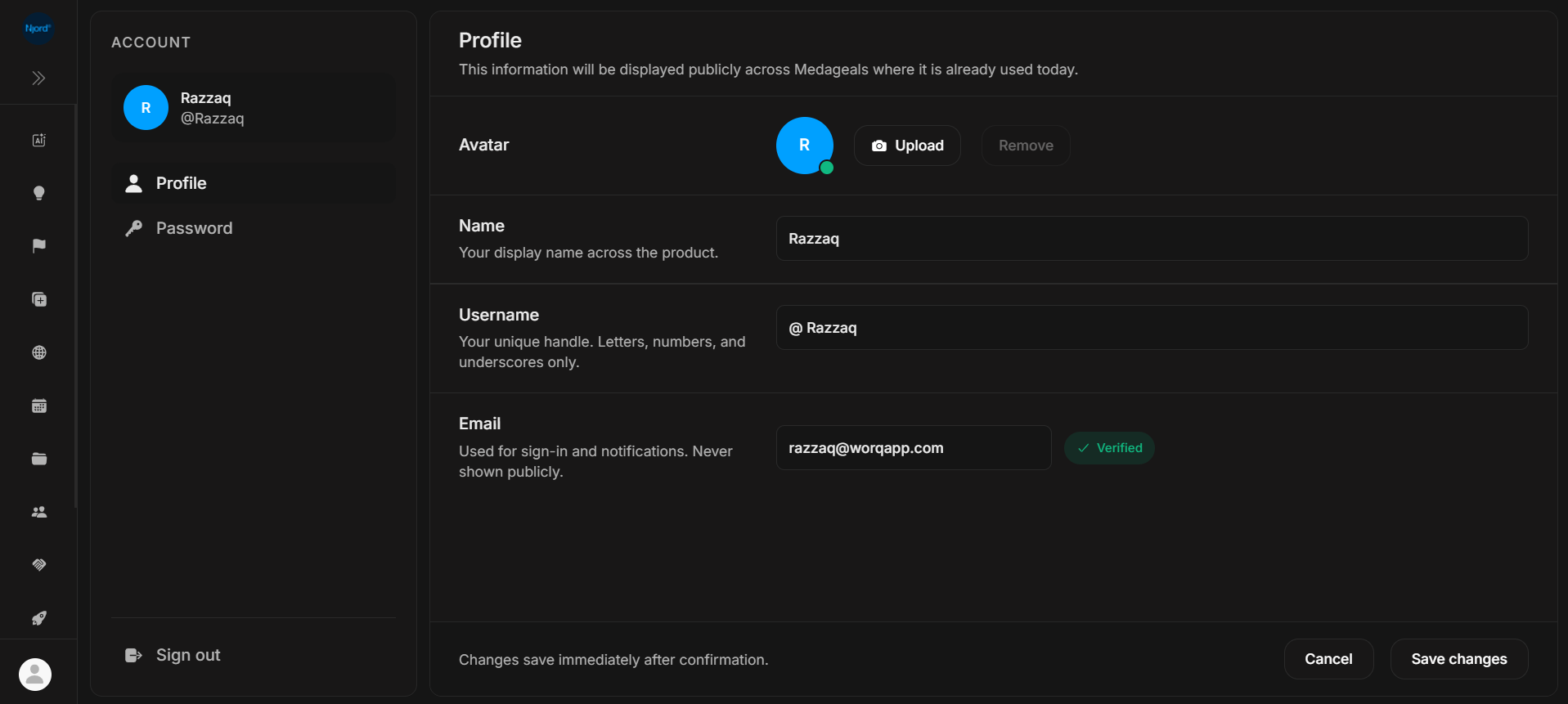
Open Profile when you need to review or update your own account details.
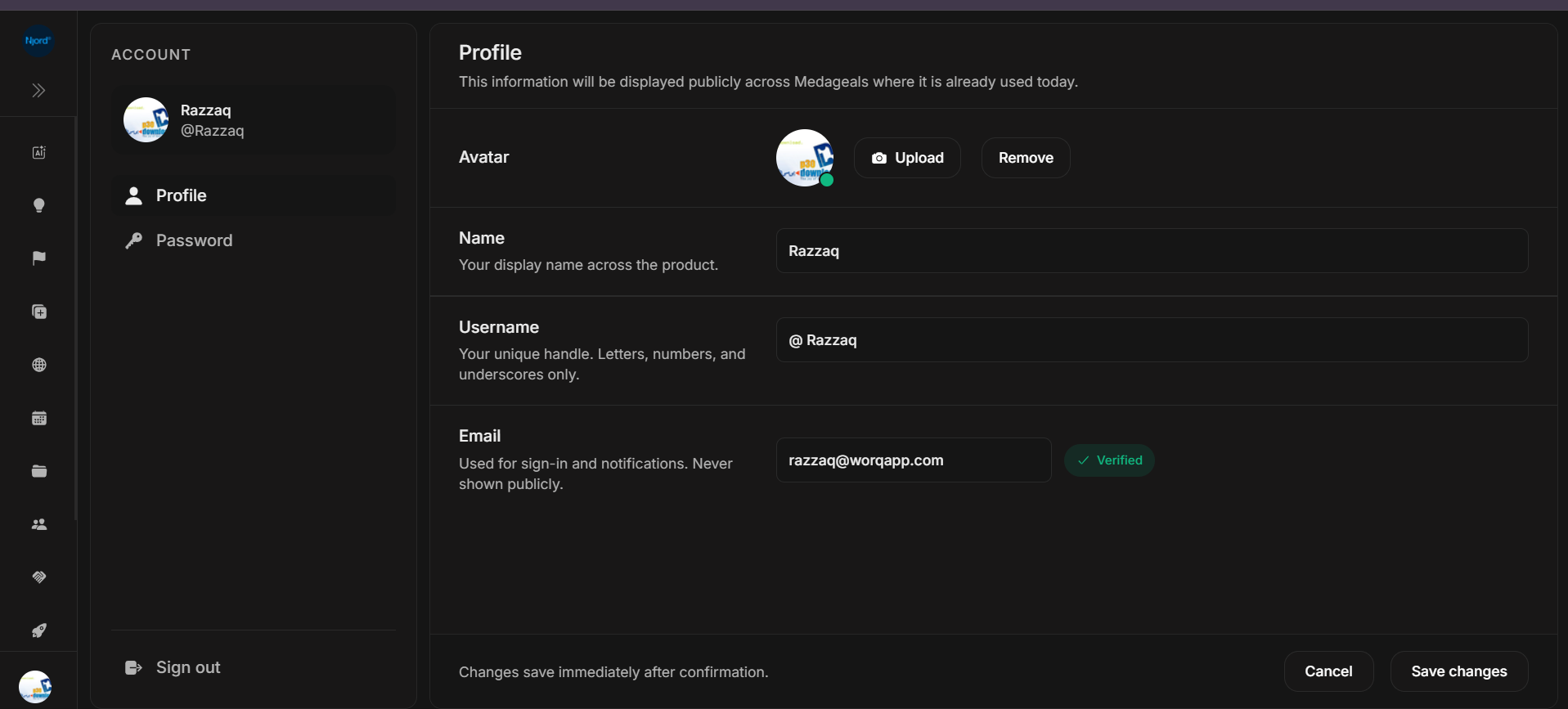
The Profile page can show:
- Avatar, with Upload and Remove actions.
- Name, used as your display name across DOE.
- Username, shown as your unique handle.
- Email, used for sign-in and notifications.
- Verified email status.
- Cancel and Save changes actions.
Profile changes apply after confirmation. If a saved name or avatar does not appear everywhere immediately, refresh DOE and check again.
Change Password
Open Password from the account settings sidebar when your DOE account uses email and password sign-in.
Password change uses a verification code sent to your account email. The code expires after 10 minutes, so use the newest code if you request more than one.
New passwords must satisfy the visible requirements:
- At least 8 characters long.
- Include at least one lowercase letter.
- Include at least one uppercase letter.
- Include at least one digit.
- Include at least one special character.
- Passwords must match.
After updating the password, other active sessions may be signed out.
Open Settings
Choose Settings when you need workspace administration options such as members, integrations, or API tokens. What you see in Settings depends on your role and workspace permissions.
Choose Workspace Data Or My Data
Some pages can switch between Workspace, My data, and a named owner. Use Workspace for team-wide review, My data for your own assigned work, and a named owner for one teammate's scope. This changes visible rows, counts, and charts where the page supports scoped data.
Sign Out
Choose Sign Out when you are done using DOE, especially on a shared device. Wait for the sign-in page to appear before closing the browser tab.