Switch between your data and the team's data
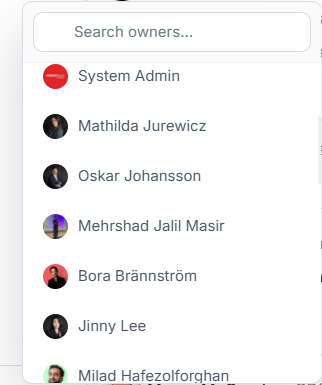
Switch between your data and the team's data
Use the data menu in the sidebar to view your assigned work, the wider workspace or a selected teammate's records on pages that support this control.
This menu changes which records a page includes. It does not move records or change their owners.
Image guide: the checkmark shows the selected view. Choose Workspace for the team view available to your account.
Choose a view
| Option | What you will see |
|---|---|
| Workspace | Records across the workspace that your account can access. |
| My data | Records connected to your ownership or assigned work. |
| A teammate's name | Records connected to that owner, where available. |
- Open the Workspace data or My data menu in the sidebar.
- Choose the view you need.
- If the owner list is long, use Search owners... to find a teammate.
- Check the selected label before reviewing the page.
The owner search only searches the options in this menu. To find a company or person, use search on the relevant page.
Why a list or count changes
My data can show fewer records than Workspace because the team view includes work assigned to other people. A teammate's view can differ for the same reason.
The pages that support this control still apply their own search, dates and filters. Your permissions also continue to apply in the Workspace view.
Compare numbers with a teammate
Match the workspace, selected data view, date range and page filters. Also confirm you are comparing the same page and metric.
For example, describe a result as "Workspace account visits for this month" so the other person can open the same view.
For Insights-specific comparisons, see compare personal and team Insights. For report timing differences, see report data freshness.
If the expected data or owner is missing
Clear the owner search and check the full list. Confirm you are in the correct workspace, then return to Workspace and clear any page filters.
If you still cannot see a teammate or expected records, ask your workspace admin to check membership and permissions. See workspace access problems.