My profile and password
My profile and password
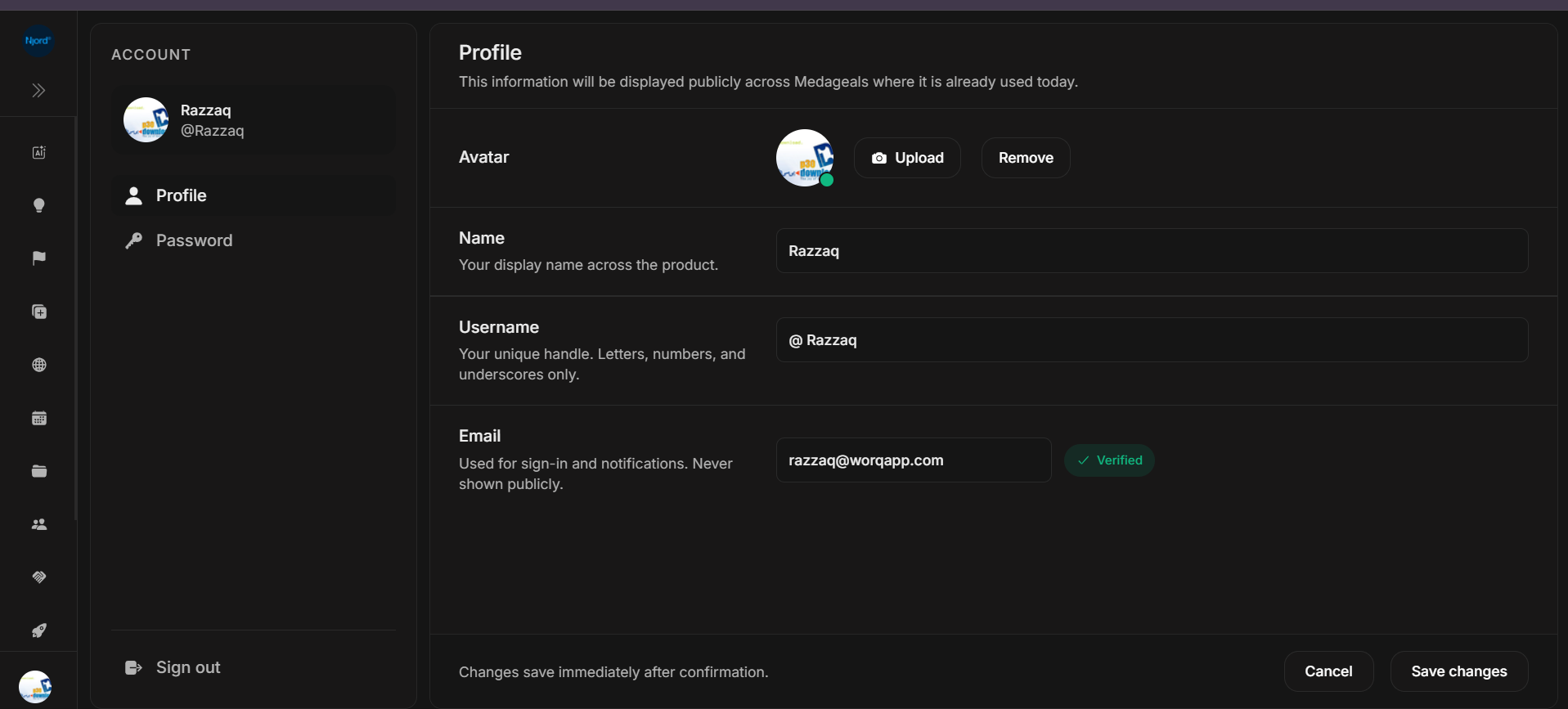
Use My Profile to update your visible profile details, view your account email
and change your DOE password.
Open My Profile
- Open DOE.
- Open the profile/avatar menu or side panel.
- Choose Profile.
You can also sign out from the same account area.
Profile Details
Your profile can show:
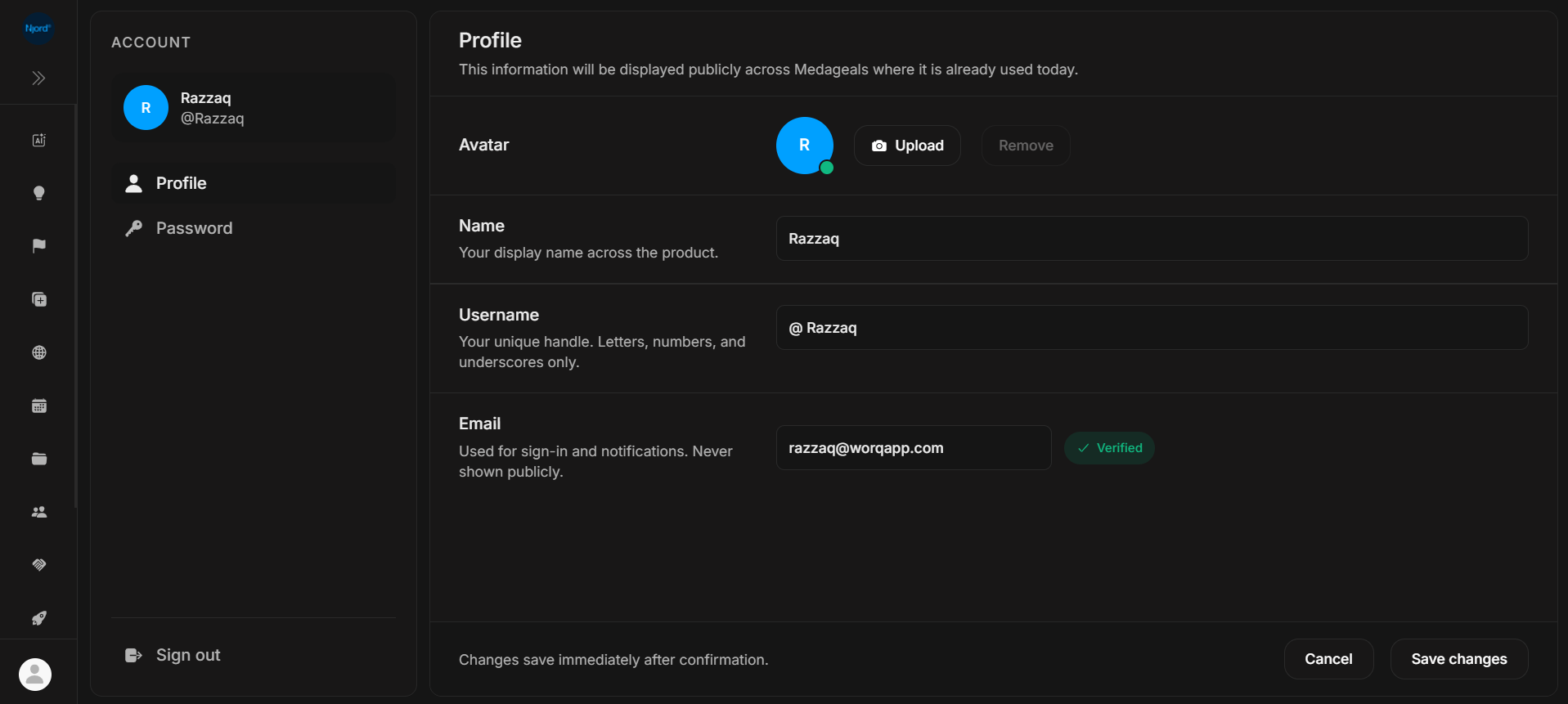
- profile photo with upload and remove actions,
- name,
- username,
- verified account email,
- save and cancel actions.
Your name and photo help teammates recognize you. Username and email may be read-only after setup because they are tied to your verified account and workspace access.
Change Your DOE Password
Use this only if your account signs in with email and a DOE password.
- Open the profile/avatar menu or side panel.
- Choose Profile.
- Choose the password section.
- Request a code.
- Open the newest code sent to your account email.
- Enter the code in DOE.
- Enter and confirm the new password.
- Save the change.
The profile password code expires after a short time. If it expires, request a new code and use the newest email.
Your new password must be at least 8 characters and include an uppercase letter, a lowercase letter, a number and a symbol.
What The Password Change Does
Changing your DOE password updates only your DOE email/password sign-in. It does not change Google or company SSO passwords.
After a password change, other signed-in browser sessions may need to sign in again.
If A Detail Is Wrong
| Detail | What to do |
|---|---|
| Name or photo | Update it from My Profile. |
| Username | Ask your DOE admin or support if it needs to change. |
| Ask your DOE admin before creating another account. | |
| Google or SSO password | Change it with Google or your company identity system. |