Inline and bulk updates
Inline and bulk updates
Accounts can be updated directly from the table or in bulk after selecting multiple rows. Use inline updates for one account. Use Bulk Update when the same field value should apply to every selected account.
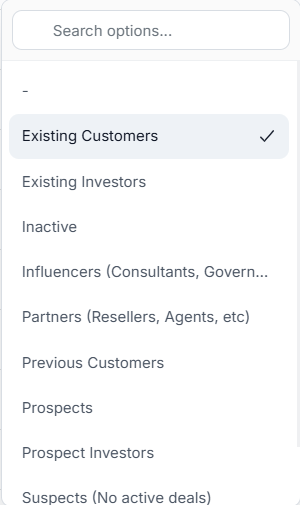
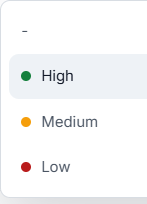
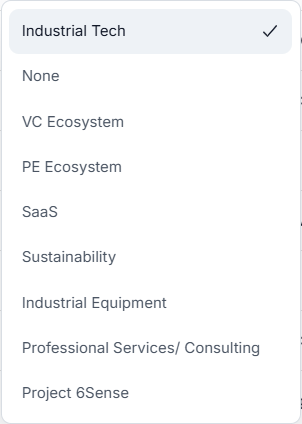
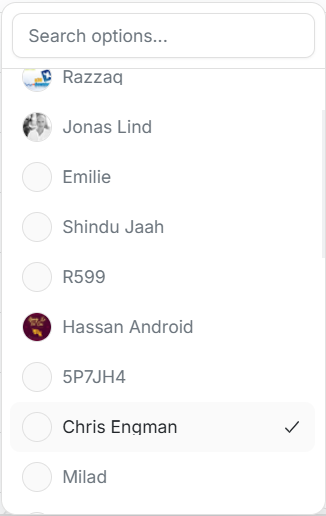
Image guide: editable table cells use dropdown pills or searchable lists. The four examples show Owners, Status, RMF, and Market Segment. The checkmark marks the current value. Owner options can show avatars, RMF values use colored dots, and account status or market-segment choices use fixed labels.
Inline Editable Fields
Common inline fields include:
| Field | Typical control |
|---|---|
| Owners | Searchable multi-select with user names and avatars. |
| Status | Dropdown with account lifecycle states. |
| RMF | Dropdown with High, Medium, Low, or blank when applicable. |
| Program | Editable text or suggestions. |
| Market Segment | Dropdown with segment options. |
| Industry | Editable text or suggestions. |
RMF may be hidden or disabled for account states where Reference Market Fit is not applicable.
Listing Visibility And Targeting
Admins may see Listing Visibility with Active and Archived values. Archiving is not deletion, but it removes the account from active lists and reports. A single archive or unarchive asks for confirmation; the Bulk Update dialog is the confirmation step for several accounts.
Changing targeting can also update related fields:
- In Targeting = Yes sets a start date when none is provided, removes an old end date, and makes an archived account Active unless the same update explicitly keeps it Archived.
- In Targeting = No sets an end date when none is provided and turns off the account's targeting techniques.
- Archiving an account also moves it out of targeting and turns off its targeting techniques.
An explicit date you enter is kept. DOE prevents removing a required start or end date while the matching targeting status remains active.
Bulk Update
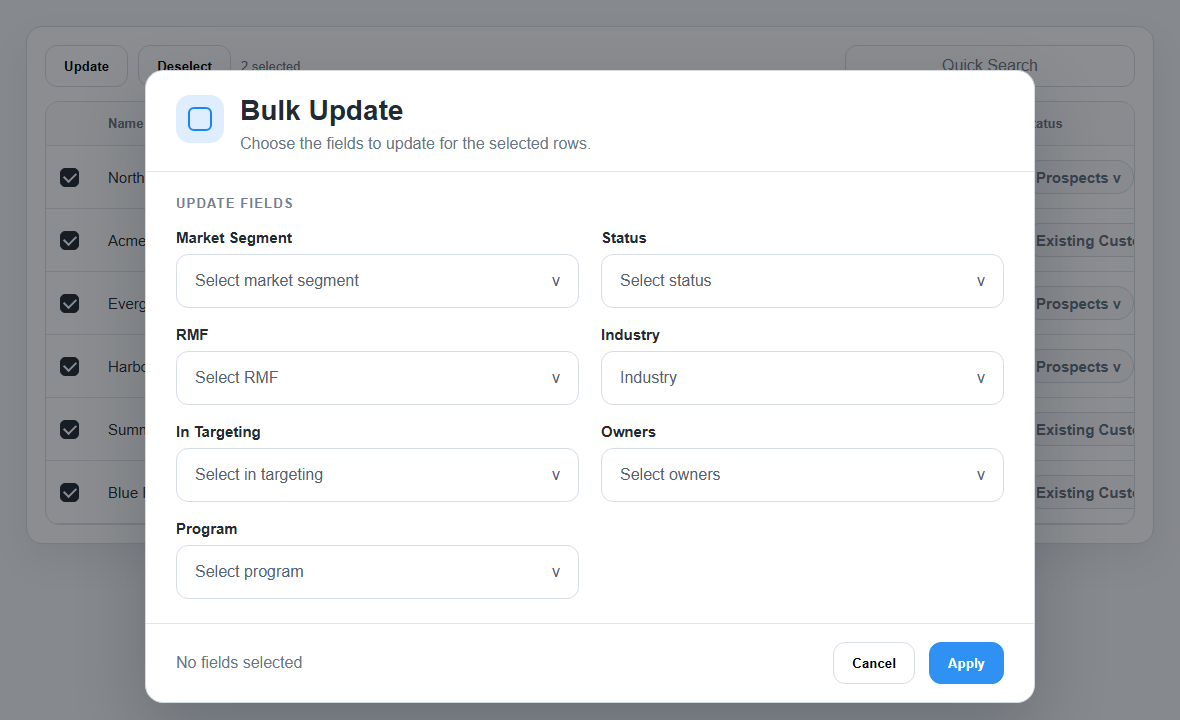
Image guide: after selecting rows, the toolbar changes to Update, Deselect, and the selected-row count. The Bulk Update dialog lets you choose which fields to change for all selected rows.
Bulk Update can include:
| Field | Use it for |
|---|---|
| Market Segment | Move selected accounts into the same segment. |
| Status | Change account lifecycle state for selected rows. |
| RMF | Set the same Reference Market Fit value. |
| Industry | Apply a shared industry value. |
| In Targeting | Include or exclude selected accounts from targeting when available. |
| Owners | Assign shared account ownership. |
| Program | Apply a shared commercial program. |
| Listing Visibility | Mark selected accounts Active or Archived when available to admins. |
Safe Bulk Update Order
- Filter or search until only the intended accounts are visible.
- Select the exact rows to update.
- Confirm the selected count.
- Open Update.
- Choose only the fields that should change.
- Leave unrelated fields blank.
- Apply the update.
- Open one updated account and check Activities if you need confirmation.
Deselect
Use Deselect when the selected-row set is wrong or the task changed. This returns the toolbar to its normal state without applying changes.
Common Mistakes
| Symptom | What to check |
|---|---|
| Apply is disabled | No update field is selected. |
| A field is not available | Permission, account state, or page may hide it. |
| Wrong accounts were selected | Clear selection and narrow with search or filters first. |
| A value changed unexpectedly | Review account Activities for the update history. |