Bulk actions
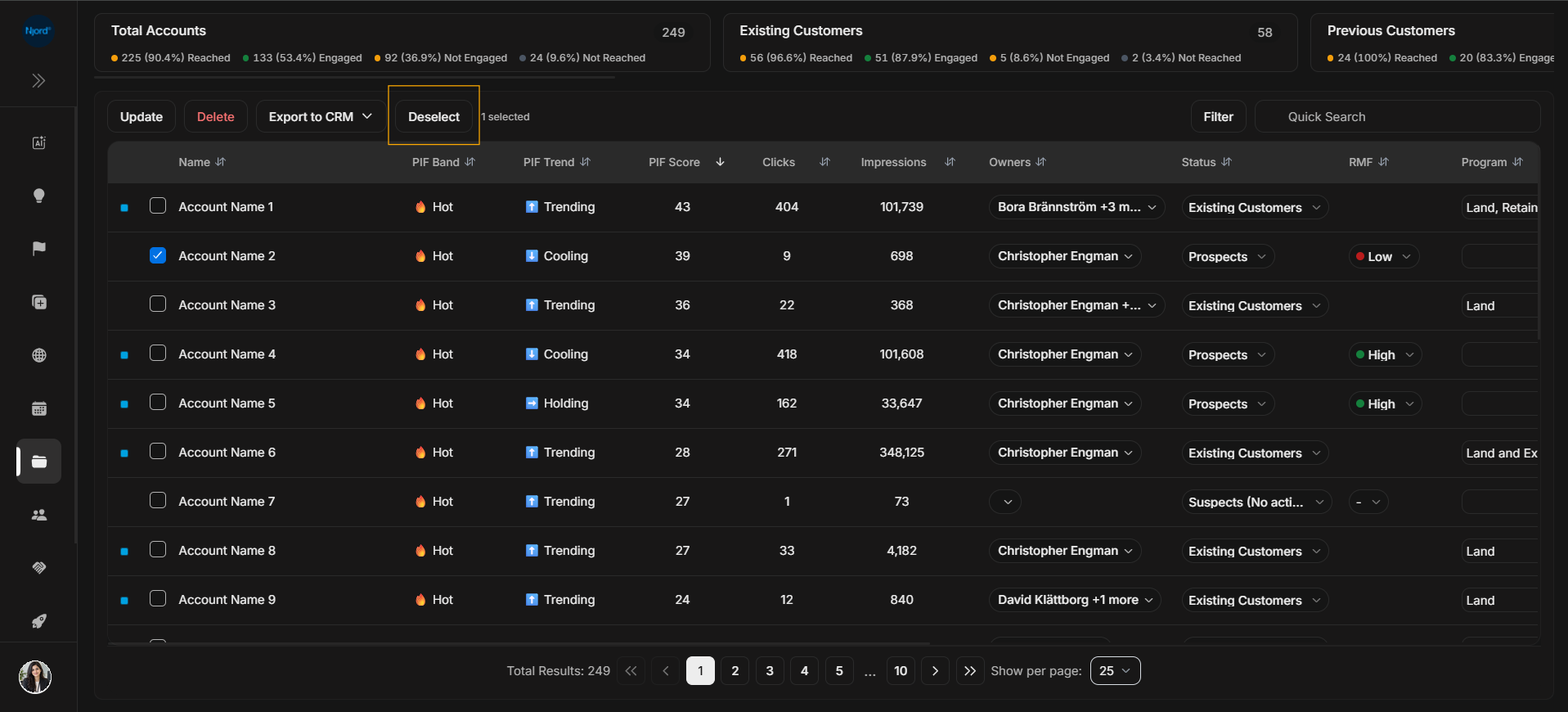
Bulk actions on accounts
Bulk actions after selecting accounts
Bulk actions appear only after one or more account rows are selected. Use them carefully because they apply to the selected account rows, not just the row currently in view.
Image guide: After selecting an account checkbox, DOE shows the bulk action toolbar above the table. The toolbar includes Update, Delete, Export to CRM, Deselect, and the selected-row count. Always confirm the selected count before using any bulk action.
Bulk Update action
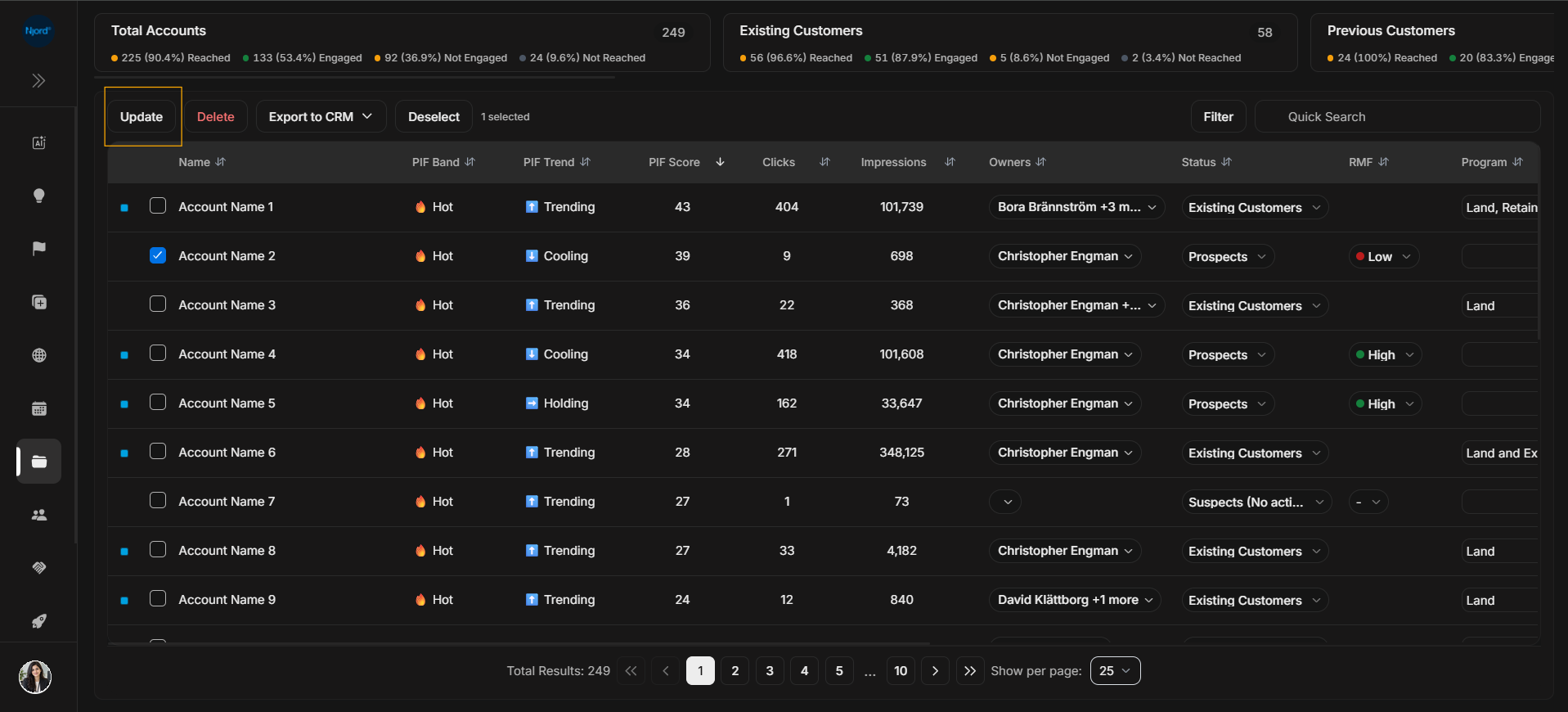
Image guide: The Update button starts a bulk edit for the selected account rows. Use it when the same field value needs to be applied to every selected account.
Bulk Update modal
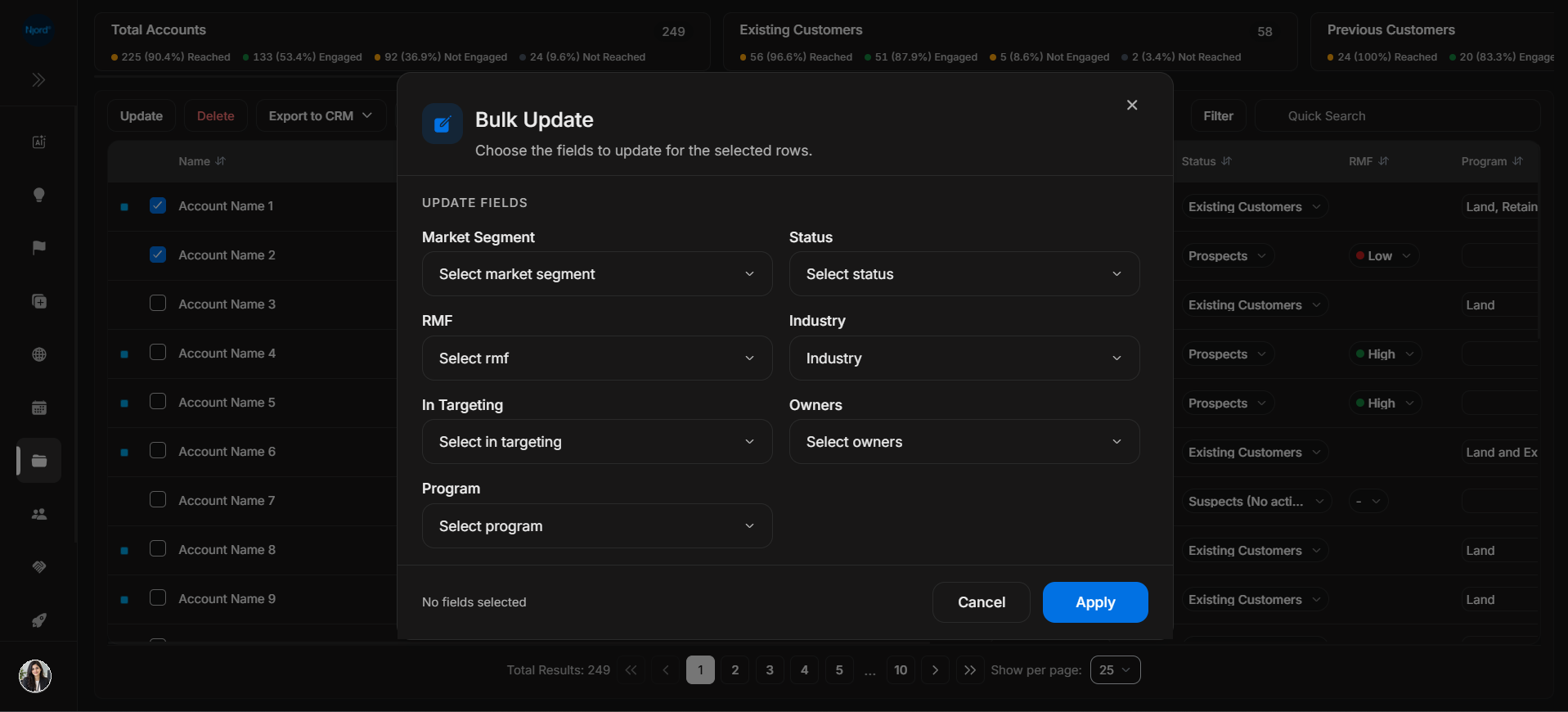
Image guide: The Bulk Update modal lets the user choose which fields to update, such as Market Segment, Status, RMF, Industry, In Targeting, Owners, or Program. Leave a field empty when it should not change. Use Apply only after checking that the selected accounts should all receive the same update.
Delete selected accounts
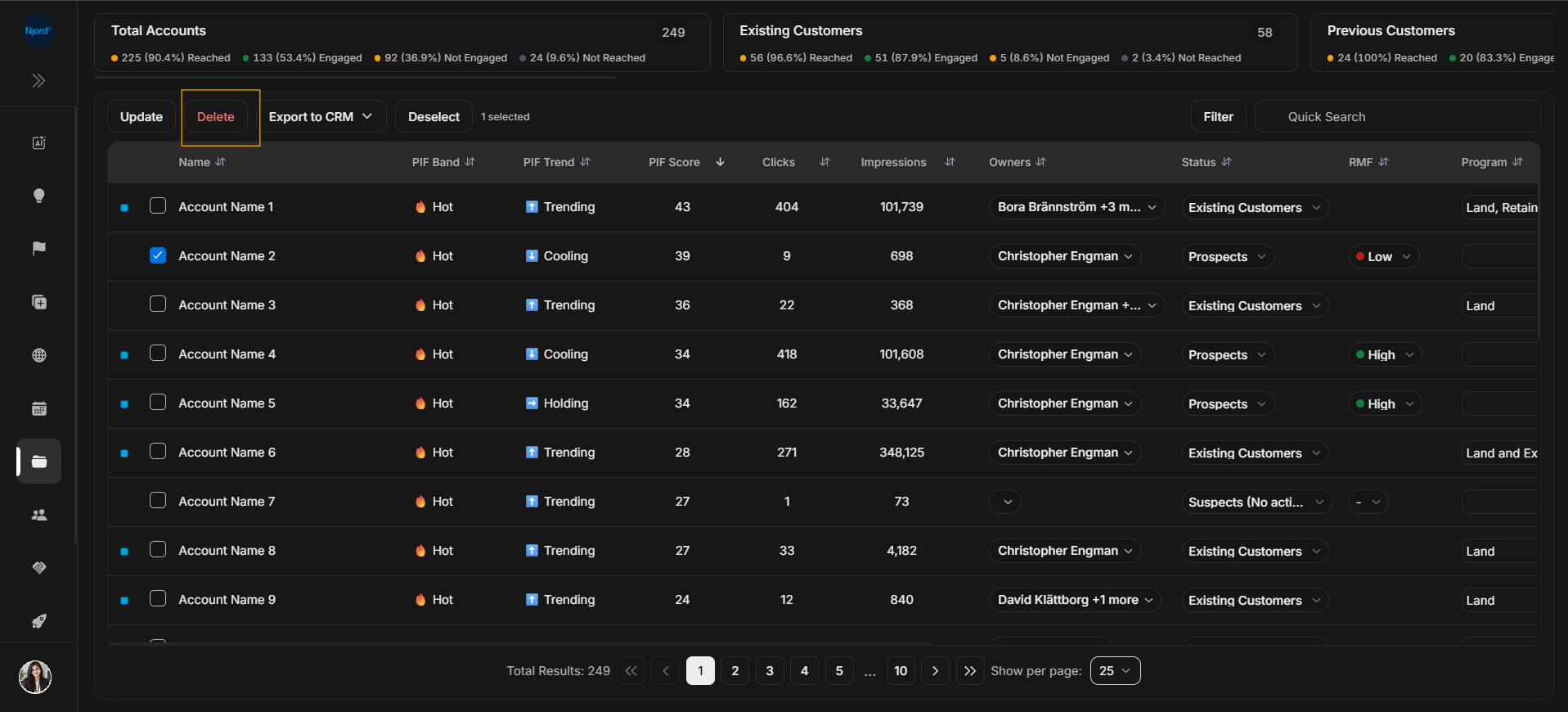
Image guide: The Delete action appears in the bulk toolbar after rows are selected. It is separated visually because deleting accounts is a high-risk action.
Delete confirmation modal
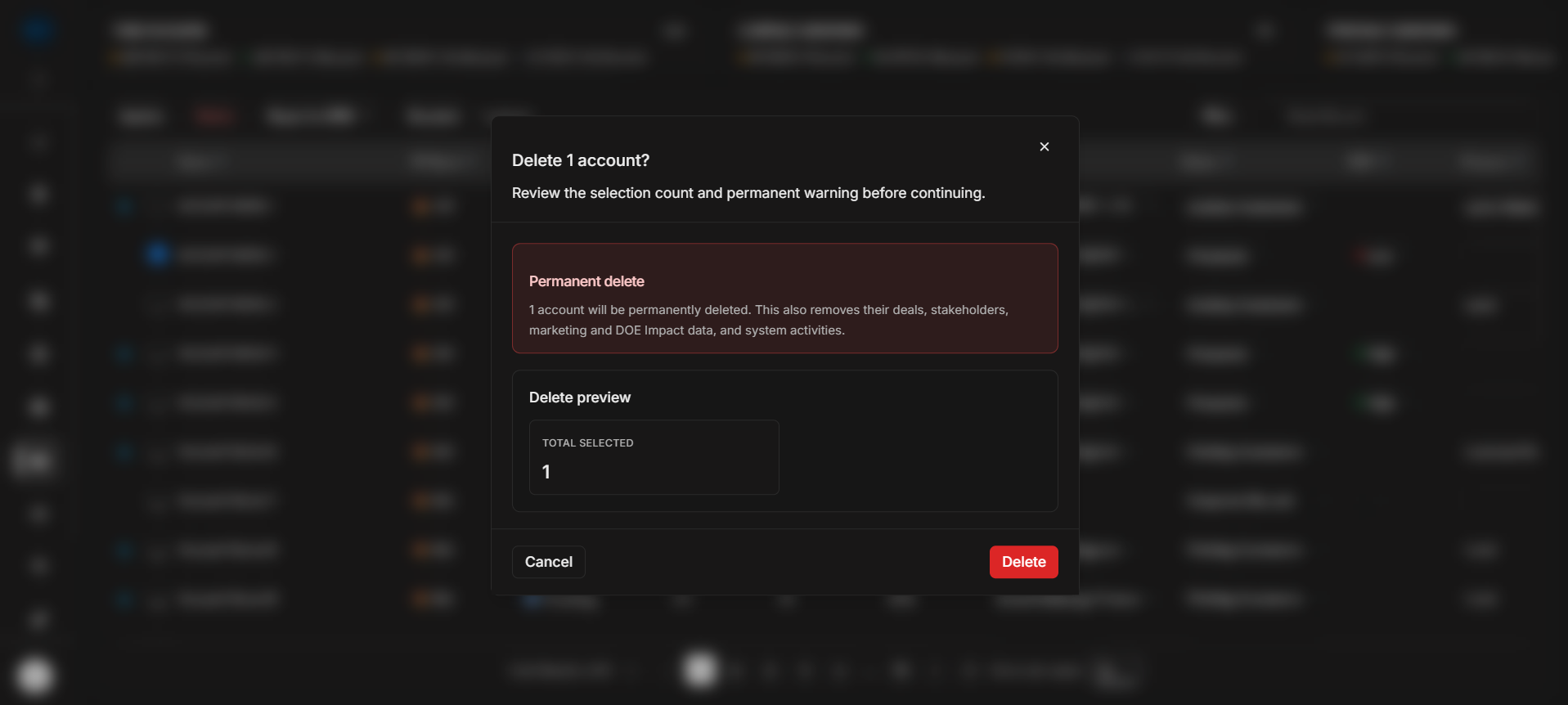
Image guide: The delete confirmation modal shows the number of selected accounts and warns that account deletion is permanent. Deleting an account also removes related deals, stakeholders, marketing and DOE impact data, and system activities. Use Cancel if the selection count or account choice is unclear.
Deselect selected accounts
Deselect clears the current row selection and returns the table to normal browsing mode. It works for a single selected account or for multiple selected accounts. Use it after finishing a selected-row task, or before changing search, filters, pagination, or another workflow so an old selection is not accidentally reused.
Bulk action checklist
- Select the correct account rows.
- Check the selected count in the toolbar.
- Choose Update only when every selected row should receive the same field changes.
- Choose Delete only after confirming the accounts can be permanently removed.
- Use Deselect before changing task, search, or filters.
When to use this page
Use this page after you understand the Accounts table columns and need to work on selected account rows. Bulk actions are for selected rows only; they are different from table dropdowns, filters, search, and pagination.