Import, filters, search and export

Import, filters, search and export
Use import when you need to bring CRM account records into DOE. Use search and filters when the Accounts table has more rows than you can scan. Use export when you need an offline spreadsheet copy of the current account data.
Image guide: the Accounts toolbar has Add, Import, and Export XLSX. Open Import to bring accounts from connected CRM providers. Admins working in Manage > Accounts may also see Import from file. A disabled CRM option with reconnect copy means the provider must be reconnected in Settings > Integrations before it can import.
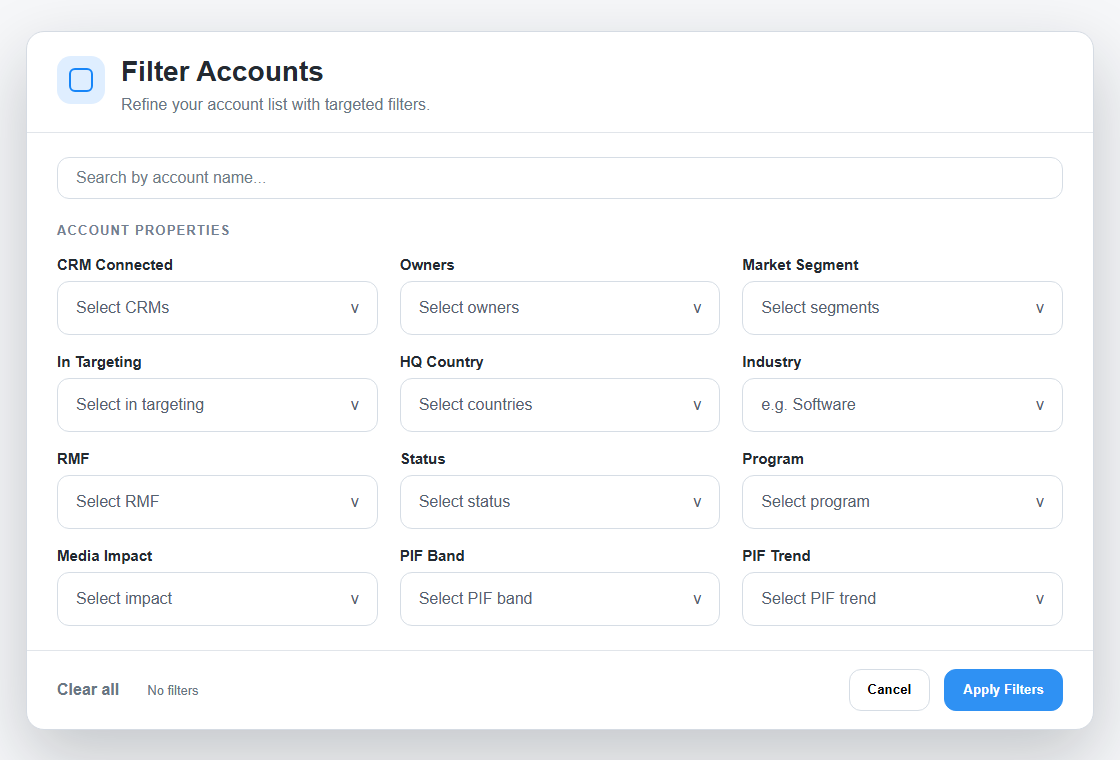
Image guide: Filter Accounts opens a dialog with account-name search and account property filters. The footer shows whether filters are selected and lets you clear or apply changes.
Import Accounts
The Accounts import menu can show:
| Option | Meaning |
|---|---|
| Import from file | Admin-only Manage Accounts upload for an Accounts workbook. |
| Import from HubSpot | Import account/company records from a connected HubSpot app. |
| Import from Salesforce (Reconnect in Settings -> Integrations) | Salesforce exists but must be reconnected before import works. |
After importing, use Quick Search or Filter to confirm the account appears, then review ownership, status, RMF, program, segment, and targeting fields.
For the full workflow, see Import Accounts.
Quick Search
Quick Search is best when you know the company name or part of it. It narrows the visible table without requiring you to choose account properties.
Use Quick Search before deeper filters when you are checking one account.
Filter Accounts
The Filter Accounts dialog can include these fields depending on your workspace, role, and page:
| Filter | Use it for |
|---|---|
| Account name | Find companies by name text. |
| CRM Connected | Include or exclude accounts with CRM mapping. |
| Owners | Find accounts owned by one or more users. |
| Market Segment | Focus on a segment such as SaaS, Industrial Tech, PE Ecosystem, or Professional Services. |
| In Targeting | Show accounts that are currently in or out of targeting. |
| HQ Country | Filter by headquarters country. |
| Industry | Filter or search by industry. |
| RMF | Filter by High, Medium, Low, or blank Reference Market Fit. |
| Status | Filter by account lifecycle state. |
| Program | Filter by commercial program. |
| Media Impact | Filter by media activity state. |
| PIF Band | Filter by Product Interest Fit band. |
| PIF Trend | Filter by Product Interest Fit trend. |
Dropdown Behavior
Many filters use searchable dropdowns. Owner lists can show avatars and names. Status, RMF, Market Segment, PIF Band, and PIF Trend use fixed option sets.
Examples:
| Dropdown | Common options |
|---|---|
| Status | Existing Customers, Inactive, Partners, Previous Customers, Prospects, Suspects. |
| RMF | High, Medium, Low, or blank. |
| Market Segment | None, VC Ecosystem, PE Ecosystem, SaaS, Sustainability, Industrial Tech, Professional Services. |
Apply Or Clear Filters
- Choose one or more filter values.
- Check the footer to confirm filters are selected.
- Select Apply Filters to update the table.
- Select Clear all when you want to return to an unfiltered list.
If an expected account disappears, clear search and filters first. Then confirm workspace, owner scope, status, and account visibility.
Export XLSX
Use Export XLSX when you need account data in a spreadsheet. DOE loads all rows that match the current search, filters, owner scope, and sorting—not only the current page. If any part fails, it does not create a partial file.
Exports can include business data from the workspace, so share the file only with people who should have access to that workspace.