Filter Timeline using event summary cards
Filter Timeline using event summary cards
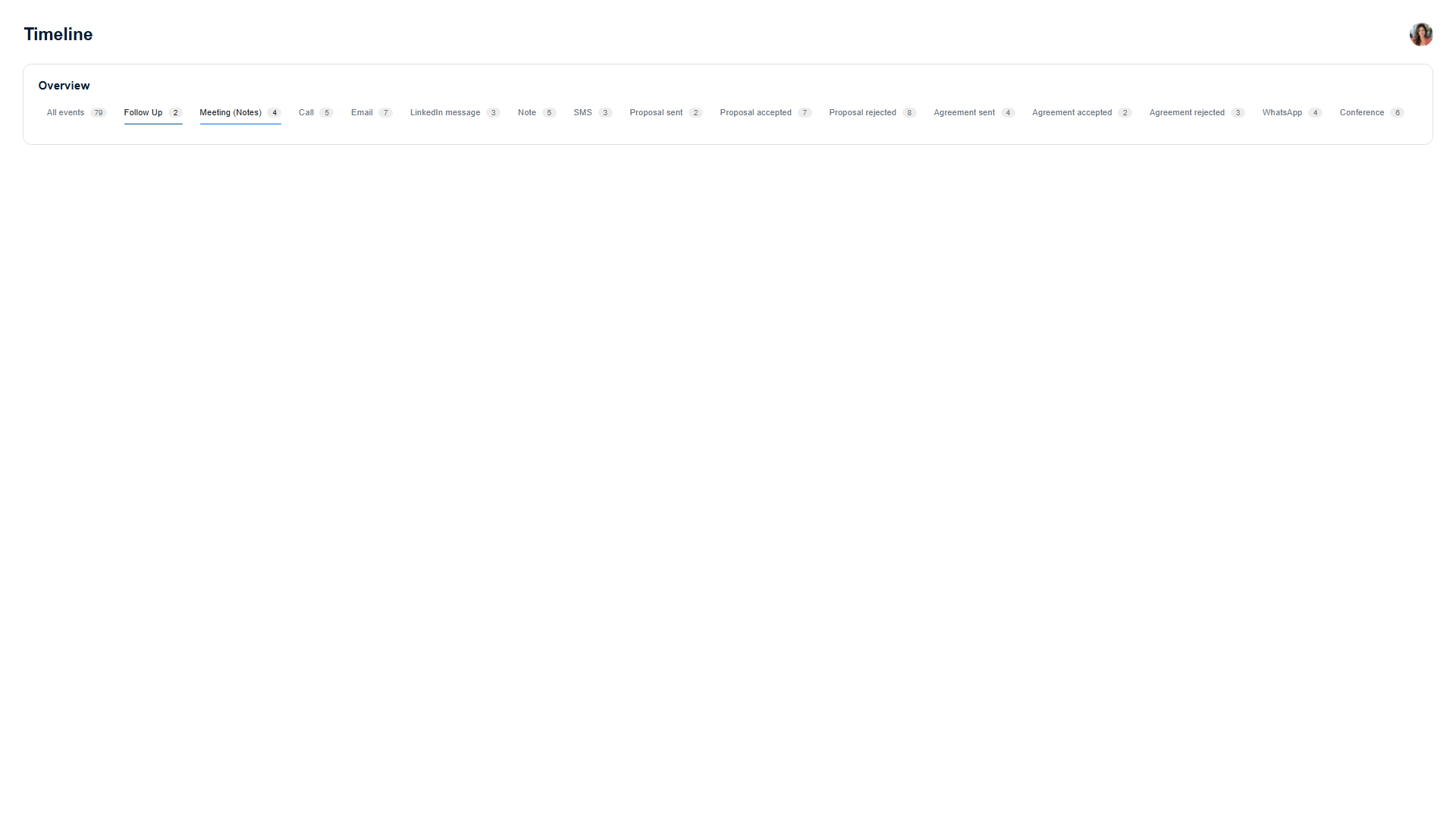
Open Timeline and find Overview. All events shows the total for the overview's scope. Other cards appear when the scope has at least one event of that type. Scroll across the cards if the strip continues past the visible area.
Read the cards
| Card | What it counts |
|---|---|
| Follow Up | Events logged for follow-up. |
| Meeting (Notes) | Meeting records, including meetings whose notes may still be processing. |
| Call | Calls logged as events. |
| Events logged under Email. | |
| LinkedIn message | Conversations logged as LinkedIn messages. |
| Note | Notes logged as standalone events. |
| SMS | Events logged as text messages. |
| Proposal sent | Events recording that a proposal was sent. |
| Proposal accepted | Events recording that a proposal was accepted. |
| Proposal rejected | Events recording that a proposal was rejected. |
| Agreement sent | Events recording that an agreement was sent. |
| Agreement accepted | Events recording that an agreement was accepted. |
| Agreement rejected | Events recording that an agreement was rejected. |
| Events logged as WhatsApp messages. | |
| Conference | Activities logged as conferences. |
| Event | Activities logged under the general Event type. |
| Postal email | Activities logged under the Postal email label. |
Find the records behind a count
- Confirm the date range, account, deal and people filters.
- Select Meeting (Notes) to show meetings. Select Follow Up too to include either event type. The underline shows the selection.
- Select a highlighted card again to remove that type. Choose All events to clear the type selection and keep the other filters.
- Open a matching event to check its participants, notes or saved details. Scroll through the feed when the first set of cards does not show the event you need.
The Overview counts can still describe the broader distribution when one or more event types are selected. If you need a different set of types while My meetings or Private Meetings is active, check the meeting scope in the filter bar.
Image guide: Meeting (Notes) and Follow Up are selected. The underlines show the types included in the filter.